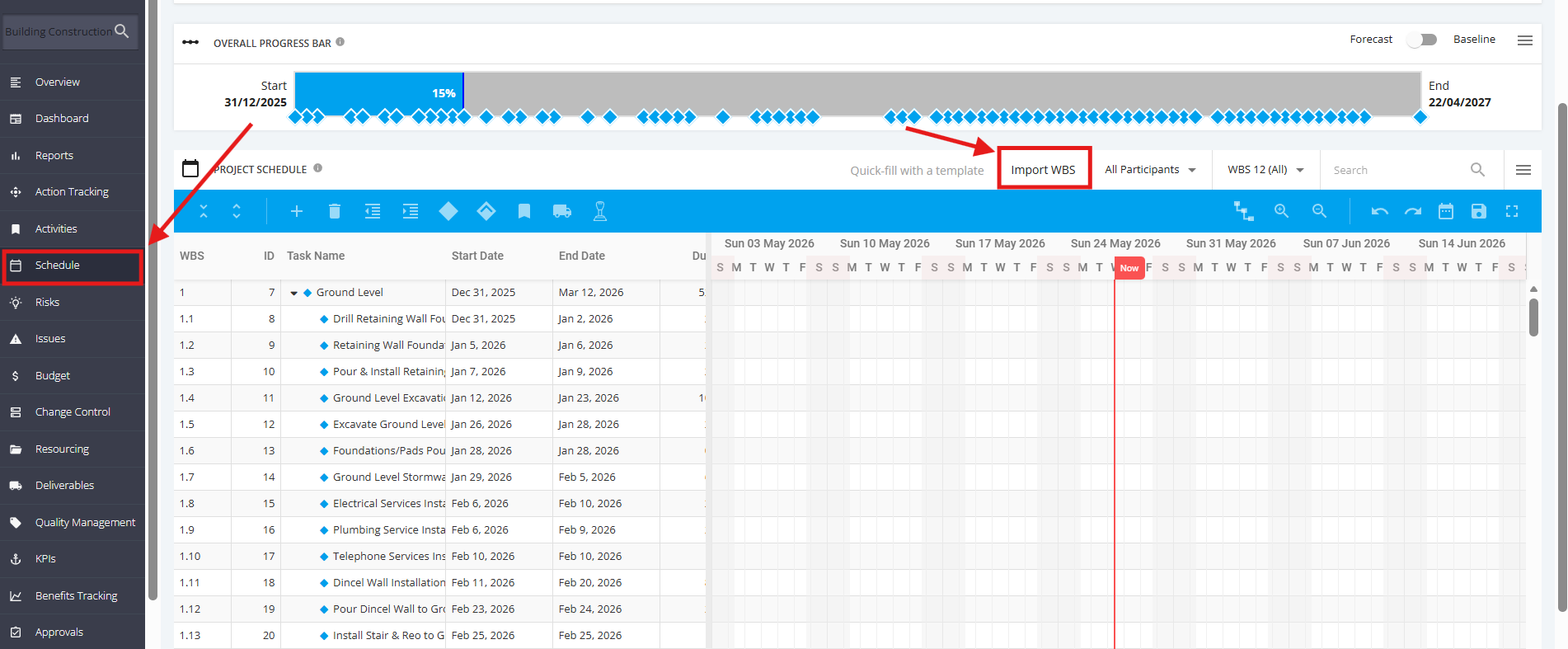
1. Import Project Schedule by Epic
An epic is a large body of work that can be broken down into a number of smaller stories, or sometimes called “Issues” in Jira. Epics often encompass multiple teams, on multiple projects, and can even be tracked on multiple boards.
Epics are almost always delivered over a set of sprints. As a team learns more about an epic through development and customer feedback, user stories will be added and removed as necessary. That’s the key with agile epics: Scope is flexible, based on customer feedback and team cadence.
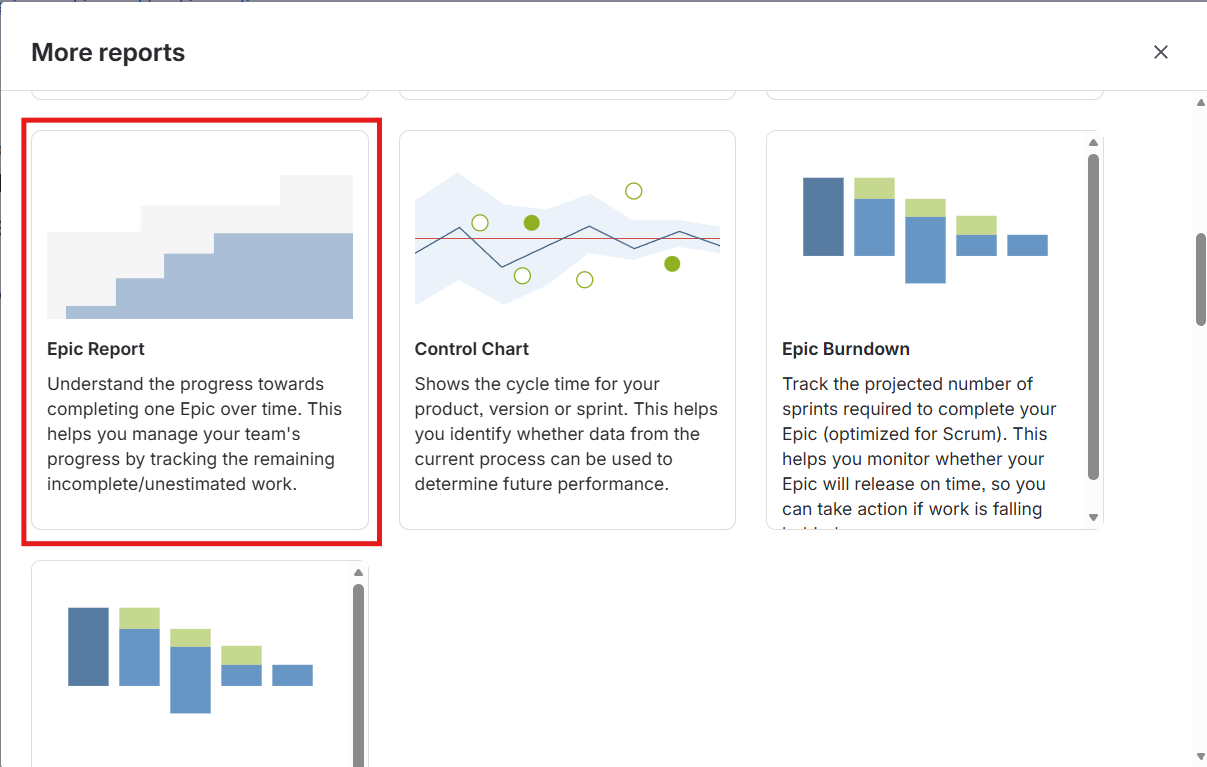
1. Access Jira main page and then go to Reports tab. Click "More Reports" button. Once a popup appears, scroll down and select Epic Report.
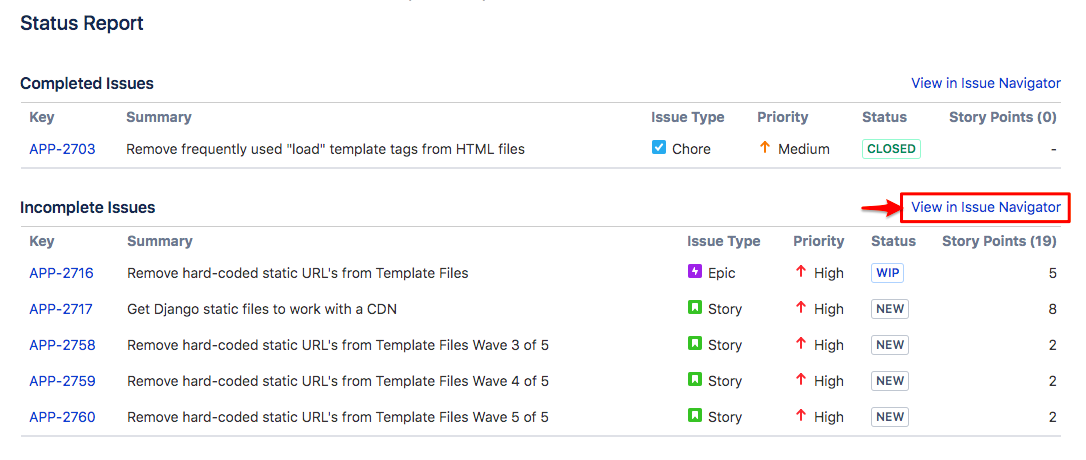
2. In the Epic Report page, go to the Status Report section. You can see the Completed Issues and Incomplete Issues, choose the Incomplete Issues and click View in Issue Navigator to see the details.
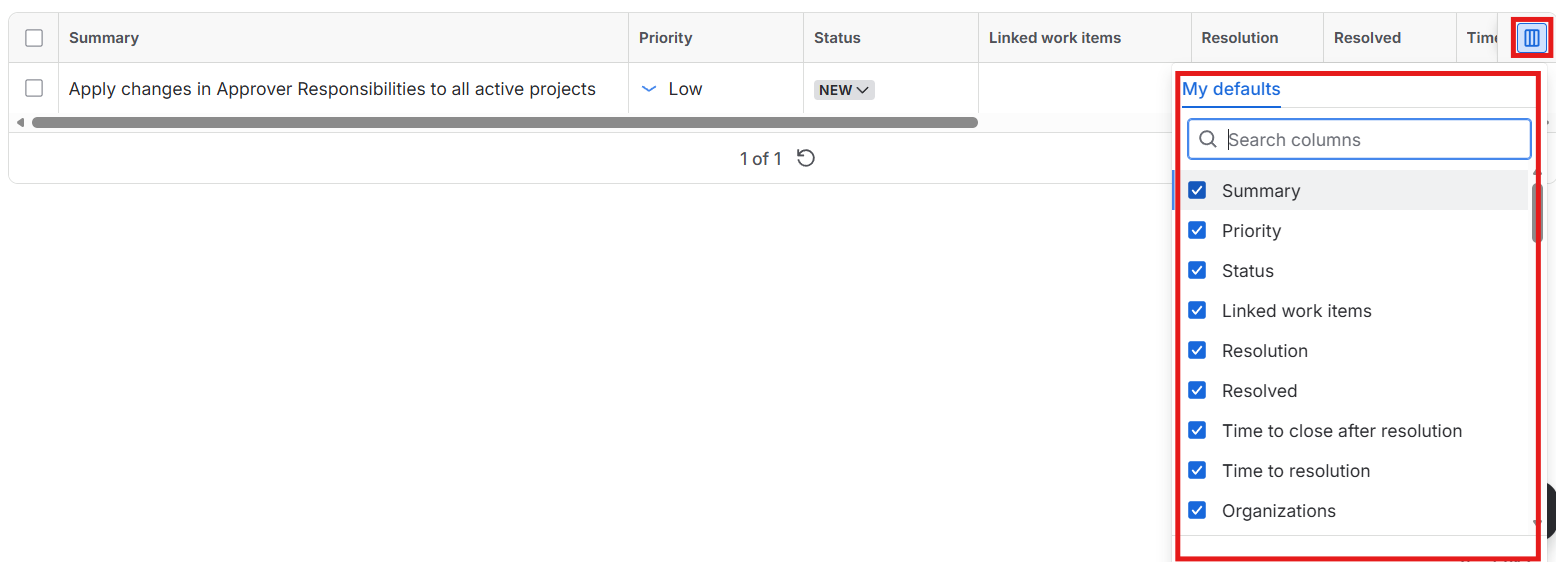
3. In the Issue Navigation page, click the Columns icon on the rightmost corner of the table. Select columns from My Defaults required for the mapping of data in Focus schedule CSV template. Tick additional checkboxes from the dropdown list if needed.
4. Click the three dotted line on the rightmost corner of the JIRA page, select Export, and choose the CSV file type of your choice. The CSV file will be successfully downloaded.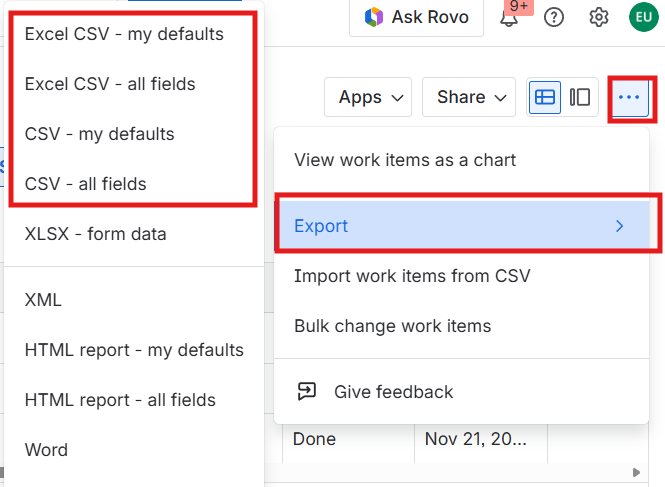
5. You can import the CSV file to the updated Schedule.
To import the updated Schedule, please check this link.