1. Manage Project End Review Checklists
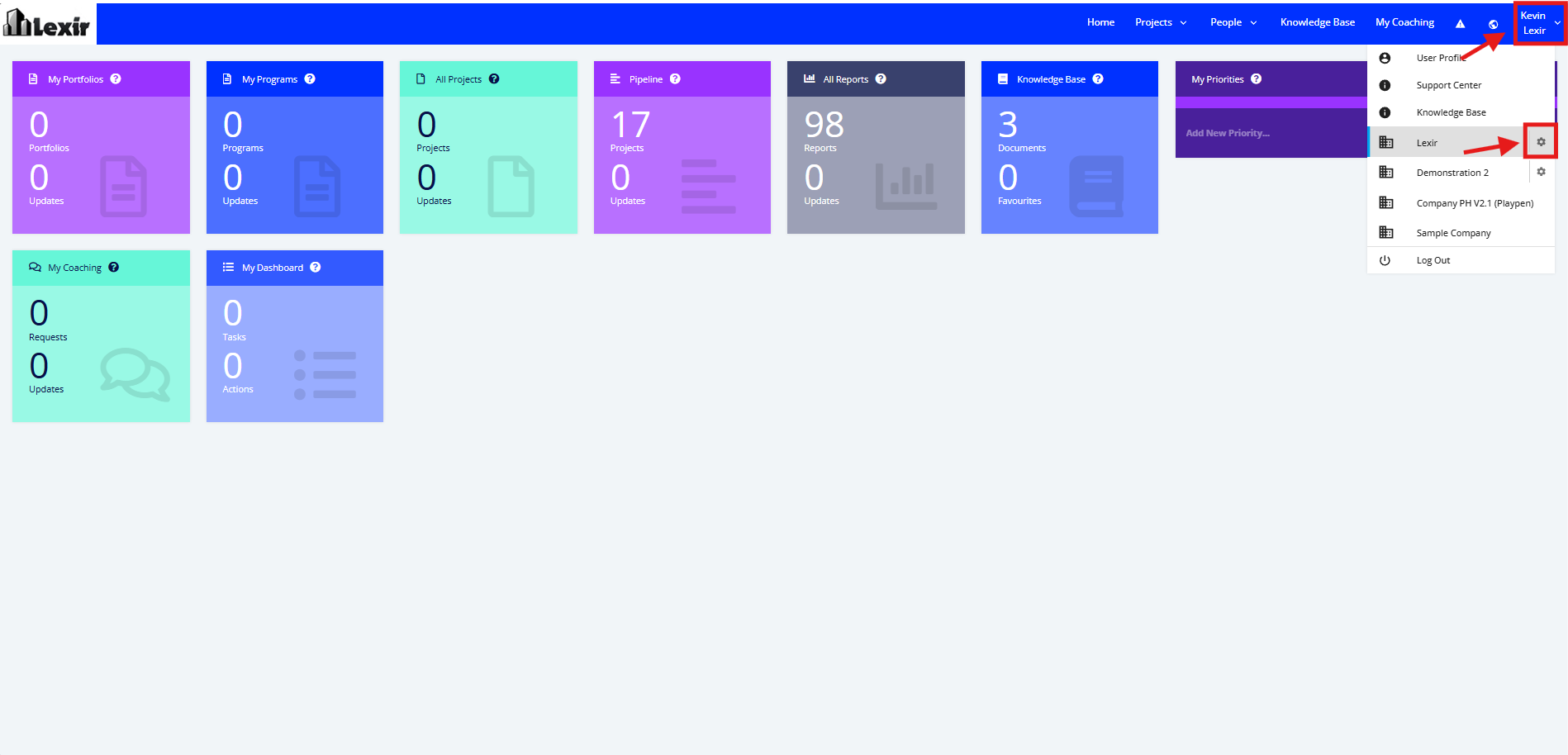
1. Go to the Top Navigation of the FOCUS™ homepage, hover over your ‘Company Name’ then click on the ‘Edit’ icon as shown below.
Once done, you will reach the Company Profile.
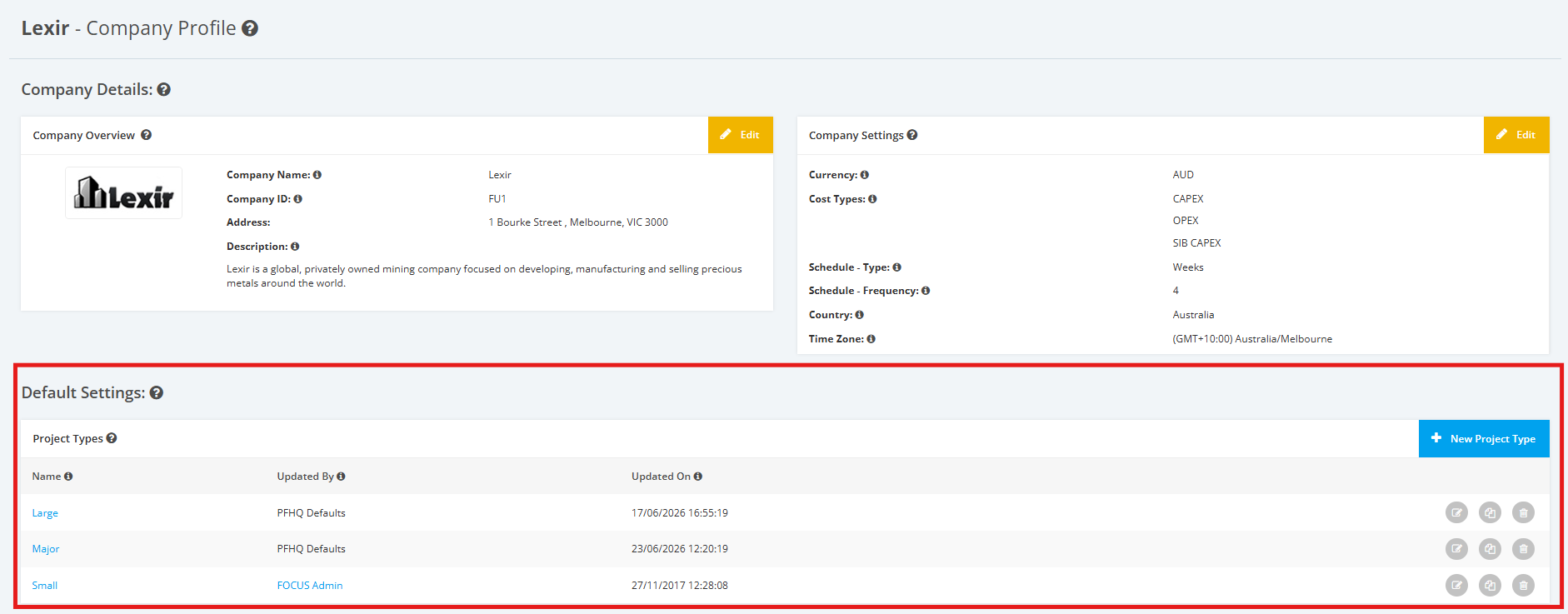
2. Within the Company Profile, navigate to the ‘Default Settings’ section then ‘Project Types’. Click the ‘Edit’ icon or the name of the Project Type.
1. Add Execution to Benefits Checklist
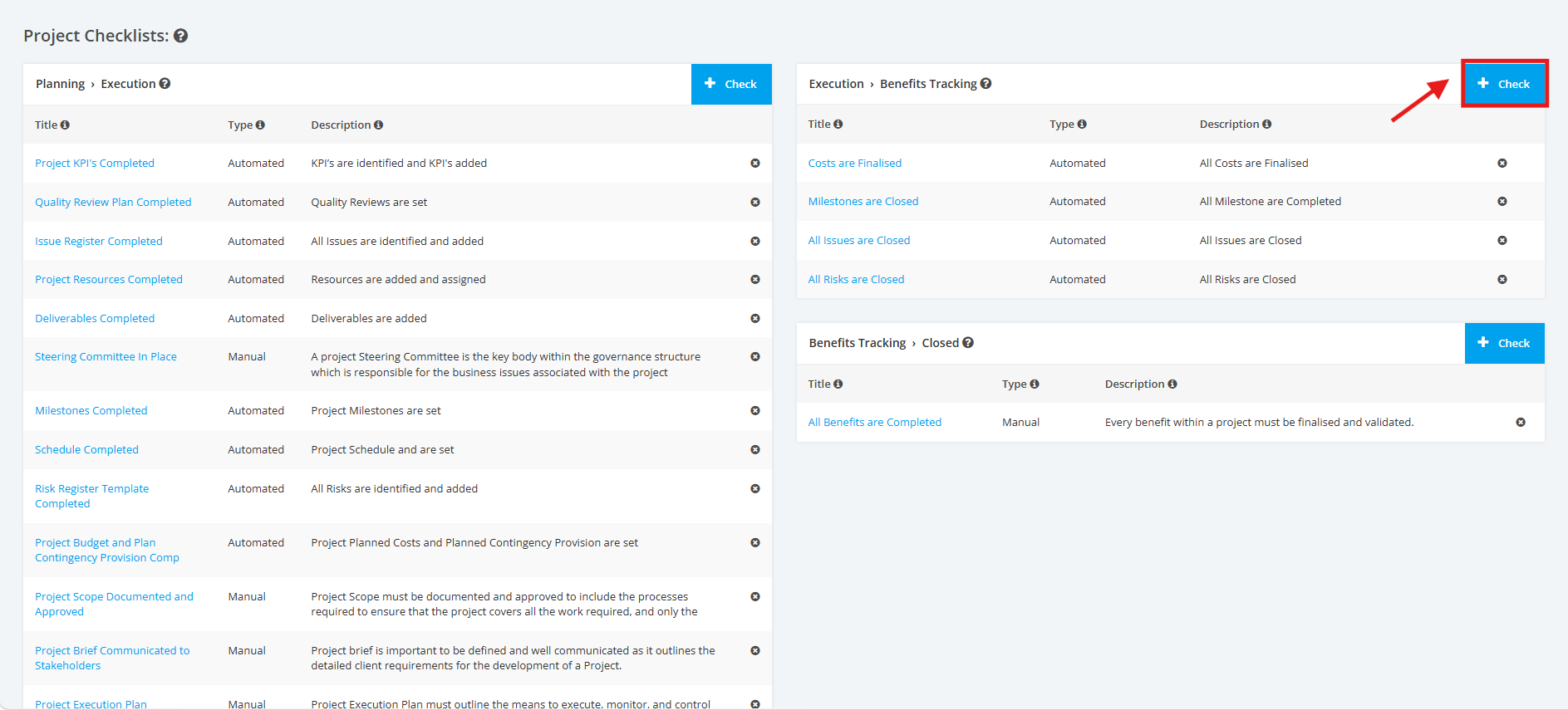
1. On the Project Type Settings page, scroll to the ‘Project Checklists’ section then the ‘Execution > Benefits’ list. Click the ‘+ Check’ button to add a Project Execution to Benefits checklist.
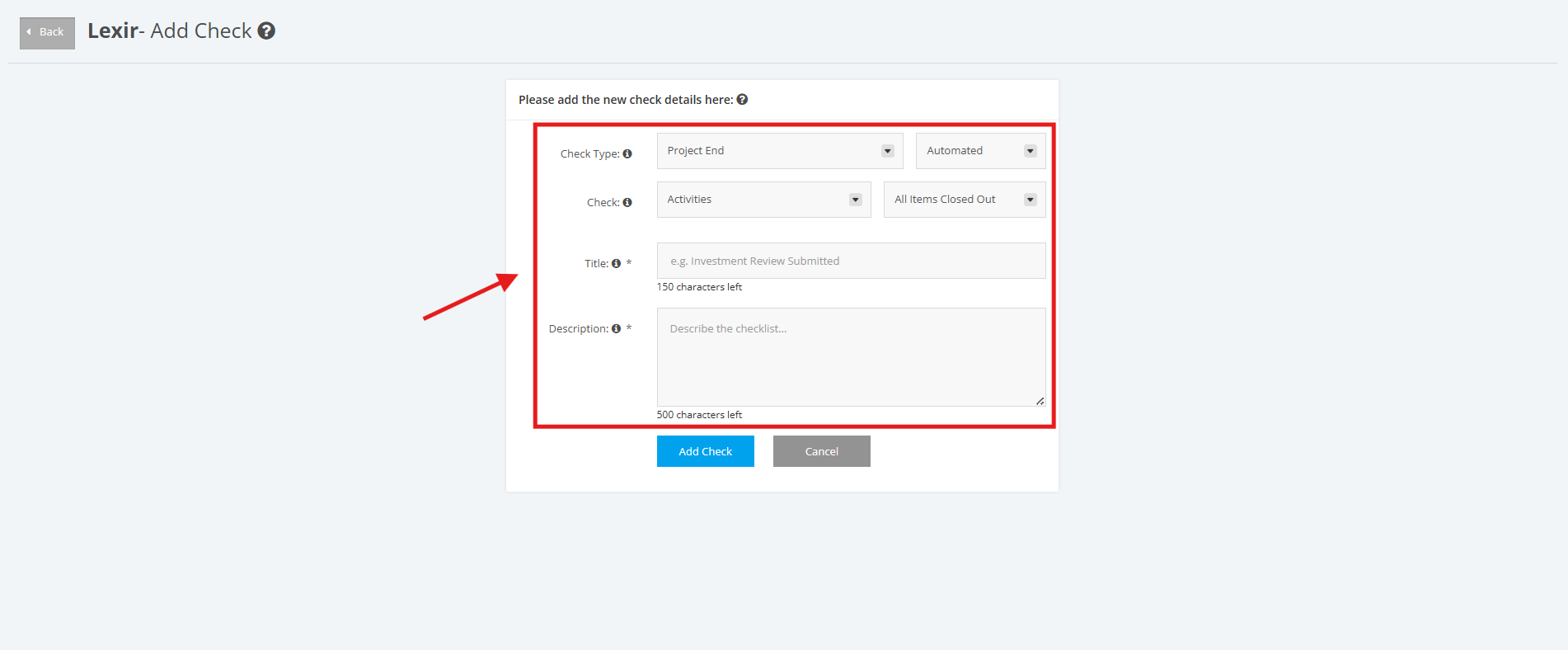
2. Fill in the ‘Check Type’, ‘Title’, ‘Description’, and ‘Link’ input fields with the desired data. Make sure that the data in the ‘Check Type’ field is ‘Project End'.
'Check Type' - can be 'Automated' or 'Manual'
If you want to add an Automated Project Checklist, you can choose from the following options:
Module - Activities, Schedule, Milestones, Risks, Issues, Budget, Resourcing Assignments, Deliverables, Quality Management, KPIs
Target - All Items Closed Out, All Items Completed
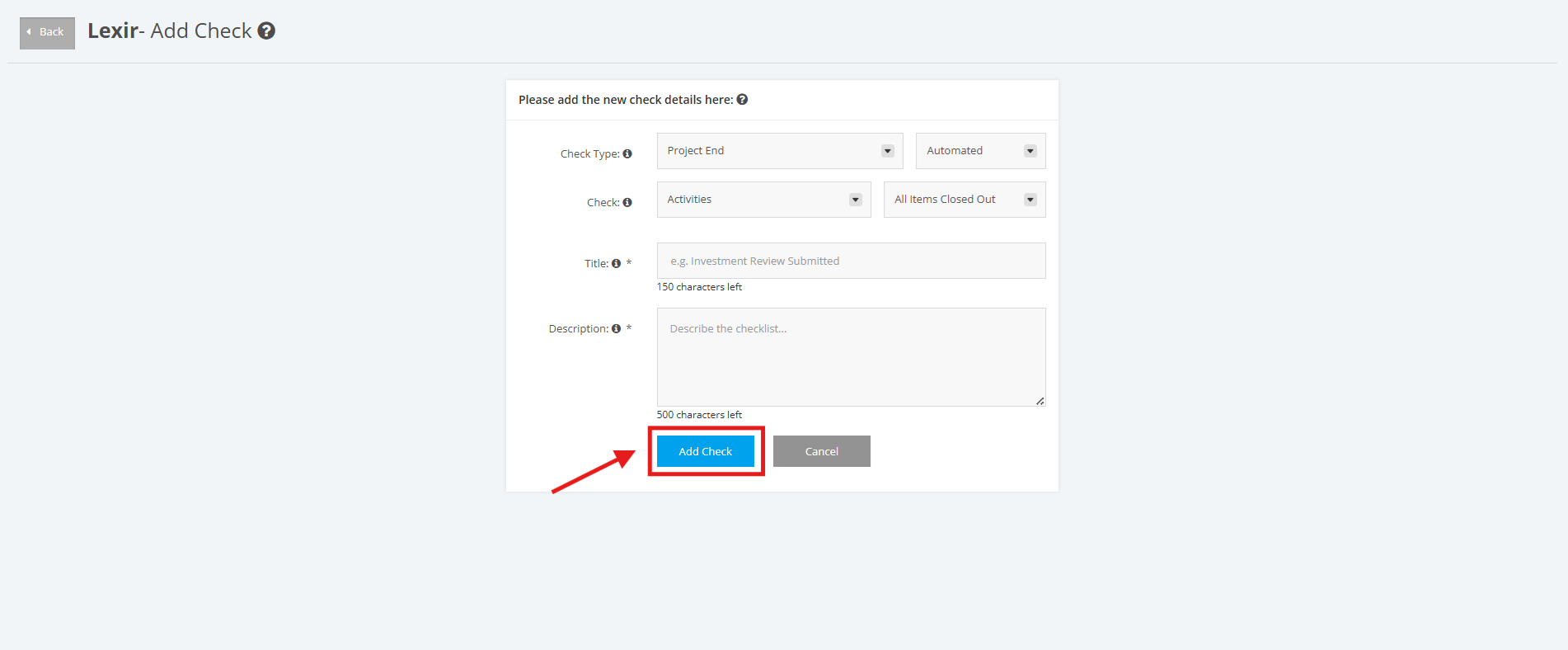
3. Once complete, click the ‘Add Check’ button.
2. Update Execution to Benefits Checklist
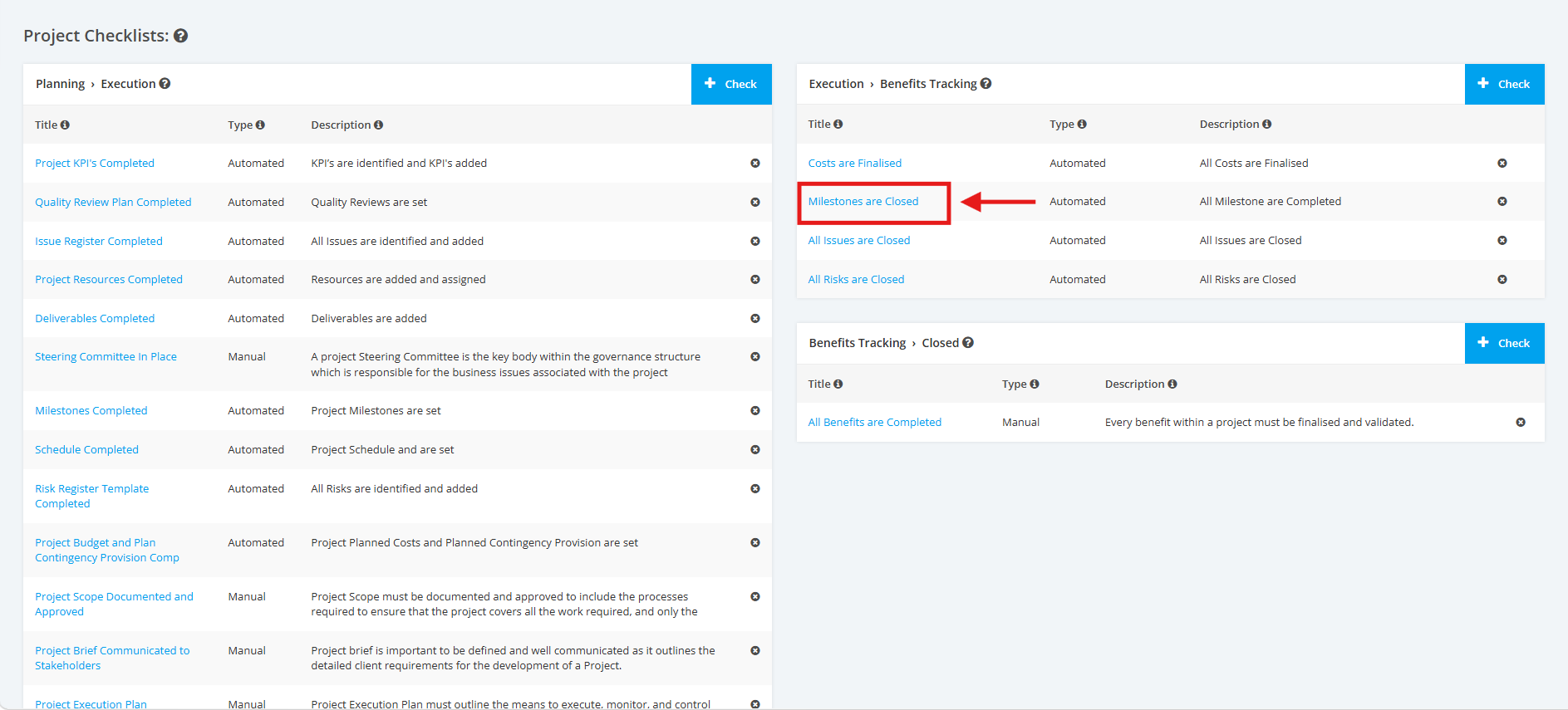
1. On the Project Type Settings page, scroll to the ‘Project Checklists’ section then the ‘Execution > Benefits’ list. Click the ‘Title’ of the Project Execution to Benefits Checklist that you want to update.
2. Then click the ‘Update’ button.

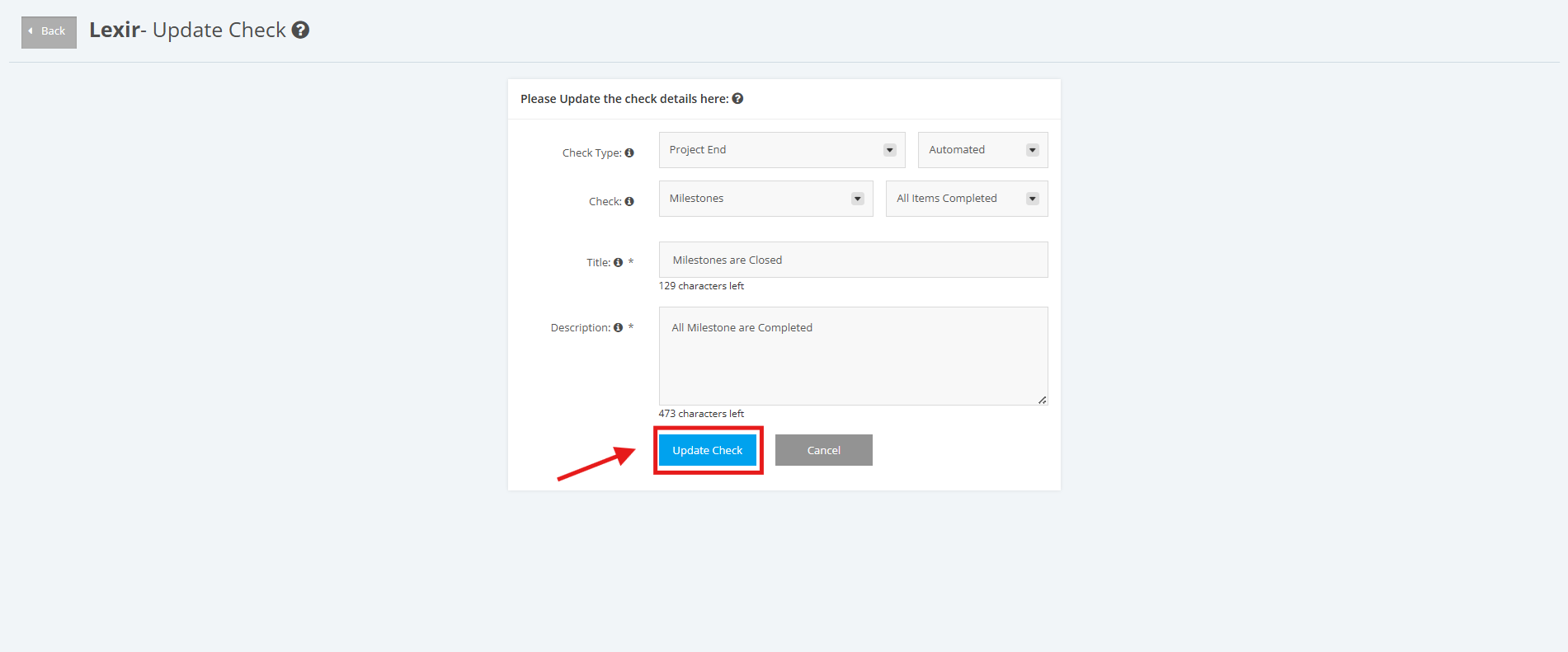
3. Make changes when necessary. Once complete, click the ‘Update Check’ button to save the changes.
3. Delete Execution to Benefits Checklist
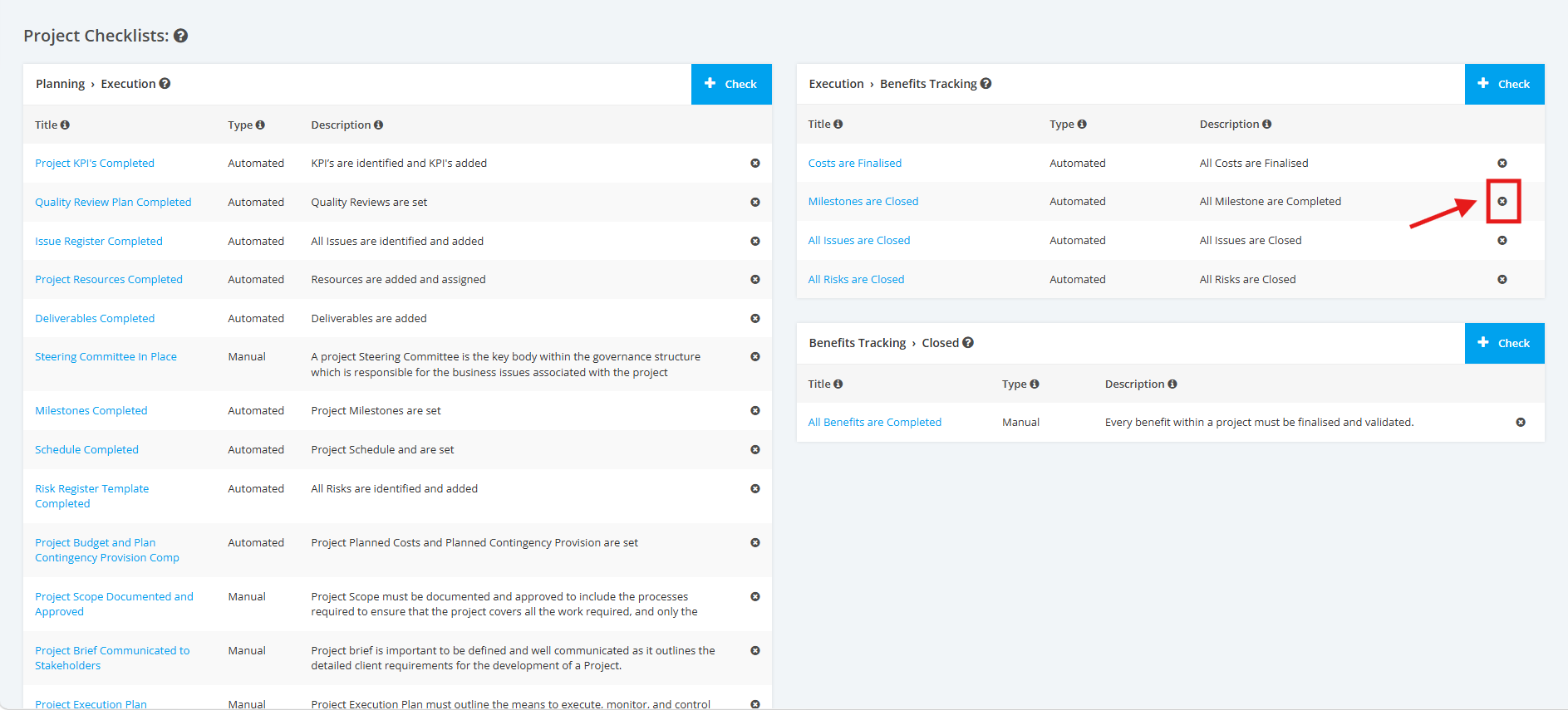
1. On the Project Type Settings page, scroll to the ‘Project Checklists’ section then the ‘Execution > Benefits’ list. Click the Delete ’x’ icon to remove an Execution to Benefits Checklist.
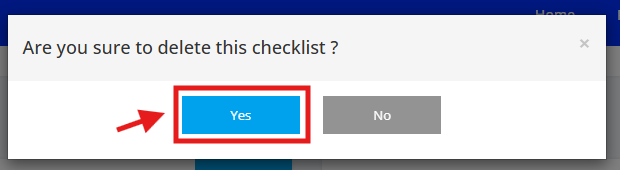
2. A pop up window will appear for confirmation, click the ‘Yes’ button to proceed with the deletion.