
Navigating Catalyst AI
1.1 Overview
Catalyst AI is the AI assistant built into FOCUS™. It answers questions about your projects and portfolios, explains how to use FOCUS™ features, and can turn your data into summaries, charts and downloadable CSV files.
You can use Catalyst AI to:
- Get step-by-step help on FOCUS™ features, drawn from the FOCUS™ help documentation.
- Summarise project or portfolio data, such as an executive sponsor briefing covering cost, schedule, risks and issues.
- Review a project against best practice and get recommended next actions, when you ask for them.
- Draw charts on the canvas and download the chart or its underlying data.
- Read time tracking (timesheet) data you have permission to view.
- Attach a document to a chat and ask Catalyst AI to summarise or analyse it.
Catalyst AI only sees the data your own FOCUS™ permissions allow. Like any AI tool it can make mistakes, so always double-check important figures before you share them.
1.2 Accessing Catalyst AI
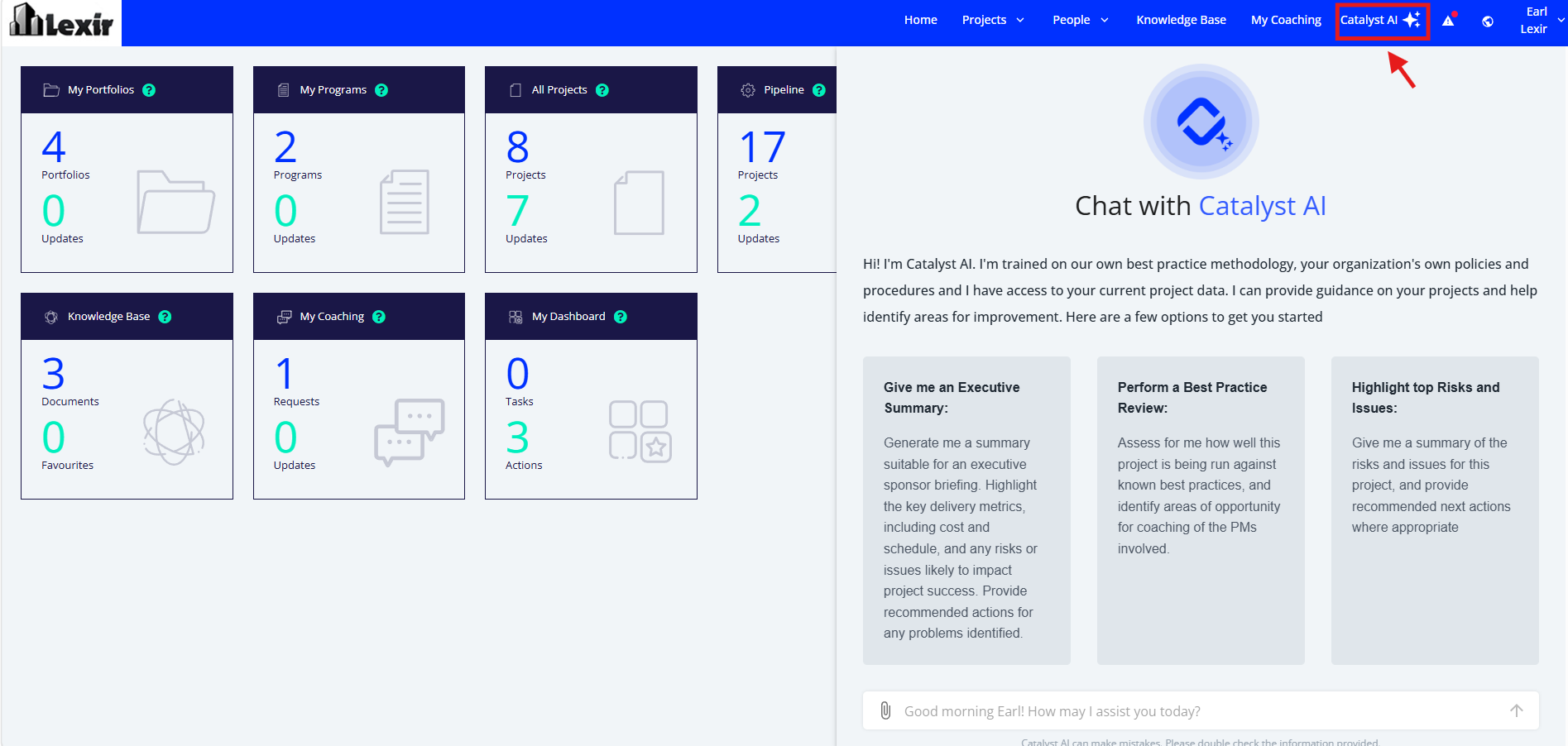
To open Catalyst AI, click the Catalyst AI button (the magic-stars icon) on the top header bar. The chat panel opens on the side of the page you are on; click the button again to close it.
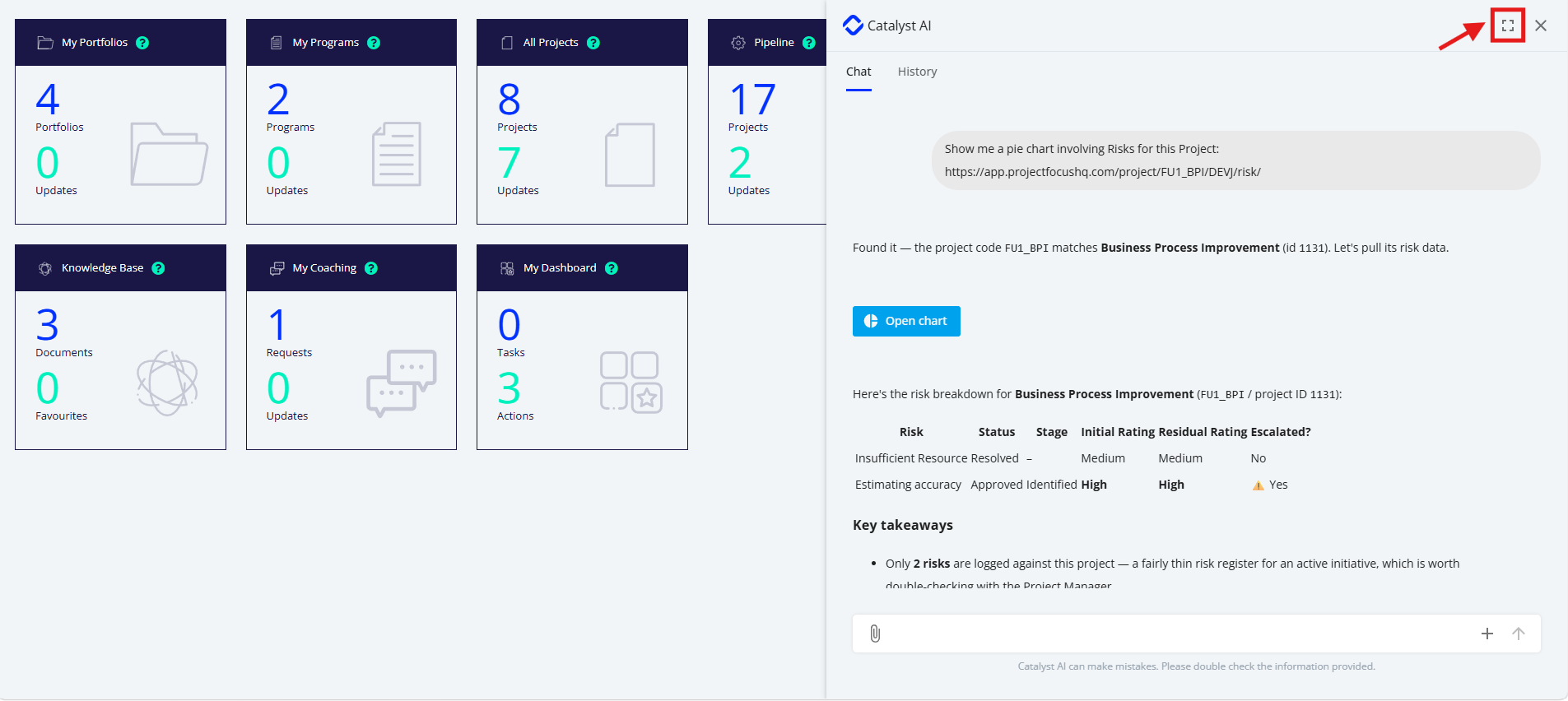
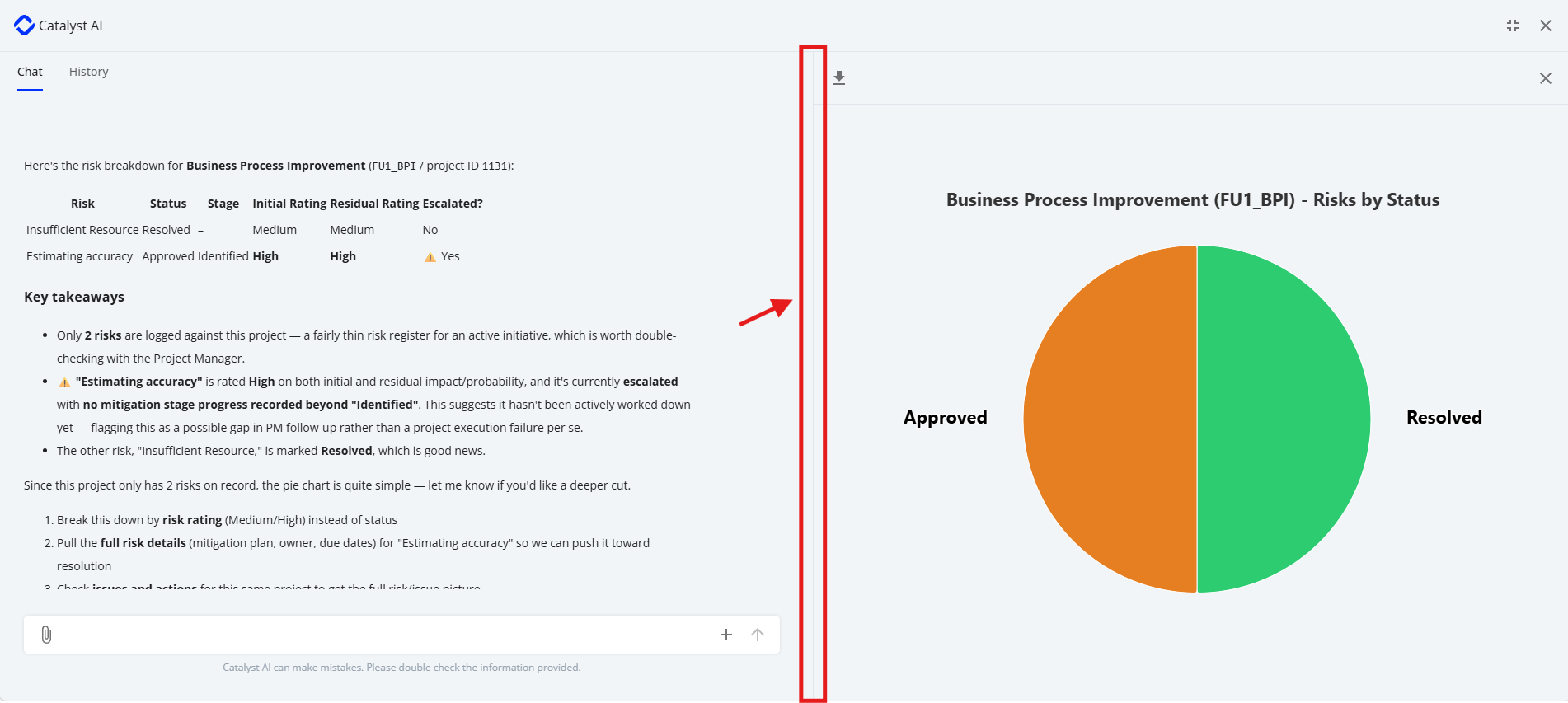
To work in a larger view, expand the chat to full screen: the conversation sits on the left and a canvas for charts and other content sits on the right. Drag the edge between the two to resize them.
Catalyst AI has to be switched on for both your company and your user account. If you don't see the Catalyst AI button, refresh the page first. If it is still missing, for example after your email address or role has changed, contact your Company Admin or raise a request with FOCUS™ Support so we can check your access.
1.3 Using Catalyst AI
Starting a new chat
When you open a new chat on a Project Overview page, Catalyst AI greets you with a welcome message and three suggested prompts. Click a suggestion to send it straight away; the suggestions disappear once you send your first message.
Suggested prompt | What Catalyst AI does |
|---|---|
Give me an Executive Summary | Writes a sponsor-level briefing on cost, schedule, risks and issues, with recommended actions. |
Perform a Best Practice Review | Assesses how well the project is run against best practice and suggests coaching areas for the PM. |
Highlight top Risks and Issues | Summarises the project's risks and issues and recommends next actions. |
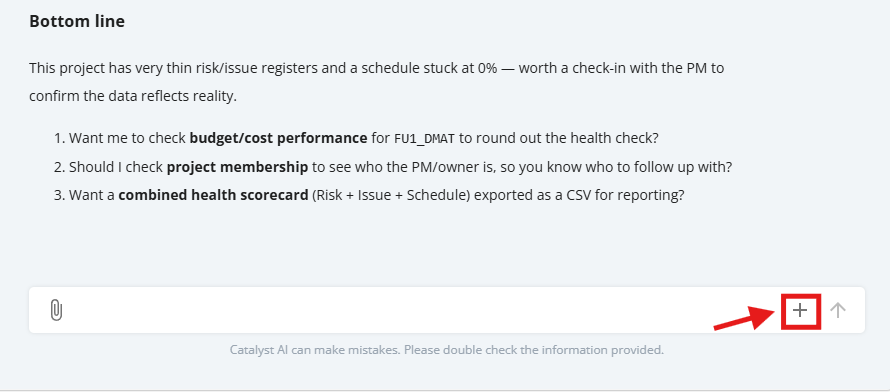
To start over at any time, click the + (New Chat) icon, which takes you back to the Catalyst AI home screen.
Getting the best answers about your data
Catalyst AI uses the page you are on as context, so open the page that matches your question before you ask. For a company-wide or portfolio summary, open the Company Portfolio page or name the portfolio in your prompt. For a single project, open a page in that project or name the project. Clear, specific prompts that say which data to use and what format you want (for example "a bar chart of open risks by owner") give the most reliable results.
Catalyst AI keeps its answers short for simple data requests, such as "Tell me the top risk for my project". If you want best practice advice, ask for it directly, for example "Provide recommended next steps in line with best practice to address this risk".
Asking how to use FOCUS™
Ask Catalyst AI how to do something in FOCUS™, such as "How do I add a new risk to this project?" or "Where do I find Company Settings?". It answers from the FOCUS™ help documentation. If the steps don't match what you see on screen, check the Support Portal or contact FOCUS™ Support.
Charts, the canvas and downloads
Ask for a chart in plain language and Catalyst AI draws it on the canvas, for example "Create a bar chart of total change control spend by project". You can ask it to change the chart, such as switching to vertical bars, and download the chart. Catalyst AI can also offer the underlying data as a CSV file to download.
5. Attaching a file
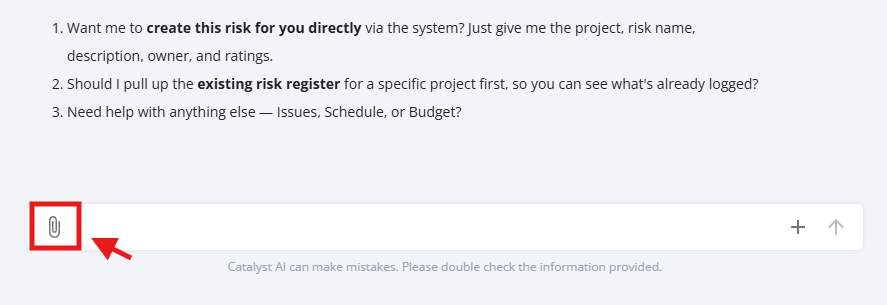
Click the paperclip (attach) button on the left of the message box and choose a file from your computer. The file appears as a chip above the message box, where you can remove it before sending. You can send a file on its own or with a question, and Catalyst AI reads the file's contents to answer. If the file type isn't supported or the file is too large, Catalyst AI shows an error message and the file is not sent.
Note that you can only attach one file at a time. Maximum size for each file is 5 MB.
Accepted File Types:
.csv, .pdf, .png, .jpeg, .doc, .docx, .xls, .xlsx
6. Timesheet data
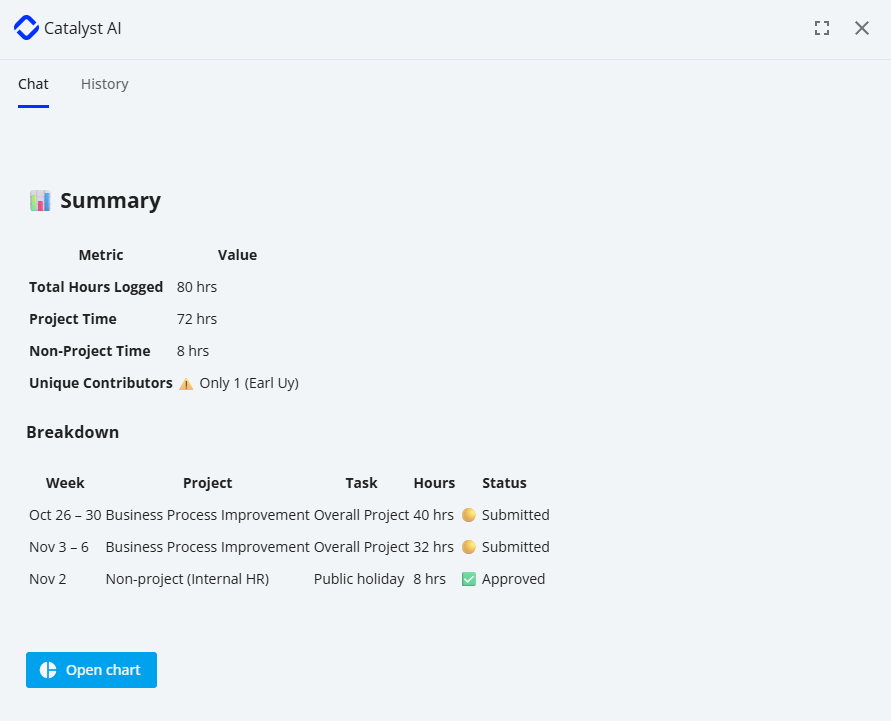
Catalyst AI can read time tracking entries over a date range, filtered by project or resource. It shows your own entries and any other users' entries you have permission to view, and can build a CSV from them. Catalyst AI cannot approve, reject or submit timesheets.
7. Giving feedback on a response
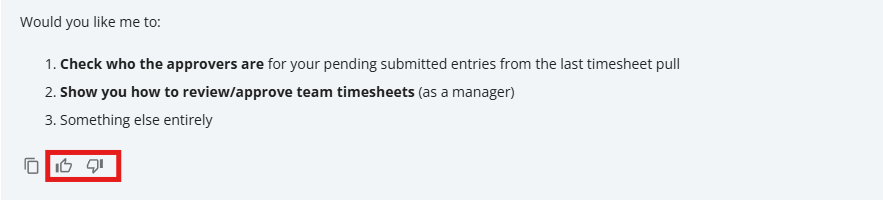
Use the like and dislike icons at the bottom of each Catalyst AI response to tell us whether it was helpful. Your feedback goes straight to the FOCUS™ team and helps us improve Catalyst AI.
8. Reading long conversations
Messages you type over several lines keep their line breaks. Long messages, yours or Catalyst AI's, can be expanded or collapsed to keep the conversation easy to scan. When you reopen an earlier conversation, you see the final responses only, not the interim steps Catalyst AI took to gather data.
Things to know
- Responses can contain mistakes. The message above the input box reads "Catalyst AI can make mistakes. Please double check the information provided." Verify figures before using them in reports or decisions.
- Results follow your permissions. Catalyst AI acts on your behalf with your own access, so two users can get different answers to the same question.
- Results vary between prompts. Catalyst AI may answer the same question differently each time. If a chart or summary is missing, rephrase the request more specifically or open the relevant project or portfolio page and try again.
- Timesheets are read-only. Approving, rejecting, submitting or recalling timesheets is not available through Catalyst AI.
- File uploads have type and size limits. Unsupported or oversized files are rejected with an error message.
- How-to answers come from the help documentation. If a feature isn't covered there, Catalyst AI may give incomplete or wrong directions.
Troubleshooting
Problem | What to do |
|---|---|
I can't see the Catalyst AI button. | Refresh the page. If it's still missing, ask your Company Admin or FOCUS™ Support to check that Catalyst AI is enabled for your company and your user account. |
I can't get back to the Catalyst AI home screen. | Click the + (New Chat) icon to start a new chat and return to the home screen. |
The answer is vague or a chart didn't appear. | Open the page that matches your question (Company Portfolio for company-wide data, or the project itself), name the portfolio or project, and state the output you want, such as "a bar chart". |
Catalyst AI gave me the wrong steps for a FOCUS™ feature. | Check the Support Portal for that feature or contact FOCUS™ Support, and click dislike on the response so we can improve it. |
Catalyst AI shows an error message. | Refresh the page and try again. If the error comes back, raise a request with FOCUS™ Support and include a screenshot of the error and the prompt you used. |
My file won't attach. | Check that the file is a supported document type and within the size limit shown in the error message. |
Catalyst AI's answer looks cut off. | Ask it to continue, or split your request into smaller questions. |