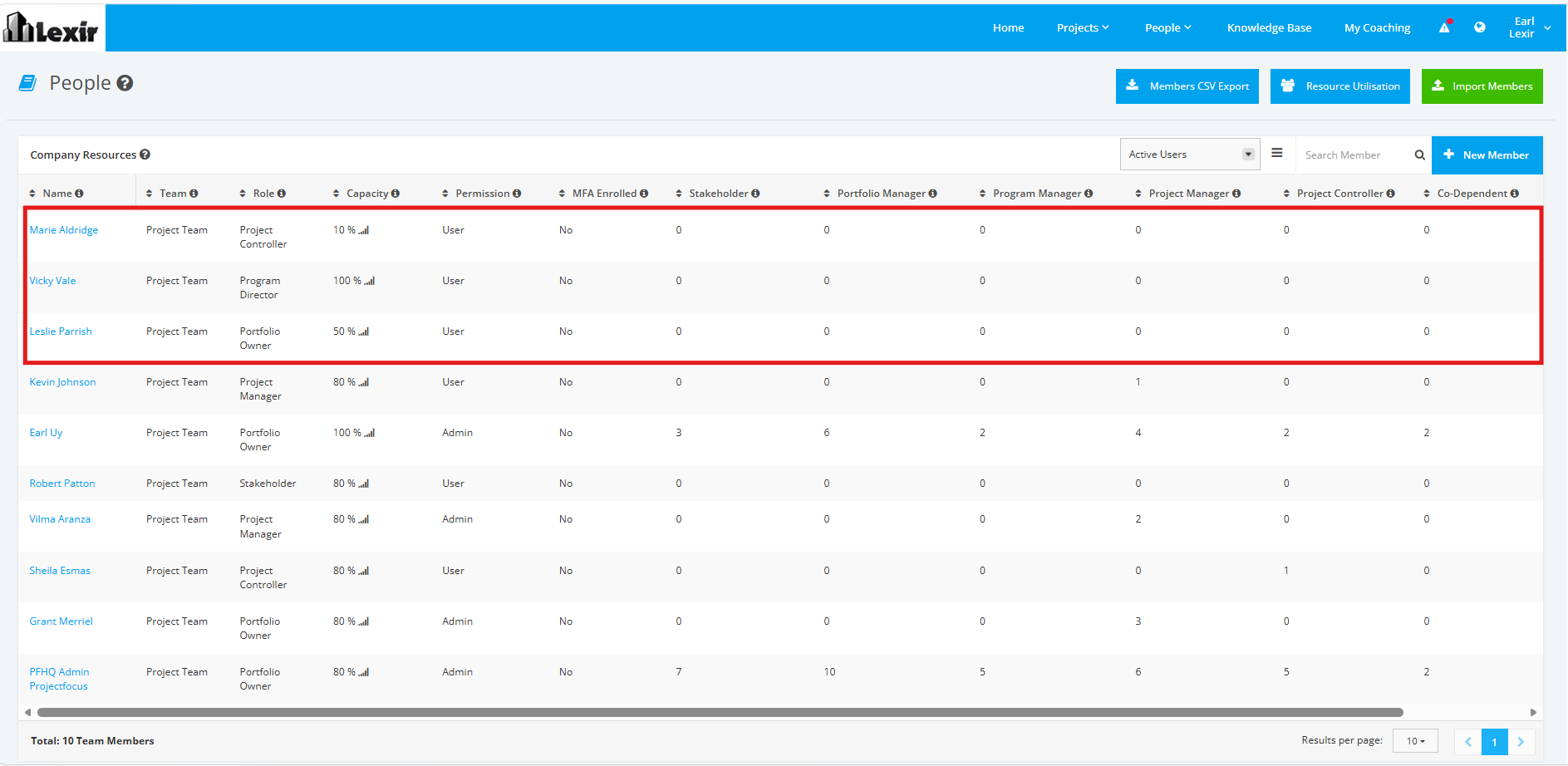
1. Import Company Members
Note: This is only available for users with Admin access.
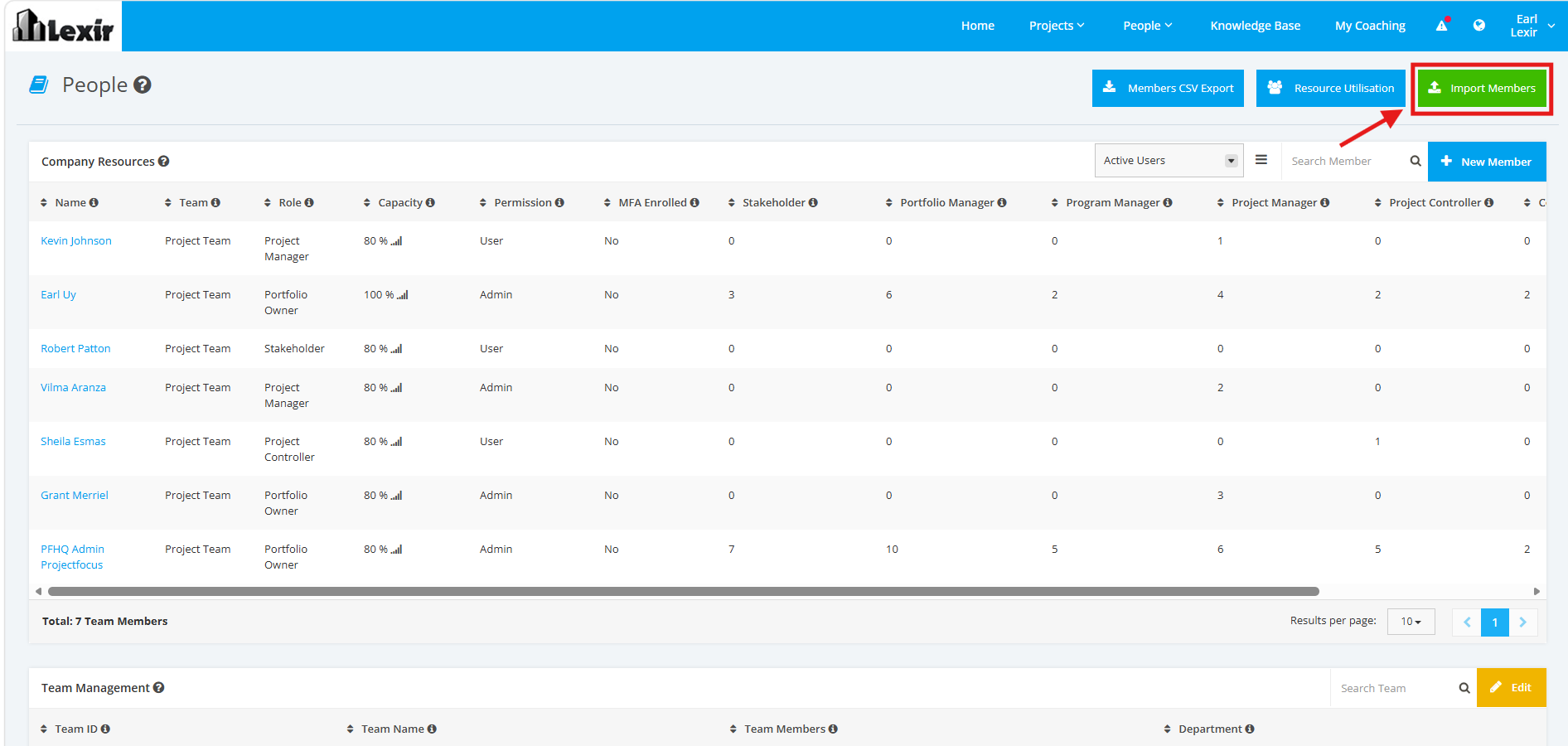
1. Within ‘People’, click the ‘Import Members’ button as shown below.
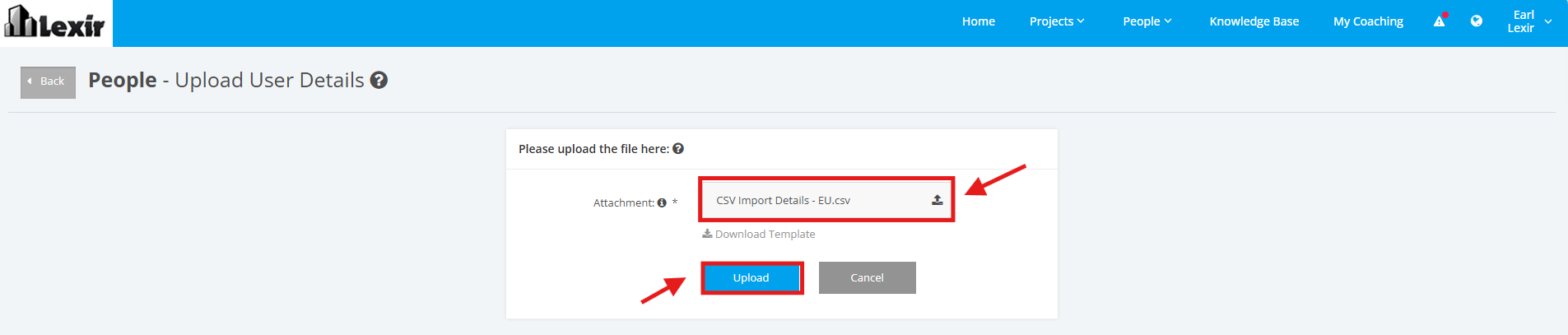
2. Once redirected to the Upload User Details page, upload the CSV file containing the Actions. Then, click the Upload button.
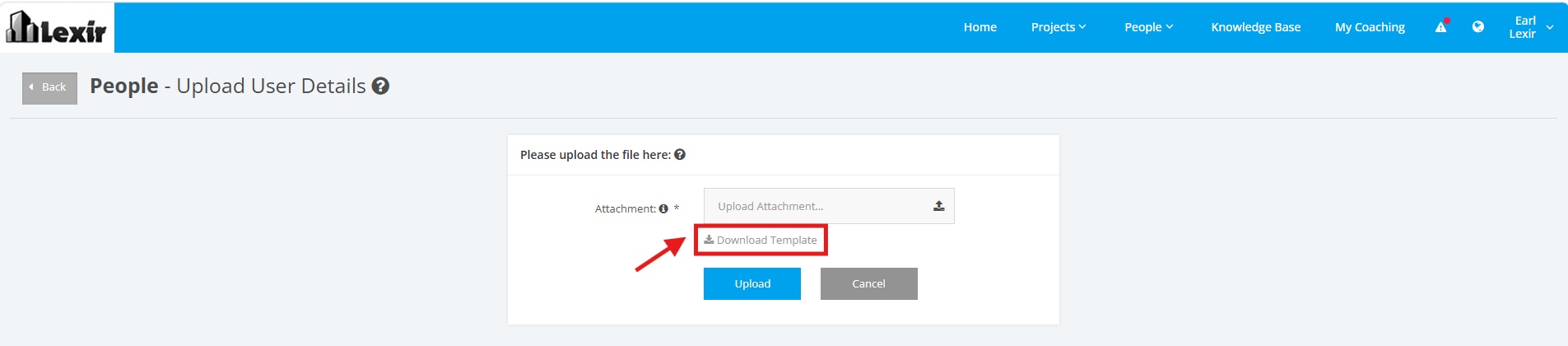
You can click Download Template to download a User Details CSV Import template to be guided with the necessary data needed to be filled in.
These are the required columns for the User Details CSV file and their accepted values:
| User | User should be added to the Focus HQ system but is not yet assigned to the Company Only accepts Username |
| Team | List of Teams added in "Team Management" table. |
| Role | Key Stakeholder, Portfolio Manager, Program Manager, Project Manager, Project Control, Co-Dependent, Team Member |
| Capacity | Between 0 to 100 |
| From | DD/MM/YYYY |
| To | DD/MM/YYYY |
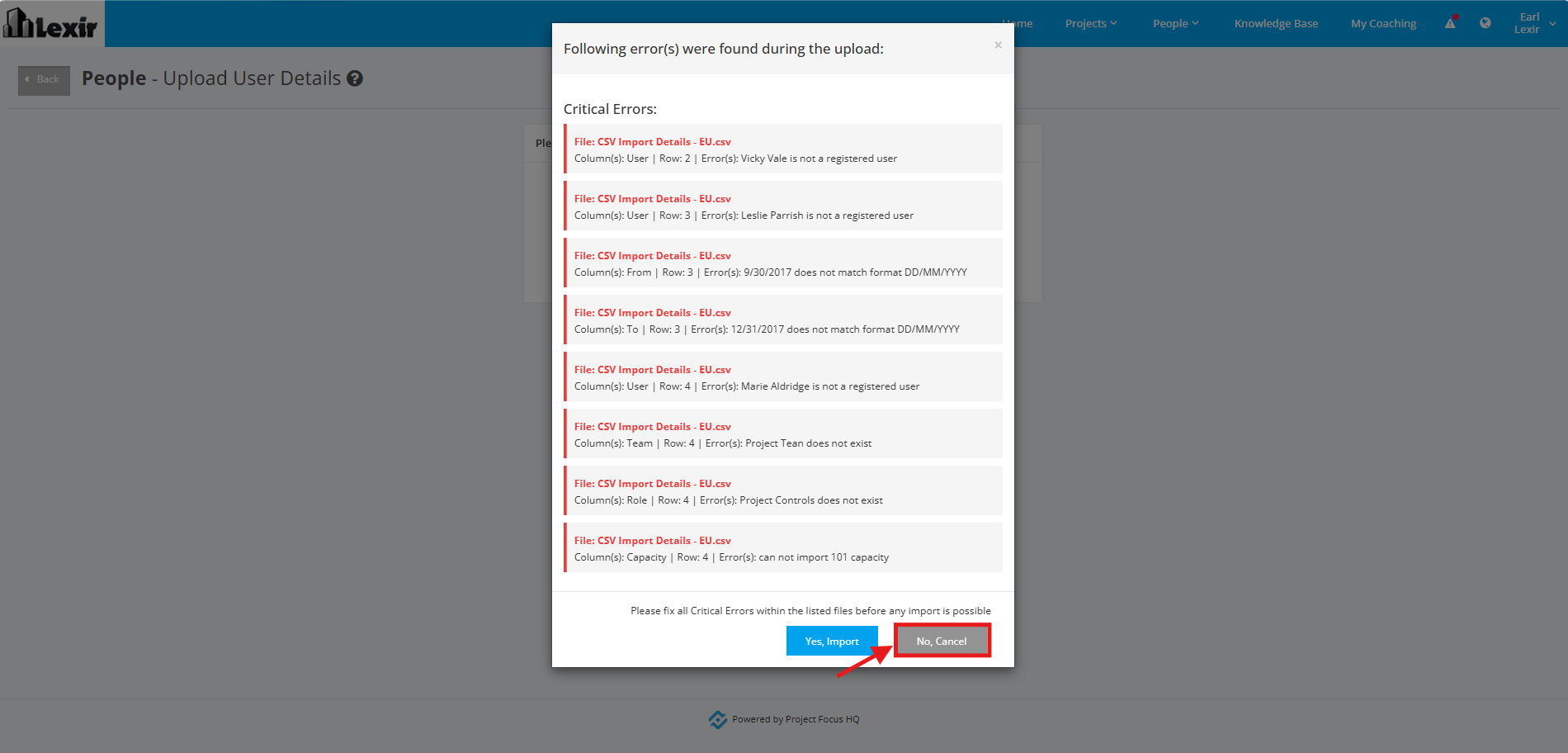
3. If system displays red validations, these are error messages that are needed to be corrected so that the import can go through.
Click ‘No, Cancel’, then update the rows in the CSV file containing such messages. Once done, recommence import.
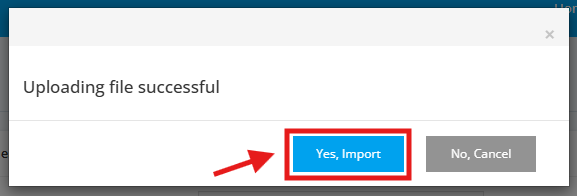
4. Once CSV file is reuploaded and system does not see any error messages, a pop-up confirmation message is displayed that file upload is successful. Click 'Yes, Import' .
5. User will be redirected to a message confirming that the members have been successfully imported.

6. Go back to the 'People' page, and the Imported Members are successfully displayed in the 'Company Resources' table.