
1. Add an Issue to a Project Risk
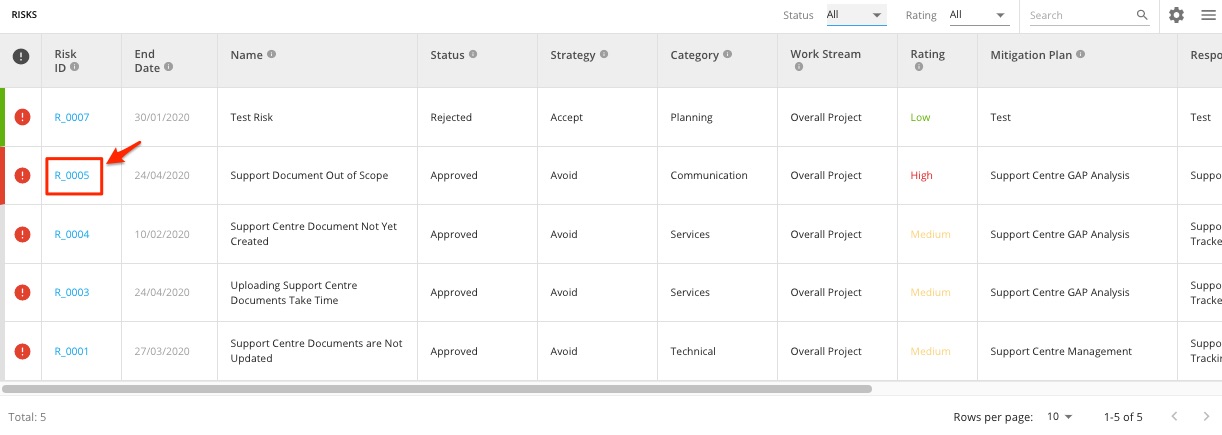
1. To add an Issue to a Risk within a Project, navigate to the ‘Risks’ section and then click the ID of the Risk that you want to add an action to.
2. Once in the Project Risk details click the three dotted icon beside the pencil (Edit) icon. A list of options will pop-out, select the ‘Add Issue’ button to add an action for the Risk.

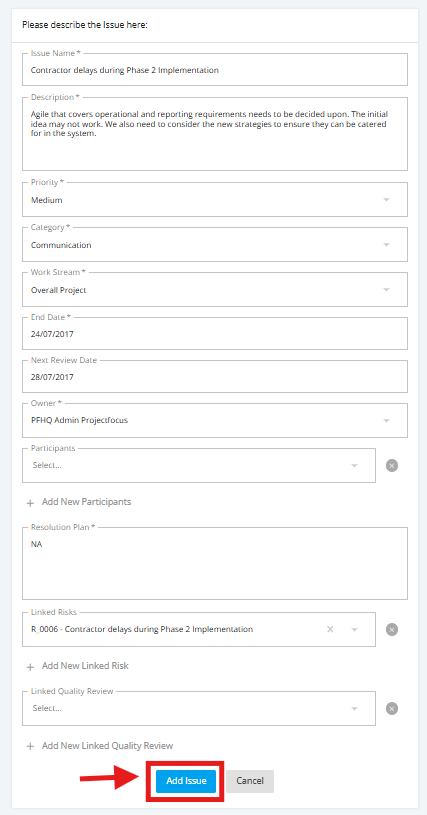
3. The Risk Details will be pulled out and will be assigned to its appropriate Issue field in the 'Add New Issue' page.
Update the data fields when needed. Once done, click the ‘Add Issue’ button to save the Issue Item associated to the Risk.
4. To check the Issue item for that specific Risk, go the Risk’s details page and scroll down to the Issues section to view the Issue item.

NOTE: You can also click the 'Add New' button at the rightmost corner of the 'Issues' section to add an Issue Item to a Risk.
