1. Manage Project Calendar within a Project Schedule
User has to option to manage the Project Calendar settings within the Schedule module. The Project Calendar defines the working and non‑working time framework to calculate task durations, Start/End dates, and resource availability.
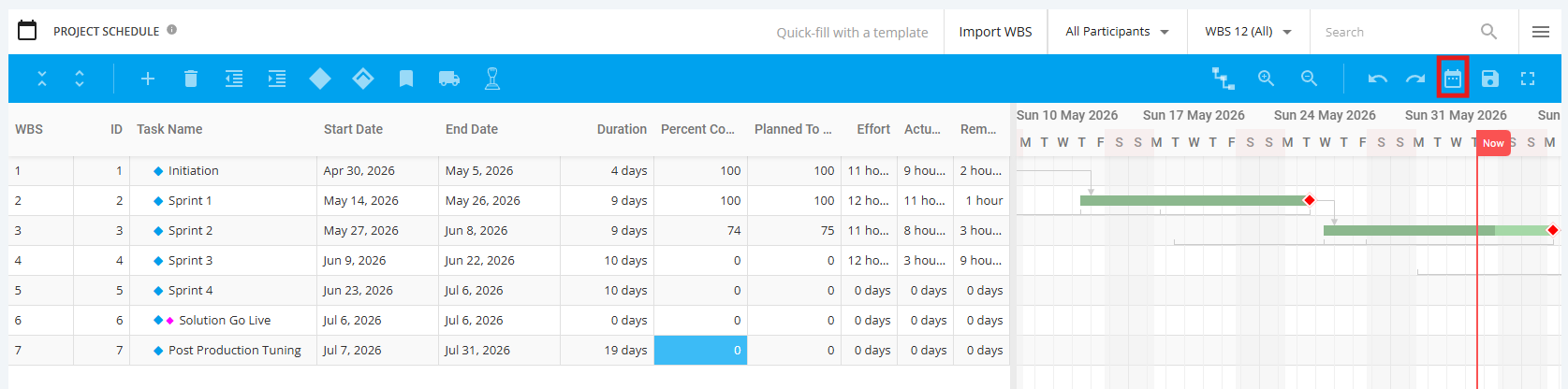
- Go to the Project Schedule Toolbar, and click the Project Calendar icon.
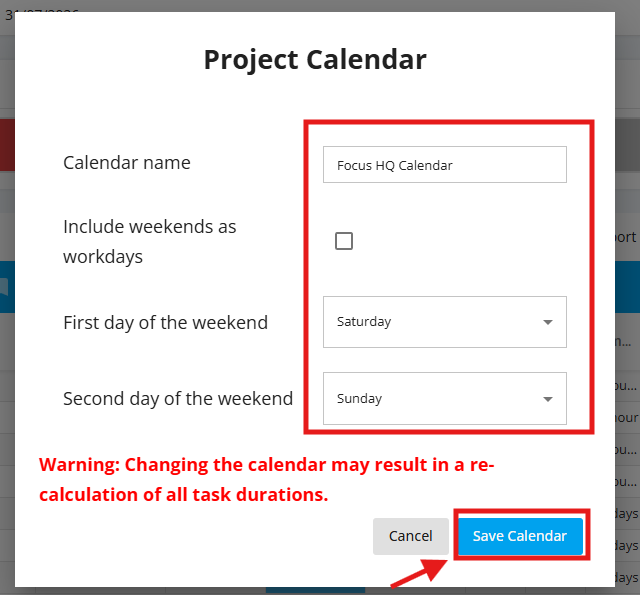
- A Project Calendar popup is displayed. You can choose to configure the following:
Calendar Name- Type name of Calendar
Include weekends as workdays - Tick the checkbox if the Schedule includes weekends as working days
First day of the weekend, Second day of the weekend -Select from dropdown list
Note: Changing the Calendar Settings may result in a recalculation of all task durations.
Once finished with updating, click the Save Calendar button. The Project Schedule Table will be refreshed and will display information based on the configured settings.