This article outlines the list of features within FOCUS™ that is currently available to Admin users only:
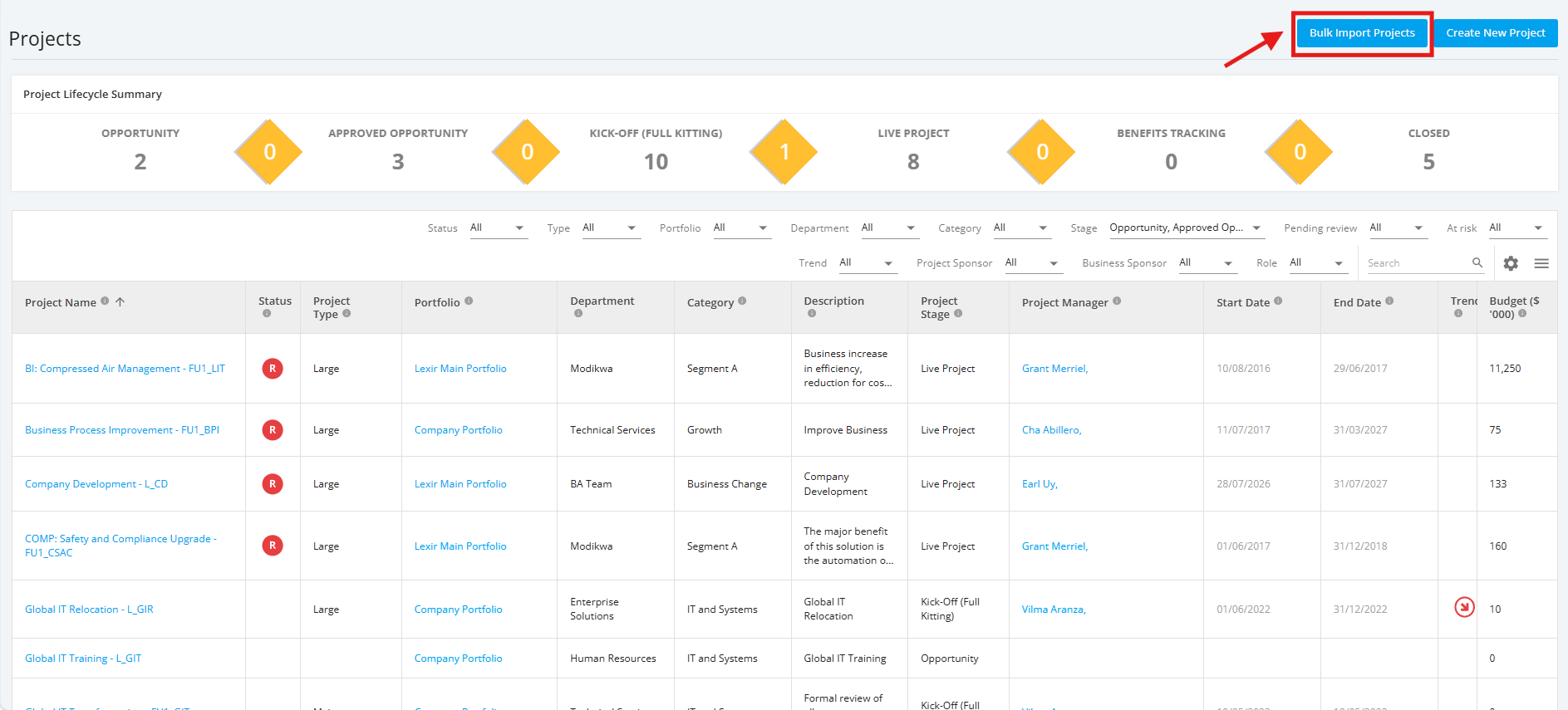
1. Bulk Import Projects
- It is a faster method of migrating projects into the system by importing a list of projects in 1 file. This will prevent time-consuming manual data entry or migrate data from another system.
- Bulk Import Projects functionality is accessible within All Projects Dashboard page with the Bulk Import Projects button.
2. Delete Projects
Projects can be deleted for valid reasons such as:
- The project is a duplicate.
- The project was created as a test and has outlived its usefulness.
- The project was created by mistake and has no real issues that need to be considered historically.
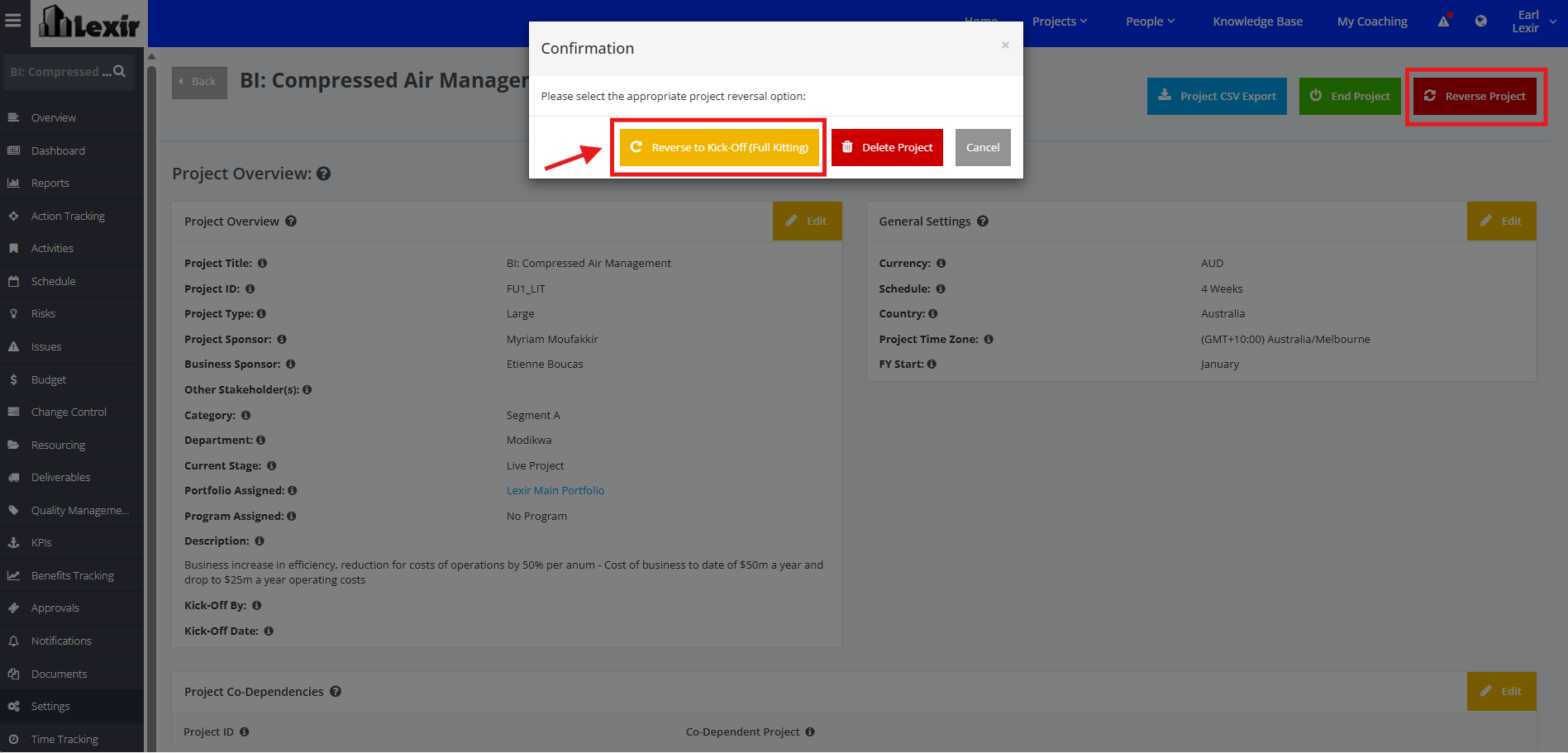
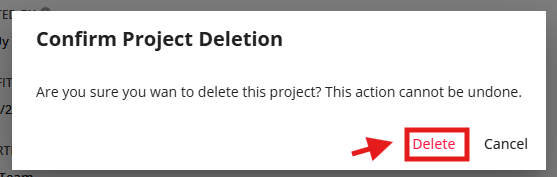
Deleting a project can be done via the Project Settings page by clicking the Reverse Project button, then clicking the Delete Project button once Confirmation popup is displayed.
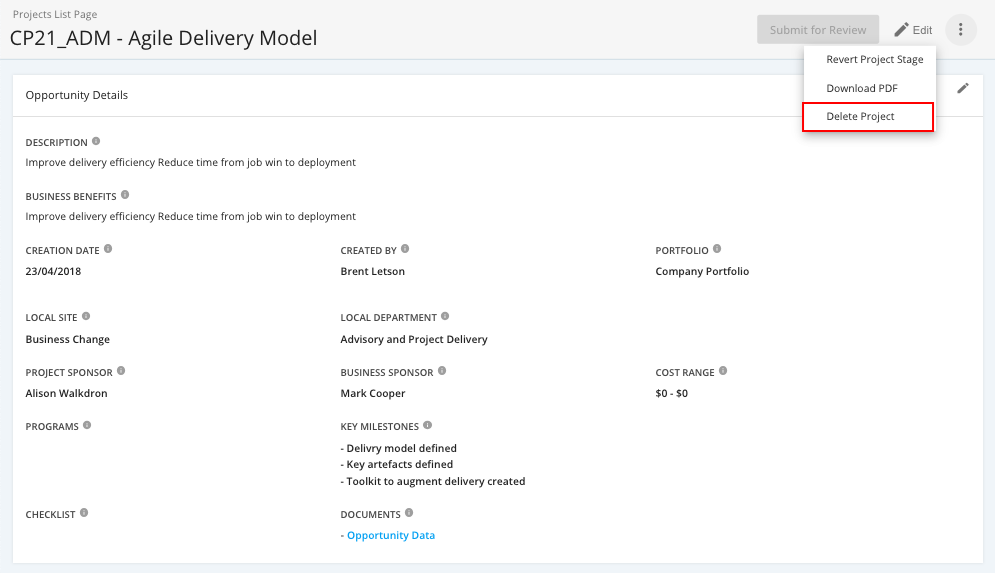
When in the Project Details page, click the three dotted line icon and select Delete Project from the dropdown, then clicking the Delete link once Confirmation popup is displayed.
3. Export Members CSV
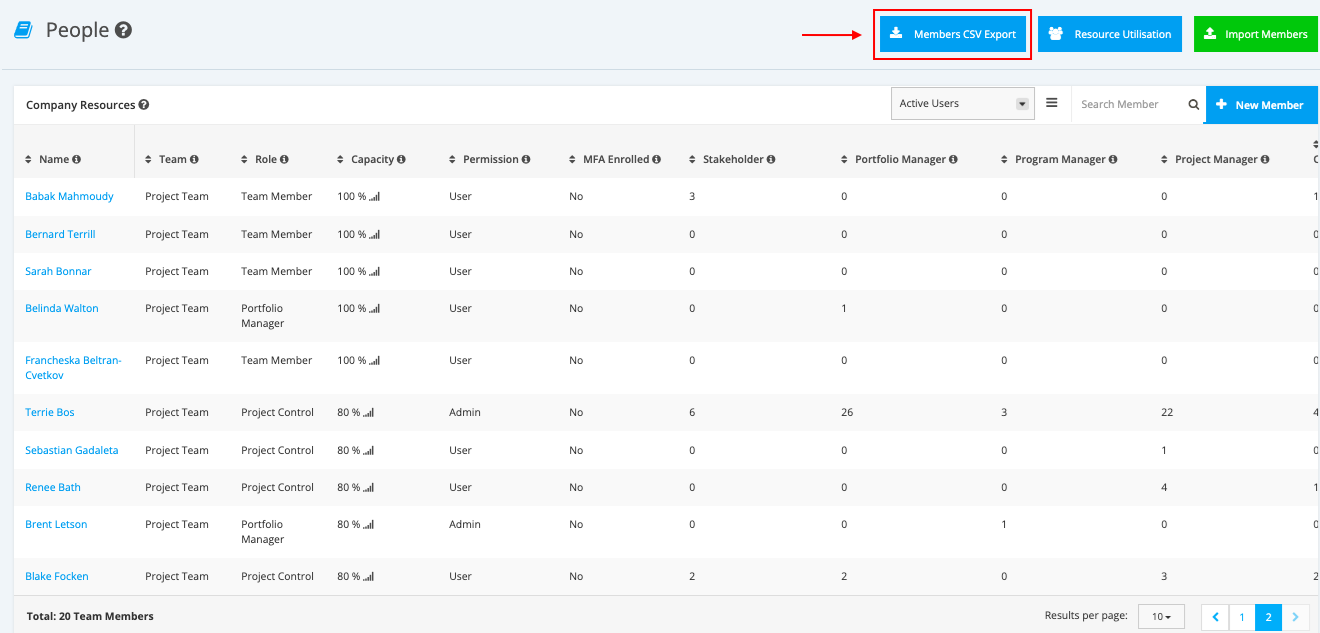
- It provides the recent extract of all the people/resources in the company with important details such as Name, Email,Date Joined, Last Login, etc.
- This functionality is accessible via the People module with the Member CSV Export button.
4. Reopen/ Reverse a Closed Project
A Closed project can be reopened or reversed for some valid reasons such as:
- The "real actual work" is technically not been completed for the project.
- The project was moved to "Closed" without doing proper closeout.
- Needs further or proper documentation, or for reporting updates/upload
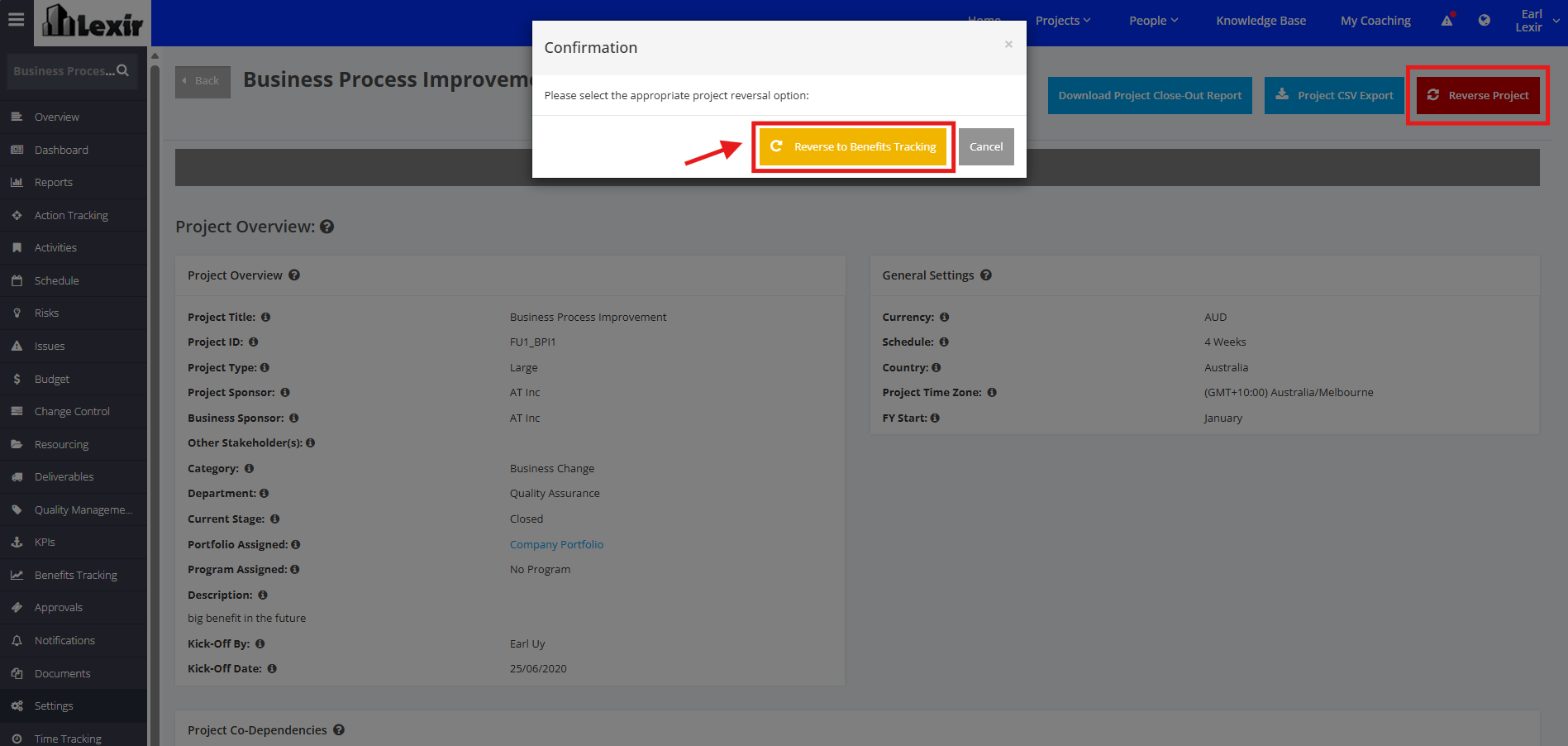
Reversing a Closed Project is done via the Project Settings page by clicking the Reverse Project button, then clicking the Reverse to Benefits Tracking button once Confirmation popup is displayed.
5. Download a Project Close-Out Report
A Project Close-Out Report is a report generated and submitted for the Project Close Out with:
- Details relating to criteria and completed items
- Comments around those that were difficult to execute or caused unforeseen issues and risks in the project
- Information and notes regarding what went perfect or good and reasons as to why in the project
- Notes around learnings from what was planned/ executed in the Project, and changes needed to be made in the future
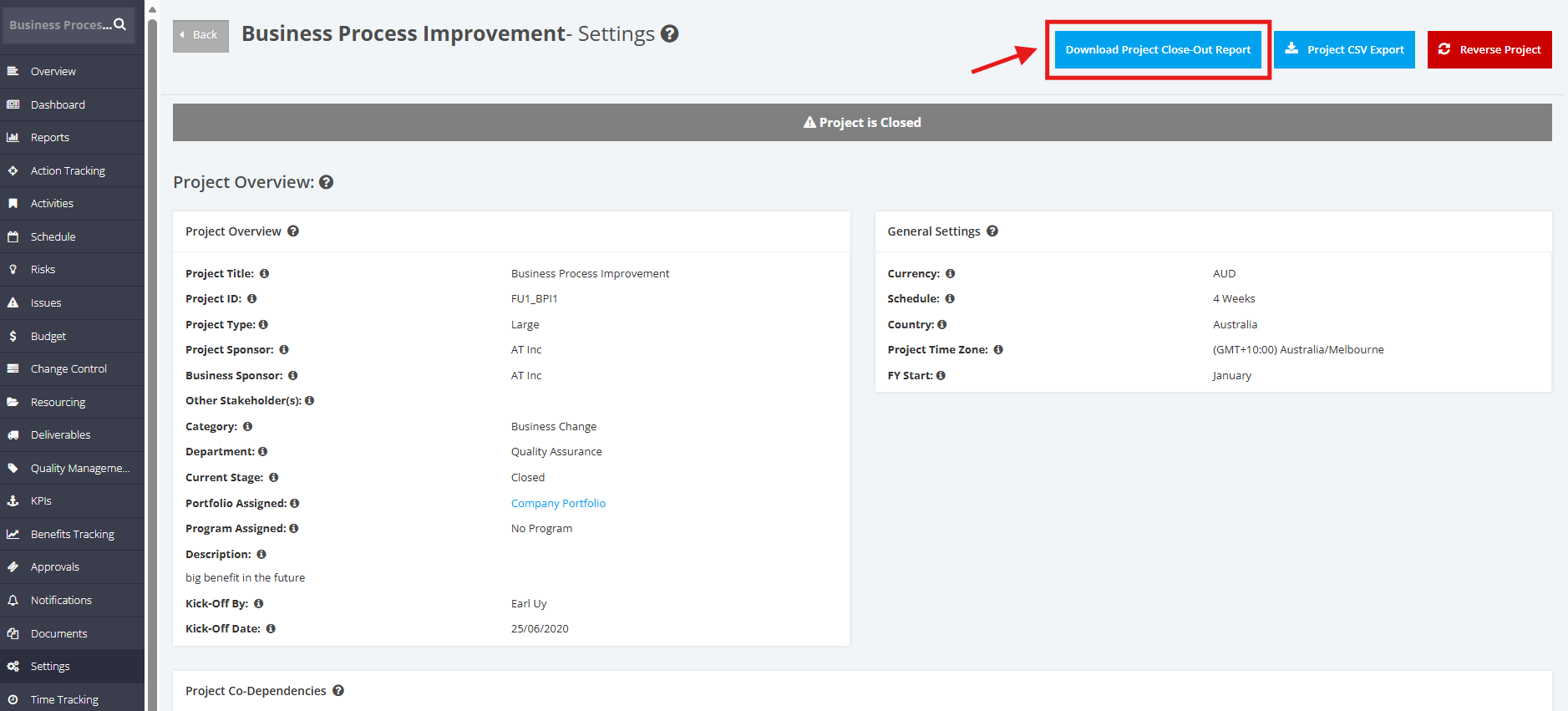
The Project Close-Out Report is downloaded within the Closed Project via the Project Settings page by clicking the Download Project Close-Out Report button.
6. Delete Portfolio
NOTE: Currently, this can be done by FOCUS™ Internal Support only (Super-Users). In the future, Delete Portfolio permission will be extended to Admins.
Portfolios can be deleted for valid reasons such as:
- The portfolio is a duplicate.
- The portfolio was created as a test and has outlived its usefulness.
- The portfolio was created by mistake and has no real issues that need to be considered historically.
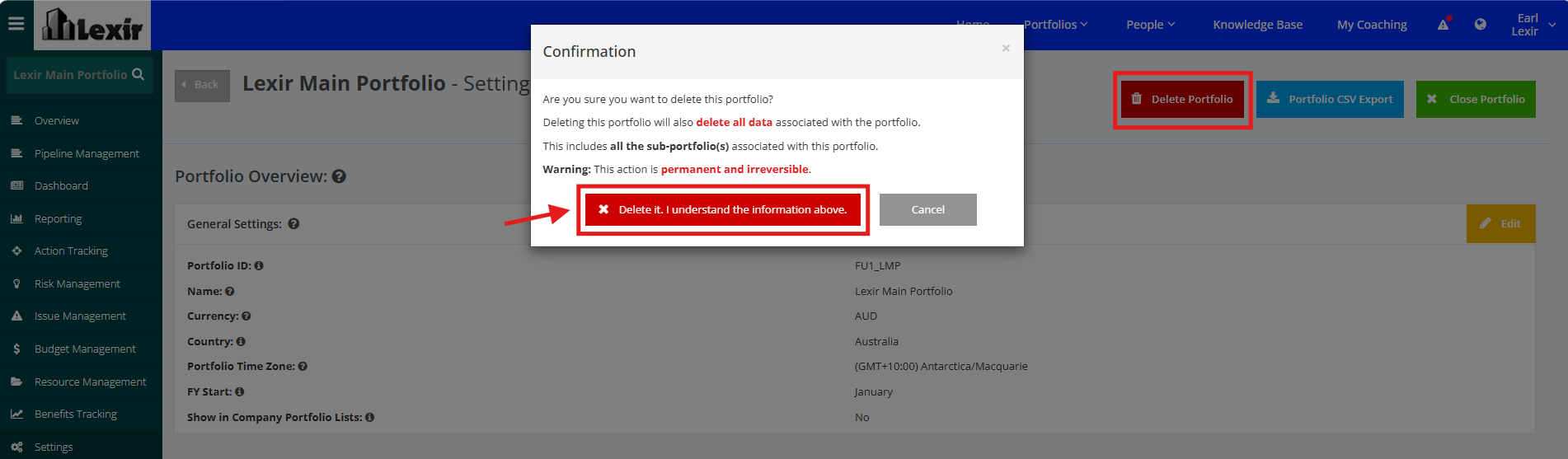
Deleting a Portfolio can be done via the Portfolio Settings page by clicking the Delete Portfolio button, then clicking the Delete button once Confirmation popup is displayed.
7. Delete Sent Project Reports
Sent Project Reports can be deleted for valid reasons such as:
- PMs didn’t add comments by the due date (and user wants to replace it with an Ad-hoc report)
- The platform has an issue with some alphanumeric IDs not translating correctly.
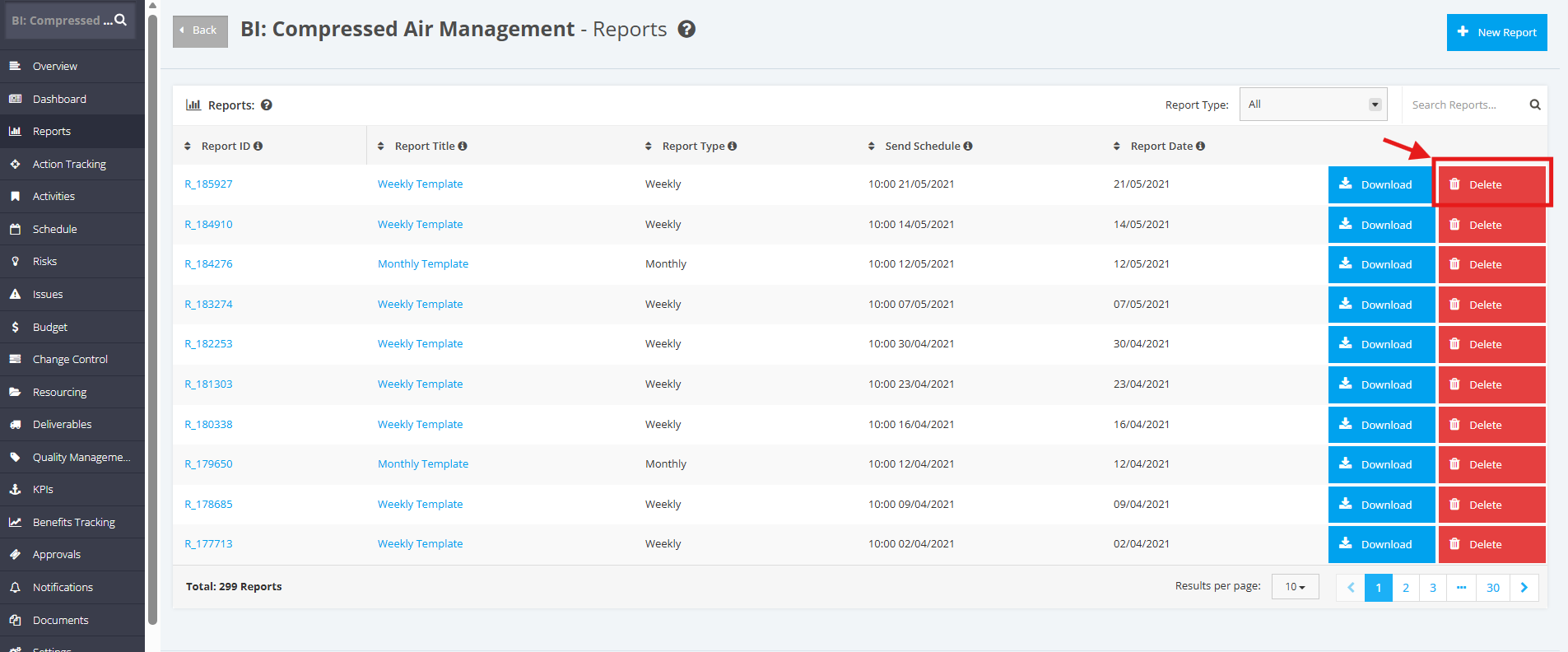
Deleting a Sent Project Report can be done via the Project Reports page by clicking the Delete button, which is beside the Download button.