
1. How to Update Resource Assignment
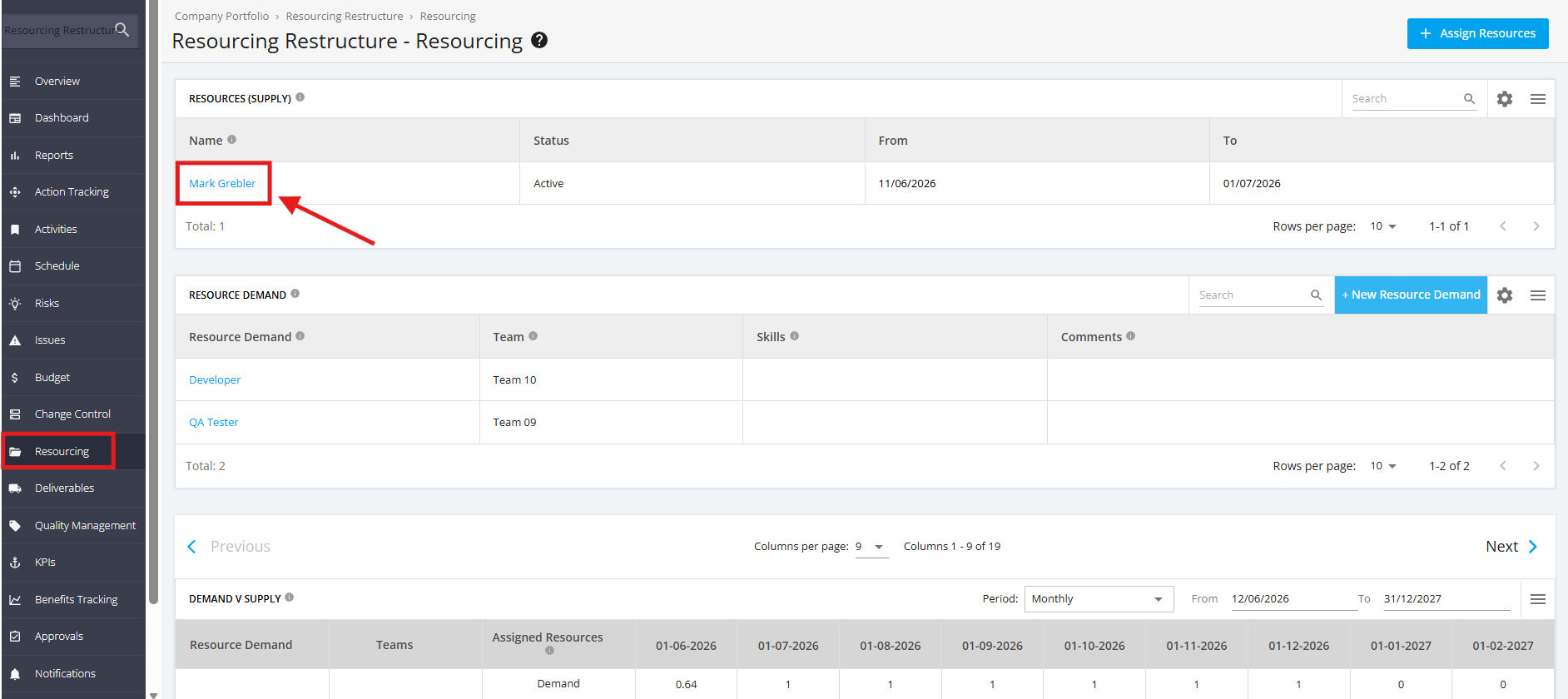
1. To update a Resource Assignment, click ‘Resourcing’ from the left sidebar of the page. Then, click a Resource Supply in the ‘Resources (Supply)’ table.
2. In the Resource Details page, click the 'Update Resource Assignment' button.

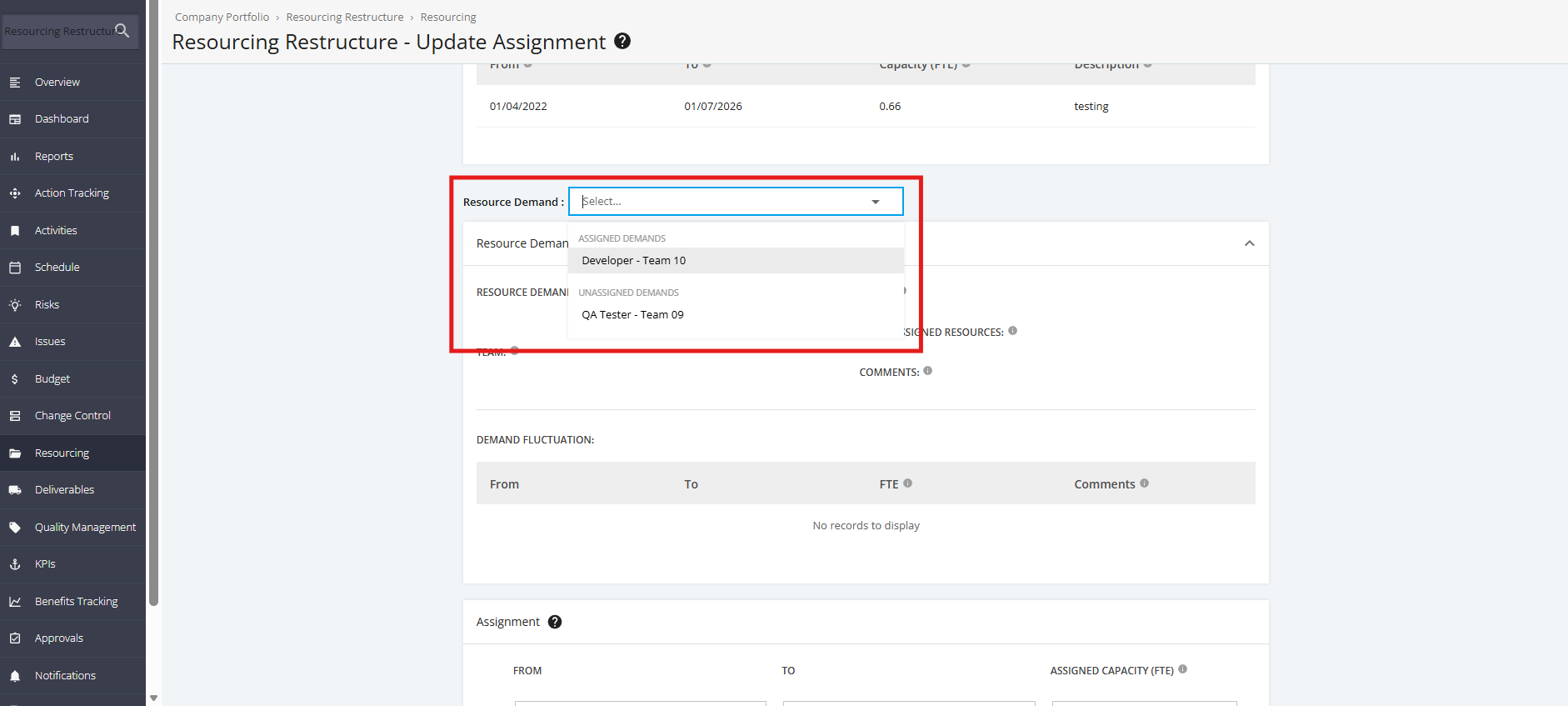
3. In the 'Resource Demand' dropdown list, select a Resource Demand to update a Resource Assignment.
4. In the 'Assignments' section, make any updates in either of the 'From', 'To', or 'Assigned Capacity' fields.
NOTE: If you want to Add more assignments, click the '+ Add more assignments' link.

5. Once done, click the 'Update' button.

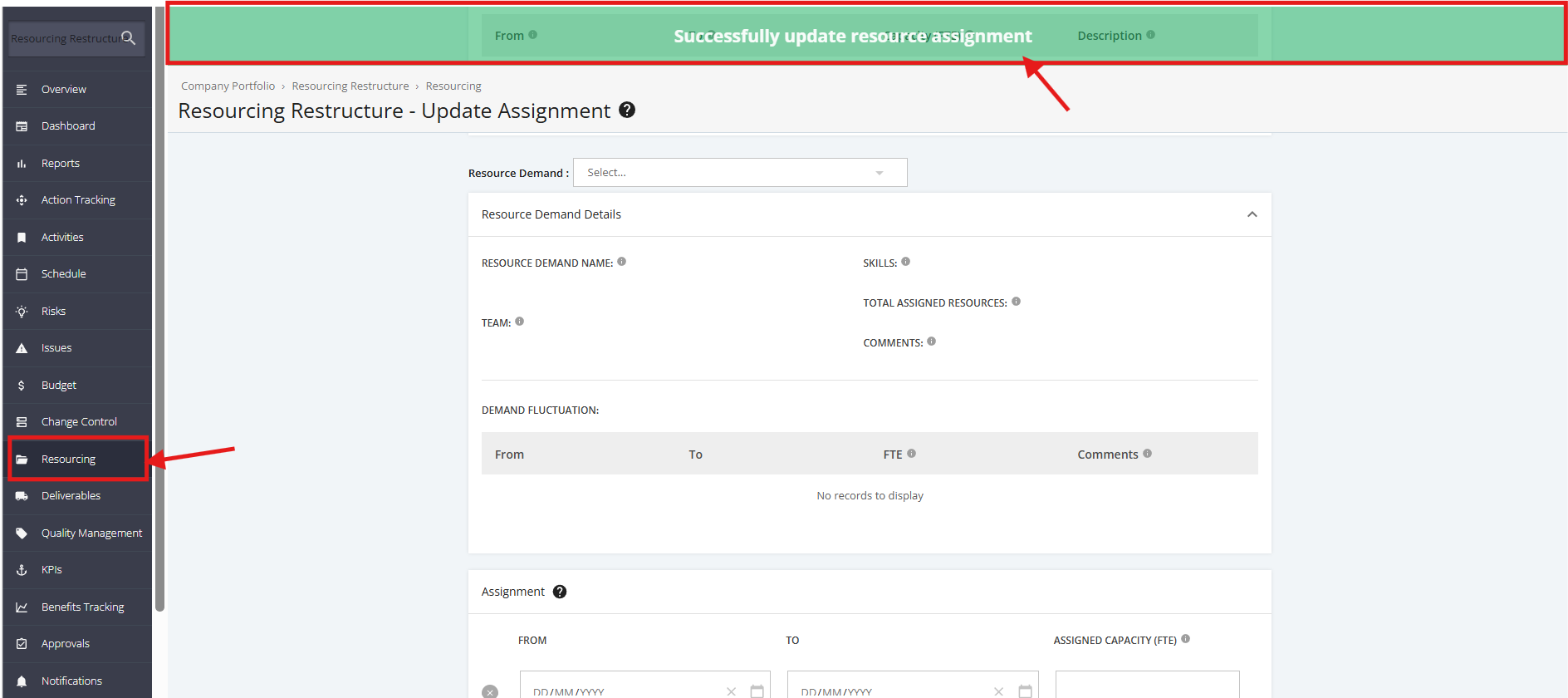
6. A notification will be displayed saying that the Update of the Resource Assignment is successful.
If you want to update more Resource Assignments, fill up all of the required fields and repeat when needed.
Otherwise, click the 'Resourcing' tab again from the left sidebar of the page.
TIP:
You can click the 'Assign to All Demand' button if you like all your Resource Assignment Dates to be assigned with the same Capacity (FTE).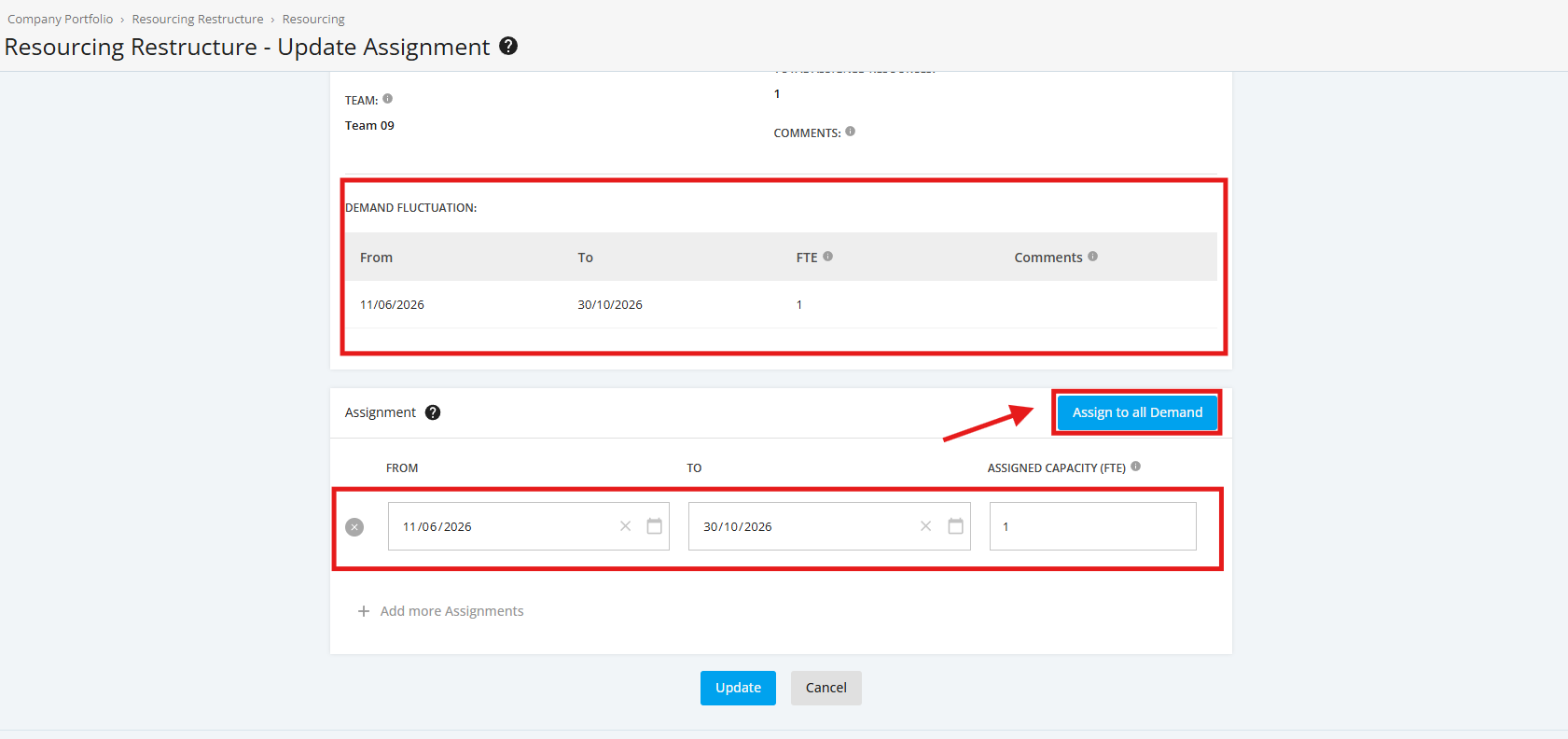
However, if there are existing Resource Assignments and the button is clicked, a Warning popup will display saying continuing will replace existing assignments for the Resource Supply with new ones based on updated demand for the role.
If you want to proceed, click 'Overwrite'.
