1. Add Project Schedule Tasks
1. To ‘Add’ a schedule task, Click the ‘+’ icon on the toolbar.
2. New Tasks are created with default Task Name ‘New Task’ and default Start and End Dates equal to the Execution Start Date.

Note:
If the Project Schedule has Calendar Settings where weekends are excluded as workdays and the Execution Start Date falls on a weekend, the default Start and End Dates for new tasks will be set to the next immediate workday following the Execution Start Date.
Important Note:
- All new tasks created are Automatically Scheduled. They will need to be changed if Manual is required.
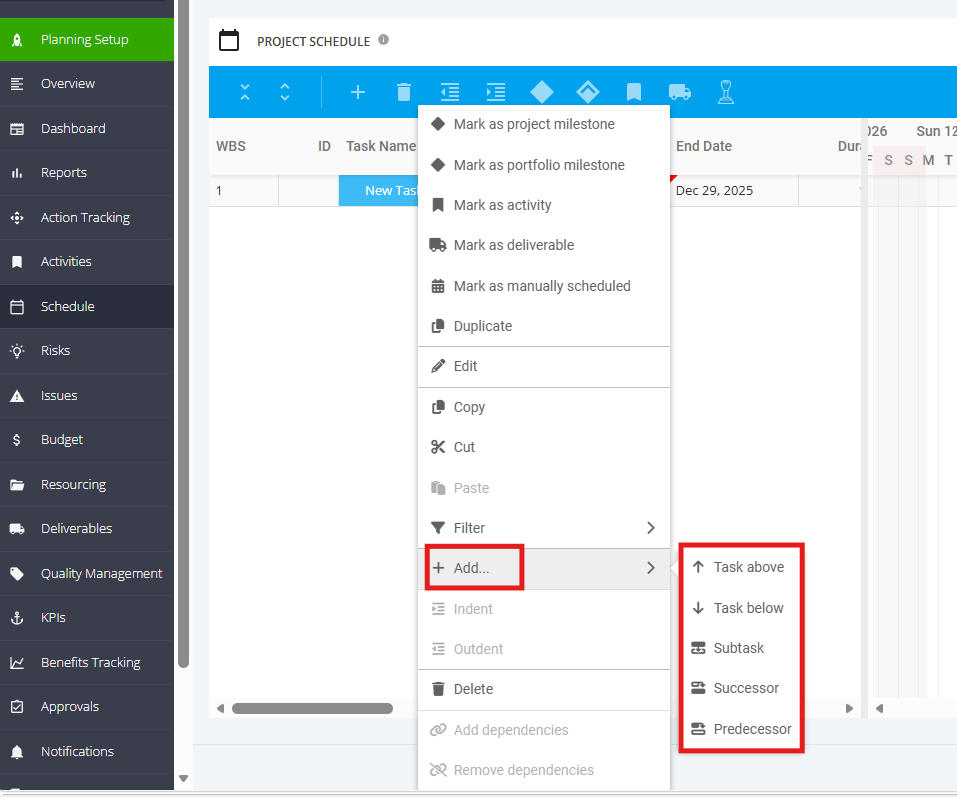
4. To ‘Add’ another schedule task, right click on an existing task, choose 'Add' from the dropdown list, and select from the dropdown options the kind of task to add.
- Task Above
- Task Below
- Child Task
- Predecessor
- Successor