1. Update Approved Opportunity Project (Phase 2)
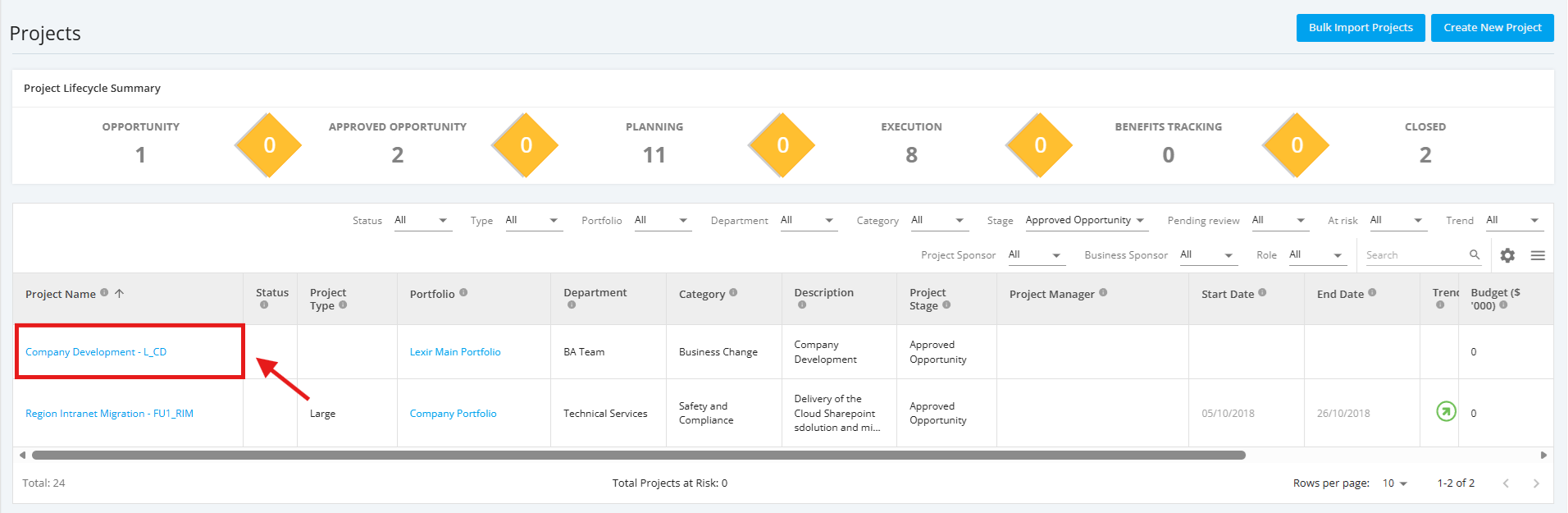
1. Within the ‘All Projects Dashboard’ page, click the ‘Approved Opportunity’ project that you want to update.
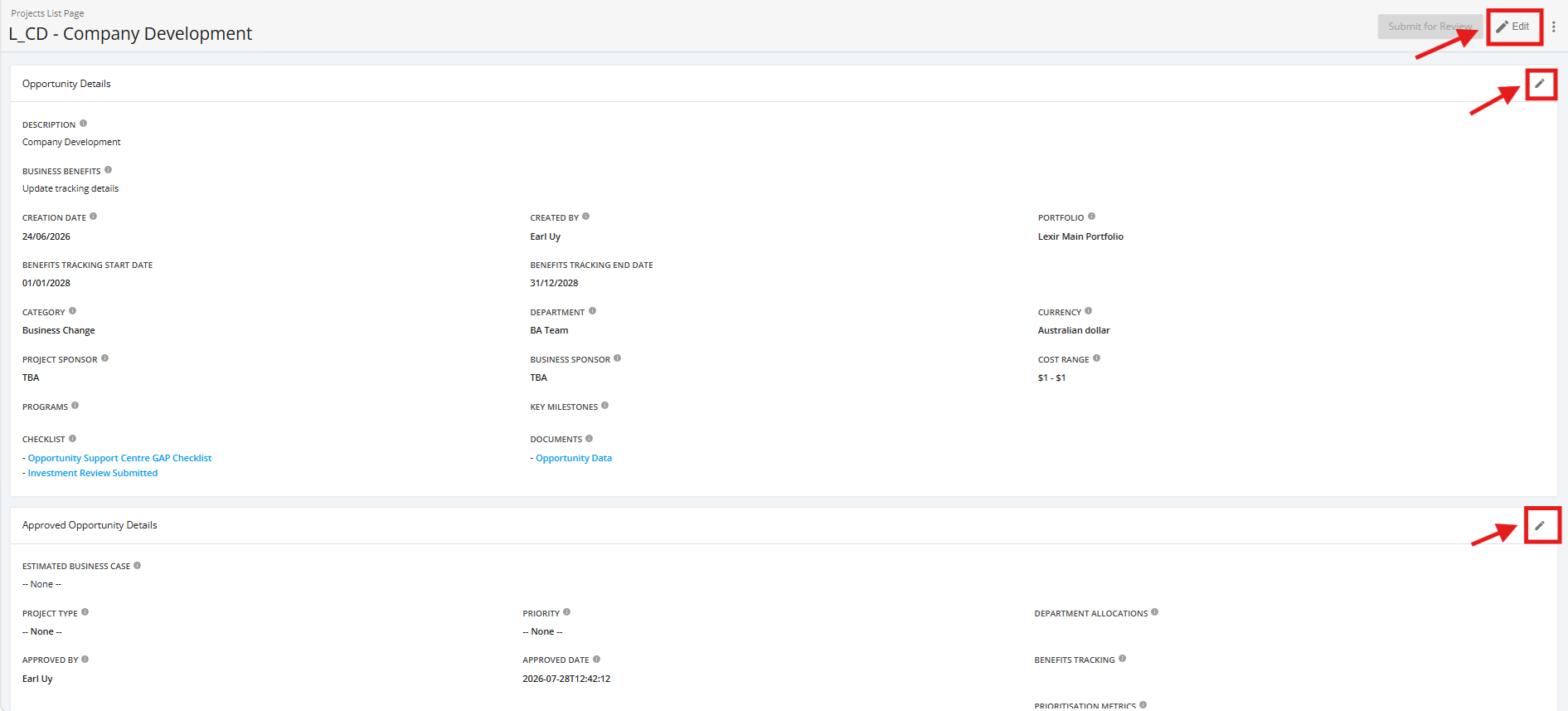
2. Once you reach the Project Details page, click ‘Edit’.
If you like to update only the 'Opportunity Details' of the project, you can click the pencil icon of the said section.
If you like to update only the 'Approved Opportunity Details' of the project, you can click the pencil icon of the said section.
3. In the 'Edit Approved Opportunity' page, fill in the following details:
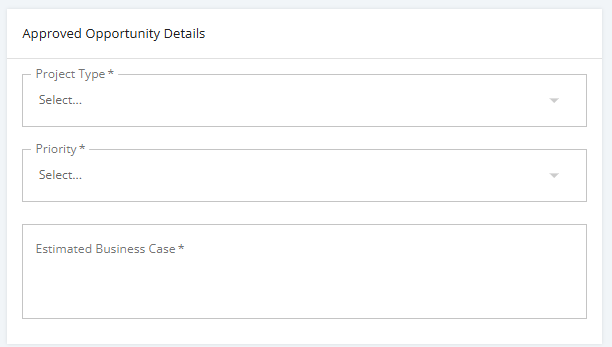
Approved Opportunity Details
- ‘Project Type’ – The type of project based on what the company wants to create. Several factors can influence the type of project created. Among them are scope, the degree of risk, time, cost, the level of new technology, the level of detail in plans.
- ‘Priority’ – How urgent the Project is. Priority is based on a Very High to Very Low scale separating the highest priority projects from the lowest. Priority is based off the needs of the business considering legal/regulation needs or overall opportunity.
- 'Estimated Business Case' – Business case is a summary of the issue, opportunity, and timeline/cost of the project in a short and concise paragraph. The business case is to be used as an "elevator pitch" of the project. (i.e. a 30 second explanation where at the end the person you say it to knows the who, what, and why of the project at a high level.)
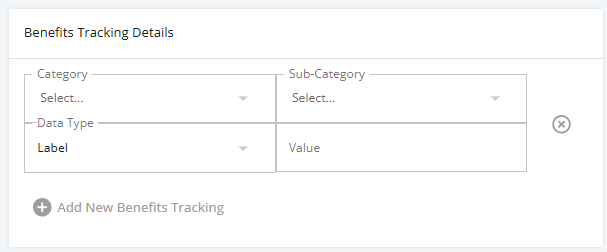
Benefits Tracking Details (optional)
- ‘Category’ – The benefit category is a customised field defined at company level to provide a standard across the business for grouping benefits. User to select from dropdown list.
- ‘Sub-category’ – The benefit sub-category is customised fields within a Benefit Category as defined at company level to provide a standard across the business for grouping benefits. User to select from dropdown list.
- 'Data Type'– The measurement type to be assigned to the benefit as per available options (e.g. Financial, Percentage, Number or Label.)
- 'Value'– The inputted benefit value of the Benefit Item.
To add more Benefits to the Project, click "Add New Benefits Tracking".
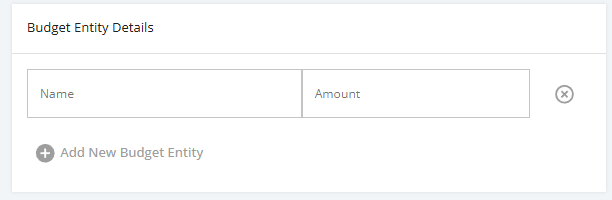
Budget Entity Details (optional)
- ‘Name’ – The name of the individual budget item to explain what it will be used for. Should be short and concise to explain the reasoning and usage of the money being allocated for the budget.
- ‘Amount’– The inputted value of the Budget Item.
To add more Budget items to the Project, click "Add New Budget Entry".
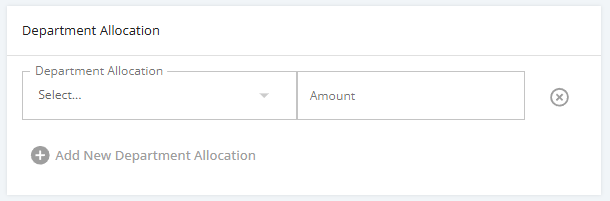
Department Allocation (optional)
- ‘Department Allocation’ – What departments and personnel are included in the project as well as the role that they play. The list can be modified over the course of the project, but at initiation should at least have team leads, and any known ad-hoc members or departments that are needed.
- ‘Amount’ – The number of resources allocated for the department
To add more Departments to the Project, click "Add New Department Allocation".
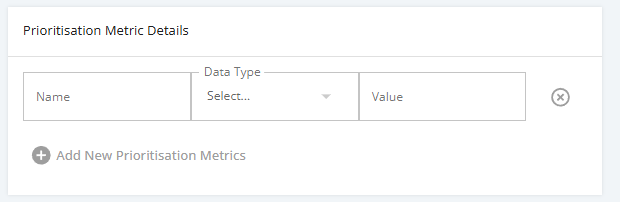
Prioritisation Metric Details (optional)
- ‘Name’ – A scoring measure used during the Approved Opportunity stage to evaluate and rank project opportunities based on factors such as business value, strategic alignment, feasibility, risk, resource requirements, and expected benefits. It helps decision-makers objectively determine which projects should be prioritized for funding and execution.
- ‘Data Type’ – The measurement type to be assigned to the Prioritisation Metric as per available options (e.g. Financial, Percentage, Number or Label.)
- 'Value'– The inputted value of the Prioritisation Metric Item.
To add more Prioritisation Metric items to the Project, click "Add New Prioritisation Metrics".
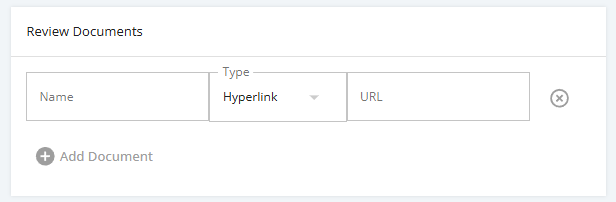
Review Documents
A collection of project documents and supporting materials used to assess feasibility, validate assumptions, and inform decision-making. Examples may include business cases, requirements documents, feasibility studies, cost estimates, risk assessments, and stakeholder inputs.
- ‘Name’ – Name or short description of the document supporting the project
- ‘Data Type’ – The type of document supporting the project. Document can either be a hyperlink or an uploaded file.
- 'URL'– If document is a Hyperlink, a link to any external Project related file(s) is inputted.
- 'File'– If document is a File, a file to the project is uploaded directly.
To add more ‘Documents’, click ‘Add Document’.
Lifecycle Dates
If your Company Settings are configured to require users to enter Project Lifecycle Dates, those dates must be completed.
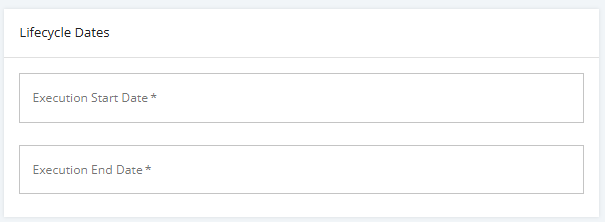
You can verify this by navigating to 'Company Settings → Project Lifecycle'. Check the phases whose 'Scheduled Start Date' and 'Scheduled End Date' are set to 'Phase 2 – Approved Opportunity'.
Additional Data
If your Company Settings is configured to require additional information for the Approved Opportunity Project, they must be filled up.
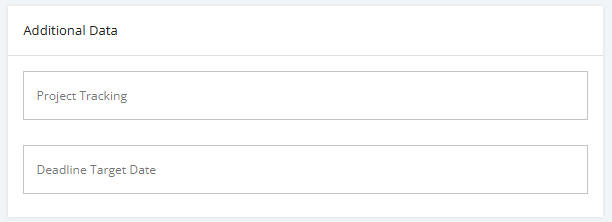
You can verify this by navigating to 'Company Settings → Project Configuration -> Pipeline Details'. Click the 'Approved Opportunity' link to check the said fields.
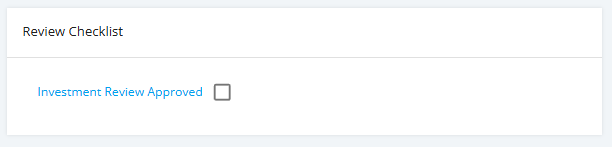
Review Checklist
Tick all the checkboxes in the said list.
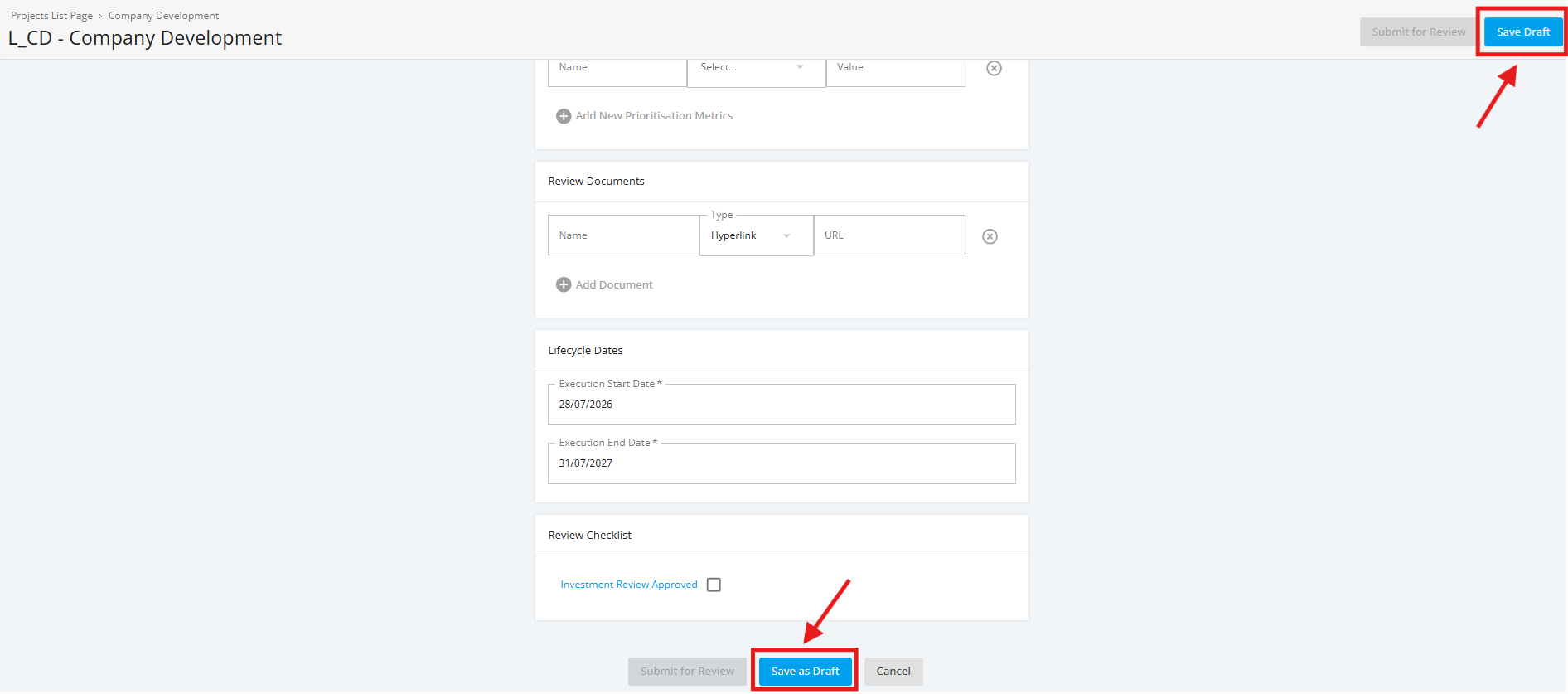
4. If you still like to make changes before submitting the Project for Review, click the "Save Draft" button.