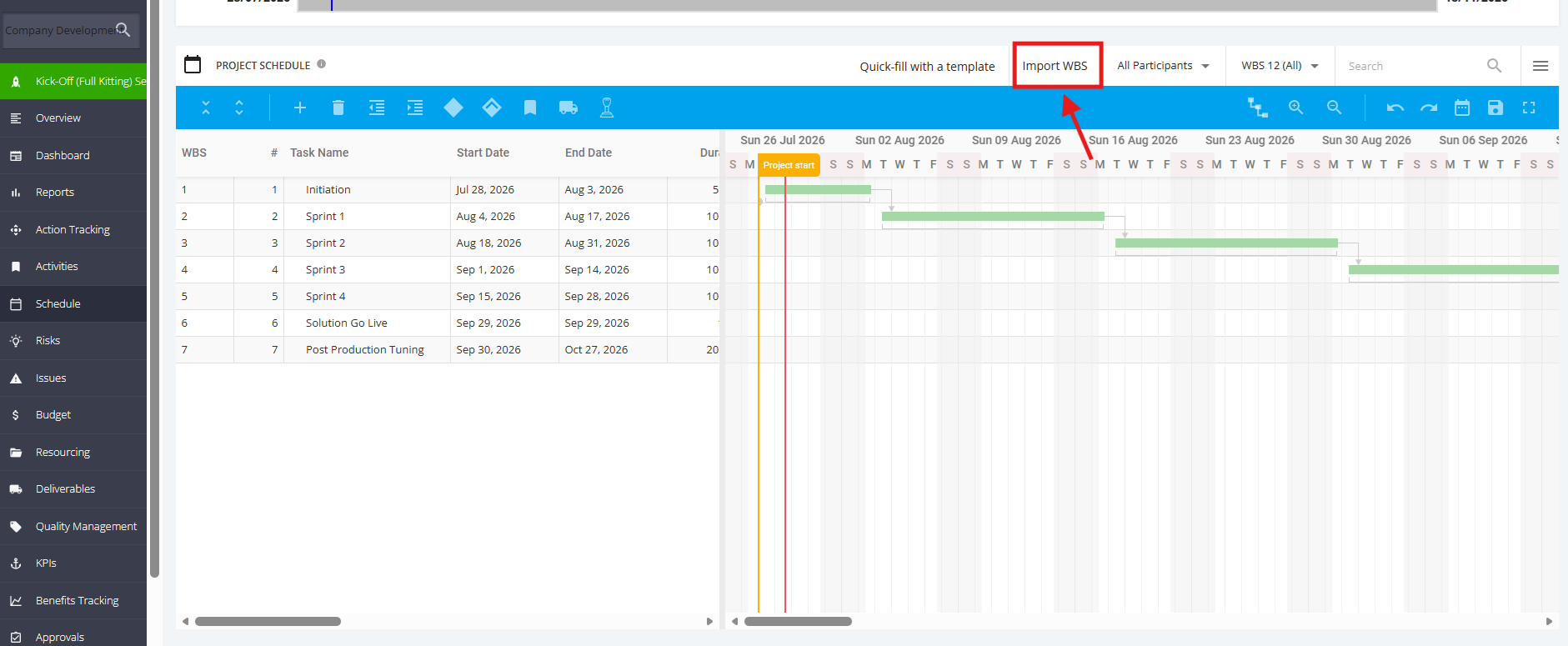
1. Schedule Completed
"Schedule Completed" is one of the automated checklists for a Kick-Off (Full Kitting) project. For this checklist item to be automatically ticked, add a Project Schedule in the Kick-Off (Full Kitting) project.
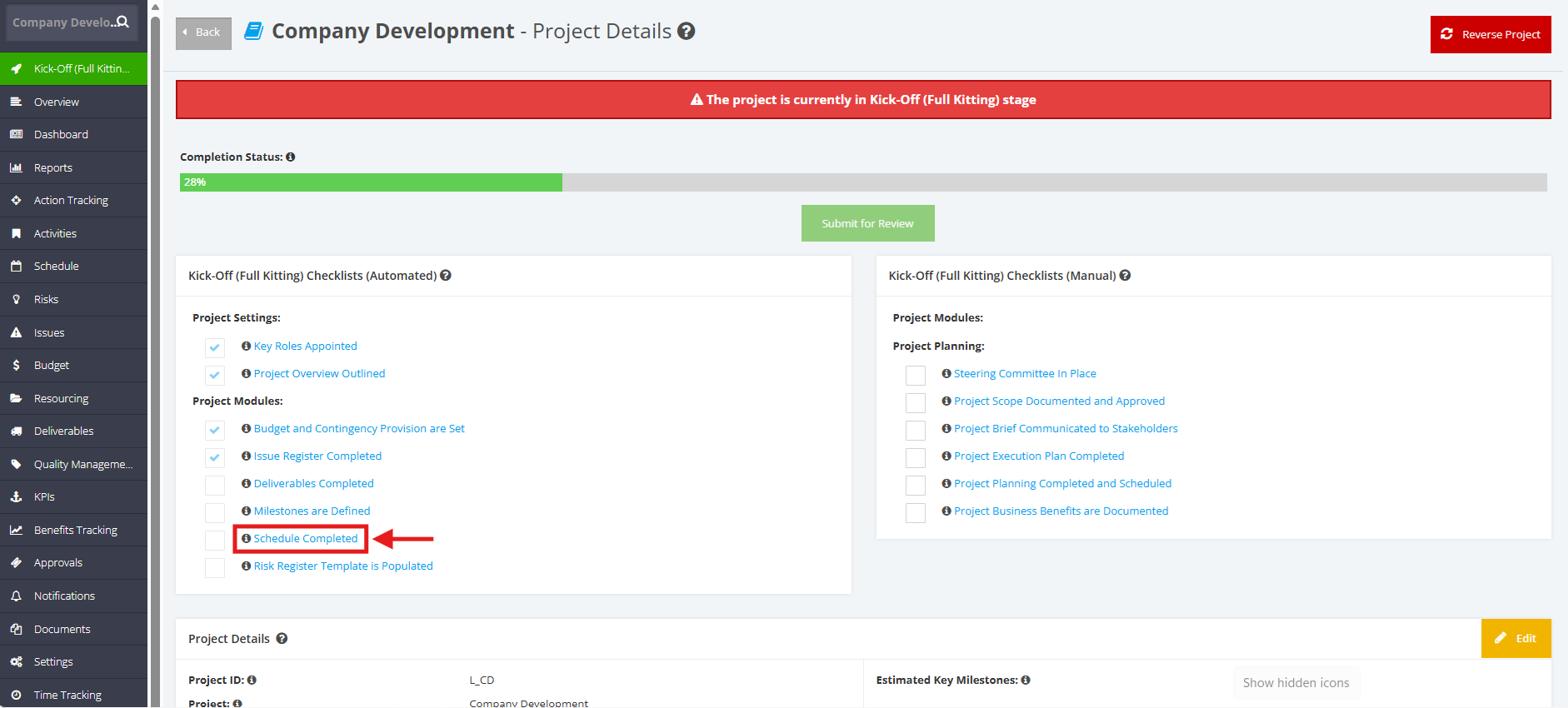
1. Within the ‘Pipeline Details’ page, navigate to ‘Full Kitting Checklist (Automated)’ section then click the ‘Schedule Completed’ checklist.
2. Once redirected to the Schedule page, you can add a Schedule item by:
- Clicking the ‘+’ button
- Clicking the ‘Import WBS’ button
- Clicking 'Quick-fill with a template' and selecting a Schedule template
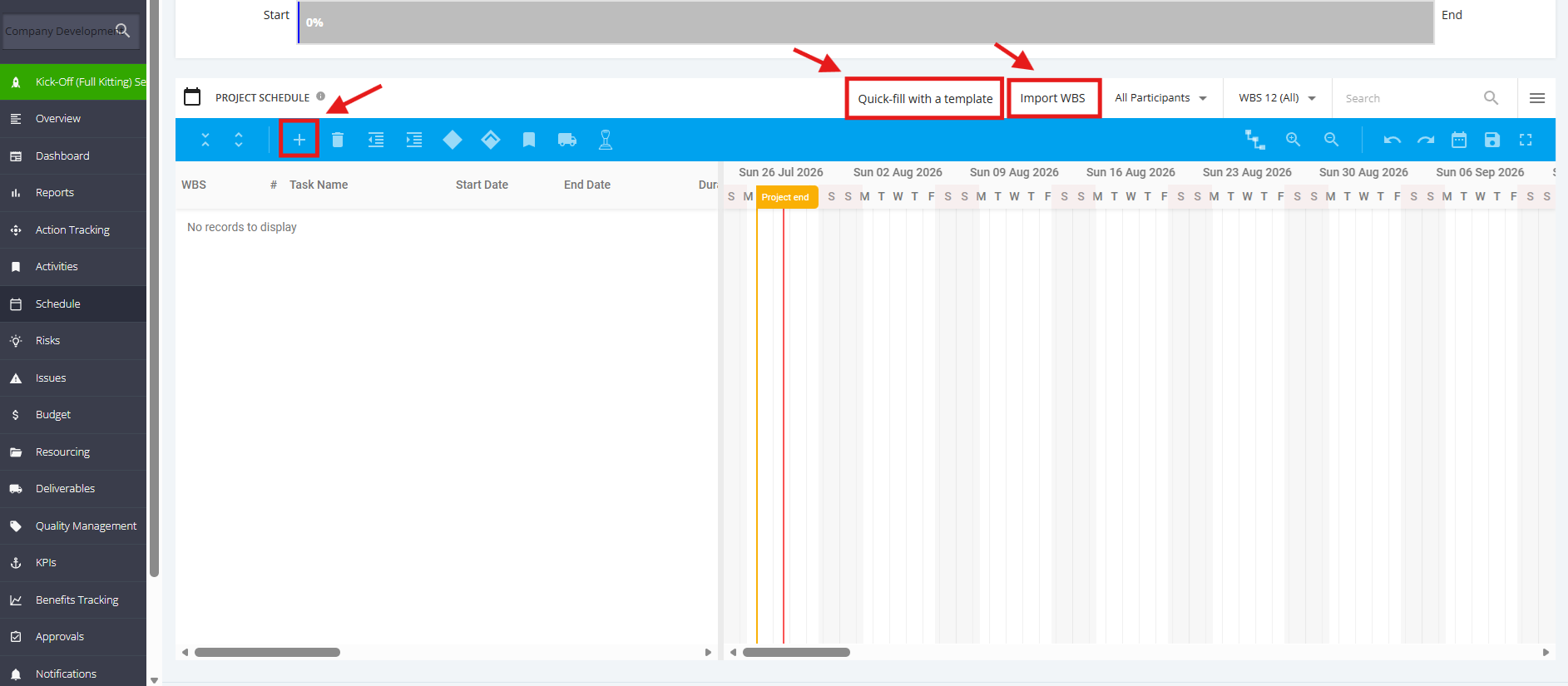
3. Once ‘+’ button is clicked, you can update Task information within the Project Schedule Table (Name, % Complete, Start Date, End Date, Effort etc.).

You can also right-click the task and select "Edit". A popup message will display, and you can make the necessary changes.
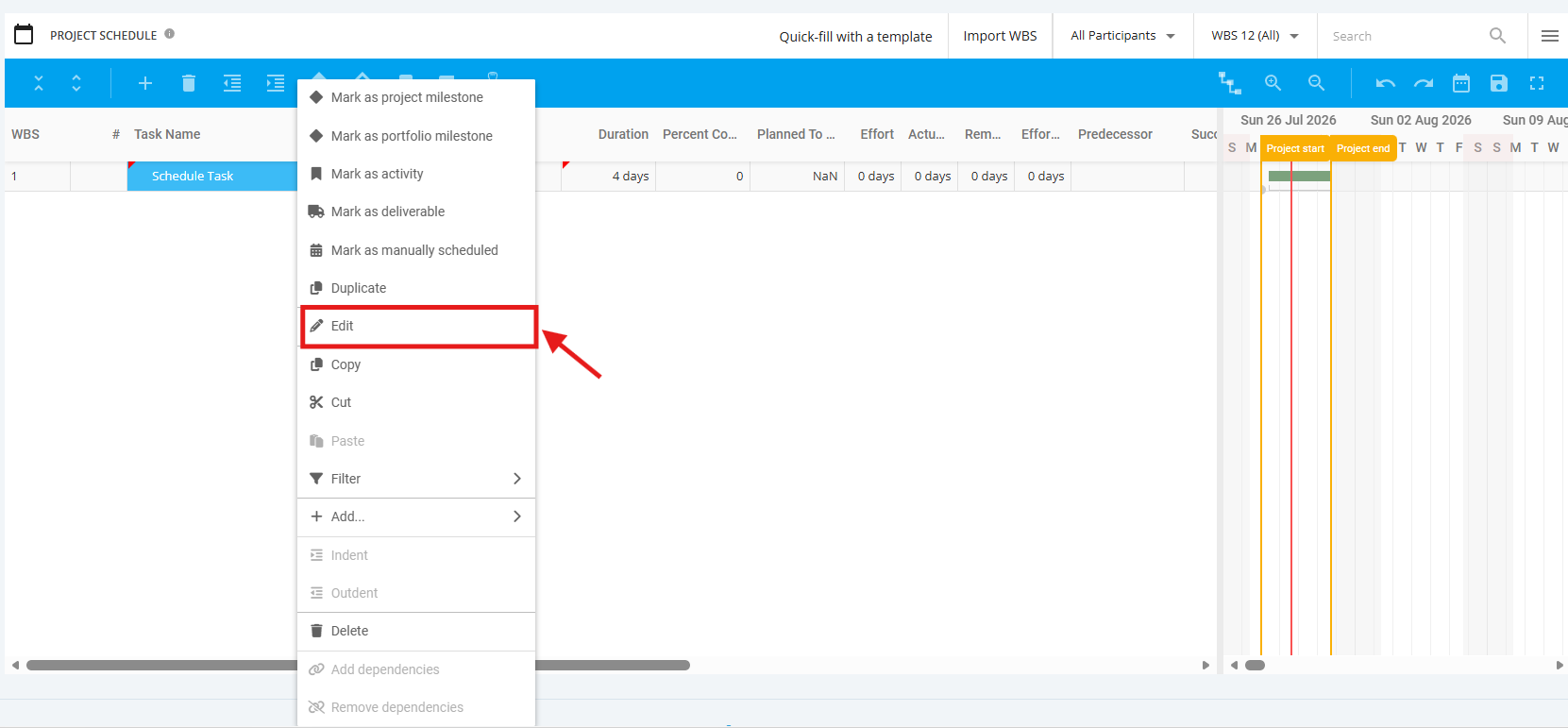
Once done, click the ‘Save’ icon.

4. Once ‘Import WBS’ button is clicked, the following expectation is considered:
If a Schedule is imported within in a Full Kitting project but does not have any Schedule data yet, the project will automatically reflect the Imported Schedule data.