1. Budget and Contingency Provision are Set
"Budget and Contingency Provision are set" is one of the automated checklists for a Kick-Off (Full Kitting) project. For this checklist item to be automatically ticked, add all Project Costs and Contingency provisions in the Kick-Off (Full Kitting) project.
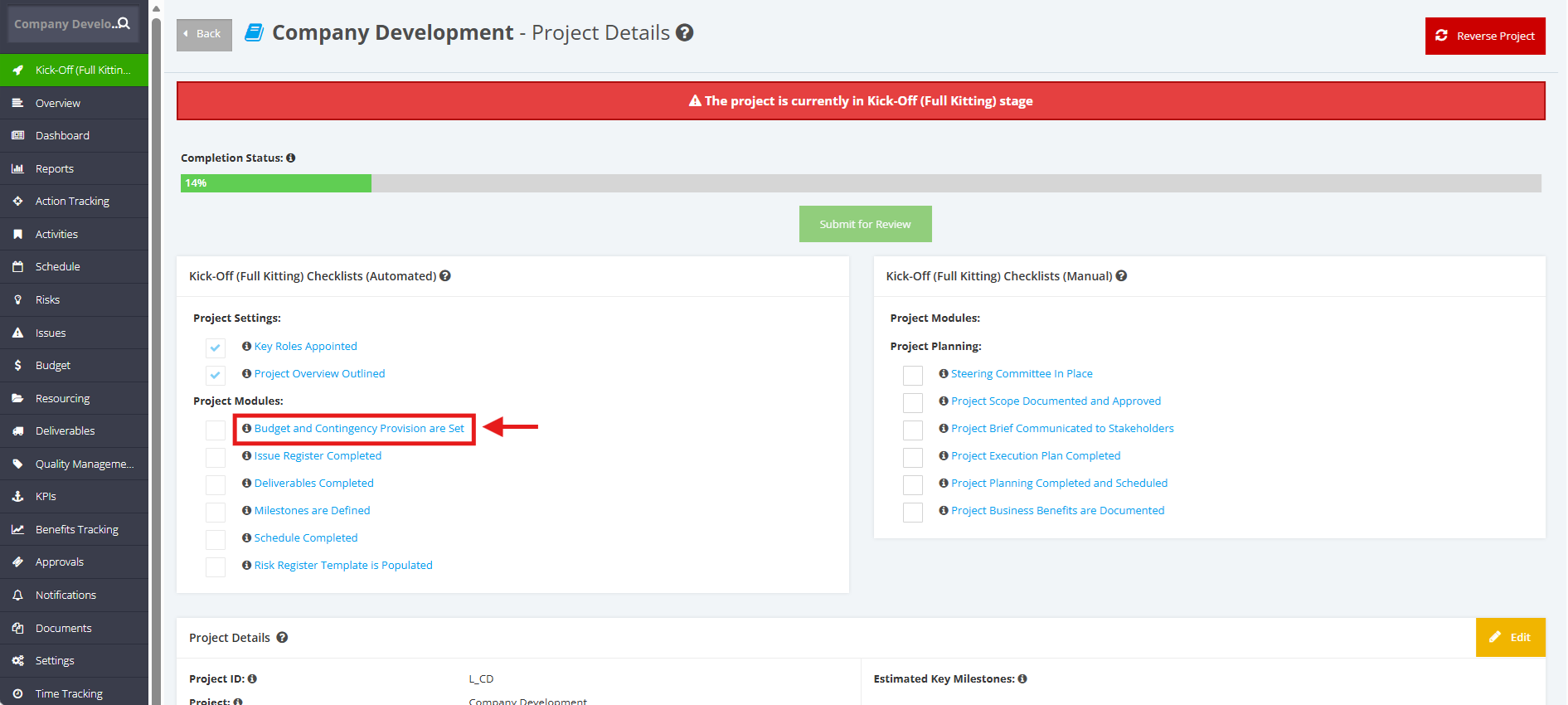
1. Within the ‘Pipeline Details’ page, navigate to ‘Full Kitting Checklist (Automated)’ section then click the ‘Budget and Contingency are set’ checklist.
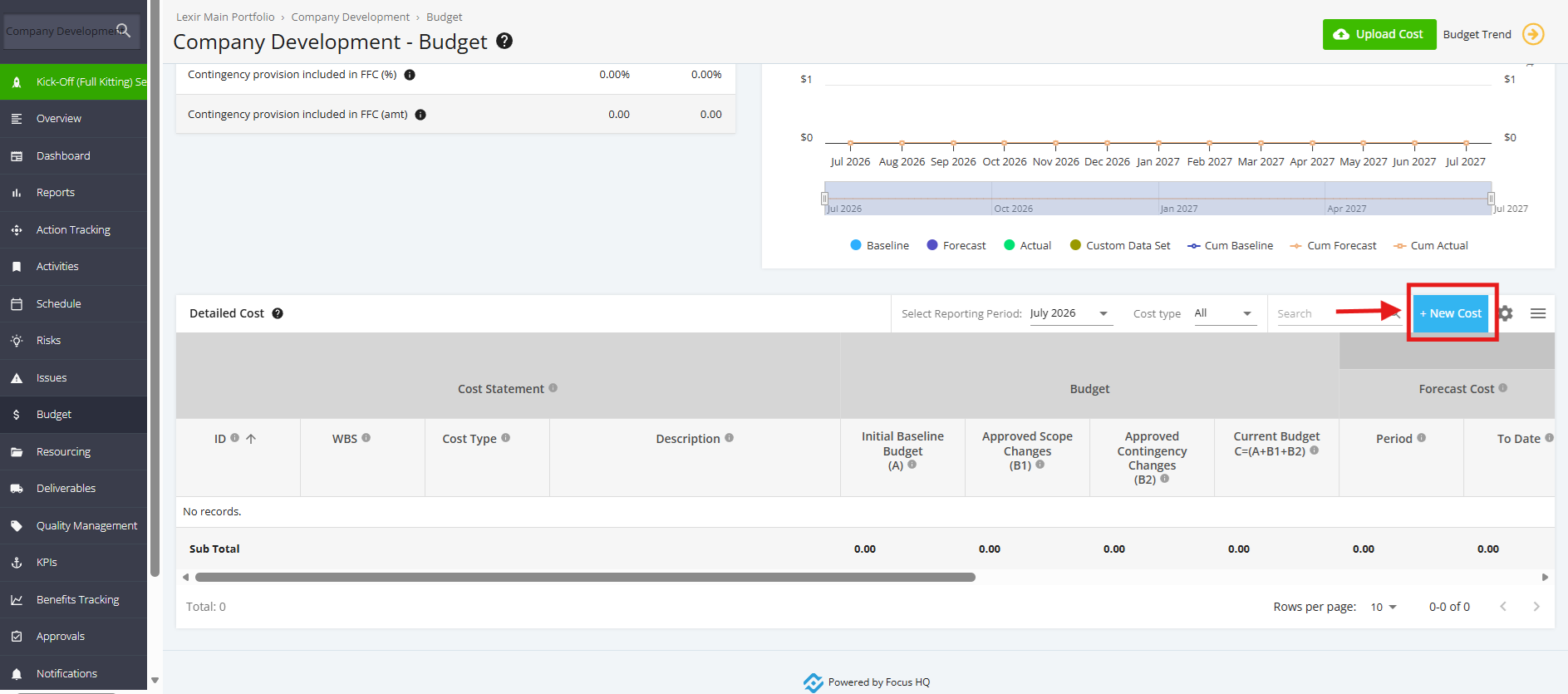
2. Once redirected to the Budget page, click the ‘+New Cost’ in the ‘Detailed Cost’ section to add a Budget item.
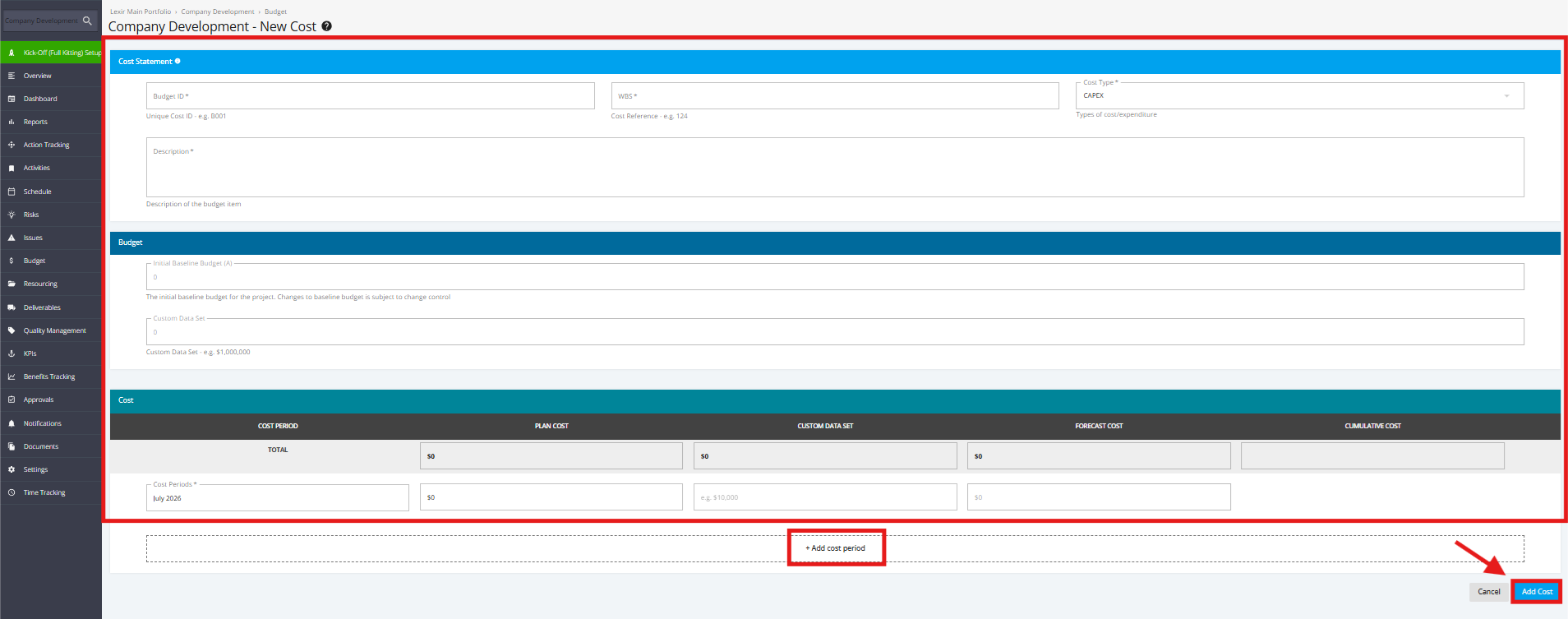
3. In the ‘New Cost’ page, provide the following information in the form:
Budget ID, WBS, Cost Type, Description, Initial Baseline Budget, Custom Budget Data Set (if configured in Company Settings), Cost Periods, Plan Cost).
If you wish to add cost period, click ‘+Add Cost Period’.
Once done, hit ‘Add Cost’ button.
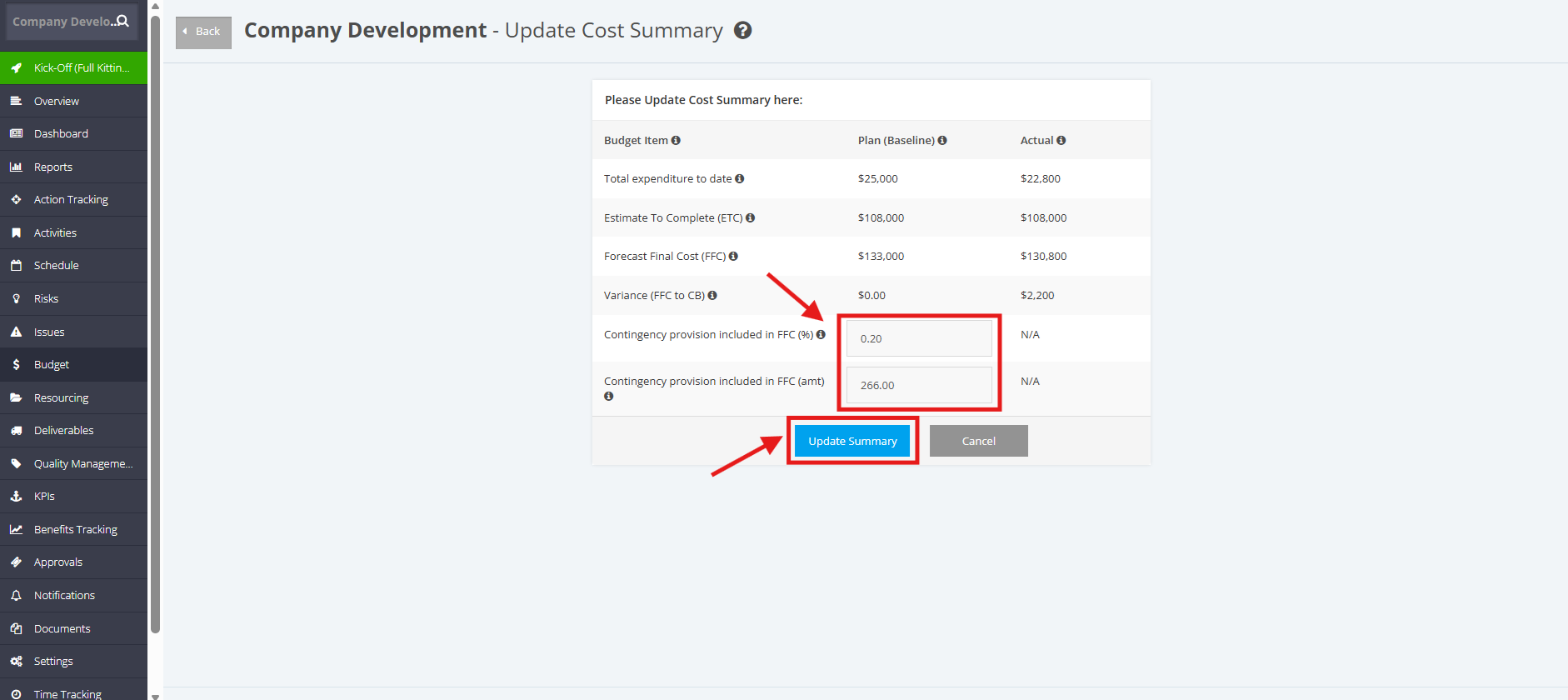
4. To add Contingency provisions, navigate to the ‘Cost Summary’ tables and click the ‘pencil’ icon.
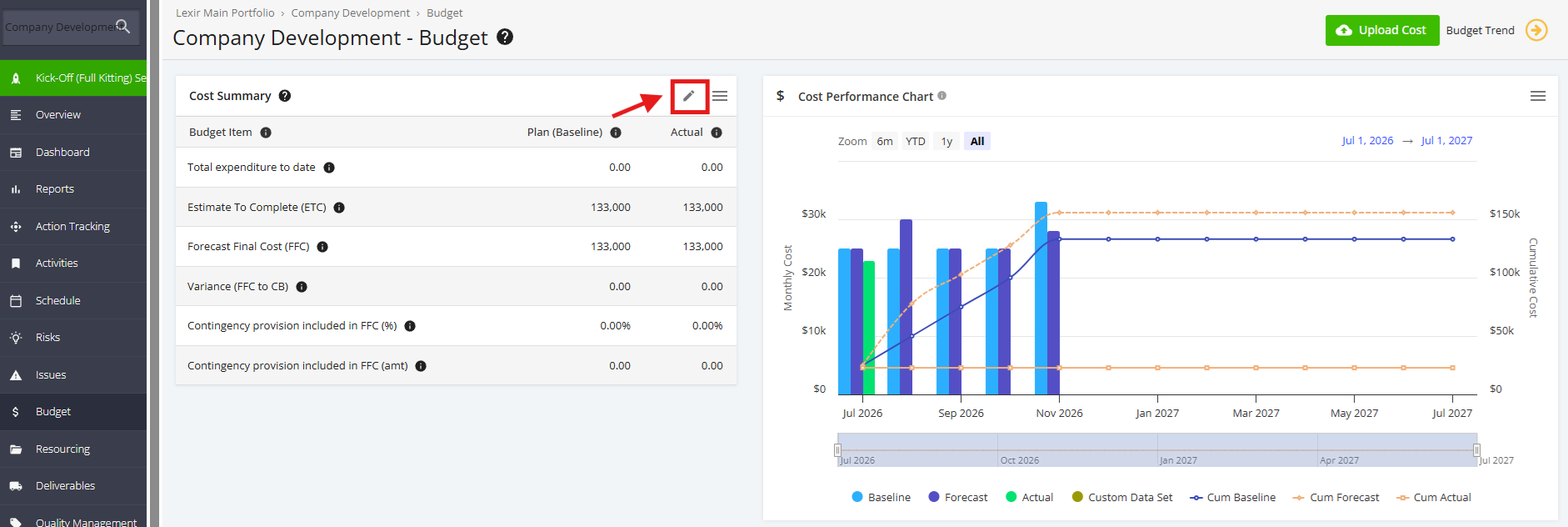
5. Within the ‘Update Cost Summary’ page, input a percentage in the ‘Contingency provision included in FFC (%)’ field or an amount in the ‘Contingency provision included in FFC (amt)’ field. An input in one field causes an automatic calculation of the other.
Once done, click the 'Update Summary' button.