1. Key Roles Appointed
"Key Roles Appointed" is one of the automated checklists for a Kick-Off (Full Kitting) project. For this checklist item to be automatically ticked, assign All Key Roles to users in the Kick-Off (Full Kitting) project.
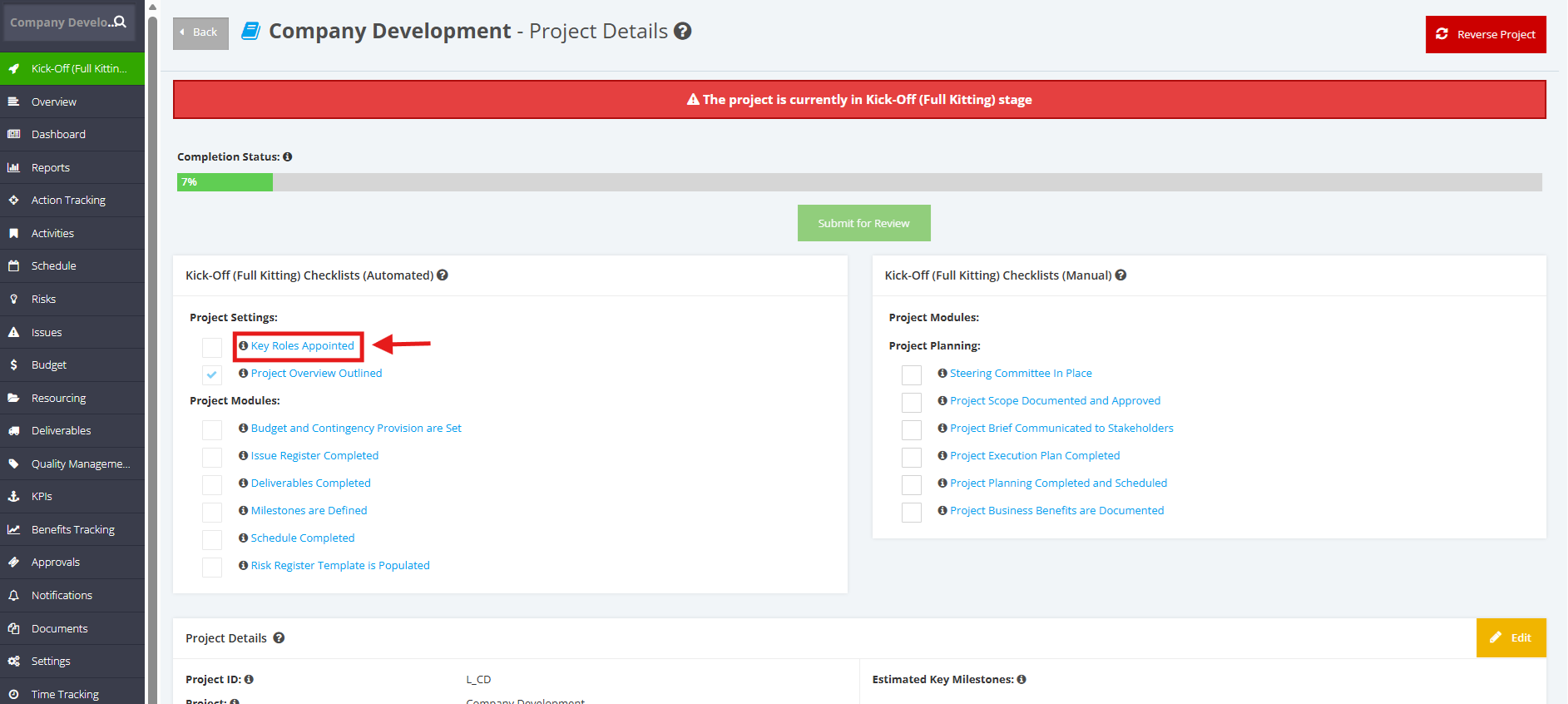
1. Within the ‘Pipeline Details’ page, navigate to ‘Full Kitting Checklist (Automated)’ section then click the ‘Key Roles Appointed’ link.
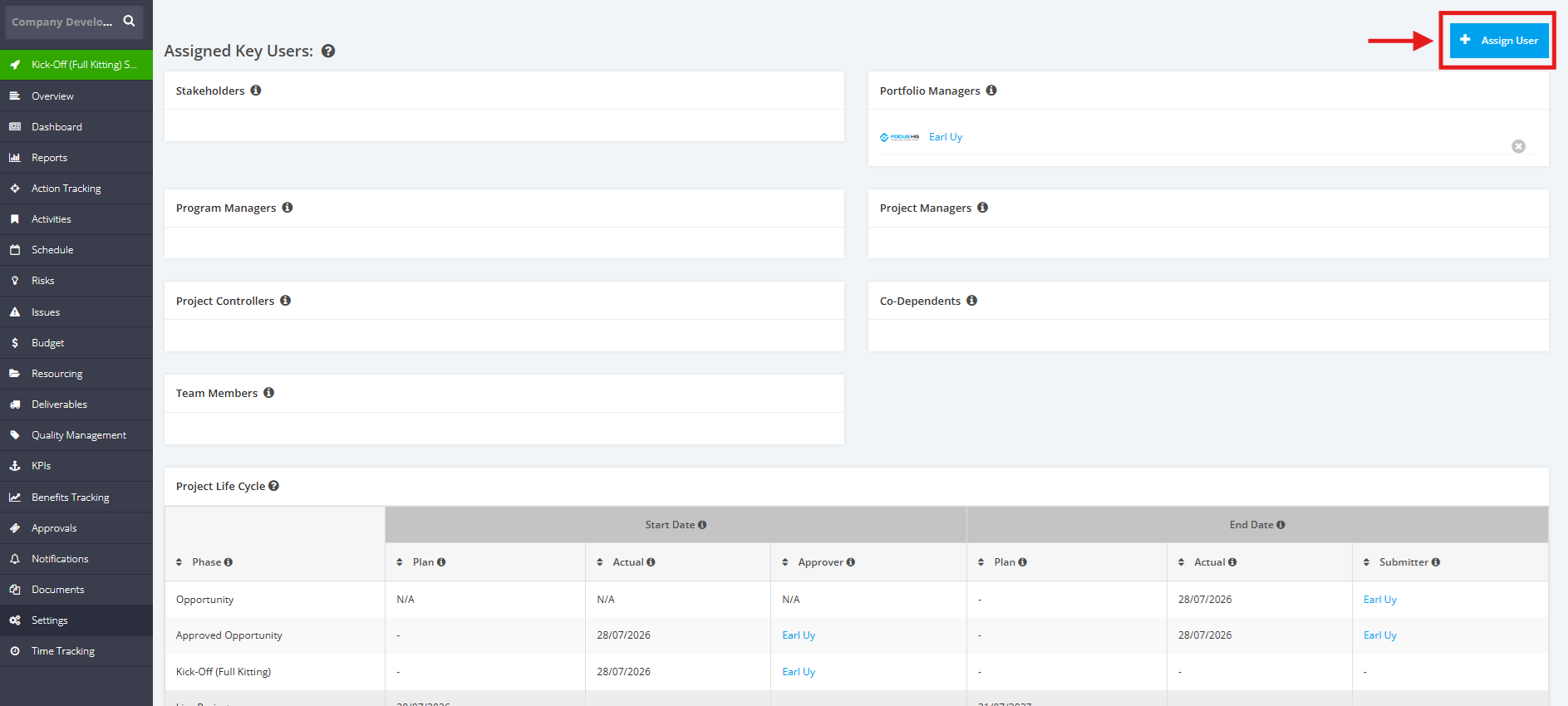
2. Once redirected to the ‘Settings’ page, go to the ‘Assigned Key Users’ section and click the ‘+Assign User’ button.
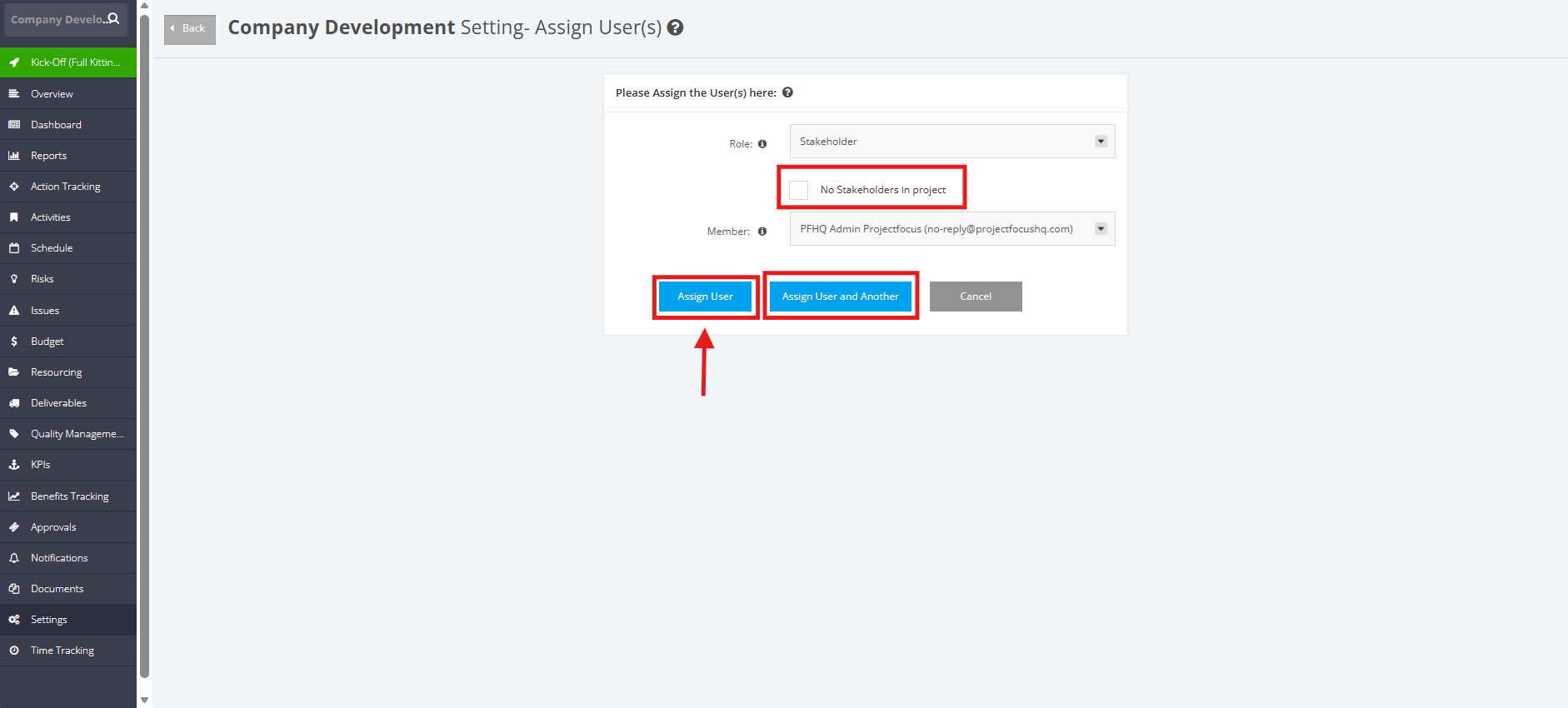
3. Select a ‘Role’ and a ‘Member’ in the dropdown menu. Once done, select any of the following steps below:
- Click the ‘Assign User’ button if you are NOT going to add another user
- Click the ‘Assign User and Another’ button if you are going to add another user
NOTE:
- You can add a user to 1 or more different roles.
- You can't add a user more than once to the same role.
If there are NO Key Users for a Role in a Project, you can tick the "No role in project" checkbox. And then, click either 'Assign User' or 'Assign User and Another'.
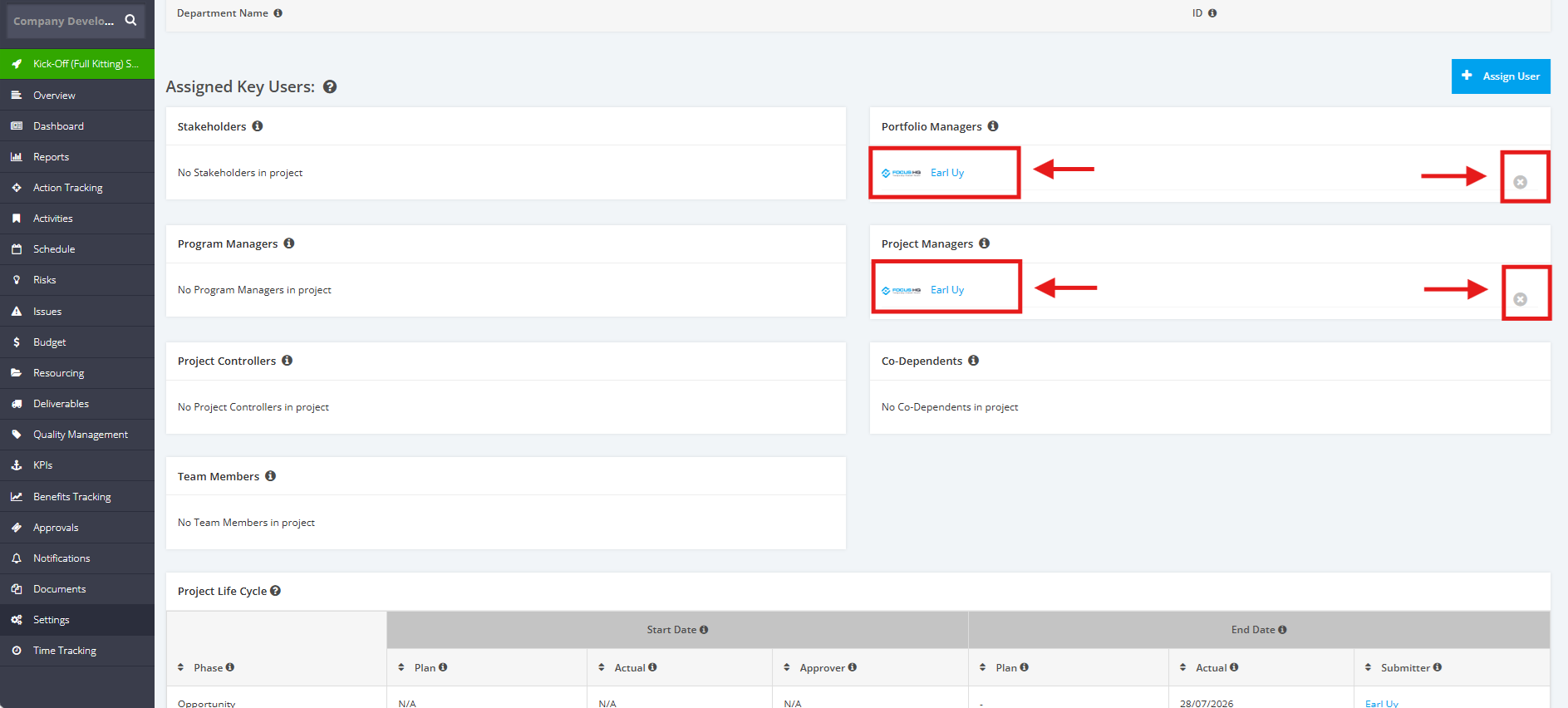
4. The appointed Key Roles will be displayed in the ‘Assigned Key Users’ table. If you wish to remove a key role, click the ‘x’ button beside the key user.