1. Project Type – Update Project Phase
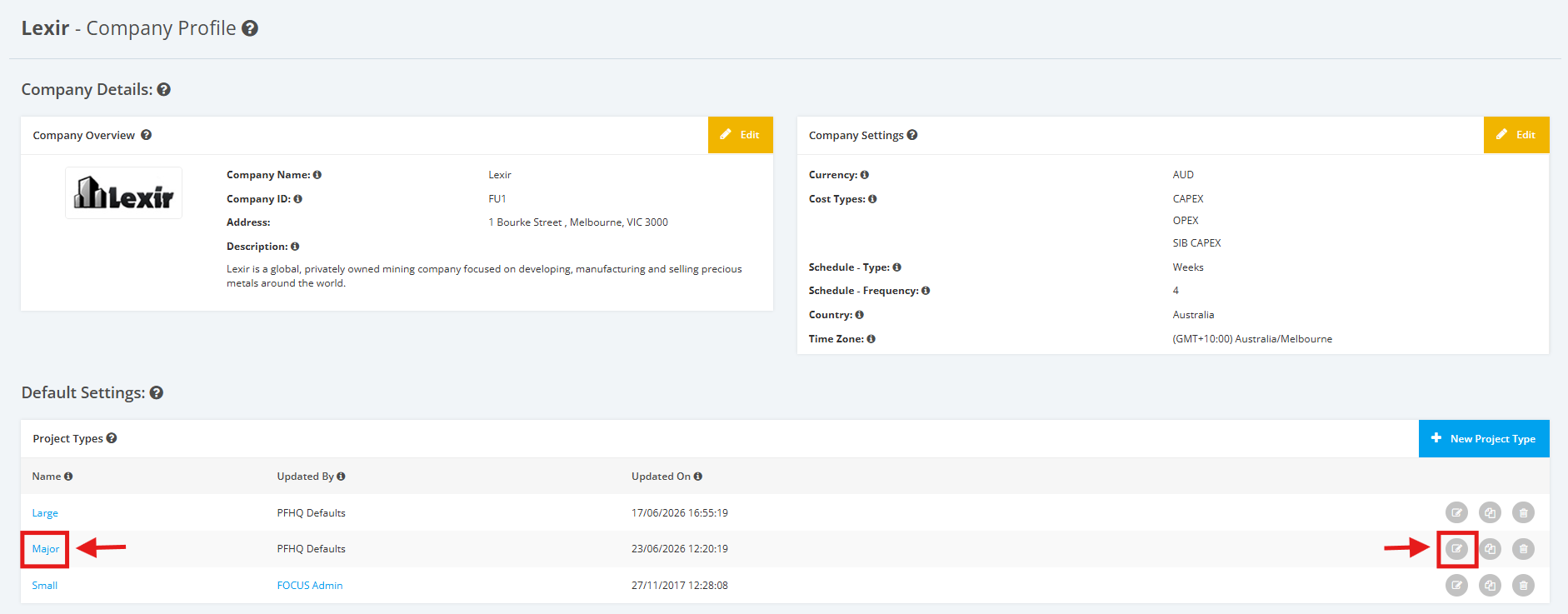
1. Within the Company Profile, scroll to the ‘Default Settings’ section then ‘Project Types’. Click the ‘Edit’ icon or the name of the Project Type.
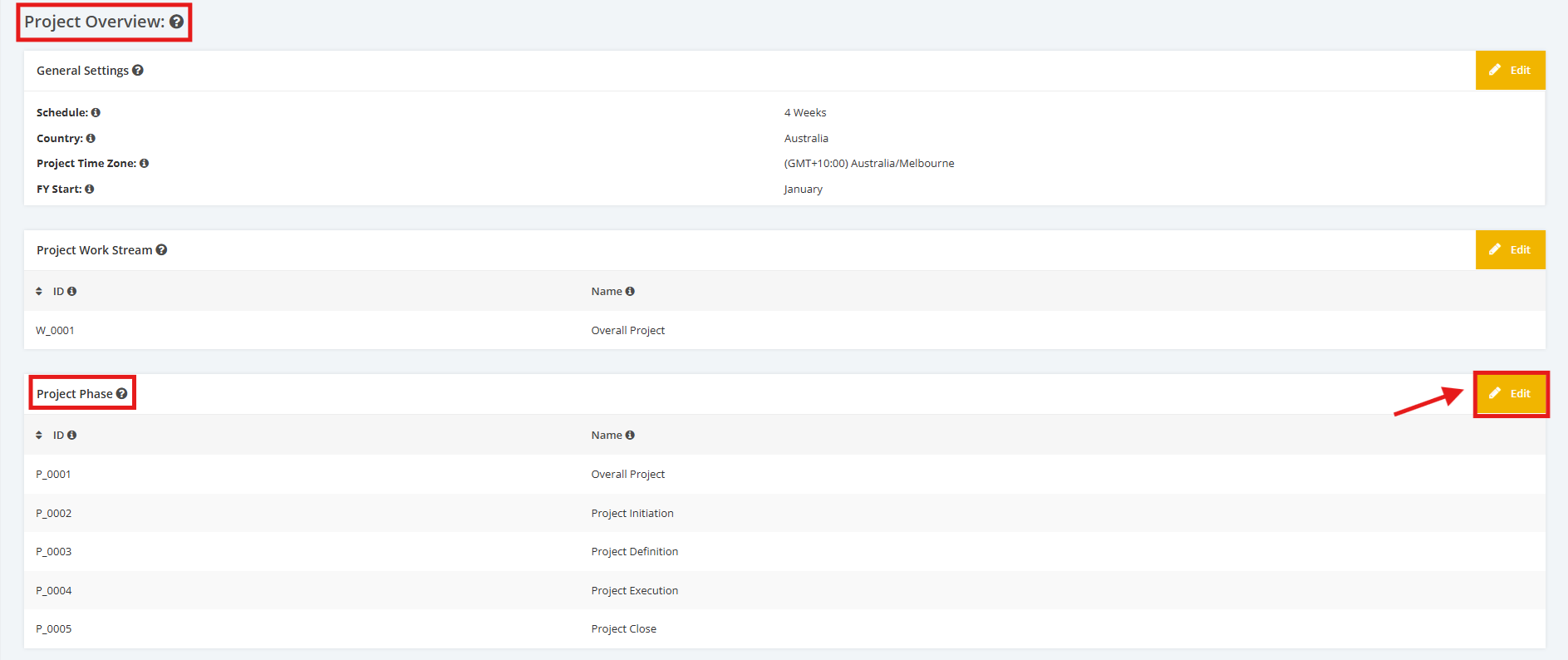
2. On the Project Type Settings page, scroll to the ‘Project Overview’ section then ‘Project Phase’. Click the ‘Edit’ button.
3. In the Edit Phase page, click the ‘+ New Project Phase’ link to add a new one. Once done, enter the data in the input field and then click the ‘Update’ button to save changes.
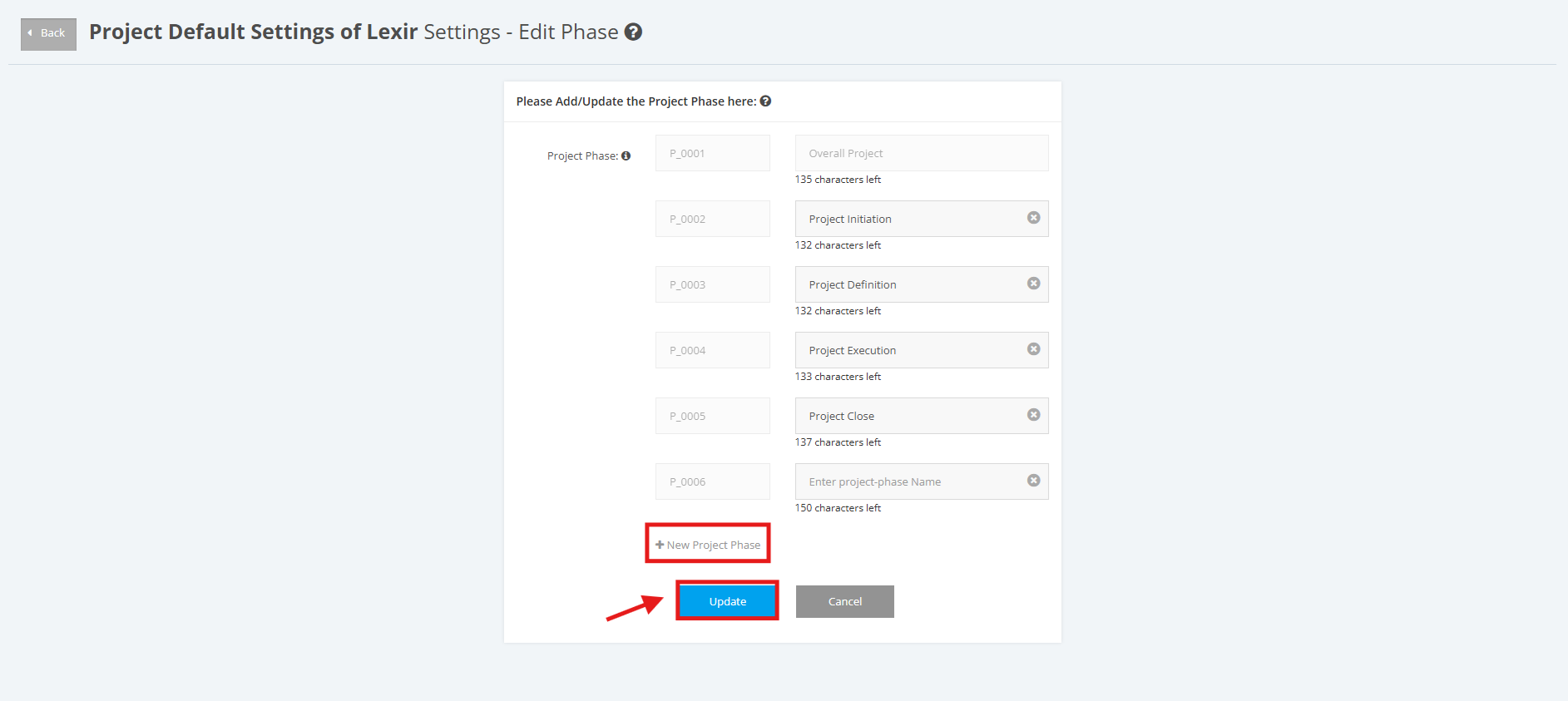
4. To update, select the ‘Project Phase’ then apply the necessary changes in the input field (E.g. Project Initiation). Once done, click the ‘Update’ button to save changes.
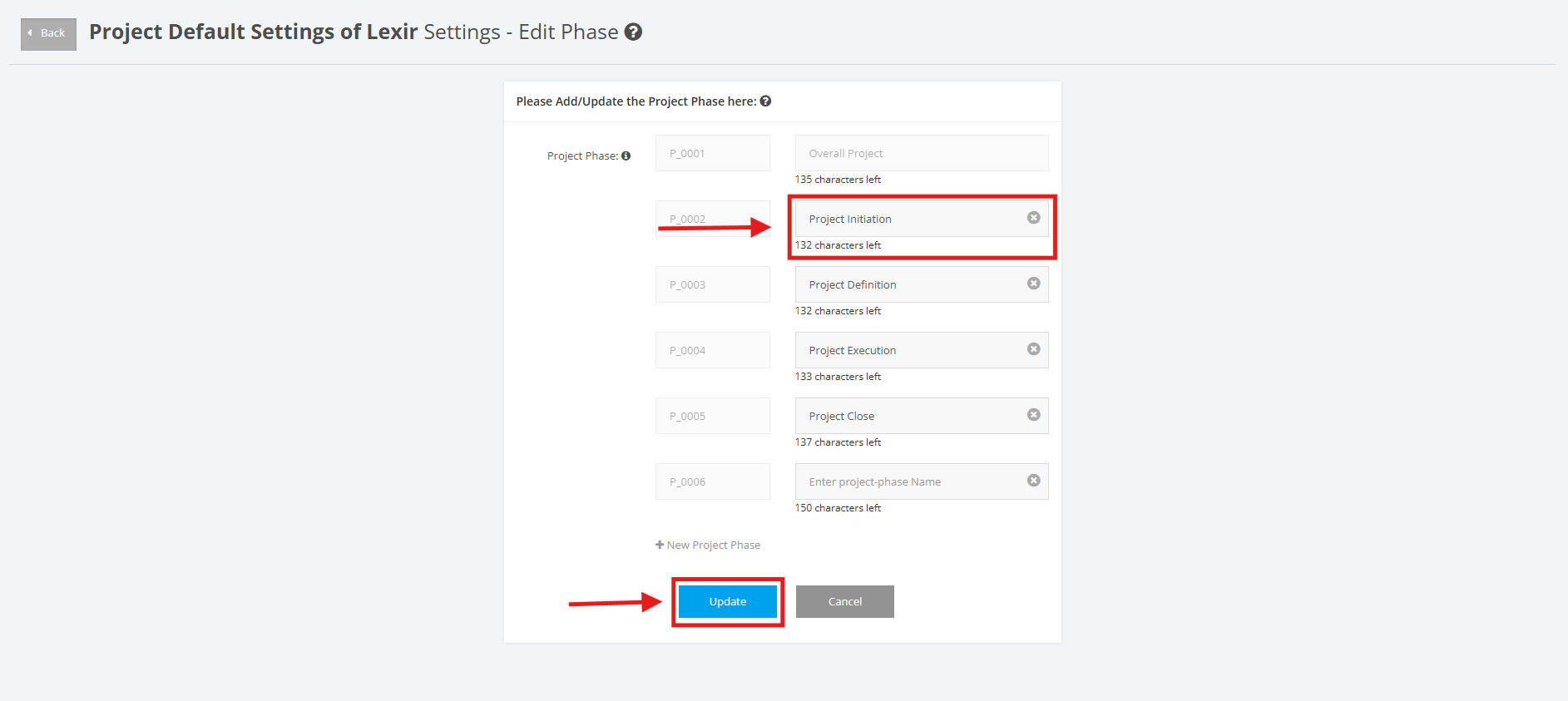
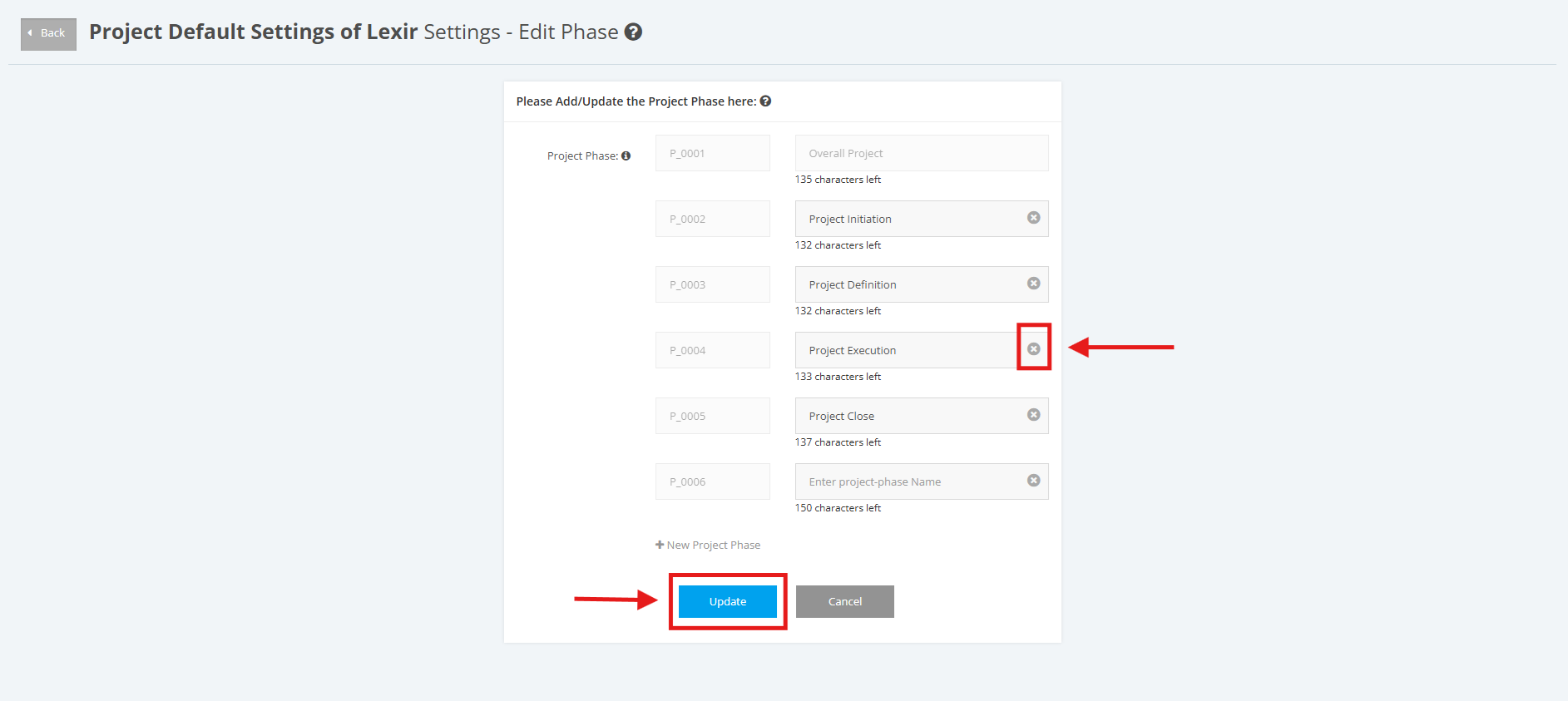
5. If you want to delete a ‘Project Phase’, go to the input field and click the delete icon ‘x’. Once done, click the ‘Update’ button to save changes.