1. Project Type – Update Weekly Reporting Schedule
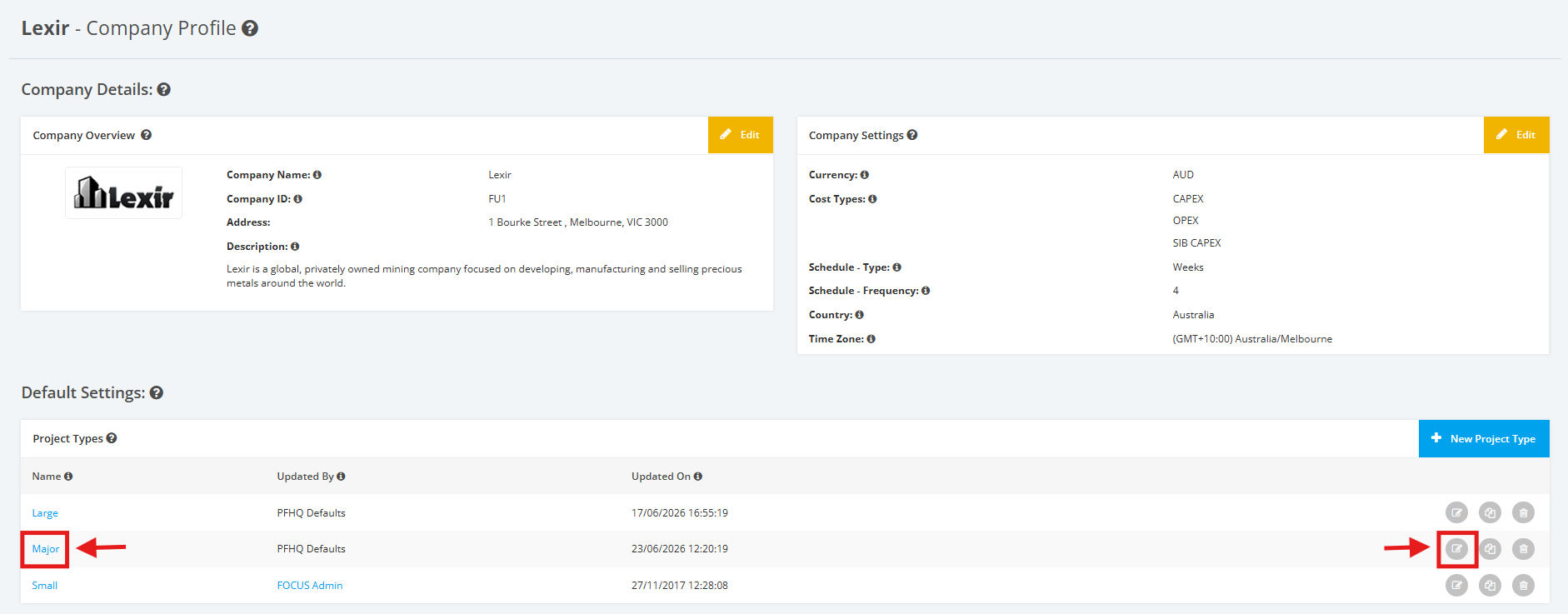
1. Within the Company Profile, navigate to the ‘Default Settings’ section then ‘Project Types’. Click the ‘Edit’ icon or the name of the Project Type.
2. On the Project Type Settings page, scroll to the ‘Reporting Schedule’ section then ‘Weekly Reporting’.
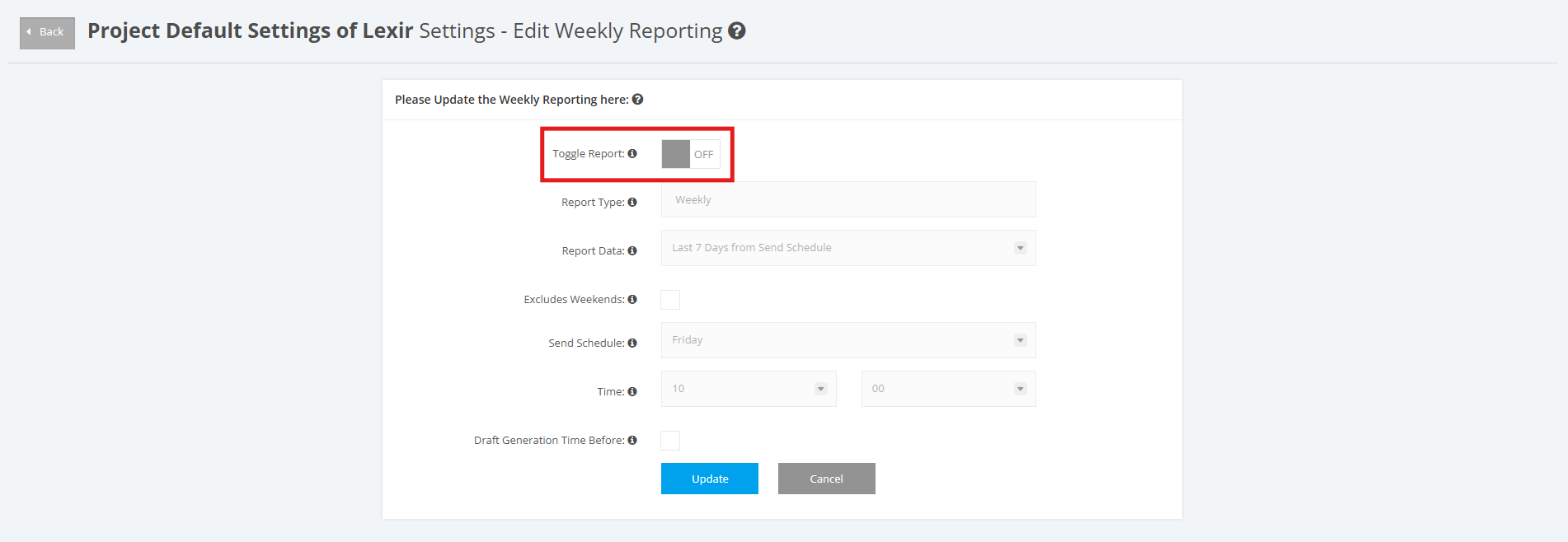
Click the ‘Edit’ button.

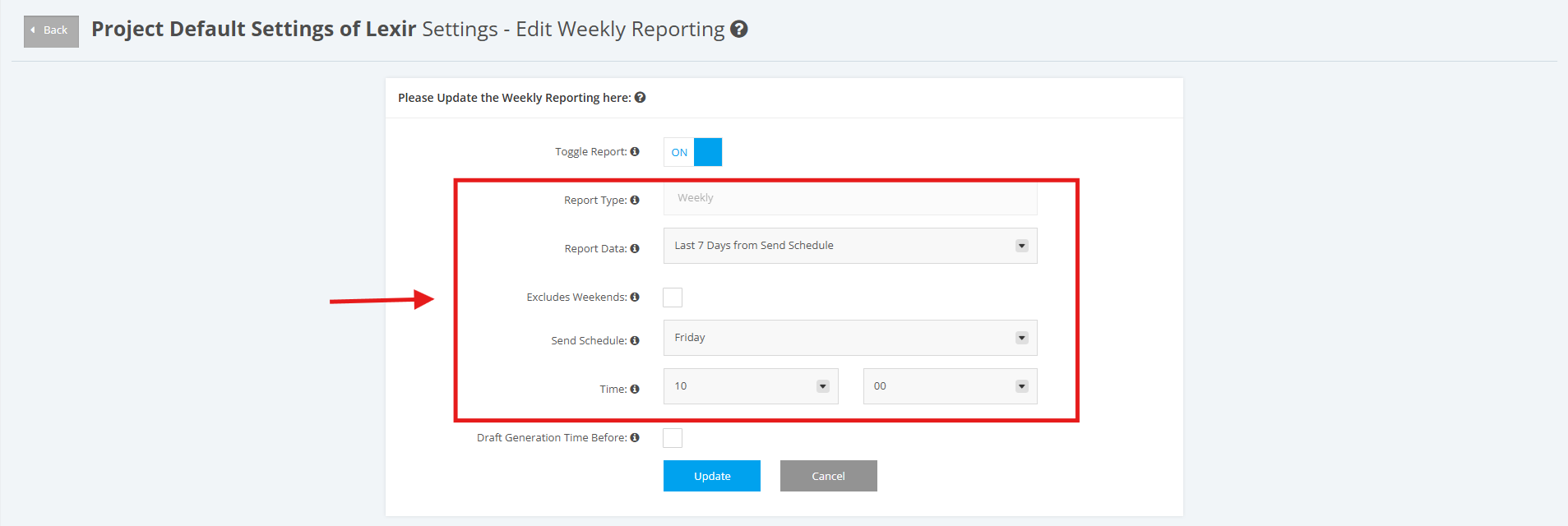
3. Set ‘Report Data’, ‘Send Schedule’, ‘Time’, and if auto generate/ send 'Excludes Weekends'
Weekly Report data can either be: ‘Previous Calendar Week’ or ‘Last 7 days from Send Schedule’
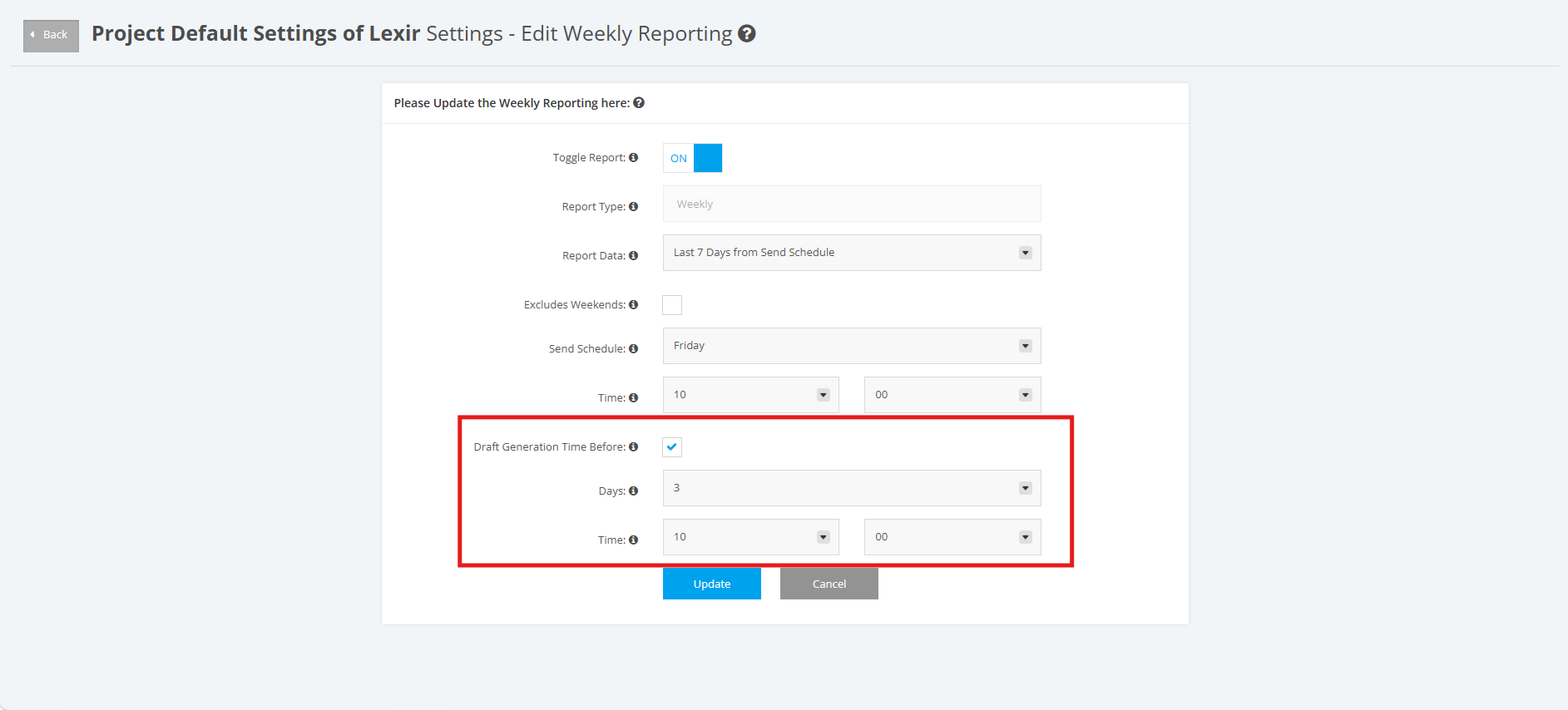
4. You can select the ‘Draft Generation Time Before’ checkbox if you want to generate your draft report at a time different from the default schedule. By default, draft reports are generated 72 hours before your configured project schedule.
Once ticked, select your preferred number of days and time for when your draft report is generated before your send schedule.
5. You can also turn the toggle 'OFF' if you choose not to generate a Weekly Report for the Project Type.
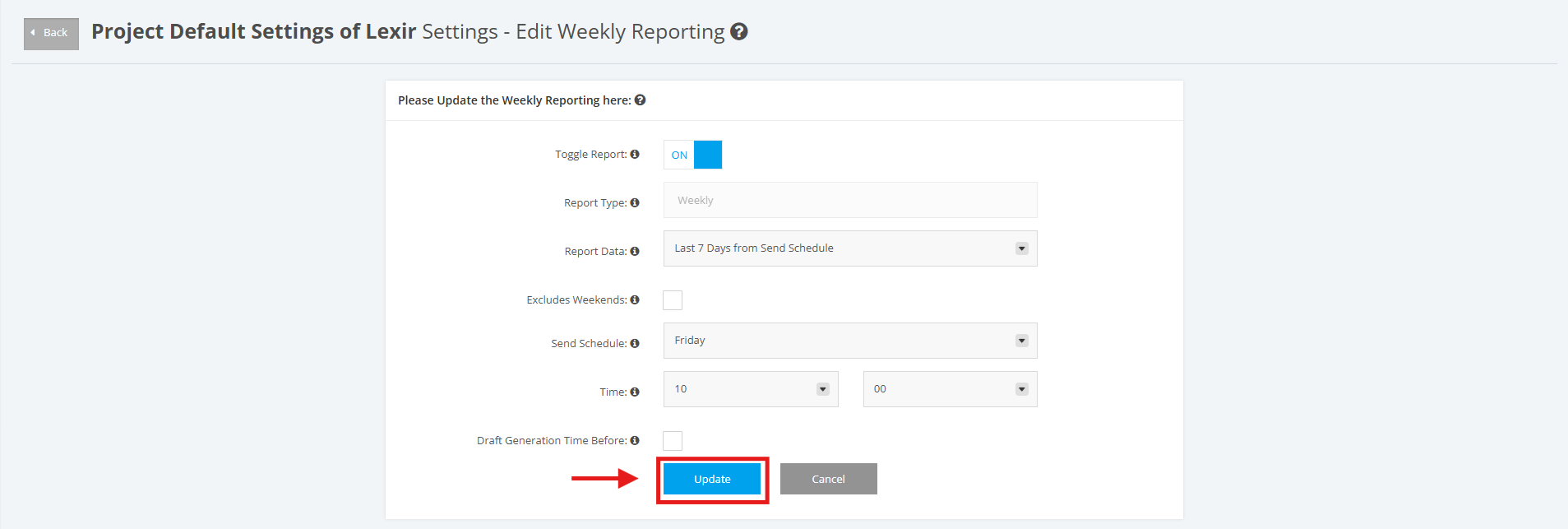
6. Once done, click the ‘Update’ button to save changes.