1. Project Type – Remove Assigned Key Users
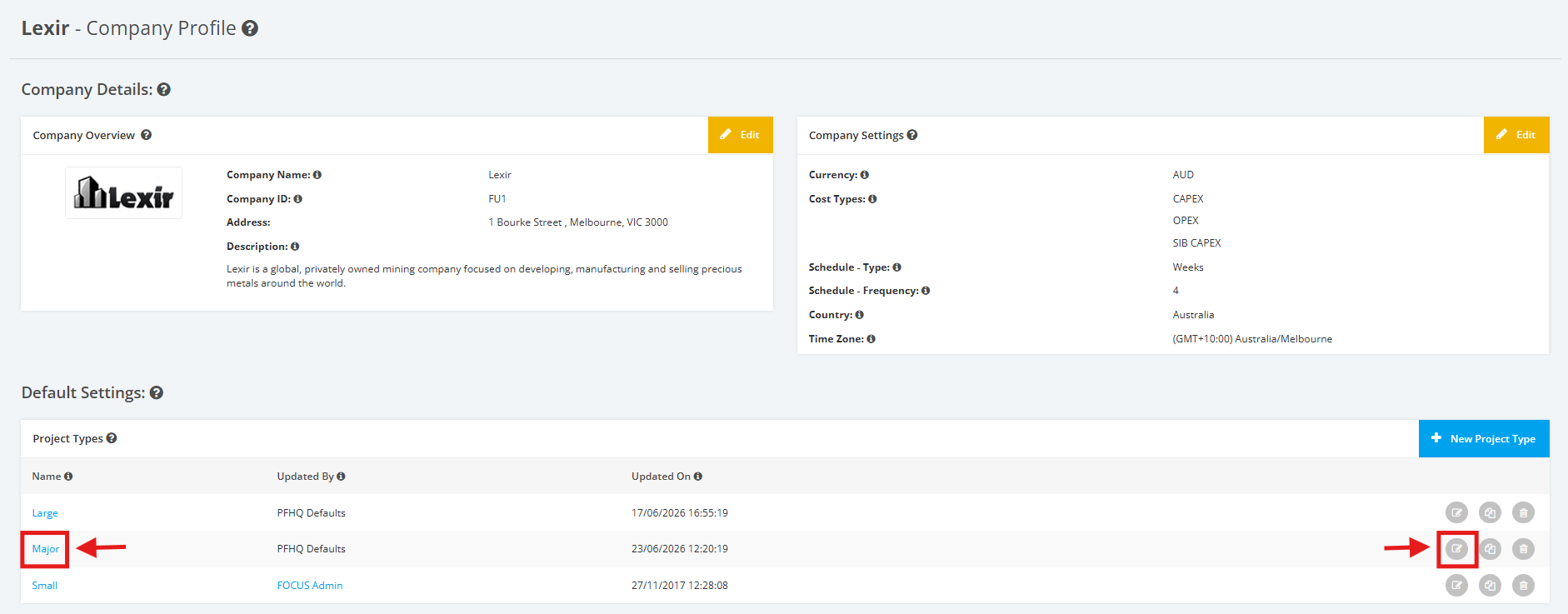
1. Within the Company Profile, scroll to the ‘Default Settings’ section then ‘Project Types’. Click the ‘Edit’ icon or the name of the Project Type.
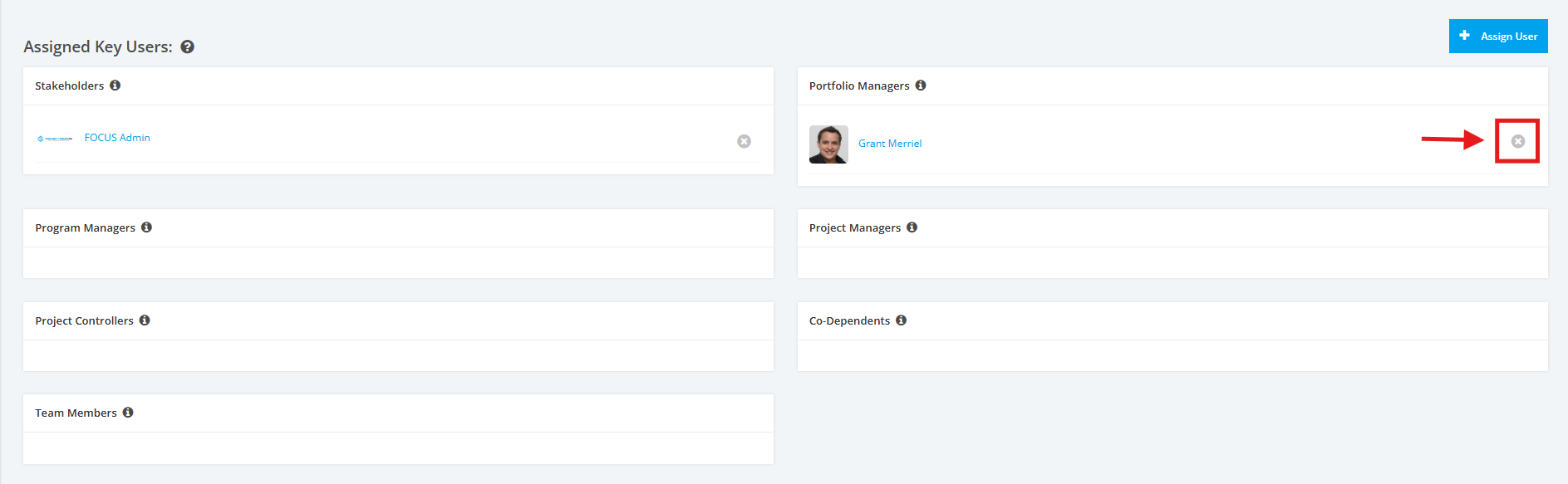
2. On the Project Type Settings page, scroll to the ‘Assigned Key Users’ section. Then, click the ‘x’ delete button of the Member you want to remove.
Note: Only ‘Update Roles’ and/or ‘Settings Approver’ can do this.
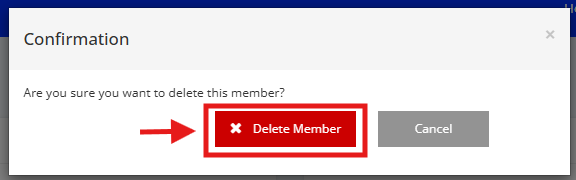
3. A popup window will appear for confirmation. Click the ‘Delete Member’ button to continue with the deletion.
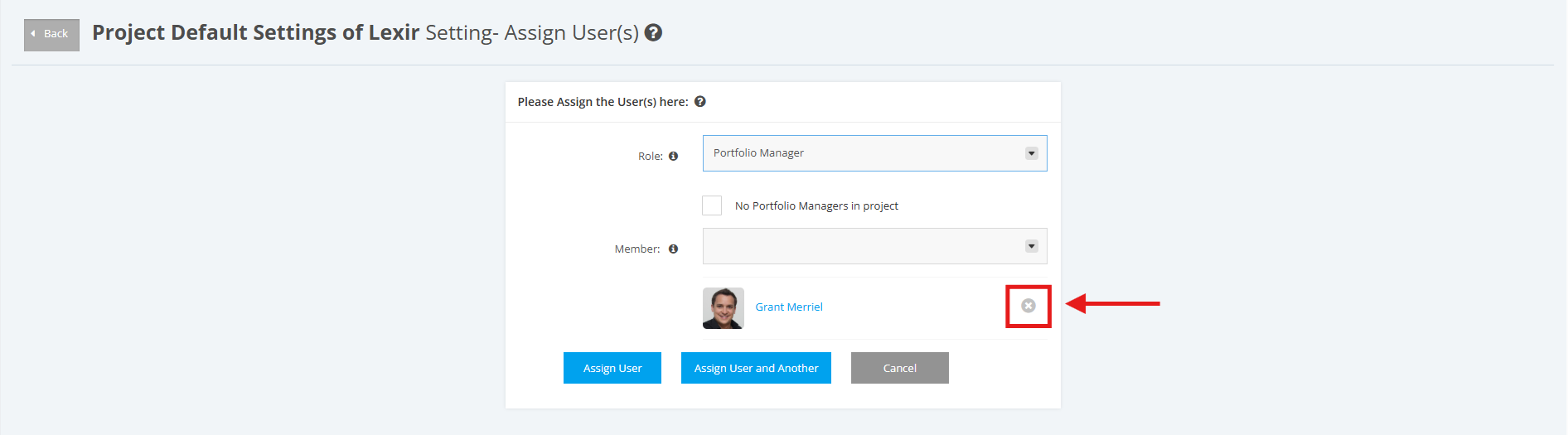
4. Another way to delete a ‘Key User’ is to click the ‘Assign User’ button and click the ‘x’ button on the user that you want to delete as shown below.