
1. Project Type – Assign Key User
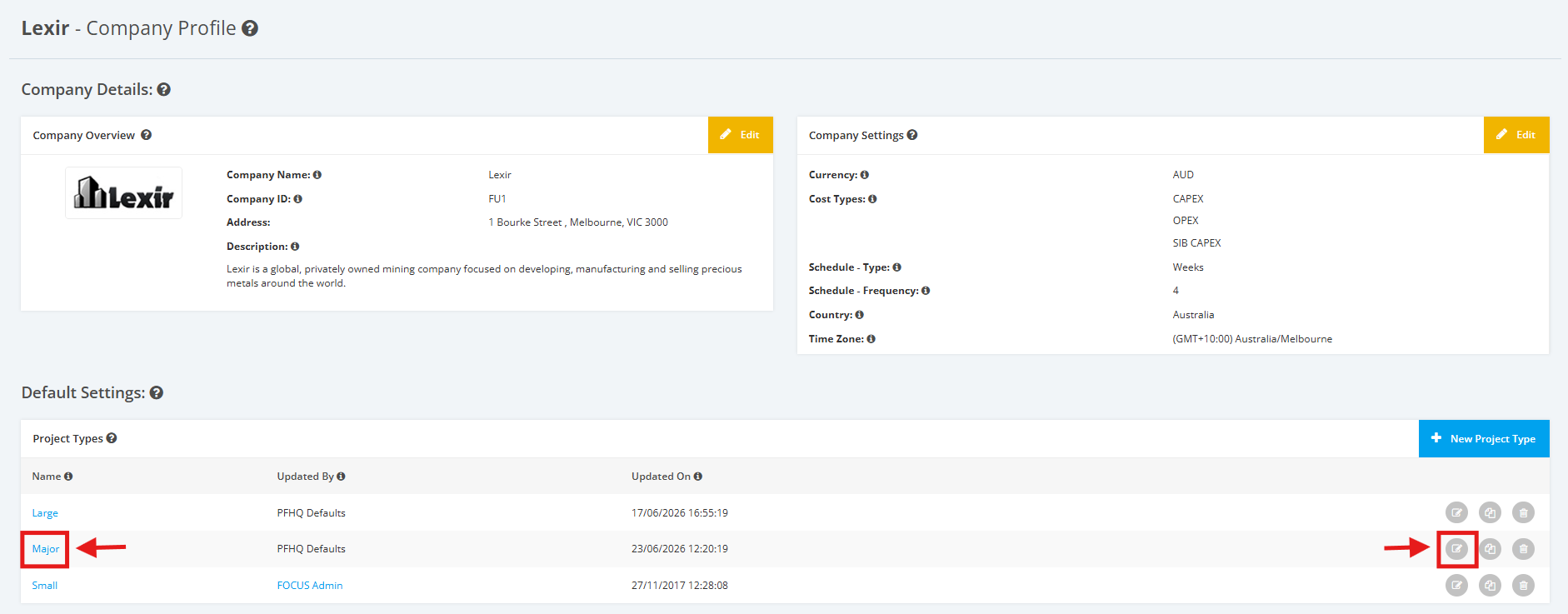
1. Within the Company Profile, scroll to the ‘Default Settings’ section then ‘Project Types’. Click the ‘Edit’ icon or the name of the Project Type.
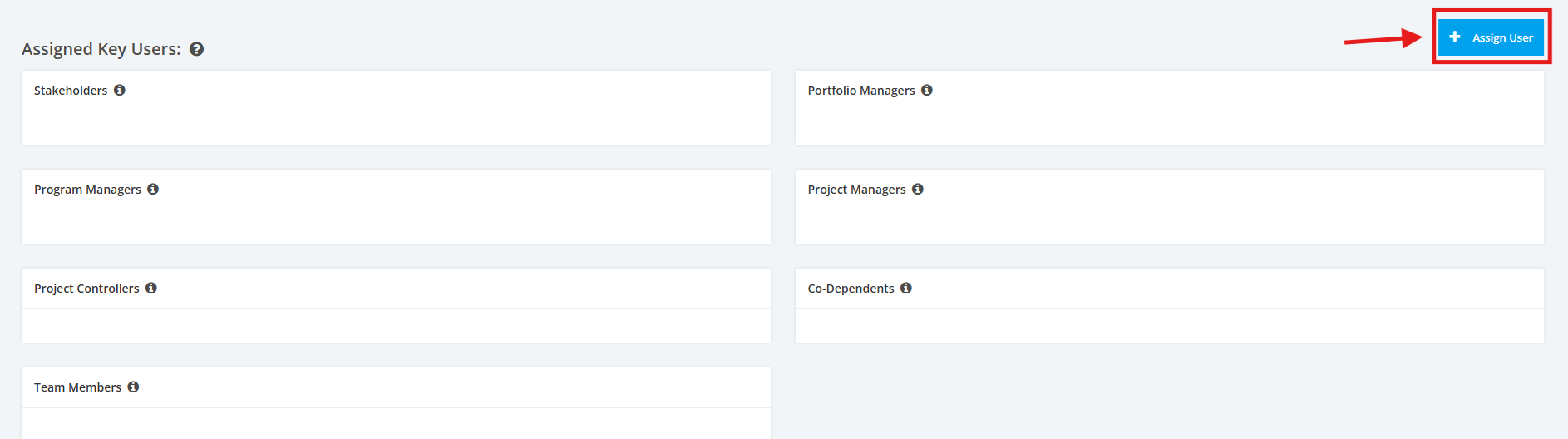
2. On the Project Type Settings page, scroll to the ‘Assigned Key Users’ section. Click the ‘+ Assign User’ button.
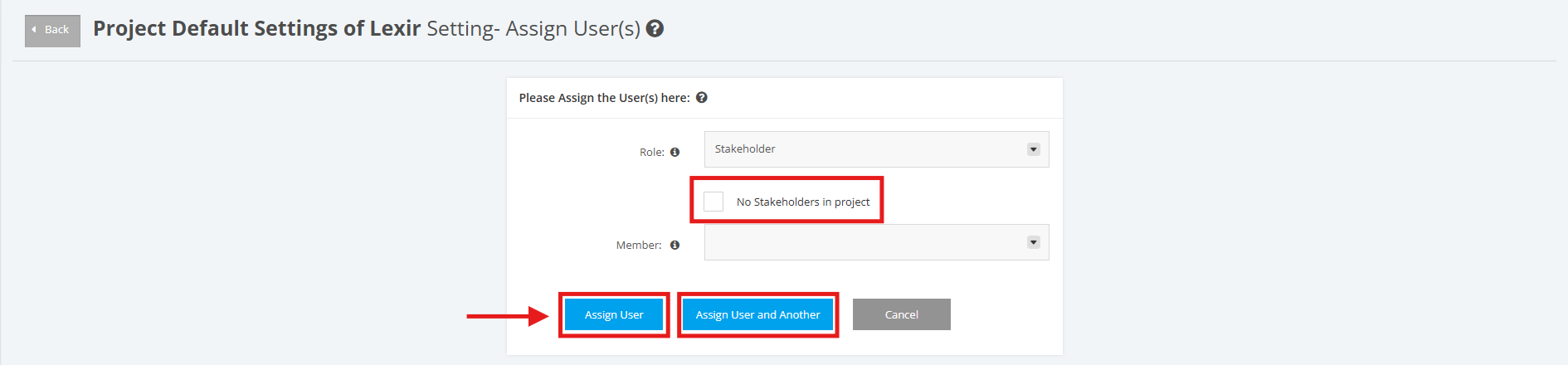
3. Select a ‘Role’ and a ‘Member’ to be assigned from the dropdown menu.
Click ‘Assign User’ button to save changes and go back to the Project Type Settings main page.
Click ‘Assign User and Another’ button to save and do another Key Role Assignment.
If there are NO Key Users for a Role in a Project, you can tick the "No role in project" checkbox. And then, click either 'Assign User' or 'Assign User and Another'.
Below are the following available Roles:
- Stakeholder
- Portfolio Manager
- Program Manager
- Project Manager
- Project Control
- Co-Dependent
- Team Member