1. Project Type - Add Planning to Execution Checklists
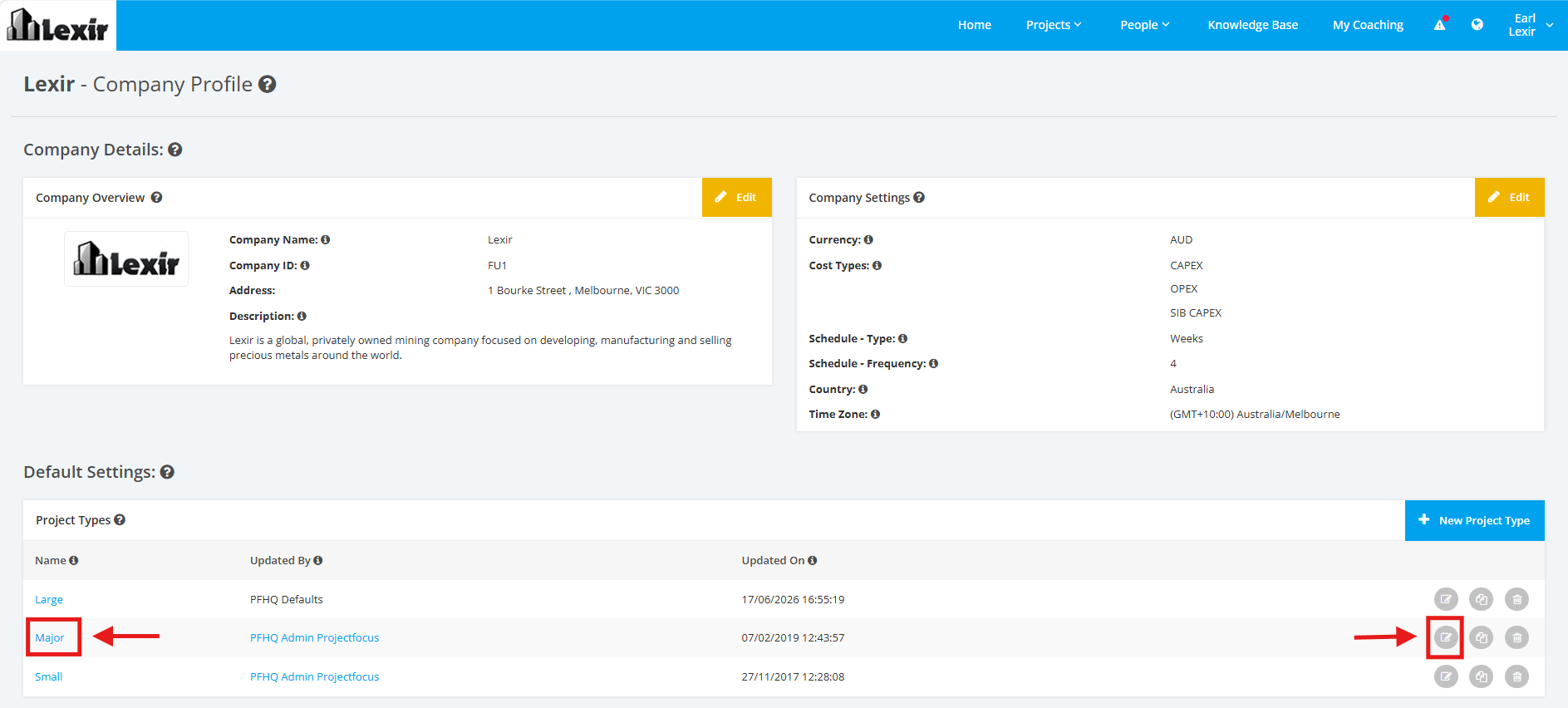
1. Within the Company Profile, navigate to the ‘Default Settings’ section then ‘Project Types’. Click the ‘Edit’ icon or the name of the Project Type.
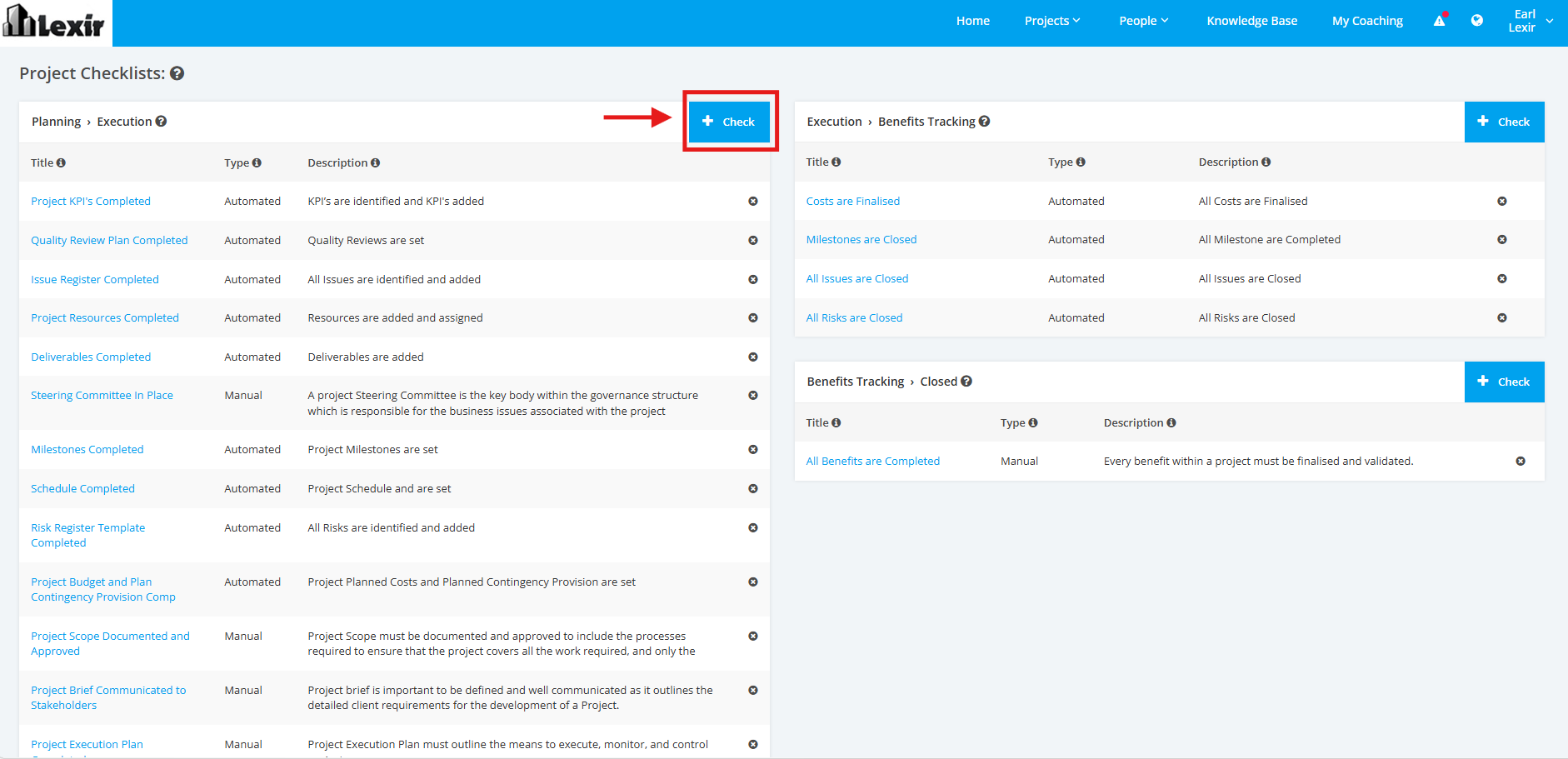
2. On the Project Type Settings page, scroll to the ‘Project Checklists’ section then the ‘Planning > Execution’ list. Click the ‘+ Check’ button to add a Project Planning to Execution checklist.
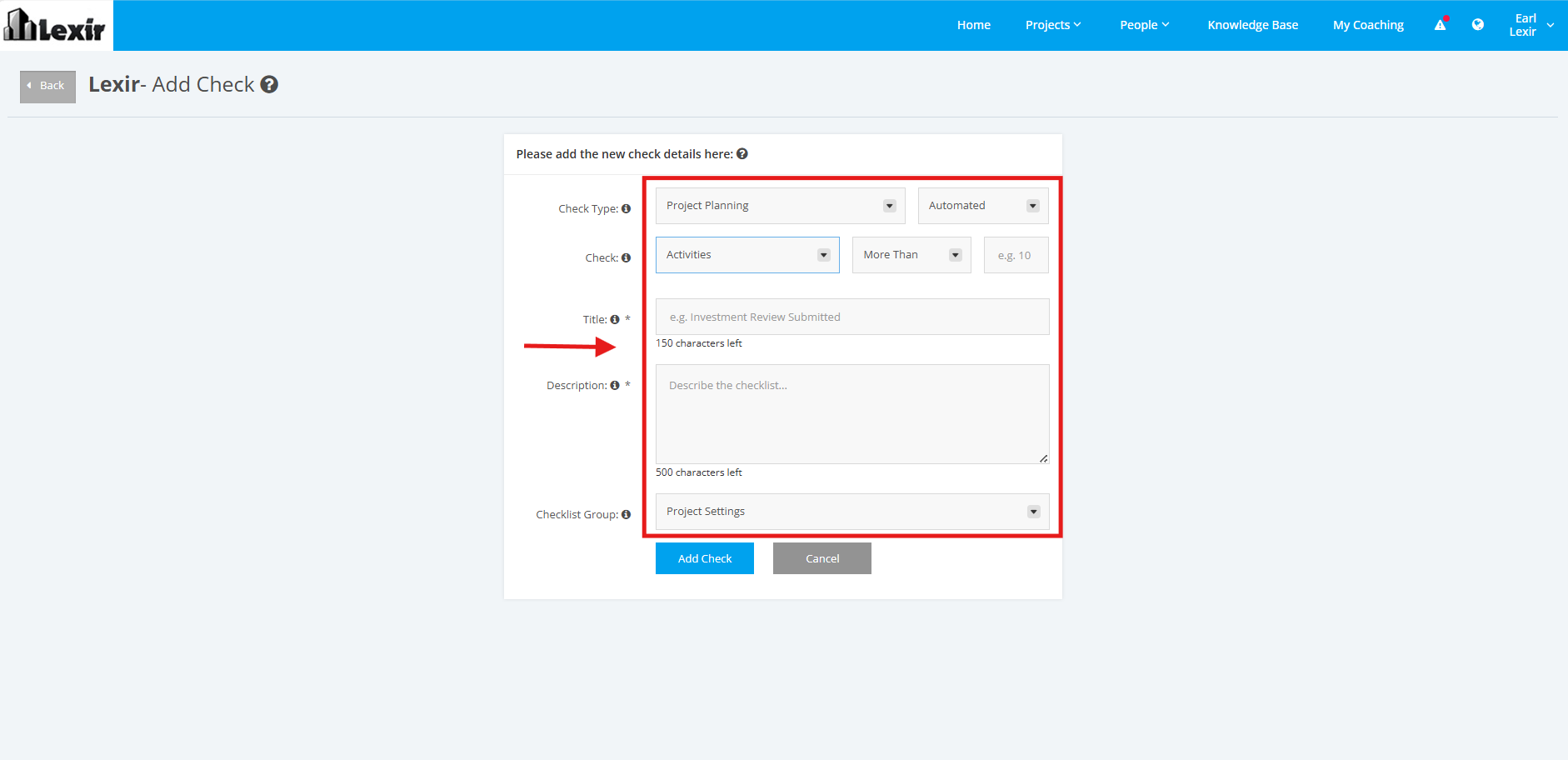
3. Fill in the ‘Check Type’, ‘Title’, ‘Description’, ‘Checklist Group’ and ‘Link’ input fields with the desired data. Make sure that the data in the ‘Check Type’ field is ‘Project Planning'.
'Check Type' - can be 'Automated' or 'Manual'
If you want to add an Automated Project Checklist, you can choose from the following options:
Module - Activities, Schedule, Milestones, Risks, Issues, Budget, Resourcing Assignments, Deliverables, Quality Management, KPIs
Frequency - More Than, Less Than, Equal
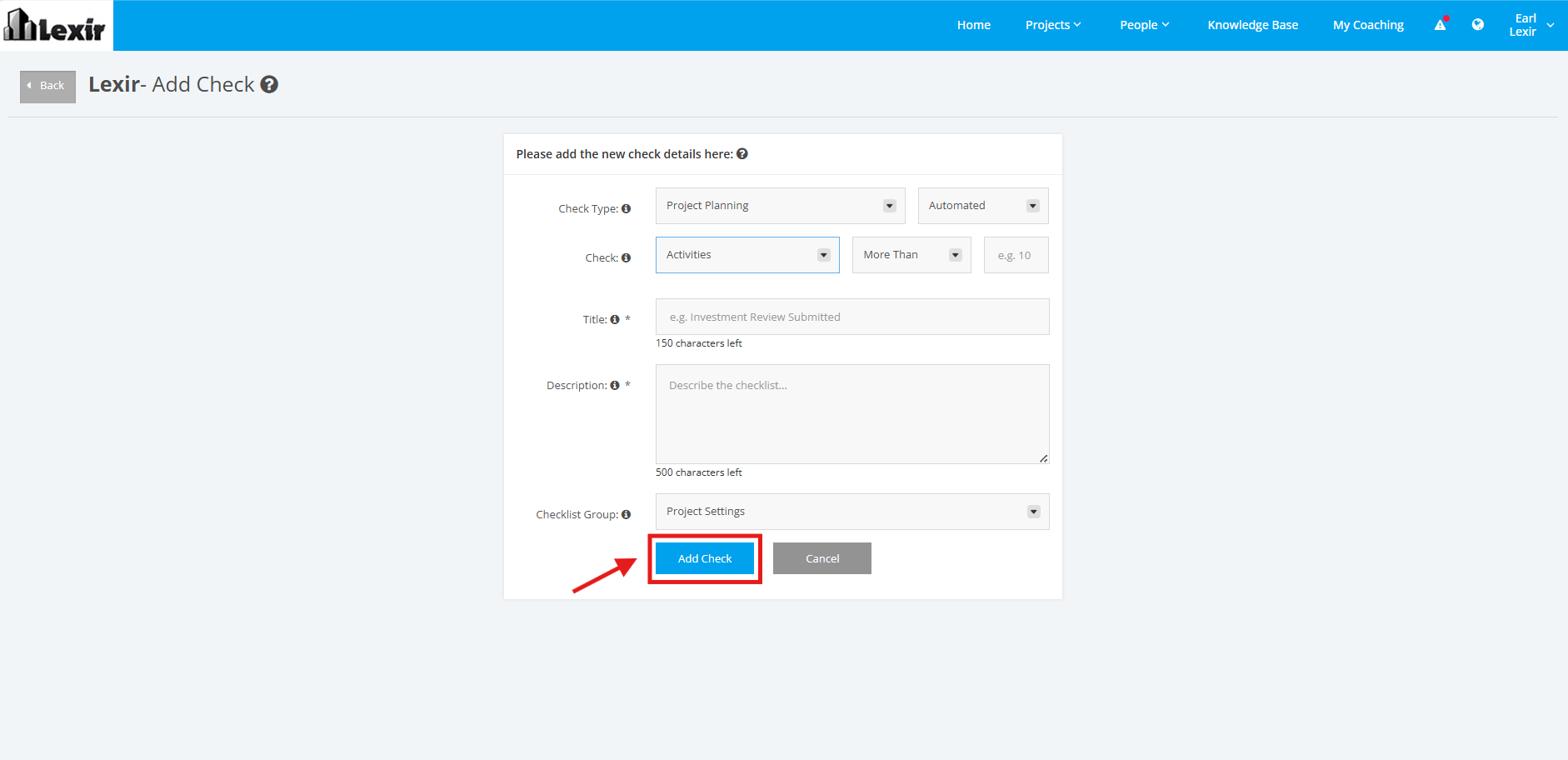
4. Once complete, click the ‘Add Check’ button.