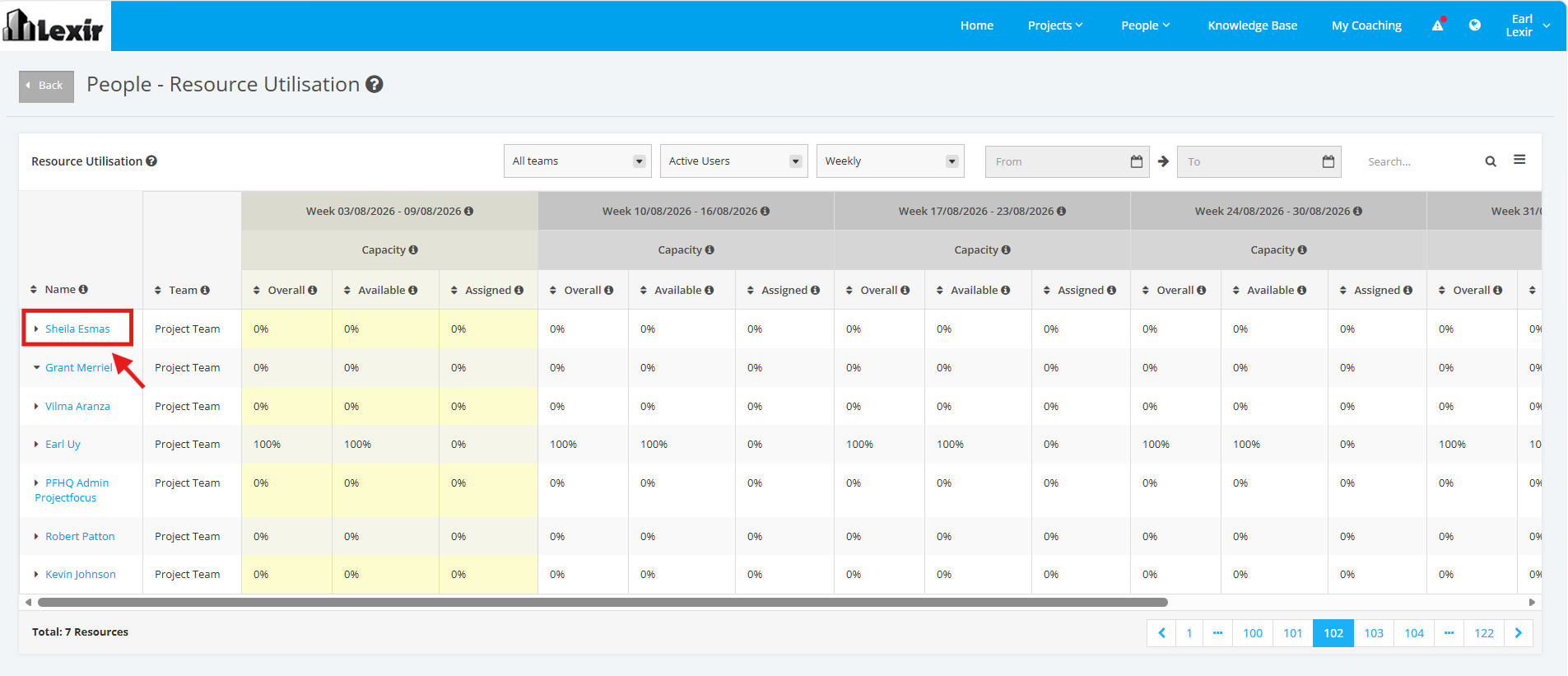
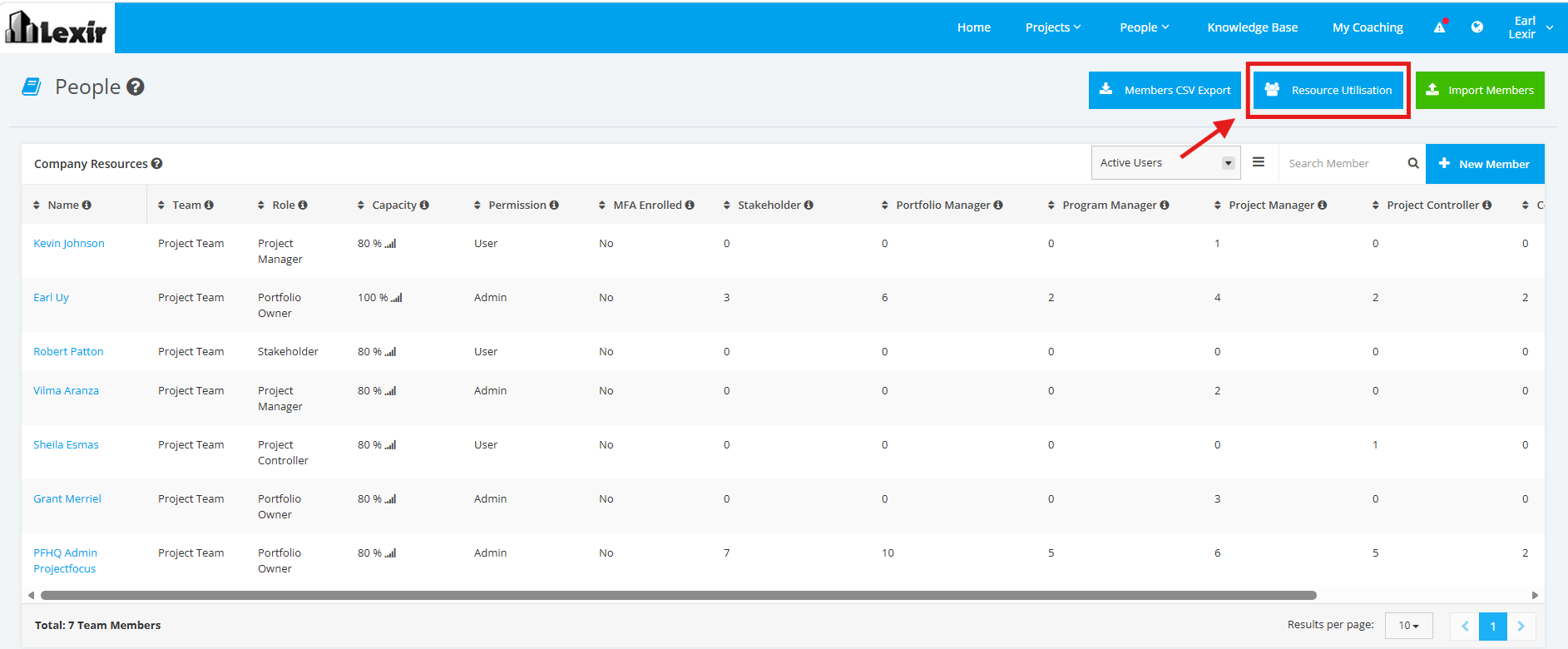
1. Navigate to Resource Utilisation
1. Within ‘People’, click on the ‘Resource Utilisation’ button as shown below.
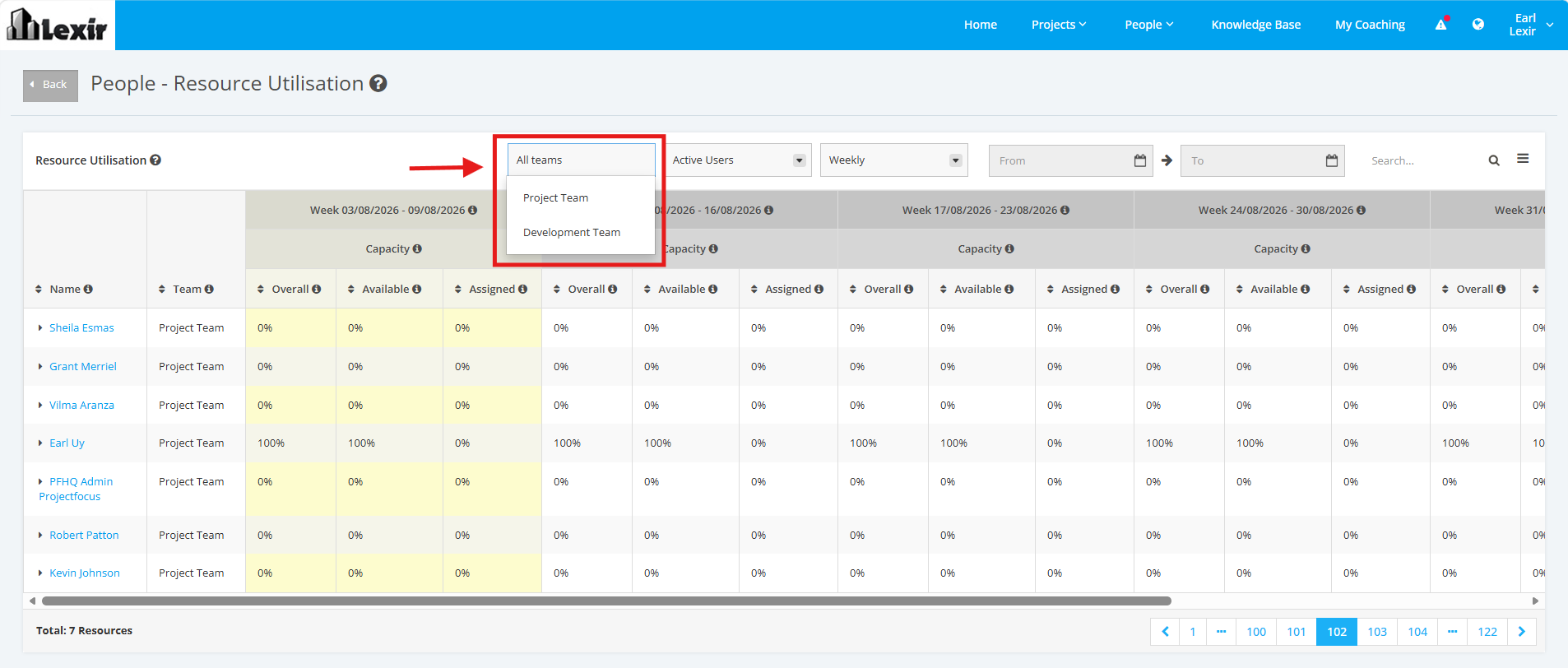
2. You can change the display of the table by Users-Filter. To change the display of the table based on 'Teams', click the Teams dropdown and select a Team to display users associated with such.
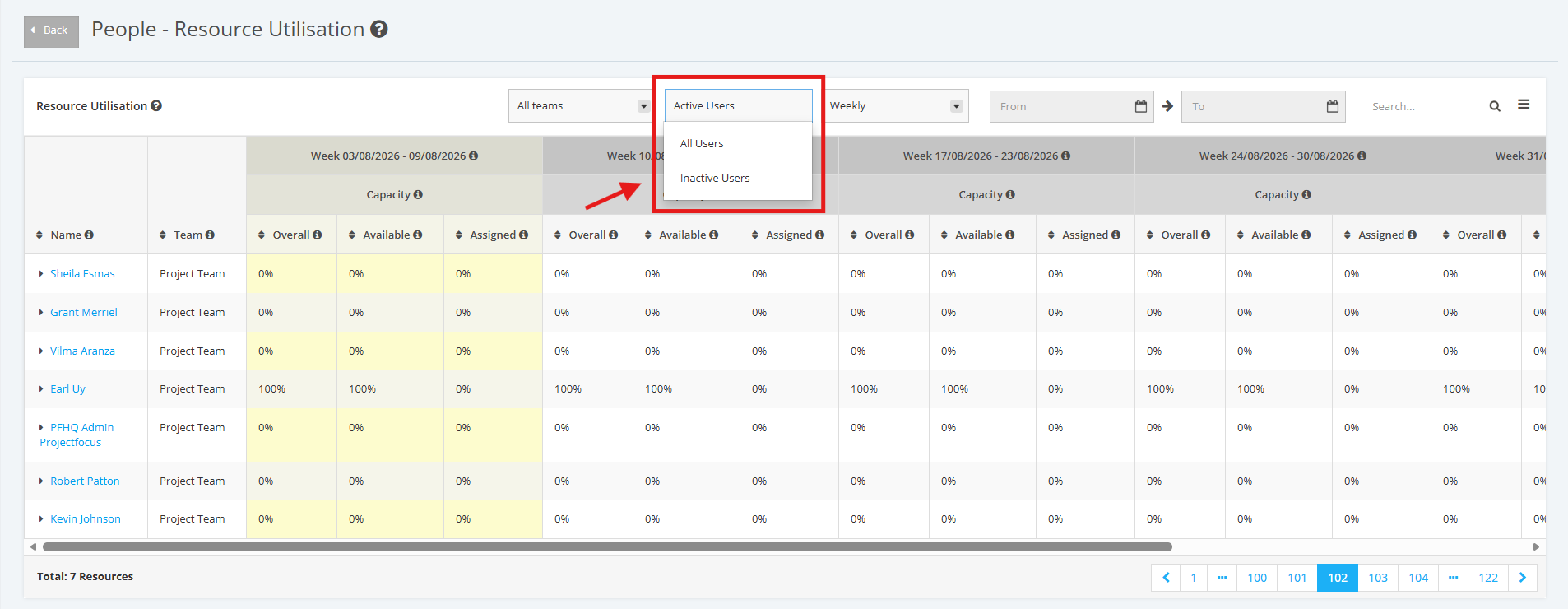
3. To change the display of the table based on 'Users', click the Users dropdown and choose the kind of users you want to display (‘Active Users’ or ‘All Users’ or ‘Inactive Users’).
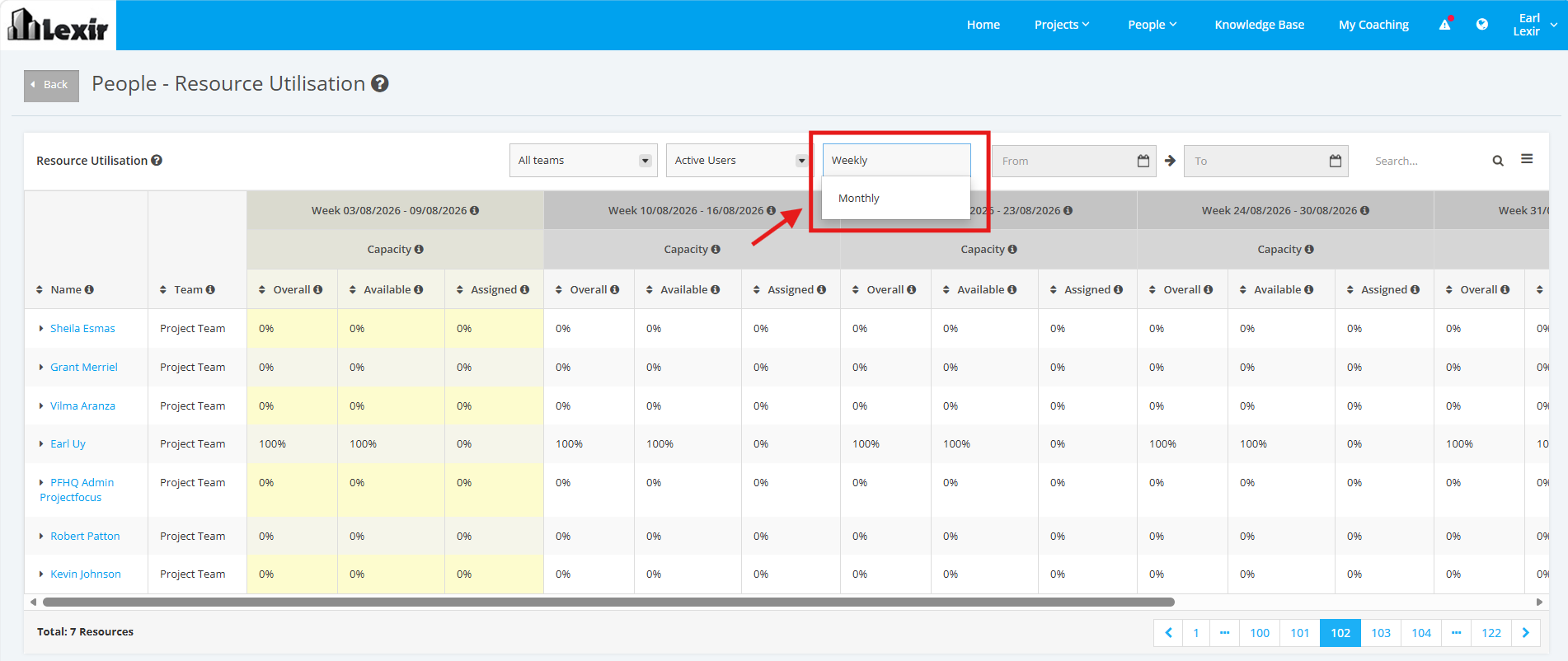
4. To change the display of the table based on the 'Time Period', click on the Time Period-Filter dropdown menu and choose between ‘Weekly’ or ‘Monthly’.
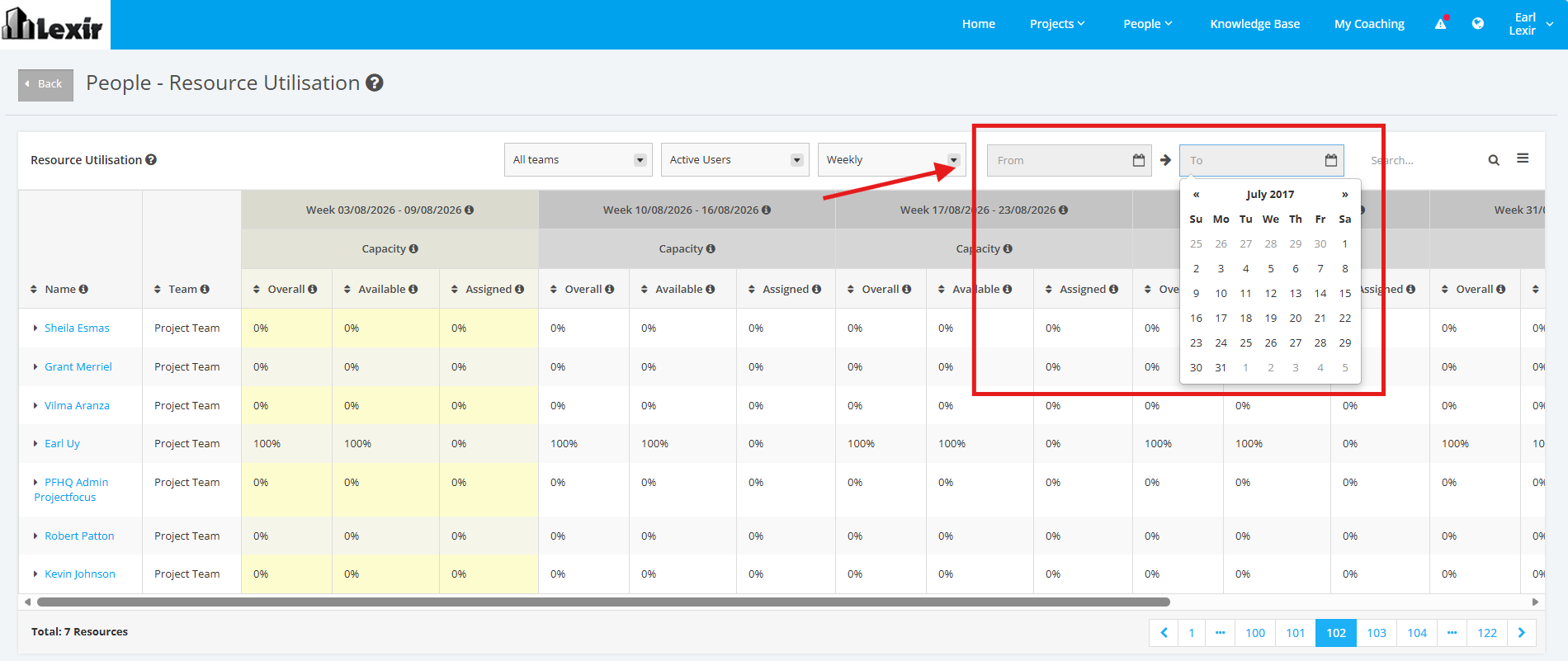
5. In order to display the Resource Utilisation table based on a specific 'From' date and 'To' date, click the Calendar Selector and choose the dates that you want to display.
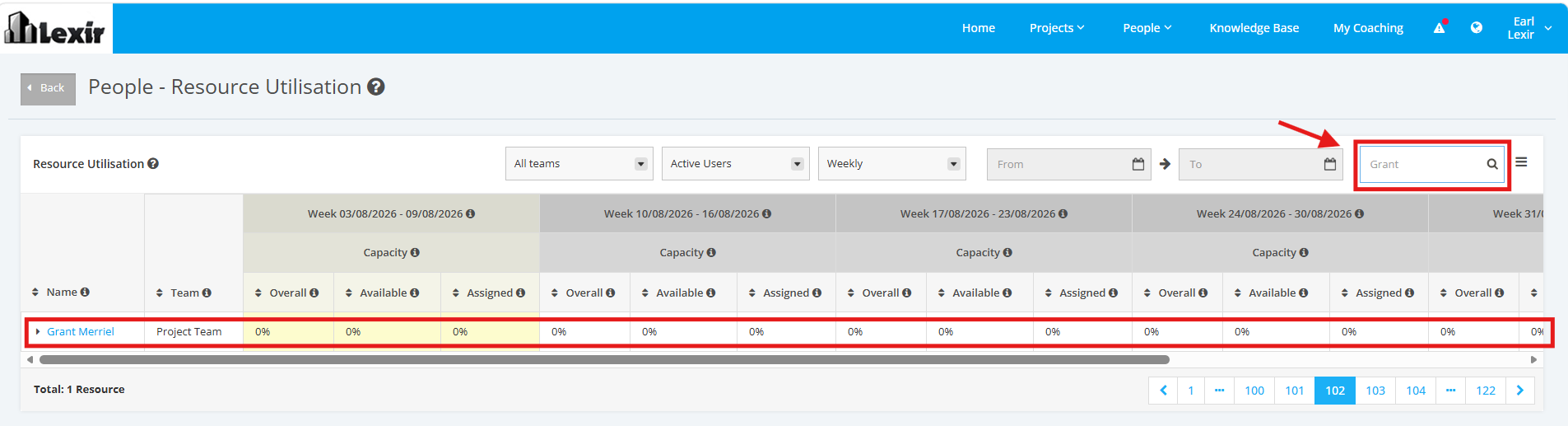
6. To 'search' a Resource, enter the Resource Name in the Search box then click the ENTER key.
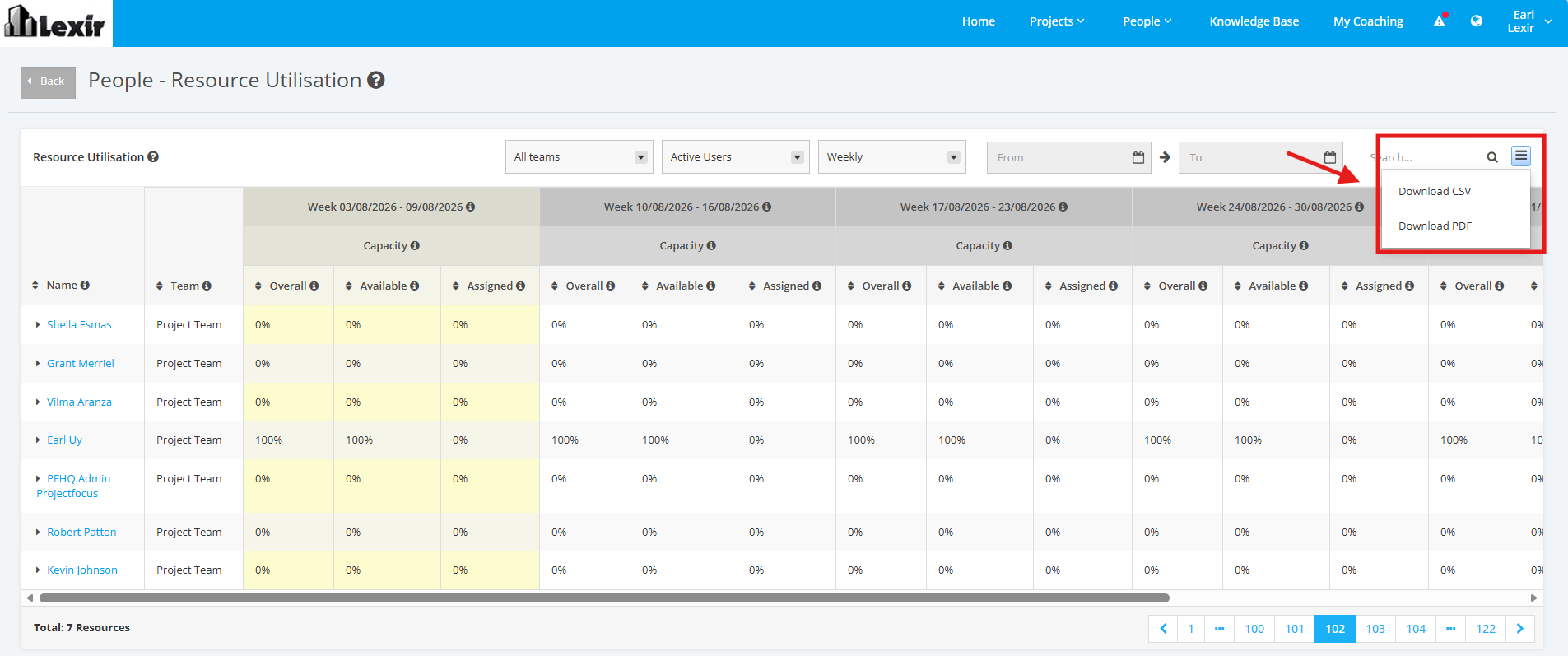
7. To 'download' the Resource Utilisation Table, click the three-lined Download icon on the rightmost corner. Select a file you want to export details to: 'Download CSV' and 'Download PDF'.
Once selected, the file will be successfully downloaded.
8. You can click the name of the Resource in the Table to know the Details, involving Project Roles, Project Associations, Capacity Fluctuations, and Visible Projects/ Portfolios/ Programs.