1. Navigate Project Summary of a Portfolio
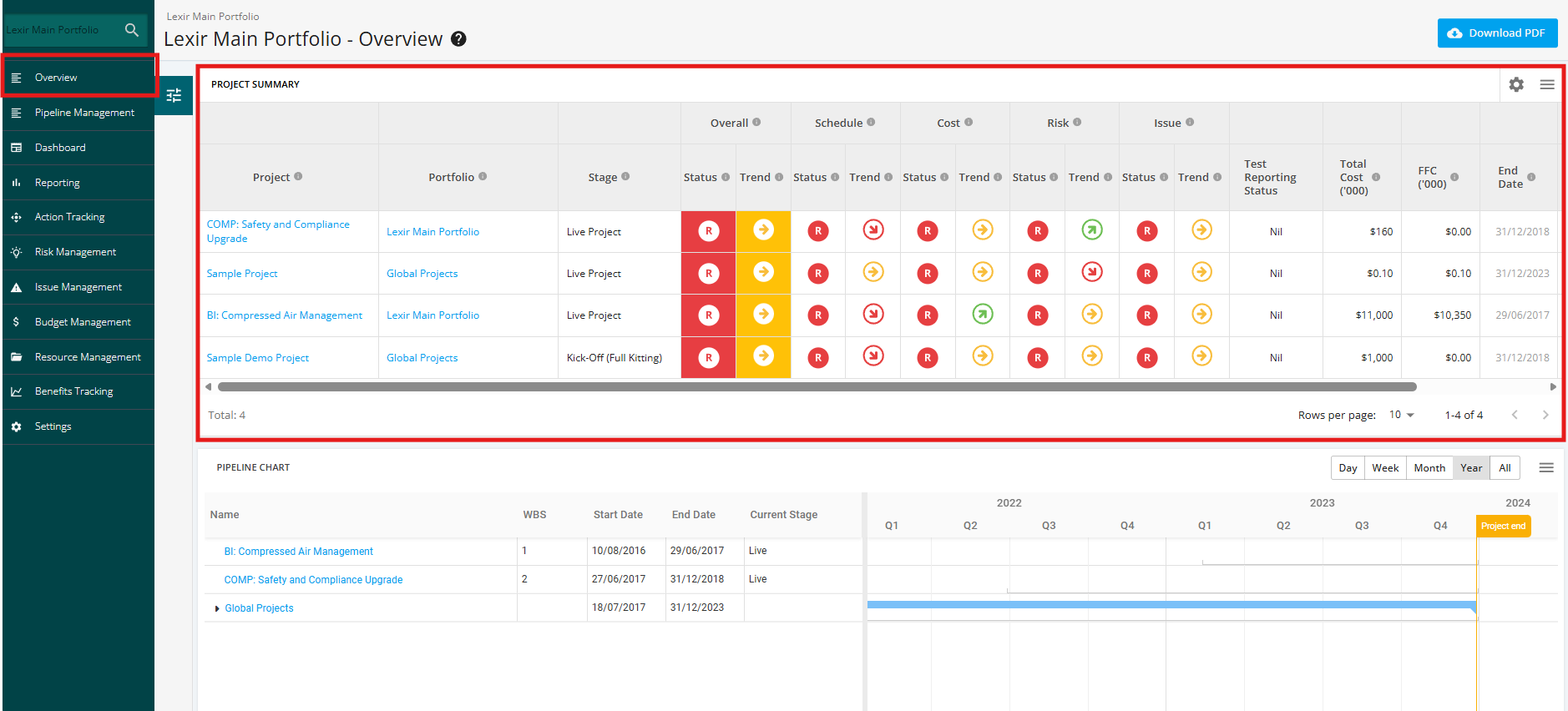
1. To navigate to the Portfolio’s ‘Project Summary’, click the ‘Overview’ tab from the left side bar of the page then go to the ‘Project Summary’ section.
The section consists of the following columns:
- Project
- Portfolio
- Stage
- Overall – the Status and Trend of the Overall Project
- Schedule – the Status and Trend of the Overall Schedule
- Cost – the Status and Trend of the Overall Cost
- Risk – the Status and Trend of the Overall Risk
- Issue – the Status and Trend of the Overall Issue
- Custom RAG Status
- Total Cost – the current budget of the Project
- FFC – the forecast budget of the Project
- End Date – the date the project will end
- Project Manager
2. In order to filter the Portfolio’s ‘Project Summary’ by Status, hover over the ‘Filter’ icon on the left side of the sidebar, and then select the 'Project Stages', 'Categories', 'Departments' and 'Portfolio/Sub-portfolio' to display the desired information.
Once done, click the 'Apply filters' button.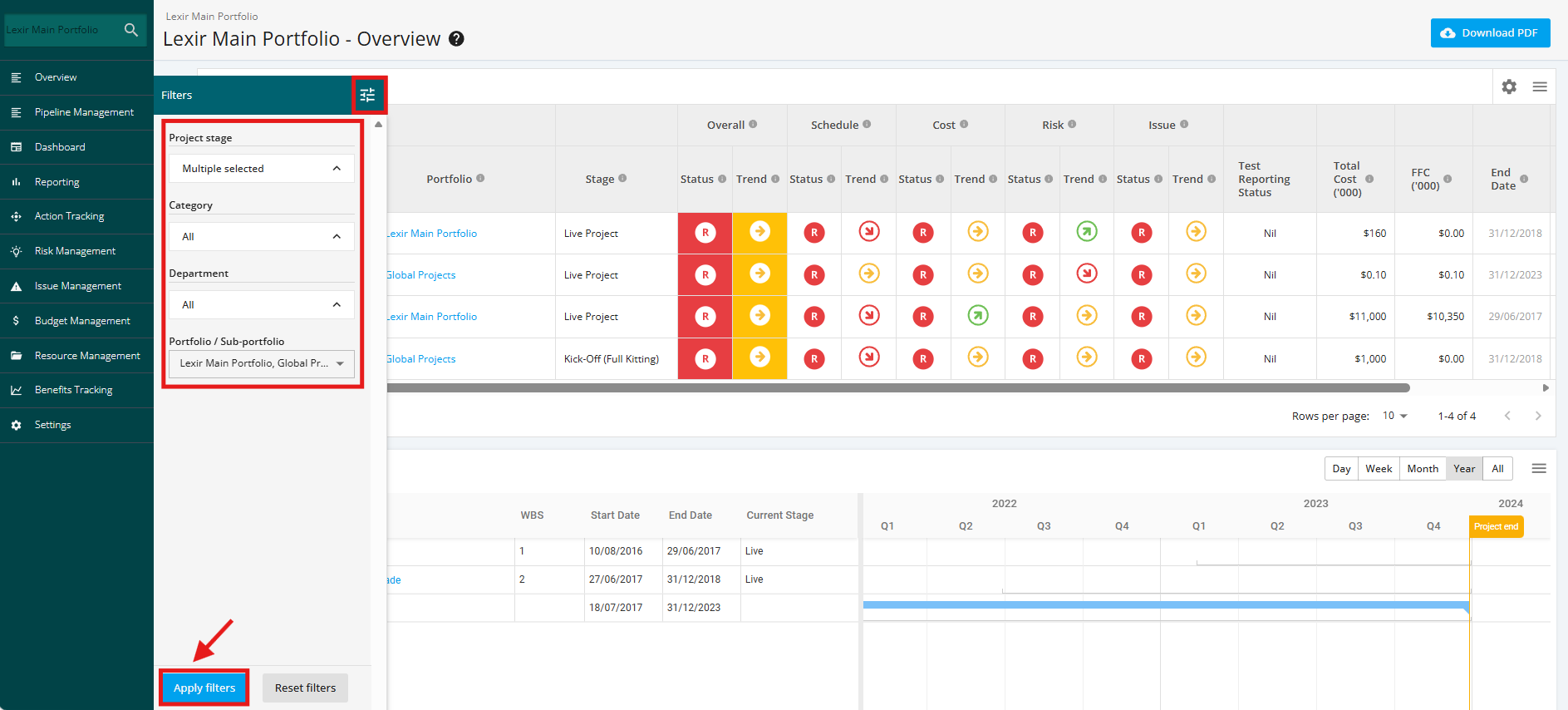
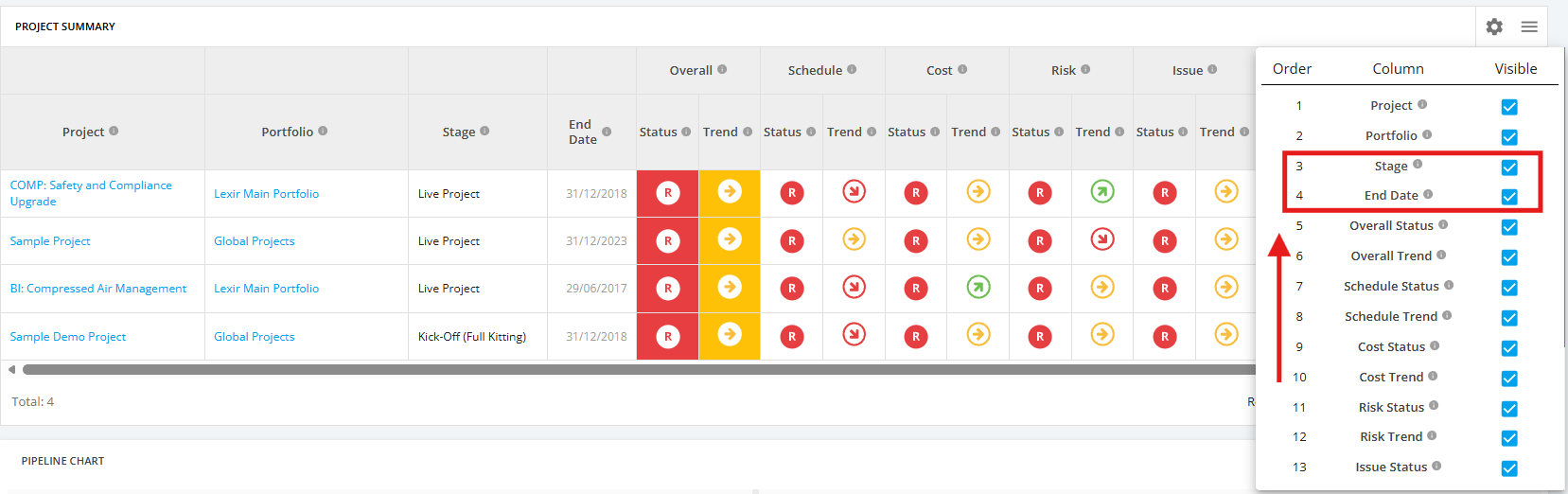
3. To configure columns in the Project Summary Table, click the 'cog' icon as shown below.
'Tick' the checkboxes of the columns you want to display.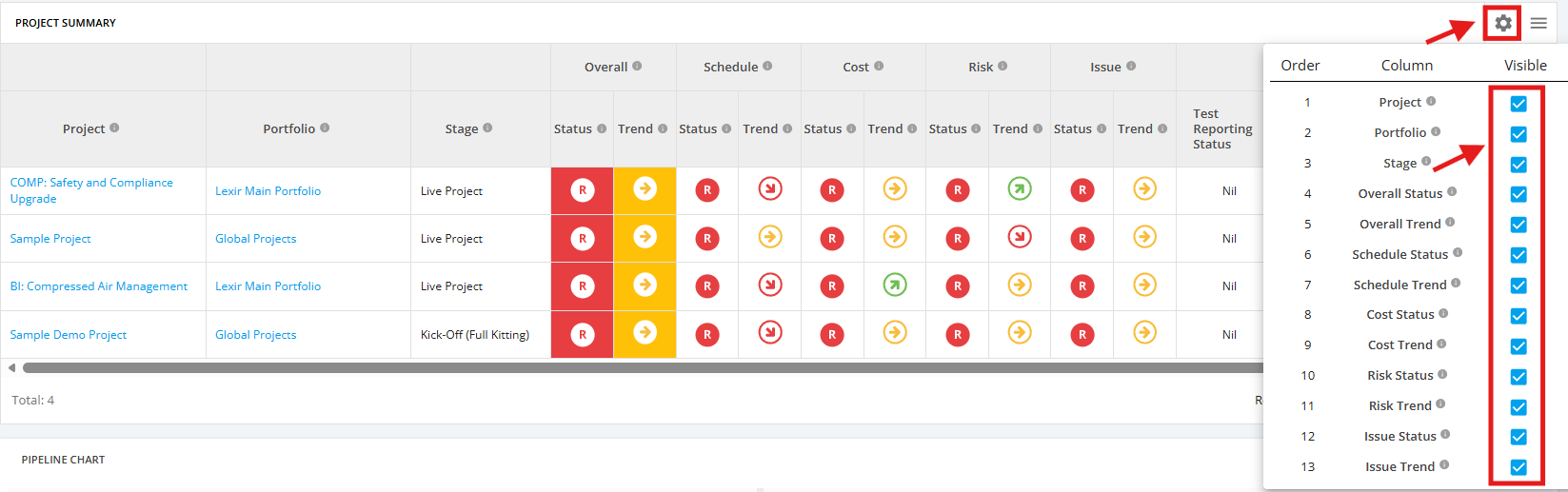
You can also 'drag and drop' columns to 'rearrange' the order in which they are displayed.
To save your configured changes, click the 'Save' button.
Note that these changes apply only to the Portfolio where the configurations were made.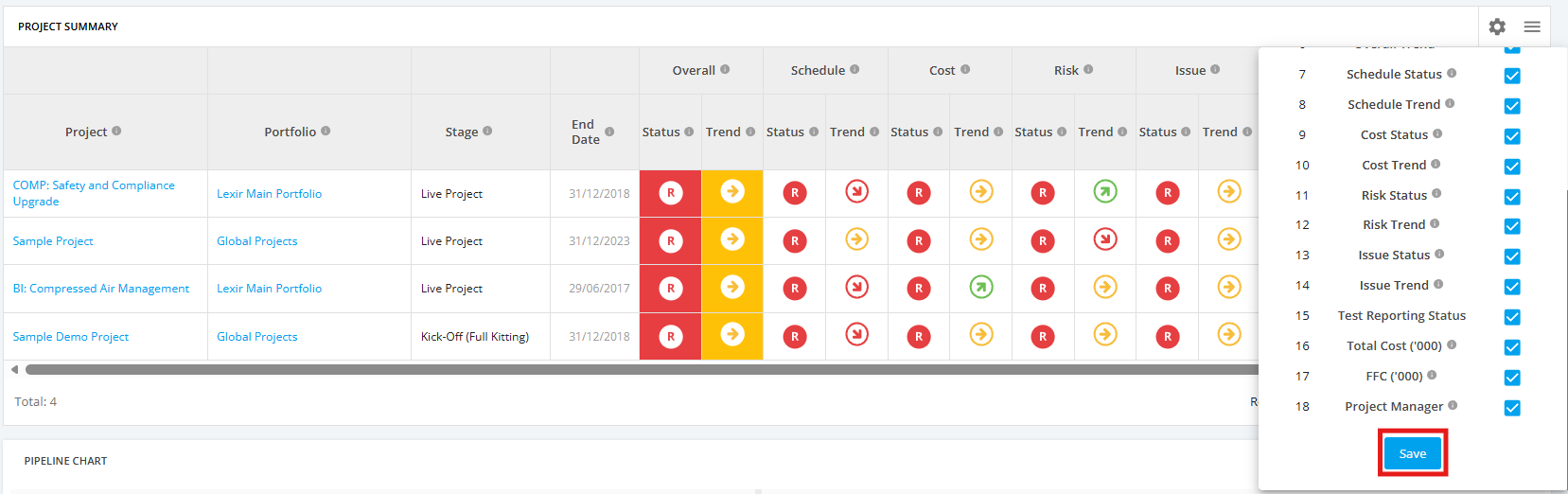
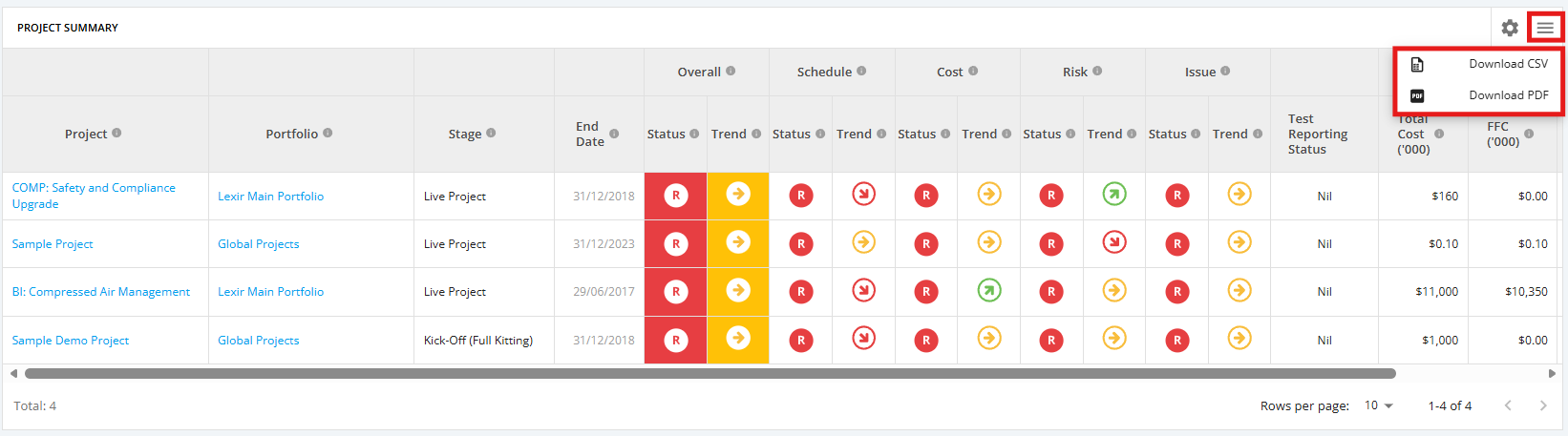
4. You can download the ‘Project Summary’ by clicking the download icon. Then choose the file to download: CSV or PDF.