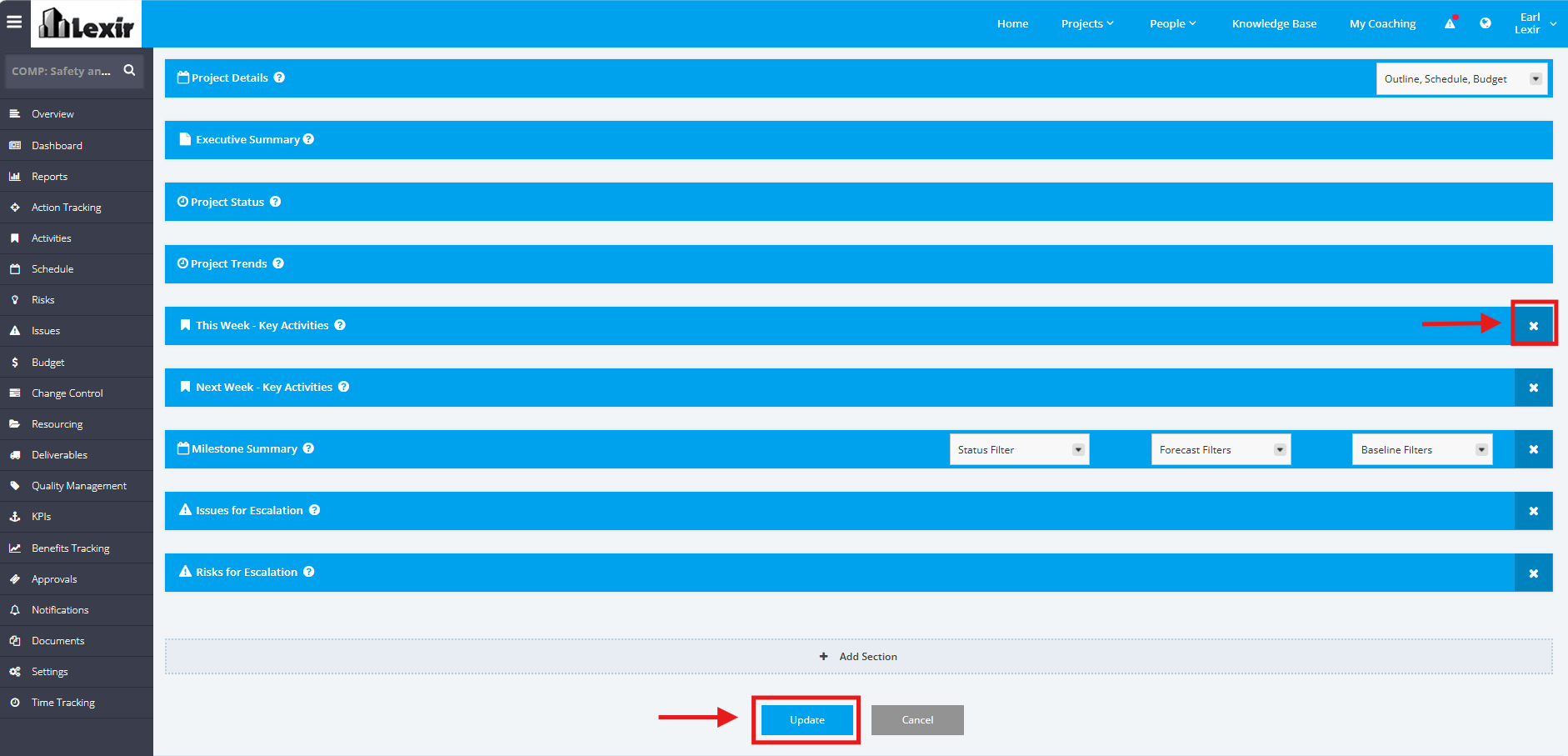
1. Update One Page Template within a Project
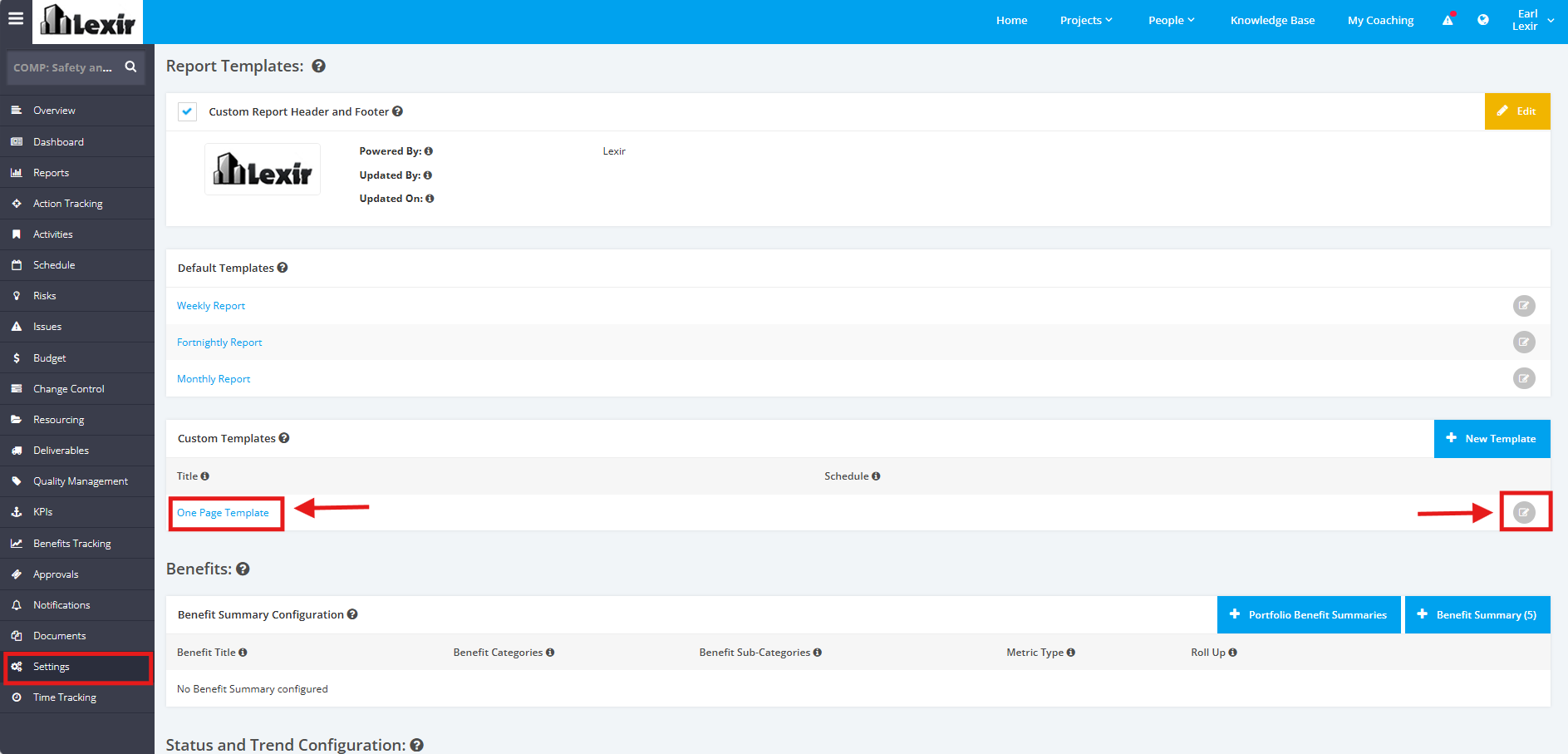
1. To update the One Page Report Template, click the ‘Settings’ tab from the left side bar of the Project page.
2. Once done, navigate to the ‘Report Templates’ section then ‘Custom Templates’.
3. Click the ‘One Page Template’ link or the edit icon.
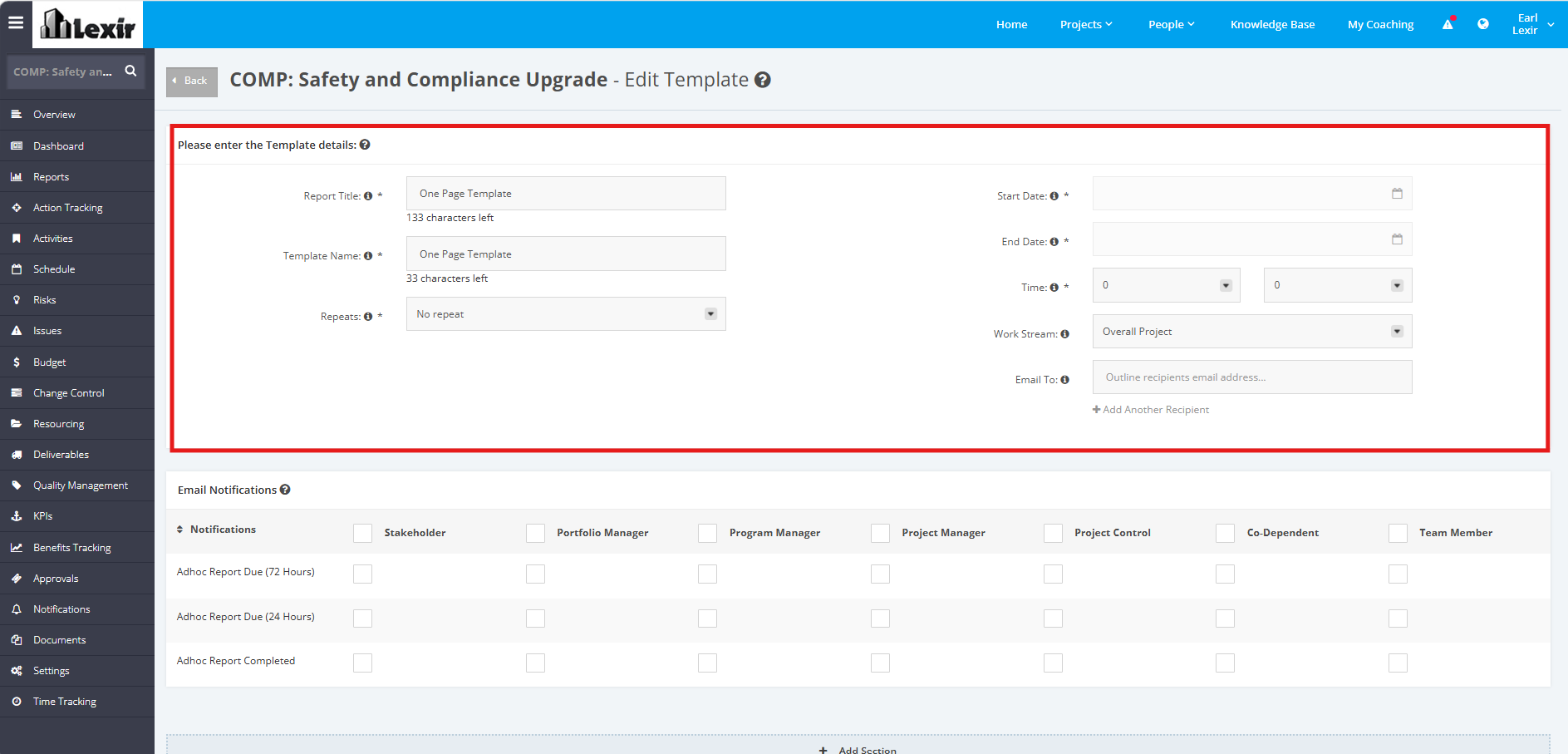
4. Apply the necessary changes in the Template Details form with the following fields: ‘Report Title’, ‘Template Name’, ‘Repeats’, ‘Start Date’, ‘End Date’, ‘Time’, ‘Work Stream’ and ‘Email To’ .
Template details contain sections of the Project that you want to be displayed on the Report. It is important to add any piece that helps further explain the report or adds additional context.
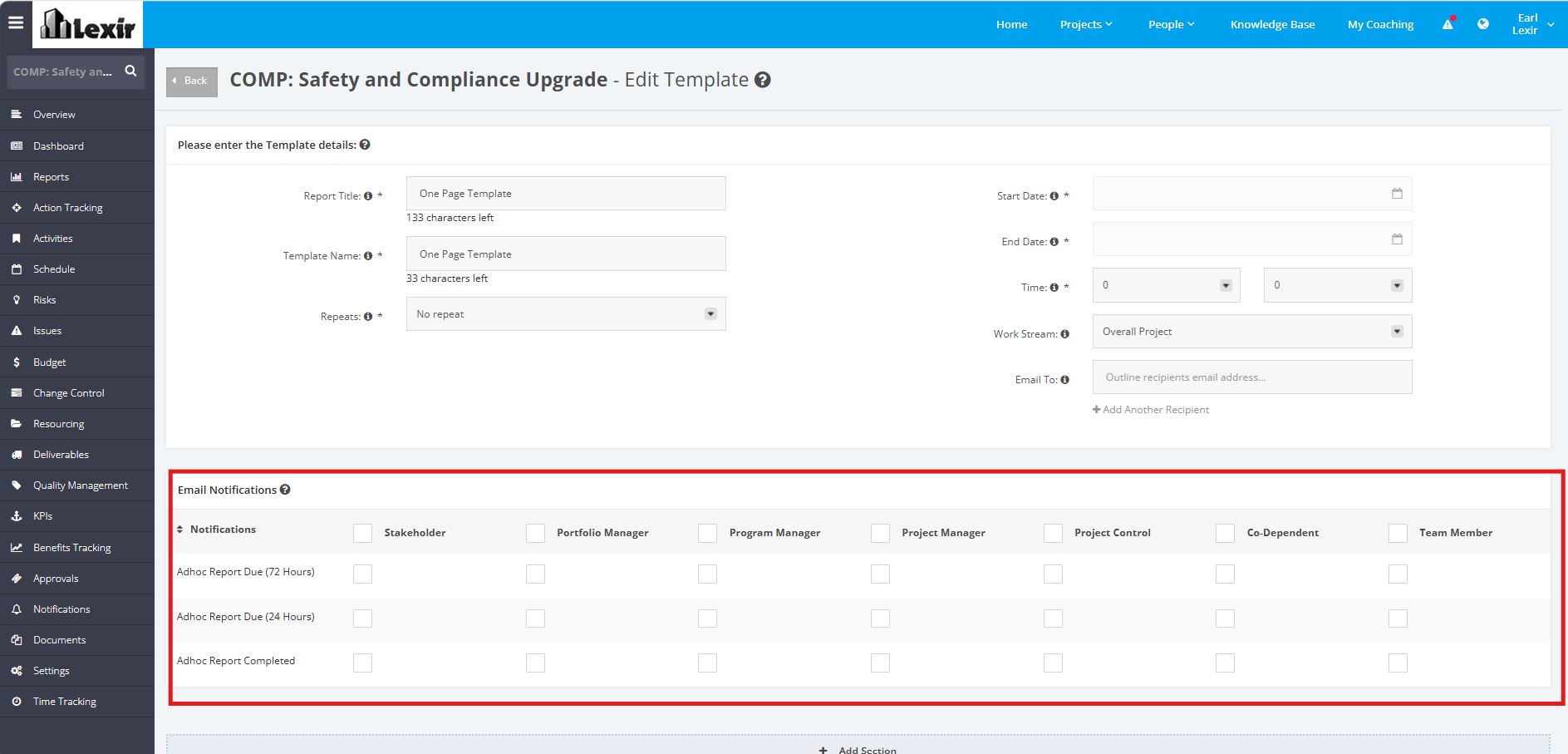
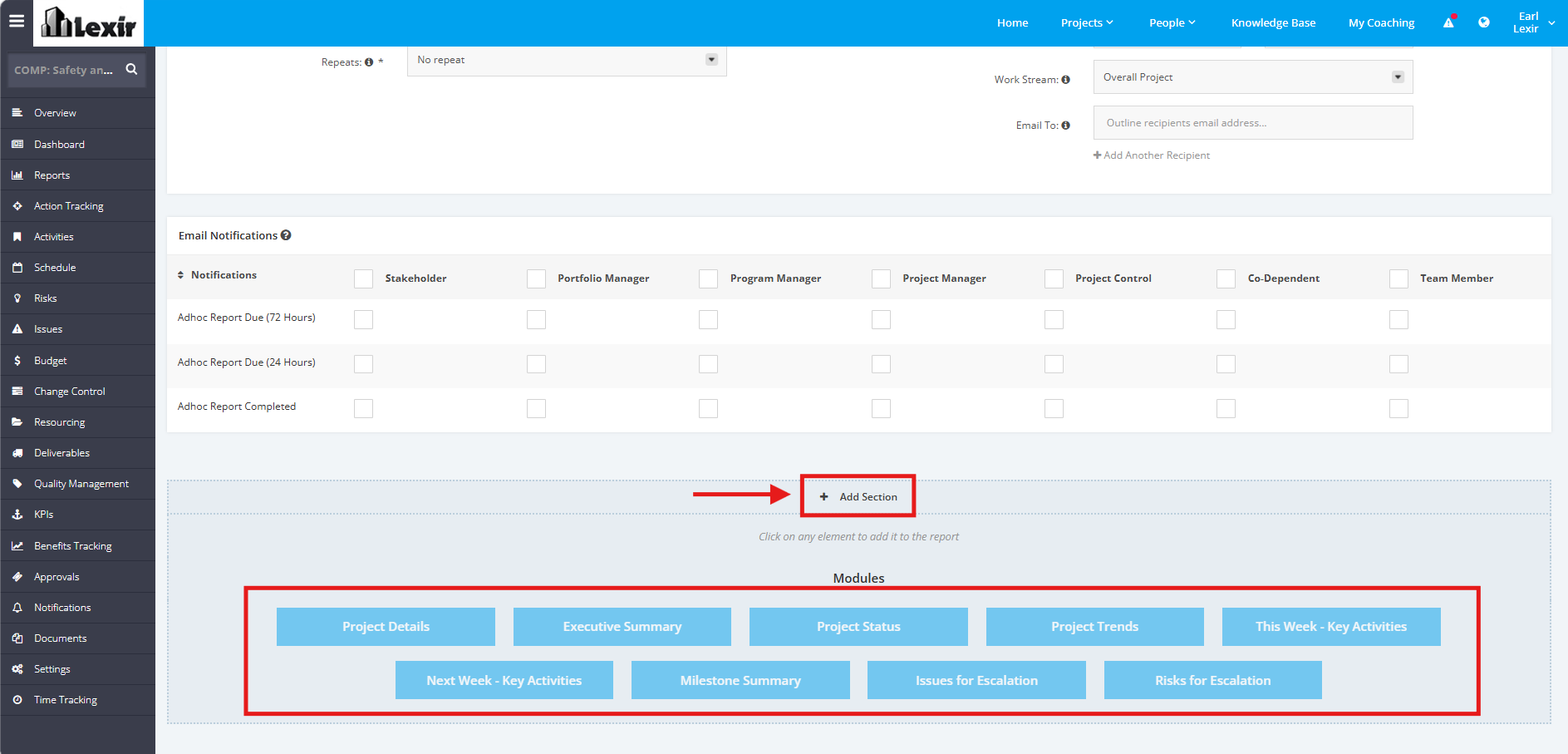
5. To update the Report Email Notifications, scroll to the ‘Email Notifications’ section. Tick/untick checkboxes to enable/disable sending of Report Notifications (per Key Role).
6. Add more elements in the One Page Template Report by clicking the ‘+ Add Section’ link. Once done, click the desired Module to add.
NOTE:
'Project Details', 'Executive Summary', 'Project Status', and 'Project Trends' are default sections for the One Page Report Template. They cannot be removed.
7. To remove a module, click the ‘x’ icon. Then once done, click the ‘Update’ button to save template.