1. Manage Weekly Report Template within a Project
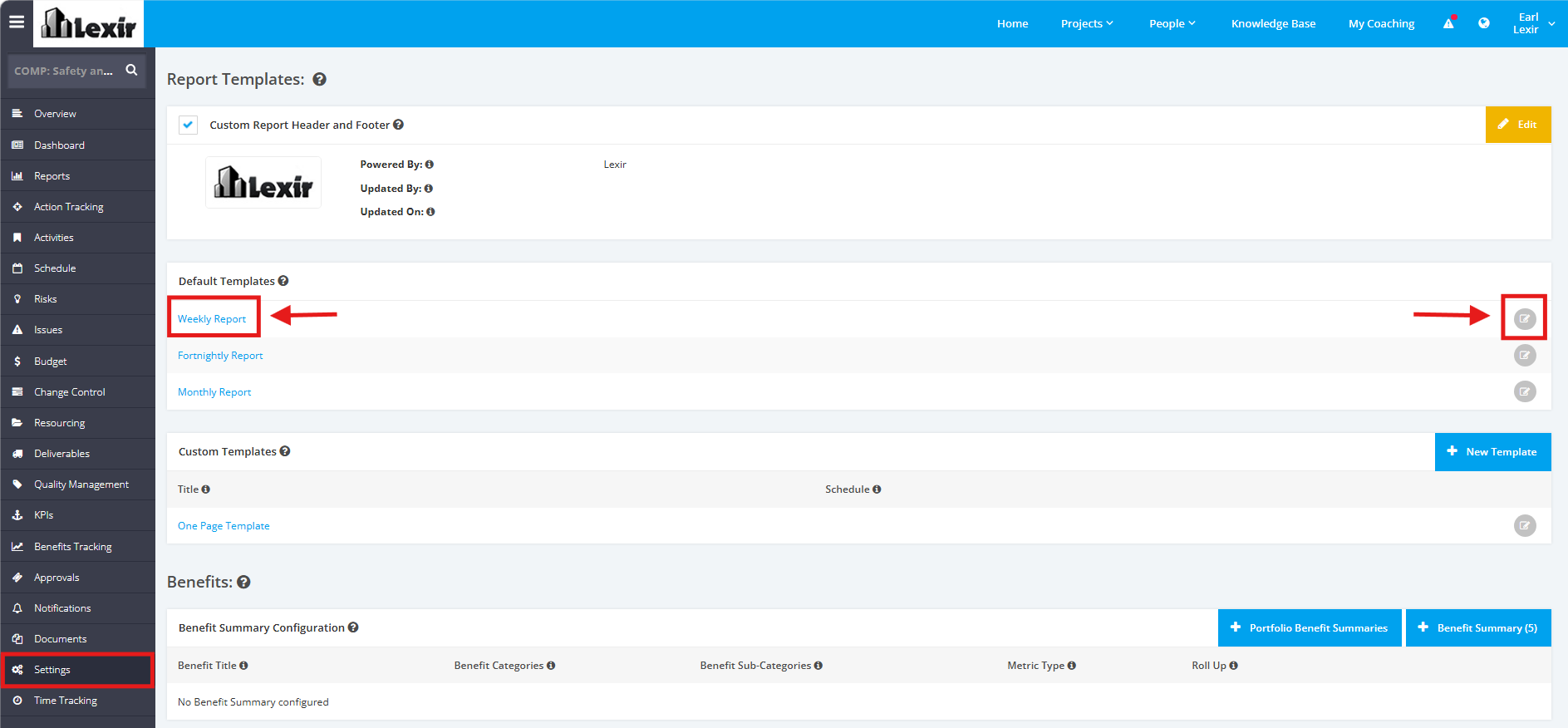
1. To manage the Weekly Report Template, click the ‘Settings’ tab from the left side bar of the Project page.
2. Once done, navigate to the ‘Report Templates’ section then ‘Default Templates’.
3. Click the ‘Weekly Report’ link or the Edit Icon.
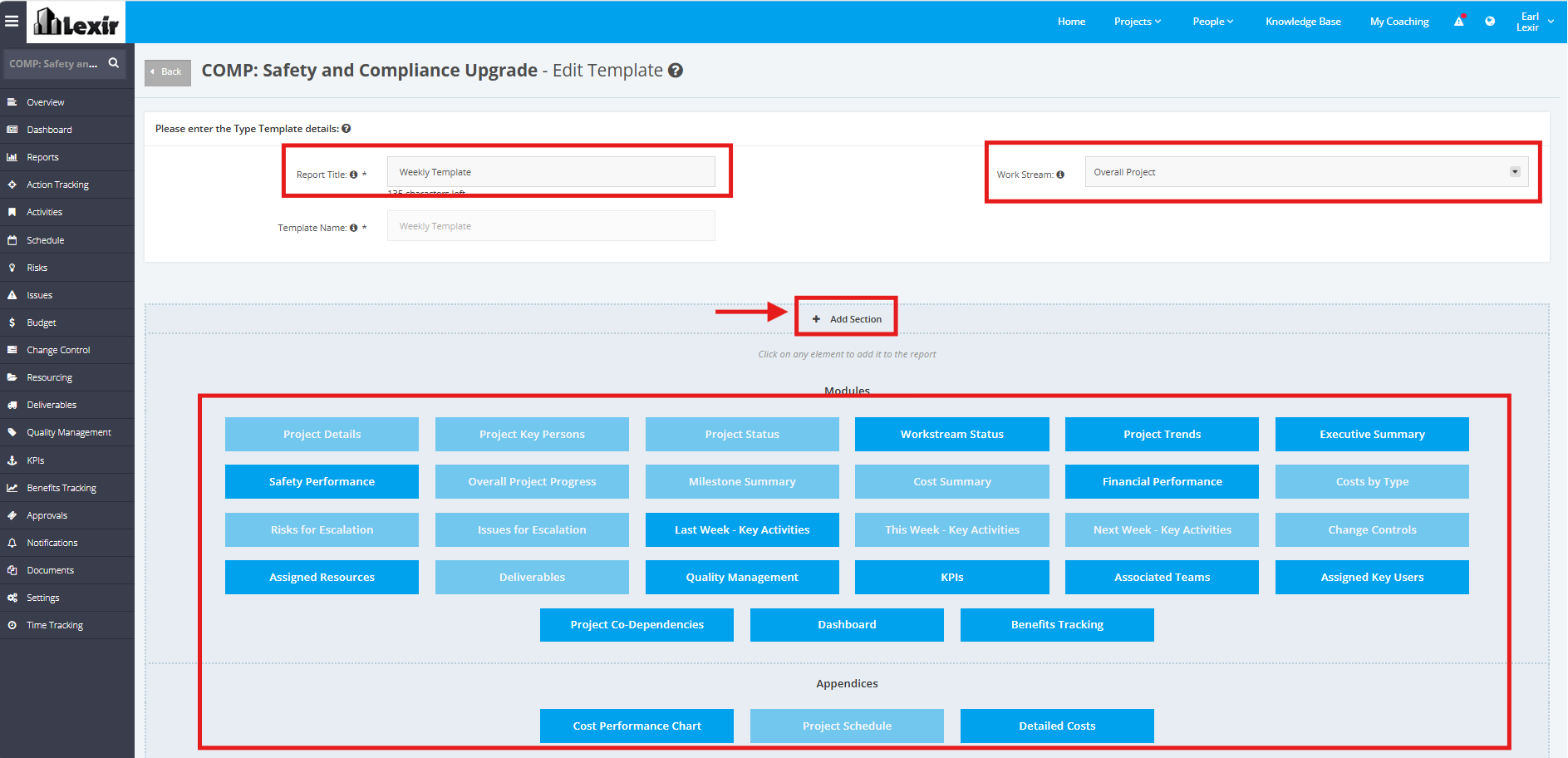
4. You can configure the 'Report Title' and 'Work Stream' for your Weekly Report Template.
Click the ‘+ Add Section’ link to add more elements in the Weekly Report. Once done, click the desired ‘Module’ or ‘Appendices’.
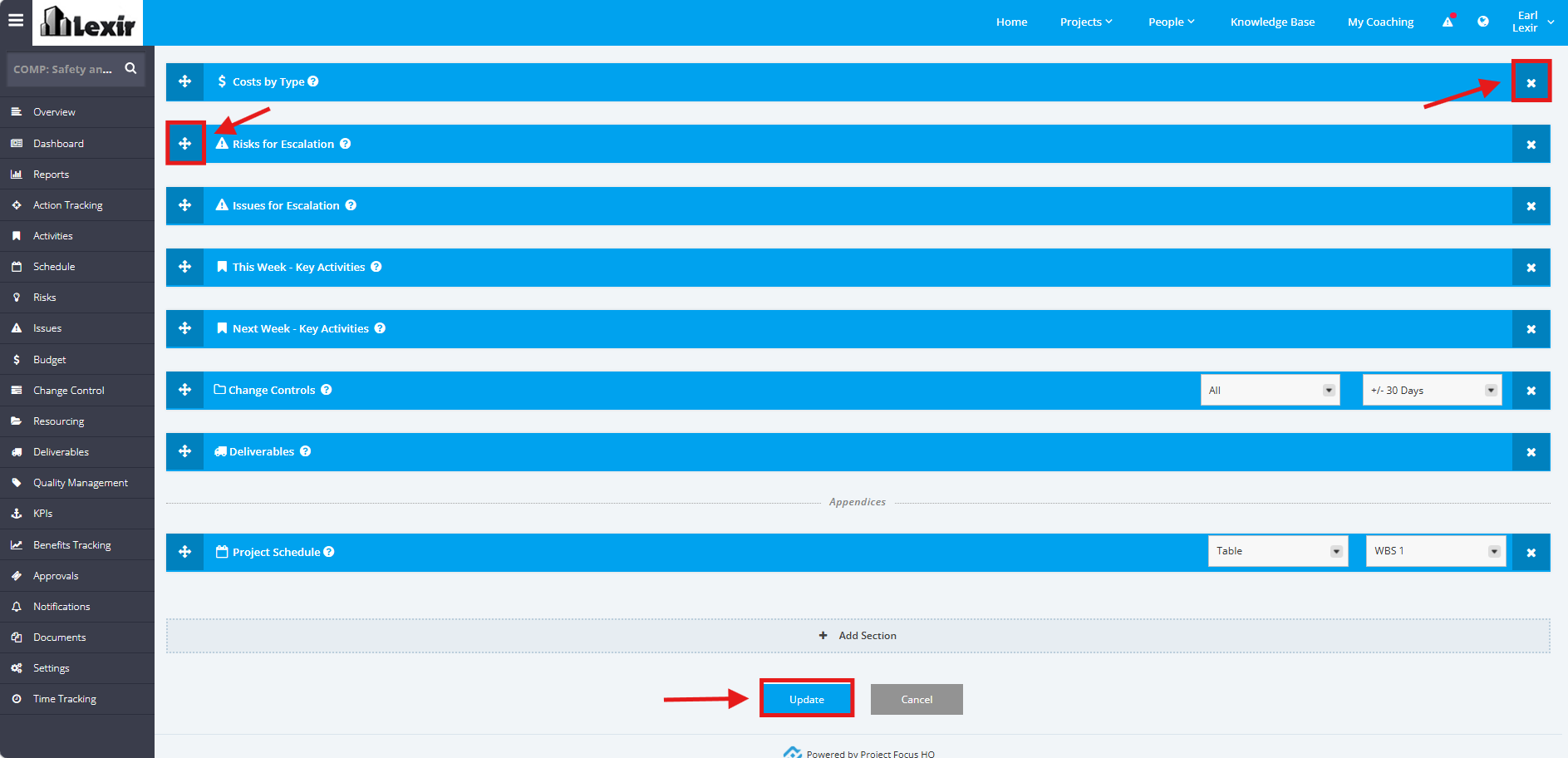
5. If you want to remove a Report section, click the ‘x’ button. Also, you can re-arrange the Report sections by moving the Drag and Drop ‘+’ button. Once done, click on the ‘Update’ button to save the changes.