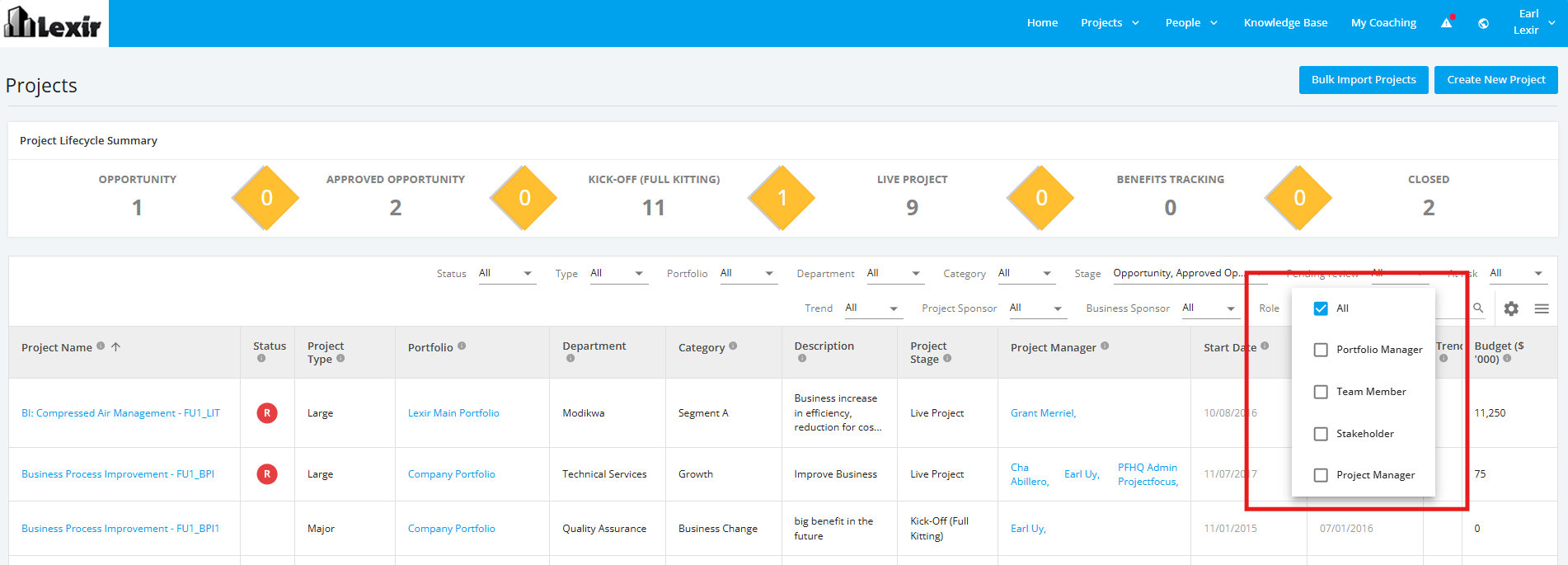
1. Filter All Projects Dashboard
You can filter list of All Projects to display with the following options:
Project Type, Department, Category, Stage, Project Sponsor, Business Sponsor, Status, Portfolio, Pending review, At risk, Trend, Role
You can select one or more filters. Once the desired filters are configured, the Project List will display only the projects that match the selected filter criteria.
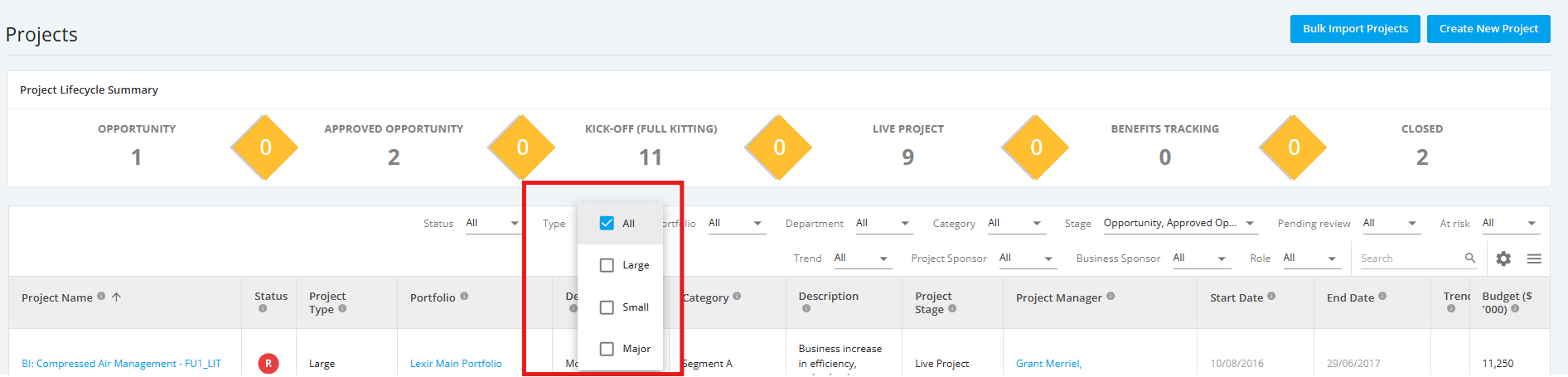
1.1 Filter All Projects by Project Type
In the ‘Filters’ section. click the ‘Project Type’ dropdown menu. Once done, choose a project type you want to display.
To display projects with all project types, select ‘All’.
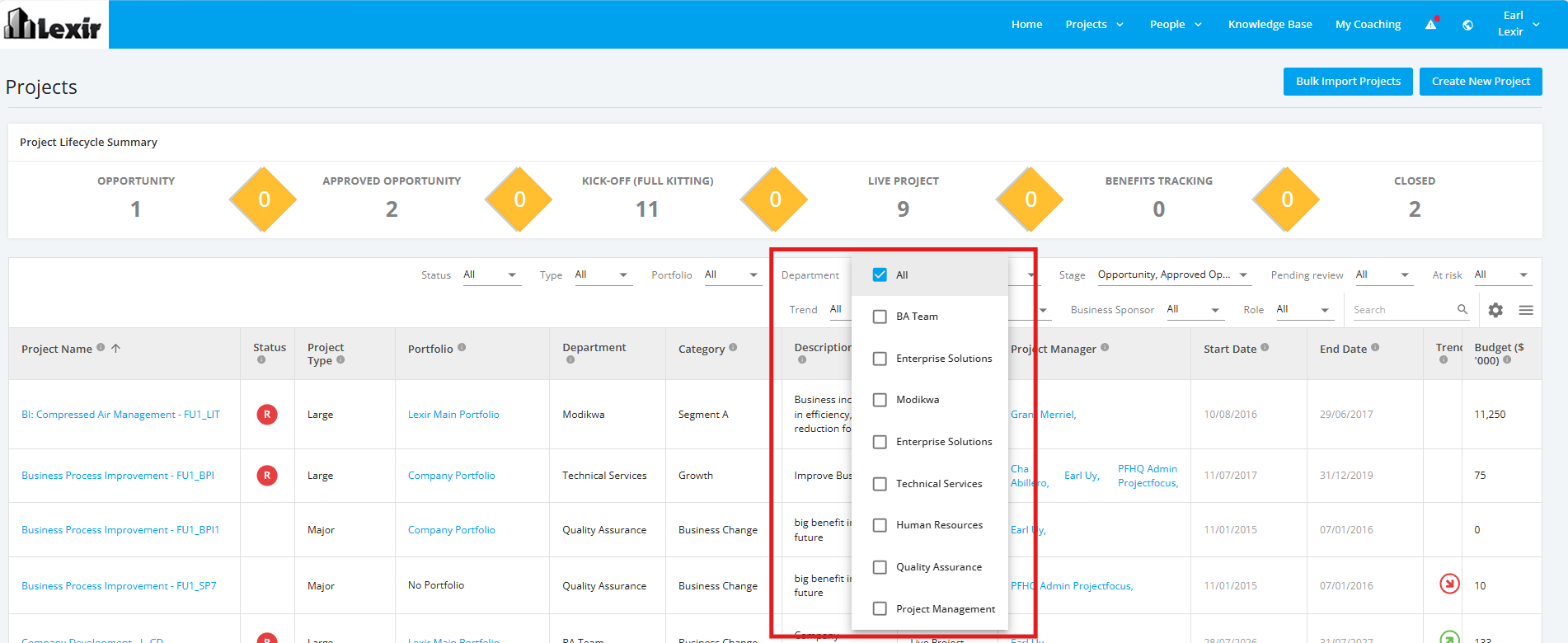
1.2 Filter All Projects by Department
In the ‘Filters’ section. click the ‘Department’ dropdown menu. Once done, choose a department you want to display.
To display projects with all project types, select ‘All’.
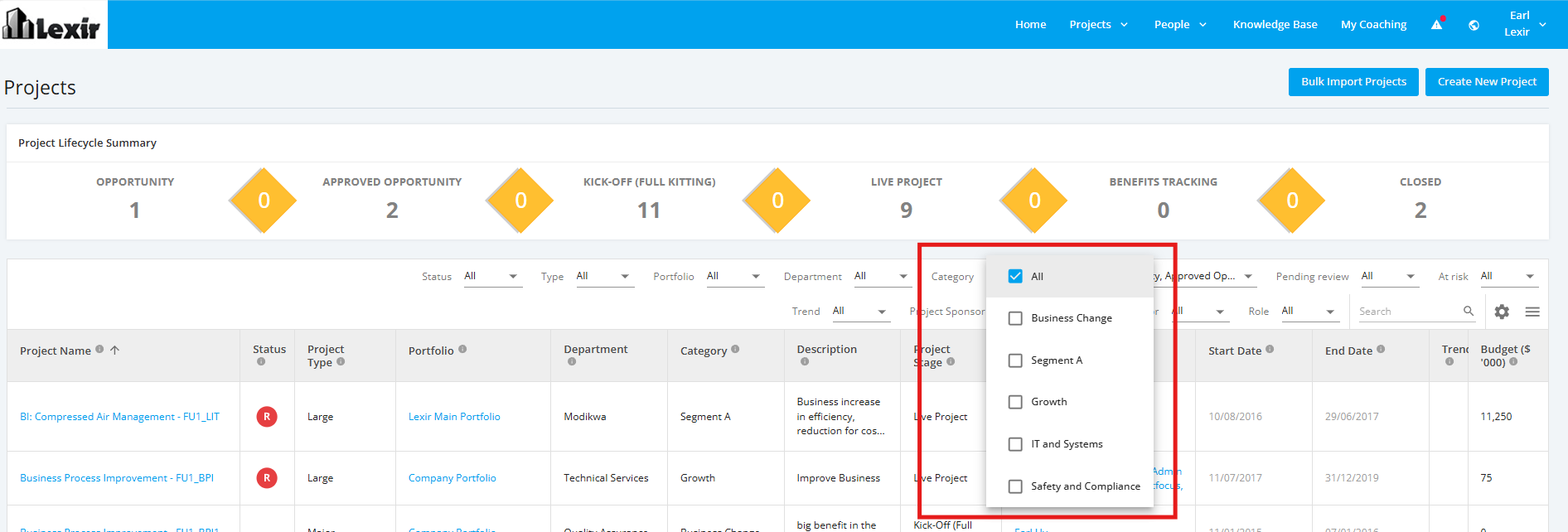
1.3 Filter All Projects by Category
In the ‘Filters’ section. click the ‘Category’ dropdown menu. Once done, choose a category you want to display.
To display projects with all project types, select ‘All’.
1.4 Filter All Projects by Stage
In the ‘Filters’ section. click the ‘Stage’ dropdown menu. Once done, choose a Project Stage you want to display.
To display projects with all Project Stages, select ‘All’.
1.5 Filter All Projects by Project Sponsor
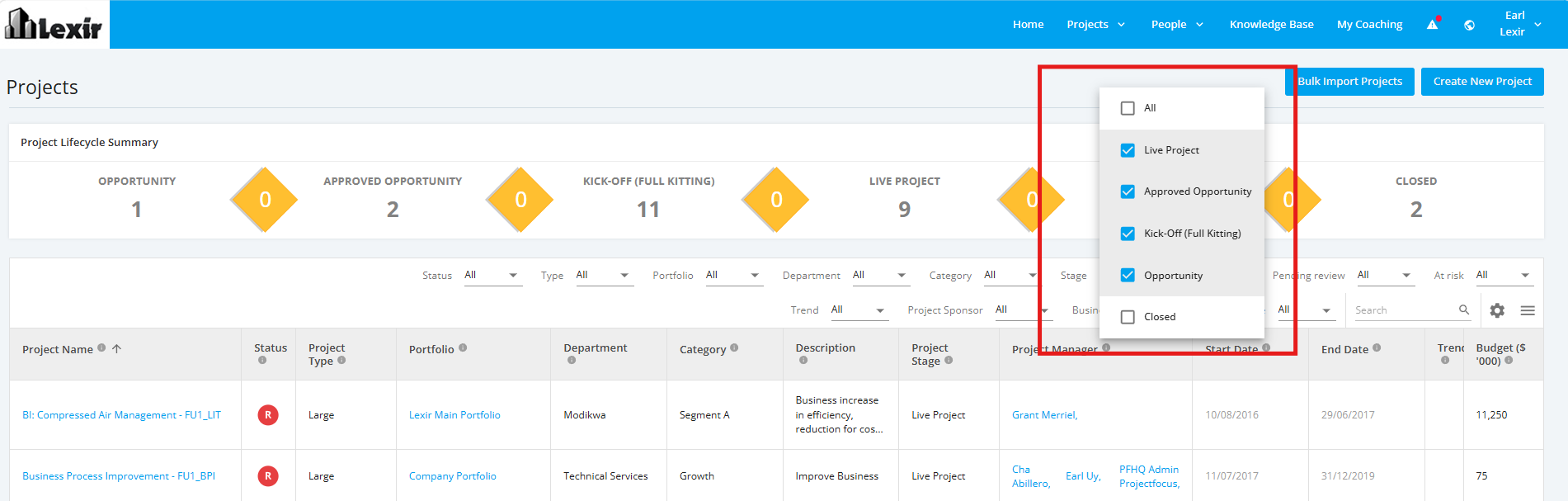
In the ‘Filters’ section. click the ‘Project Sponsor’ dropdown menu. Once done, choose a Project Sponsor you want to display.
To display projects with all Project Sponsors, select ‘All’.
1.6 Filter All Projects by Business Sponsor
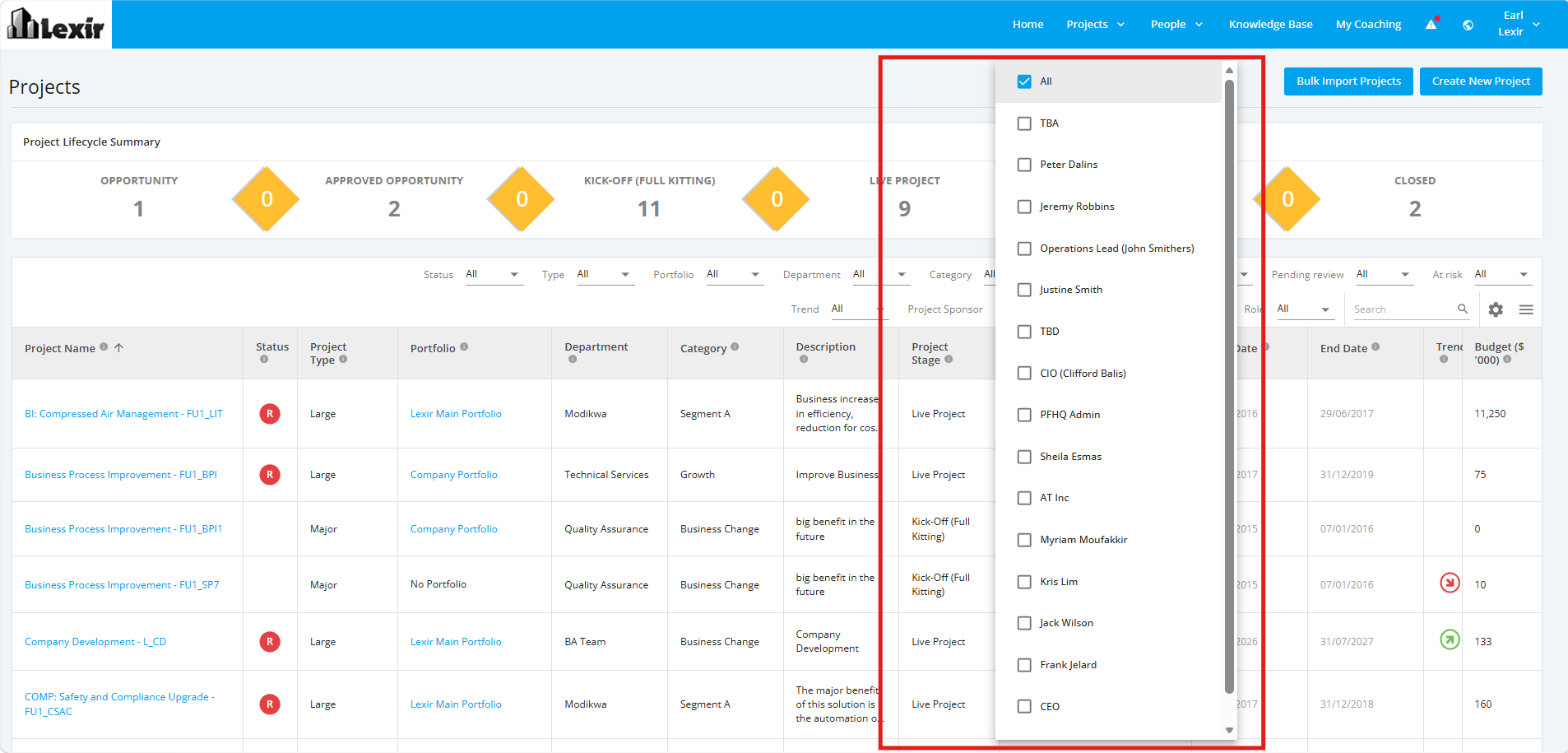
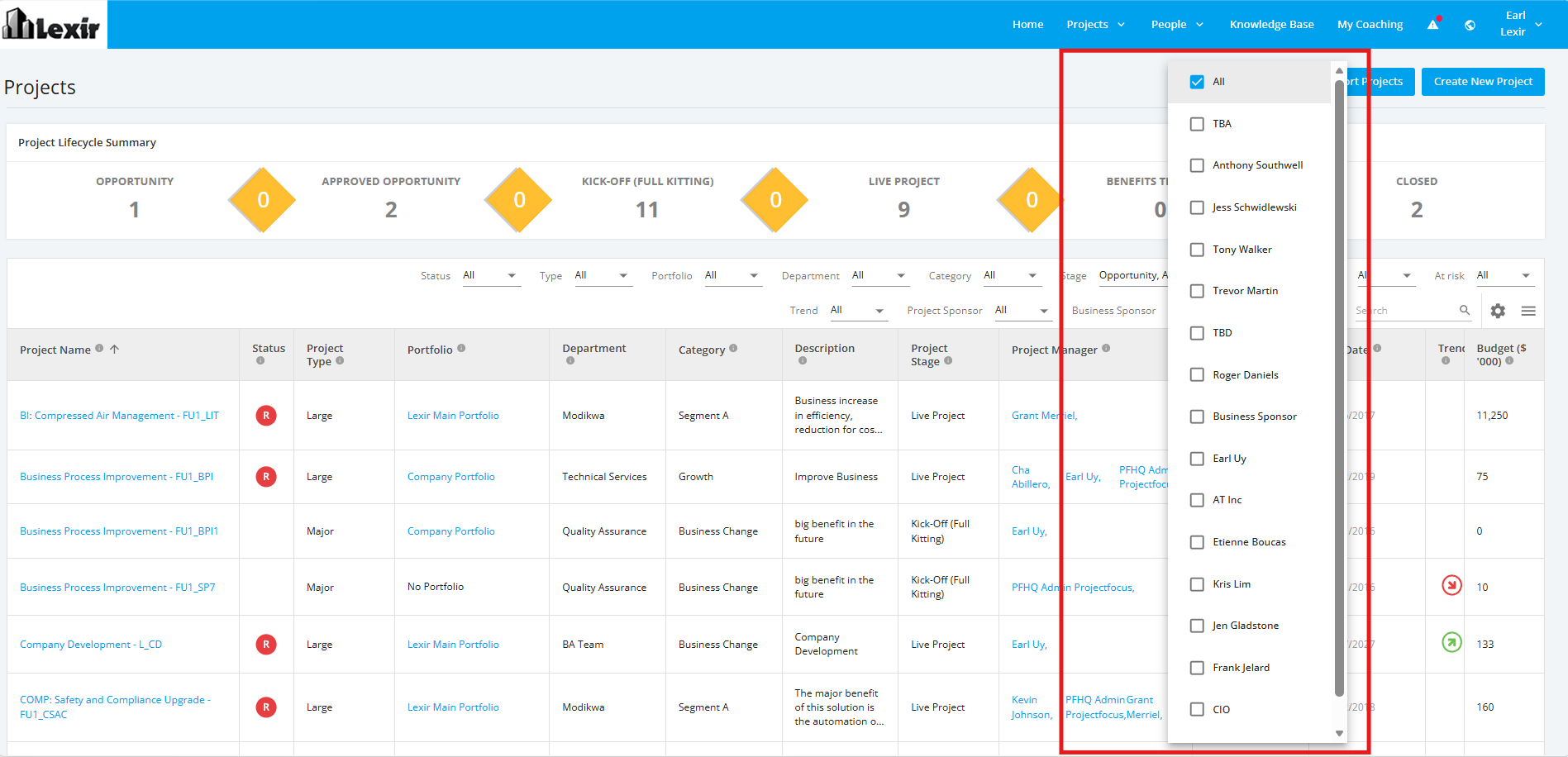
In the ‘Filters’ section. click the ‘Business Sponsor’ dropdown menu. Once done, choose a Business Sponsor you want to display.
To display projects with all Business Sponsors, select ‘All’.
1.7 Filter All Projects by Status
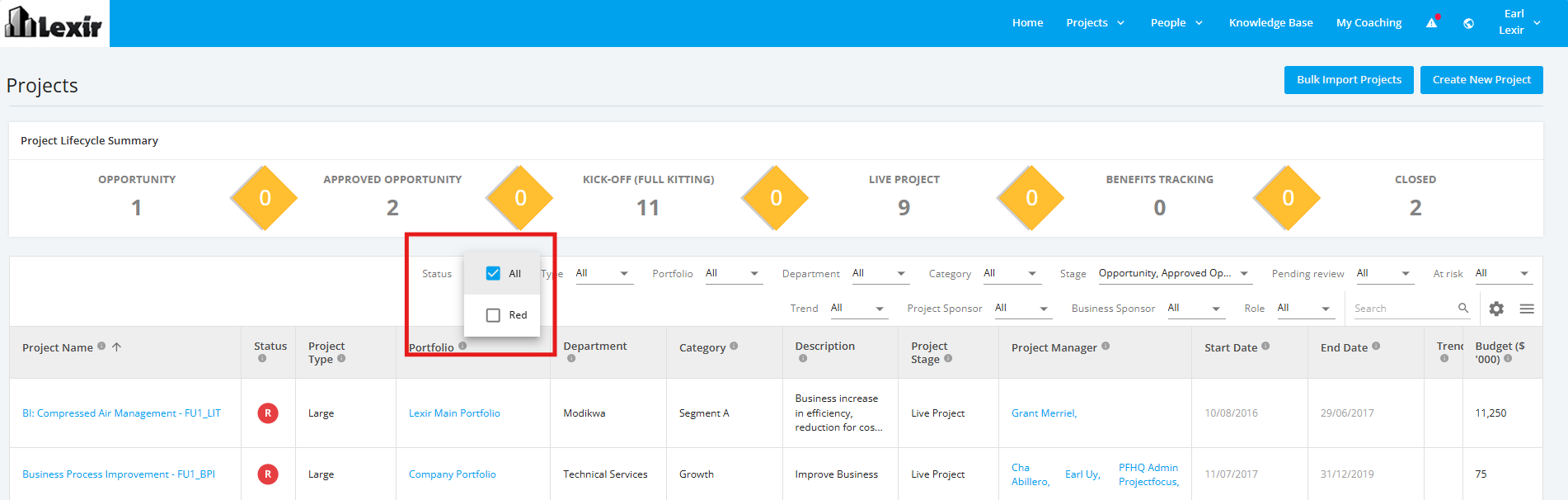
In the ‘Filters’ section. click the ‘Status’ dropdown menu. Once done, choose an Overall Project RAG Status you want to display.
To display projects with all Overall Project RAG Statuses, select ‘All’.
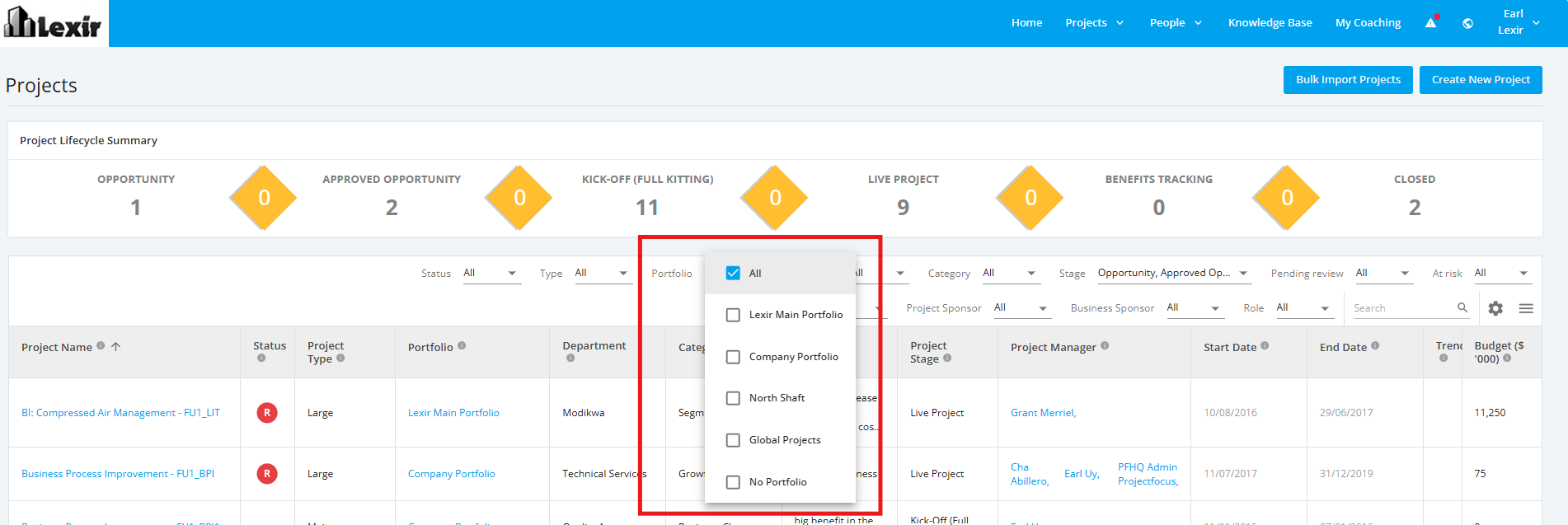
1.8 Filter All Projects by Portfolio
In the ‘Filters’ section. click the ‘Portfolio’ dropdown menu. Once done, choose a Portfolio you want to display.
To display projects with all Portfolios, select ‘All’.
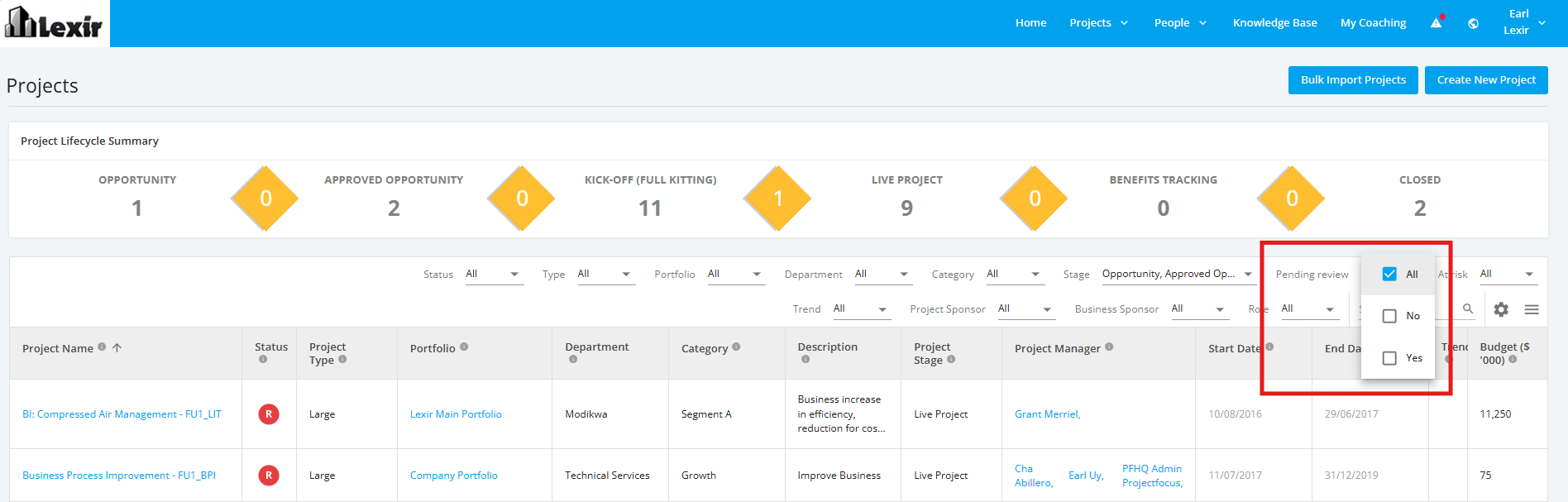
1.9 Filter All Projects by Pending Review
In the ‘Filters’ section. click the ‘Pending Review’ dropdown menu. Once done, choose a Pending Review Status you want to display. ('Yes' if Project is under Pending Review, 'No' if Project is not.)
To display projects with all Pending Review Statuses, select ‘All’.
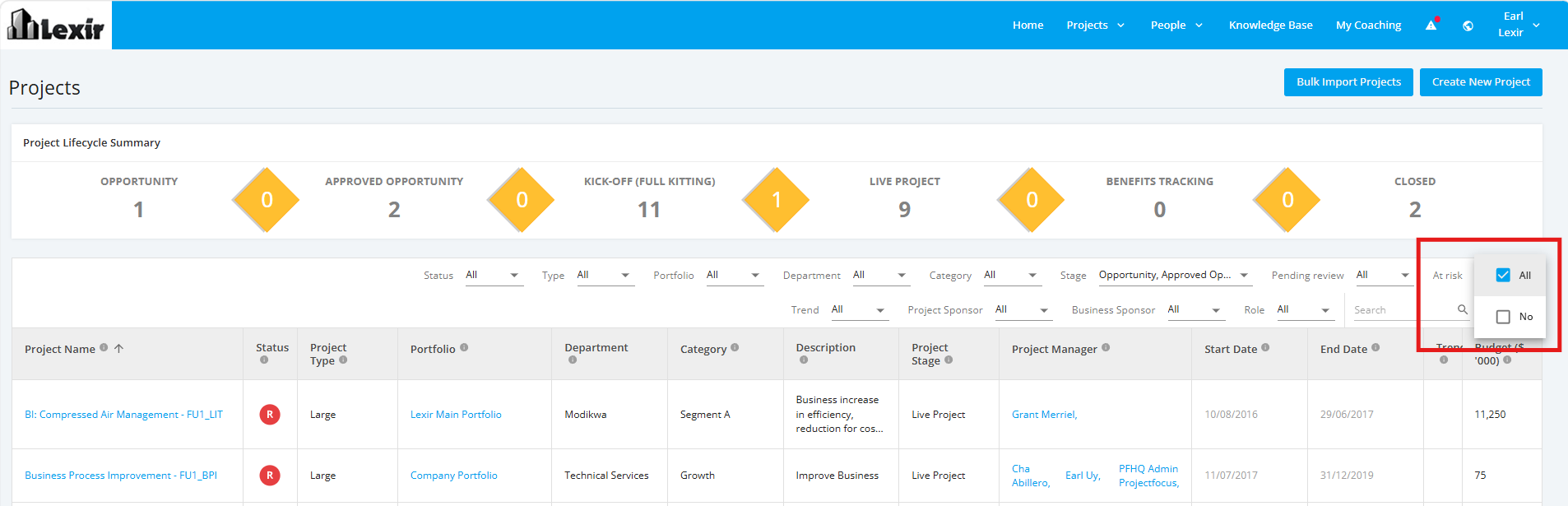
1.10 Filter All Projects by At Risk
In the ‘Filters’ section. click the ‘At Risk’ dropdown menu. Once done, choose an At Risk Status you want to display.
('Yes' if the Project has a negative trend and you are assigned a Portfolio Manager, Program Manager, Project Controls, or Project Manager). 'No' if otherwise.)
To display projects with all At Risk Statuses, select ‘All’.
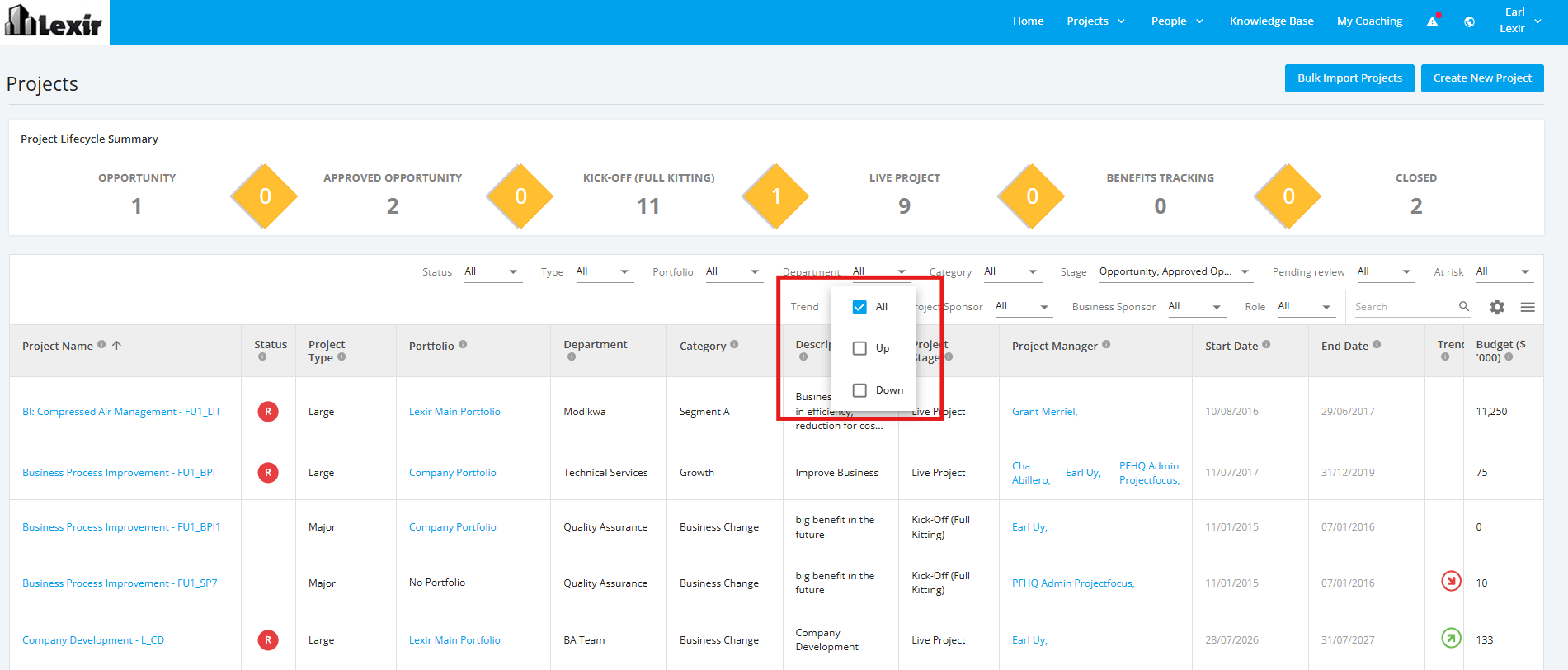
1.11 Filter All Projects by Trend
In the ‘Filters’ section. click the ‘Trend’ dropdown menu. Once done, choose an Overall Project RAG Trend you want to display. ('Up' if Project is improving, 'No' if Project is worsening.)
To display projects with all Trend Statuses, select ‘All’.
1.12 Filter All Projects by Role
In the ‘Filters’ section. click the ‘Role’ dropdown menu. Once done, choose an assigned Project Role you want to display.
To display projects with all assigned Project Roles, select ‘All’.