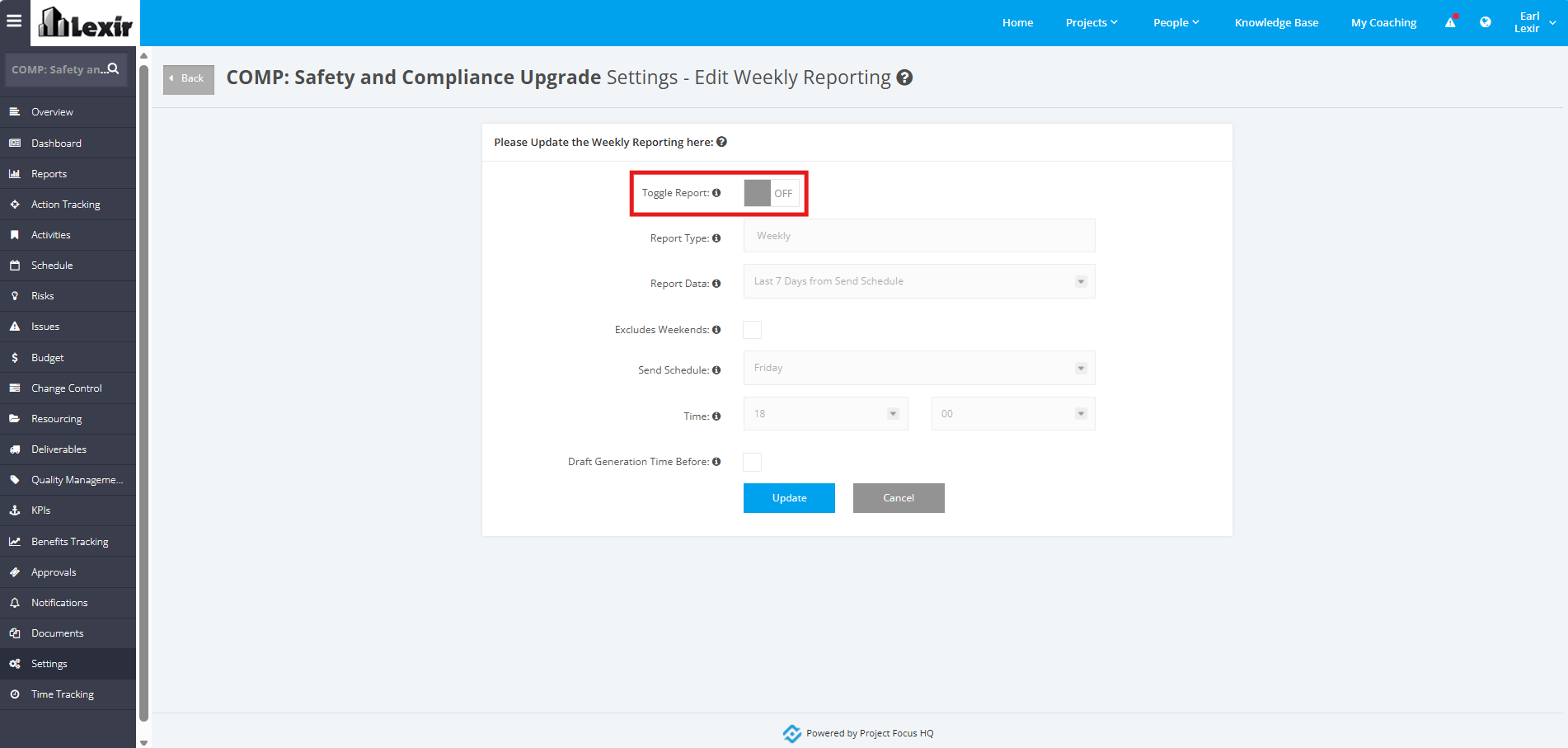
1. Update Project Weekly Reporting Schedule
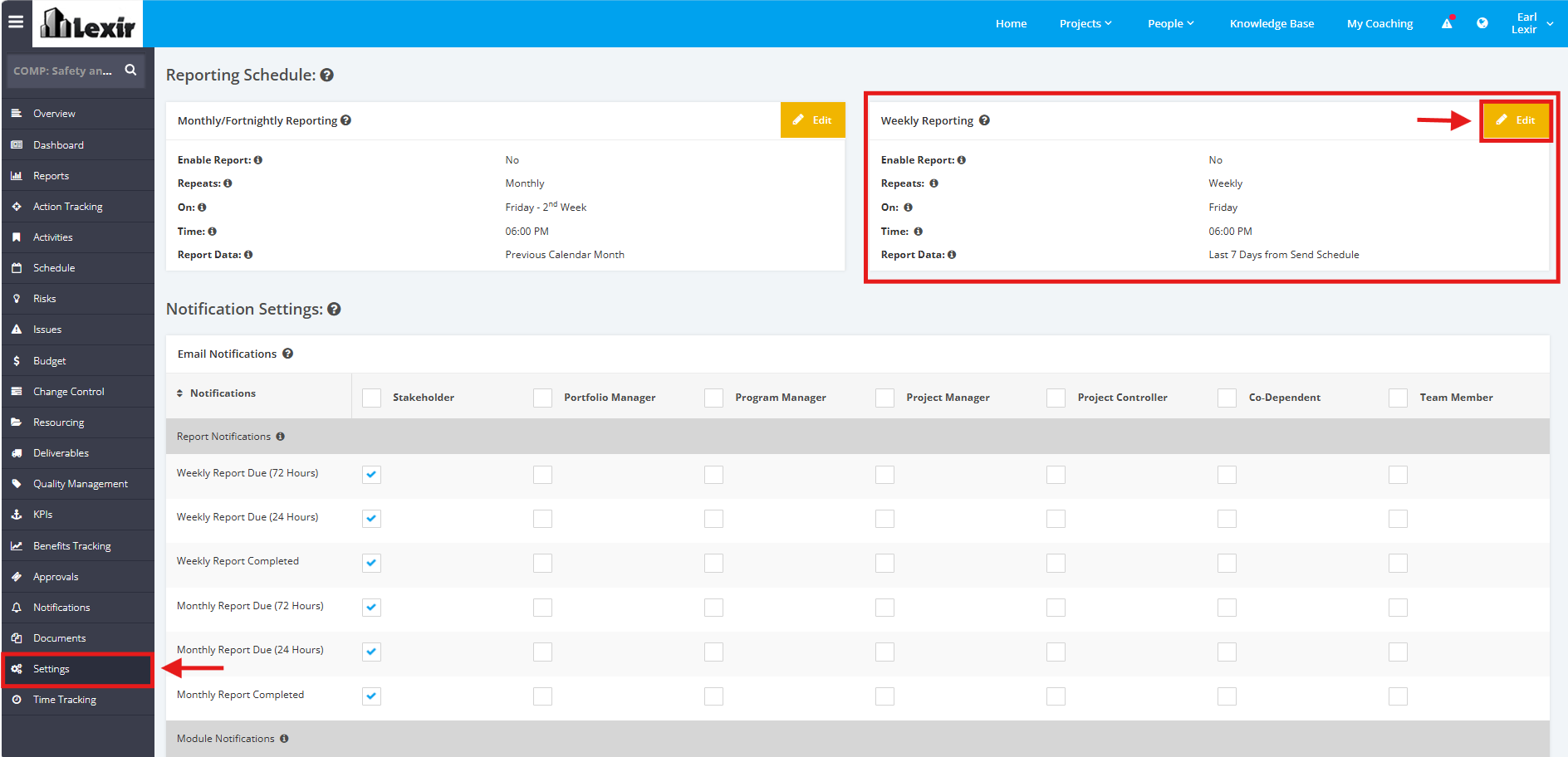
1. In order to update the Weekly Reporting Schedule, click the ‘Settings’ tab from the left side bar of the Project page. Once done, navigate to the ‘Reporting Schedule’ section then ‘Weekly Reporting’. Click the ‘Edit’ button.
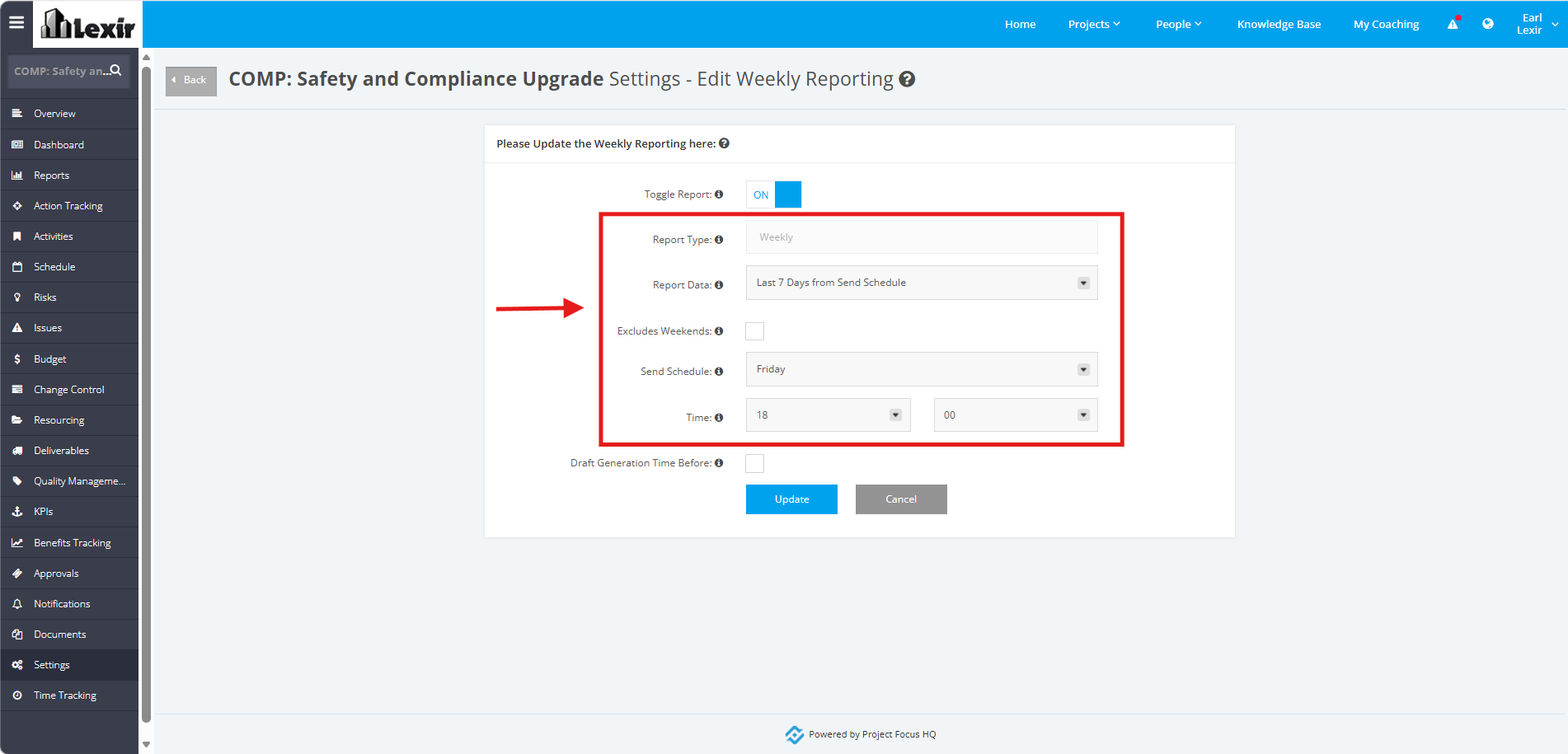
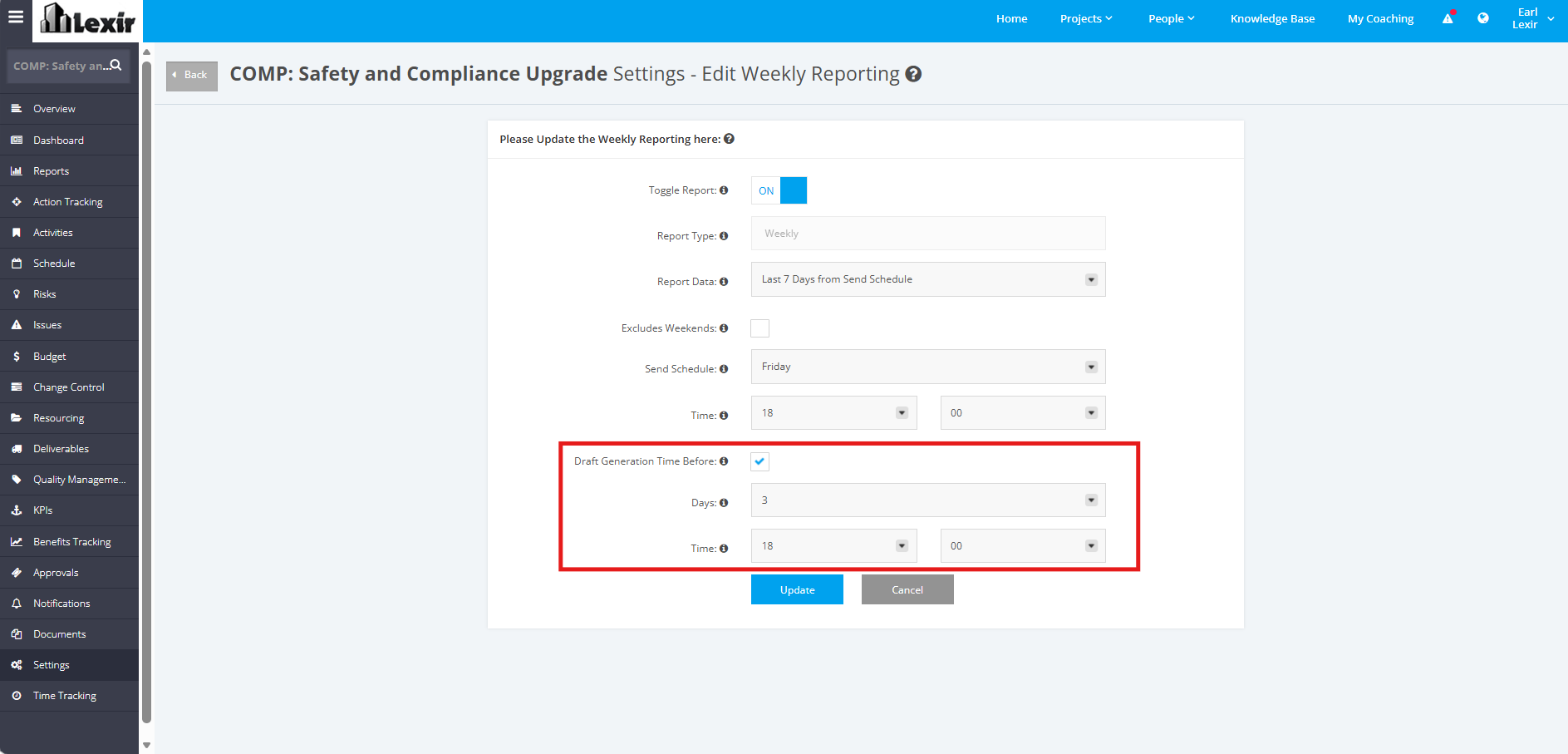
2. Set ‘Report Data’, ‘Send Schedule’ and ‘Time’.
Weekly Report data should be:
- If set to ‘Previous Calendar Week’, we will get data from Start date of project to the last day of Previous Calendar Week
- If set to ‘Last 7 days from Send Schedule’, we will get data from Start date of project to the last day of Last 7 days from Send Schedule.
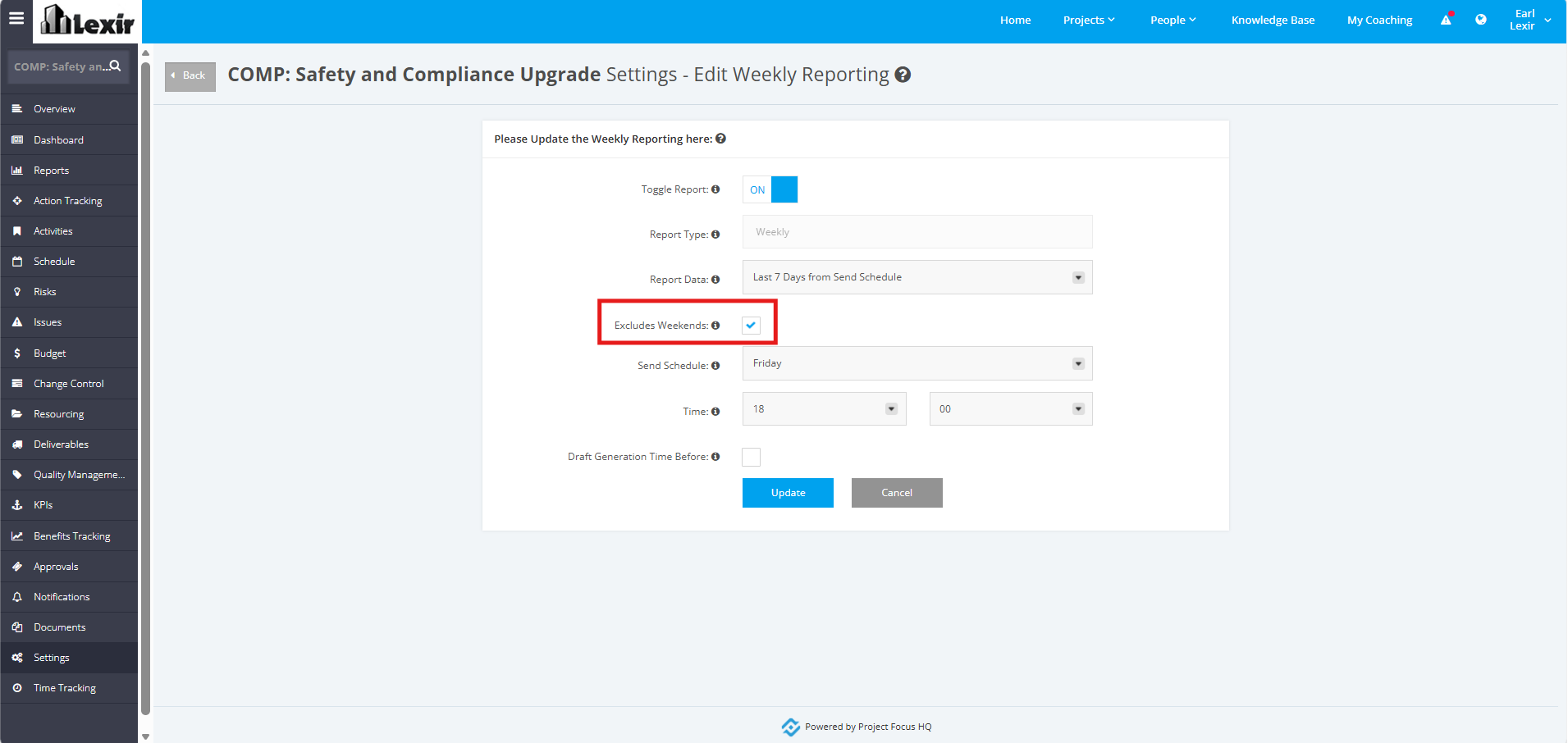
3. You can select the ‘Exclude Weekends’ checkbox if you want to skip weekends when counting the number of days before the draft report is generated for your configured send schedule.
4. You can select the ‘Draft Generation Time Before’ checkbox if you want to generate your draft report at a time different from the default schedule. By default, draft reports are generated 72 hours before your configured project schedule.
Once ticked, select your preferred number of days and time for when your draft report is generated before your send schedule.
5. Once done, click the ‘Update’ button to save changes.
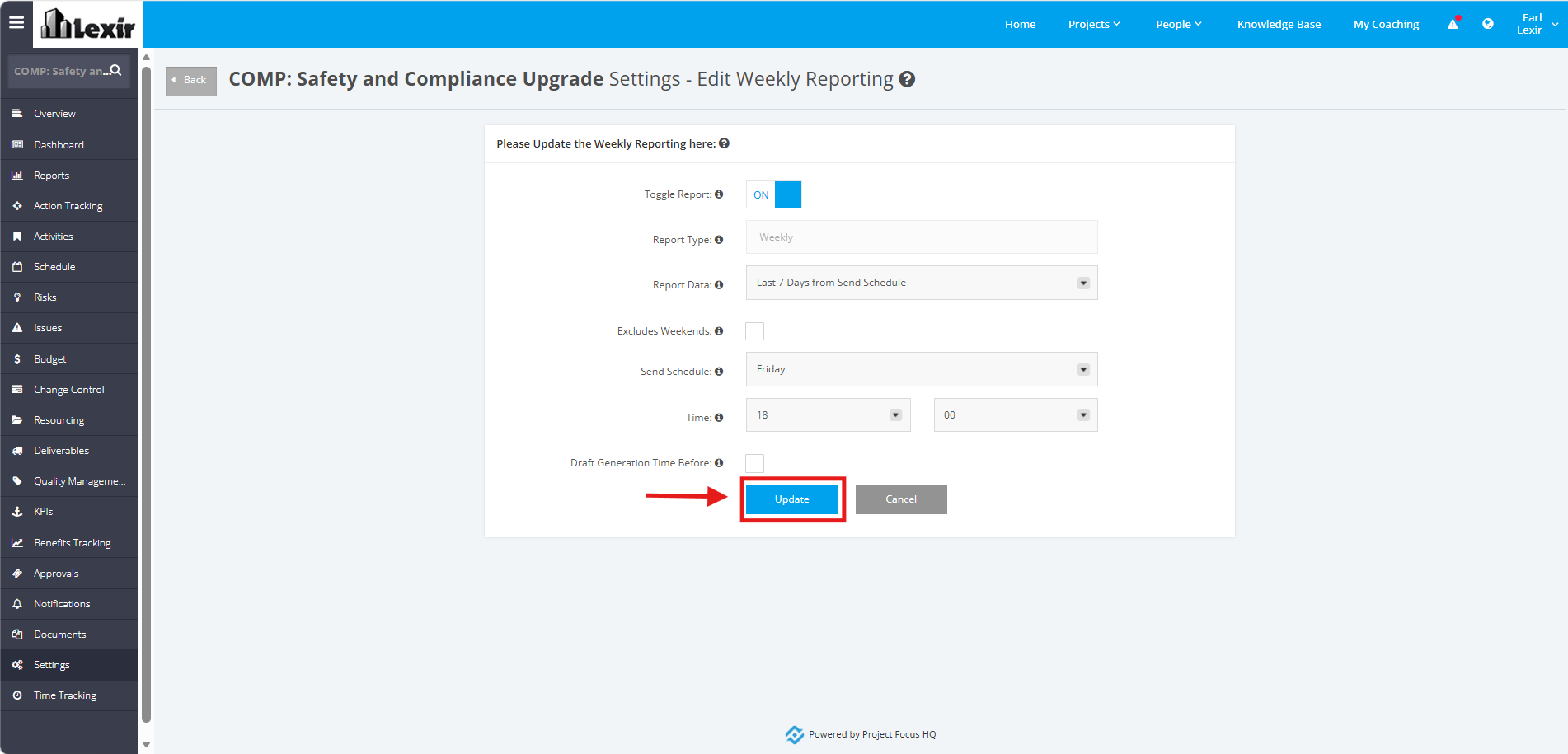
NOTE: You can also turn the toggle 'OFF' if you choose not to generate a Weekly Report for your Project.