1. Cost Impact Implementation
1.1 Cost Impact (Contingency)
1. If the type of the approved Change Control Request is ‘Contingency’, click the ‘Budget’ Module from the left sidebar of the page.
Once done, go to ‘Detailed Cost’ section and select any of the budget items that you want to update.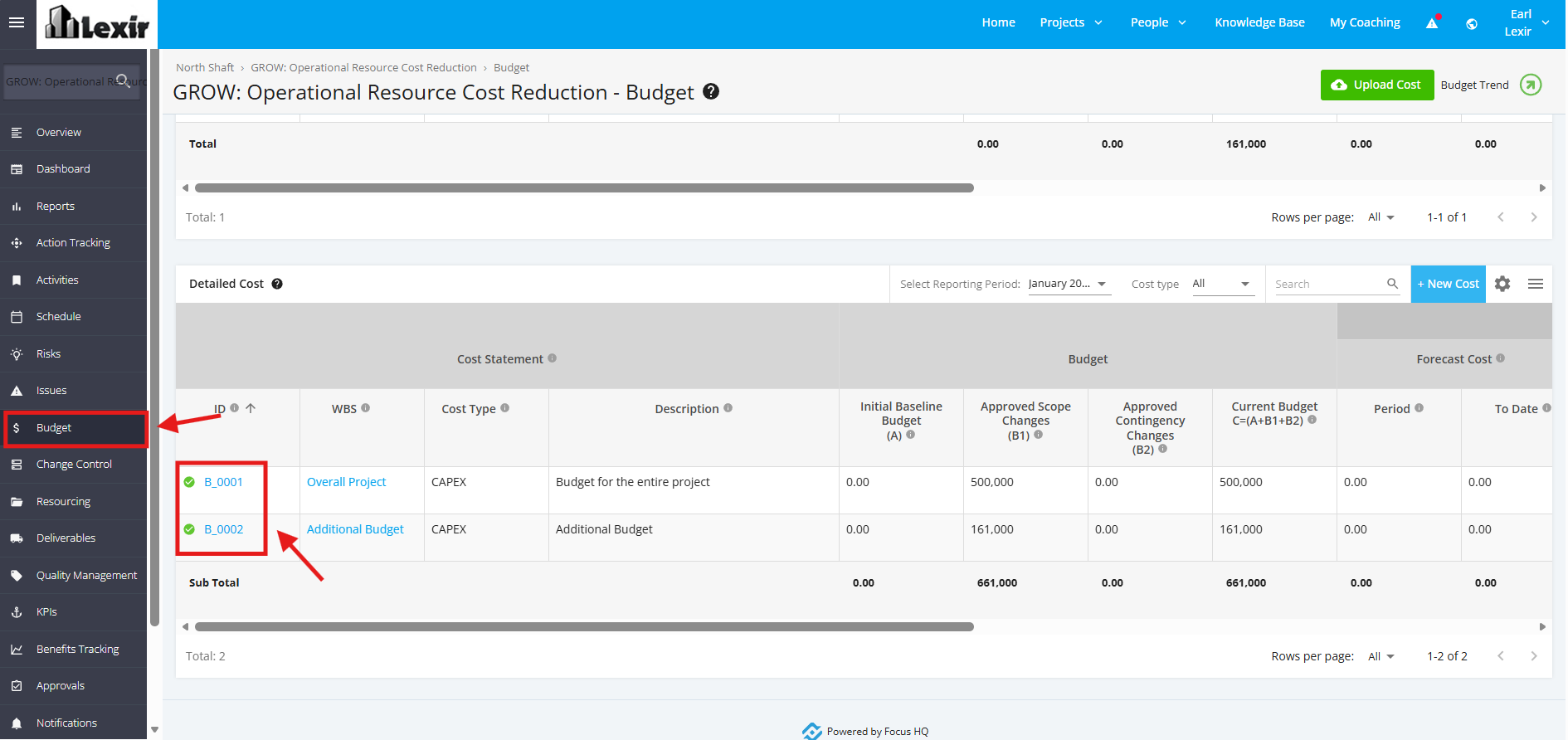
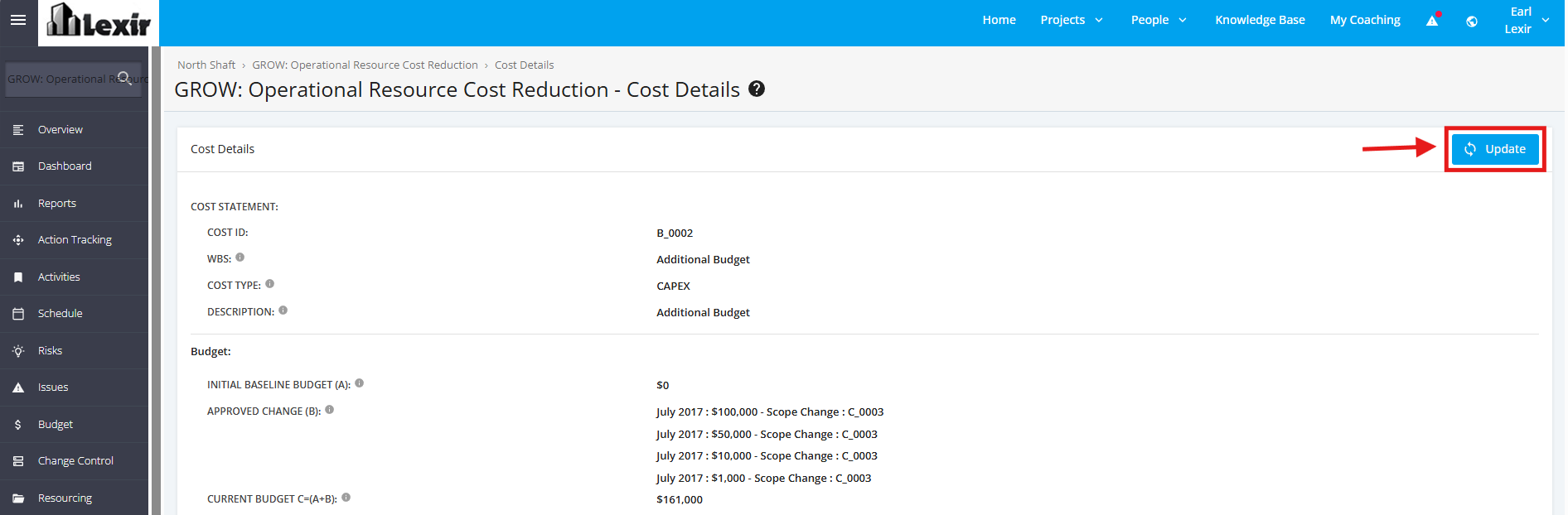
2. In the Budget Cost Details page, click the ‘Update’ button.
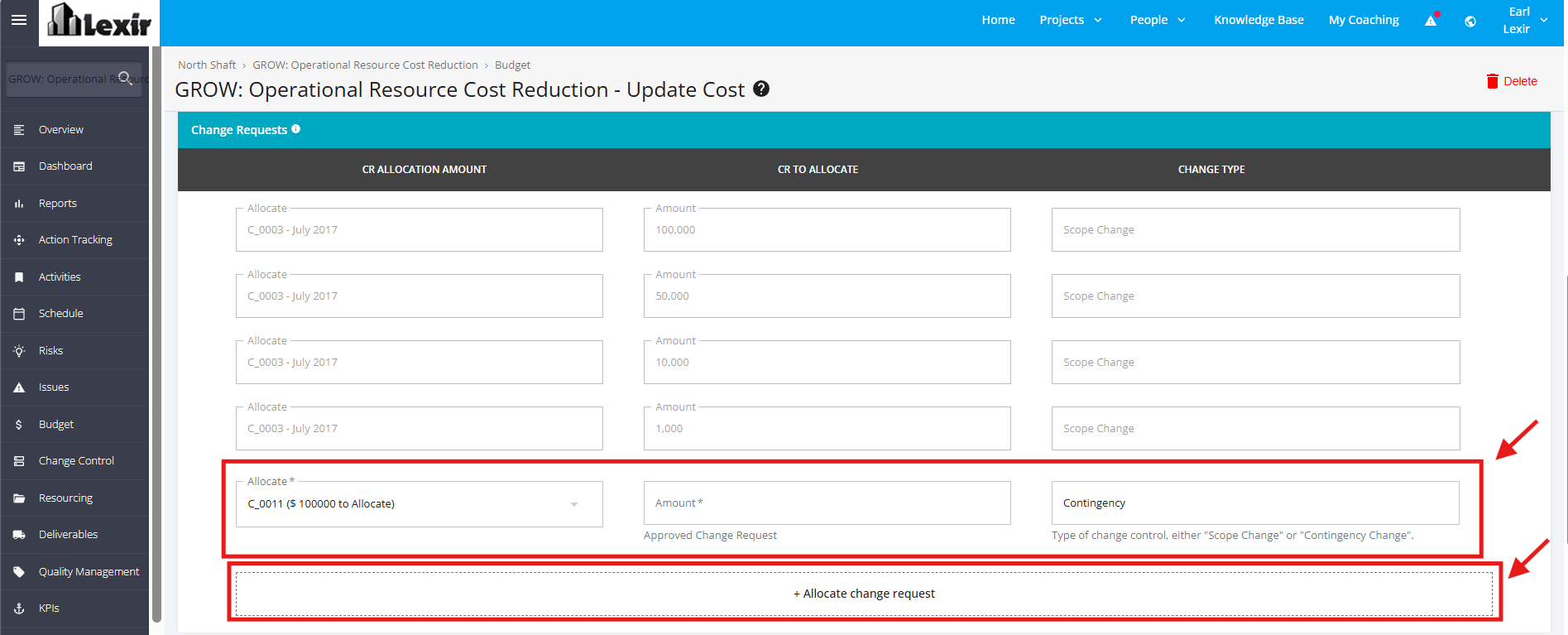
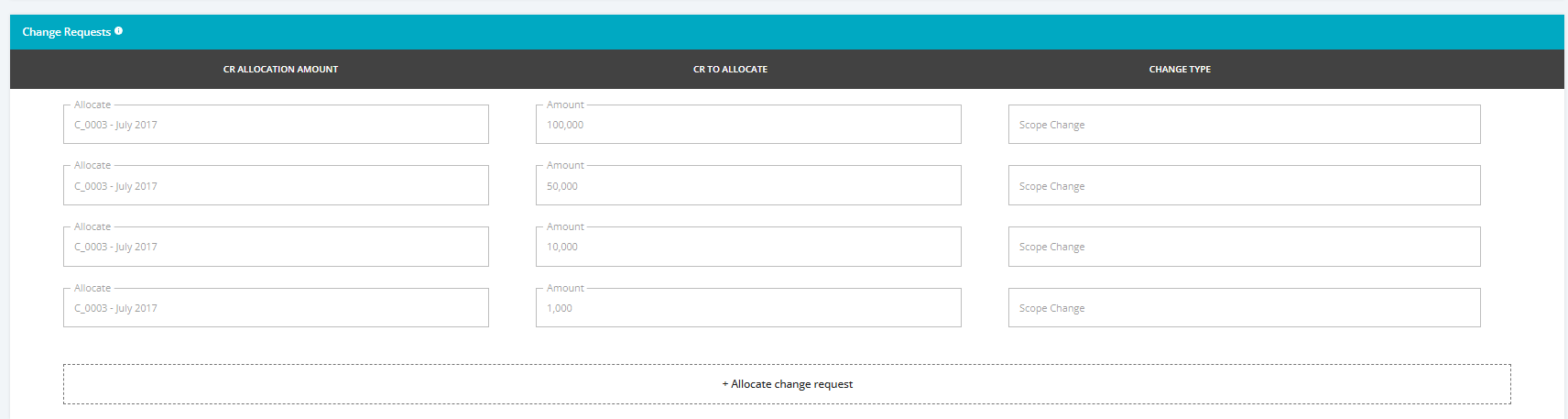
3. Once done, you will reach the ‘Update Cost’ page. Navigate to the ‘Change Requests’ section and click "+ Allocate change request".
Then, select a Contingency Budget Allocation in the 'Allocate' dropdown list and add the amount.
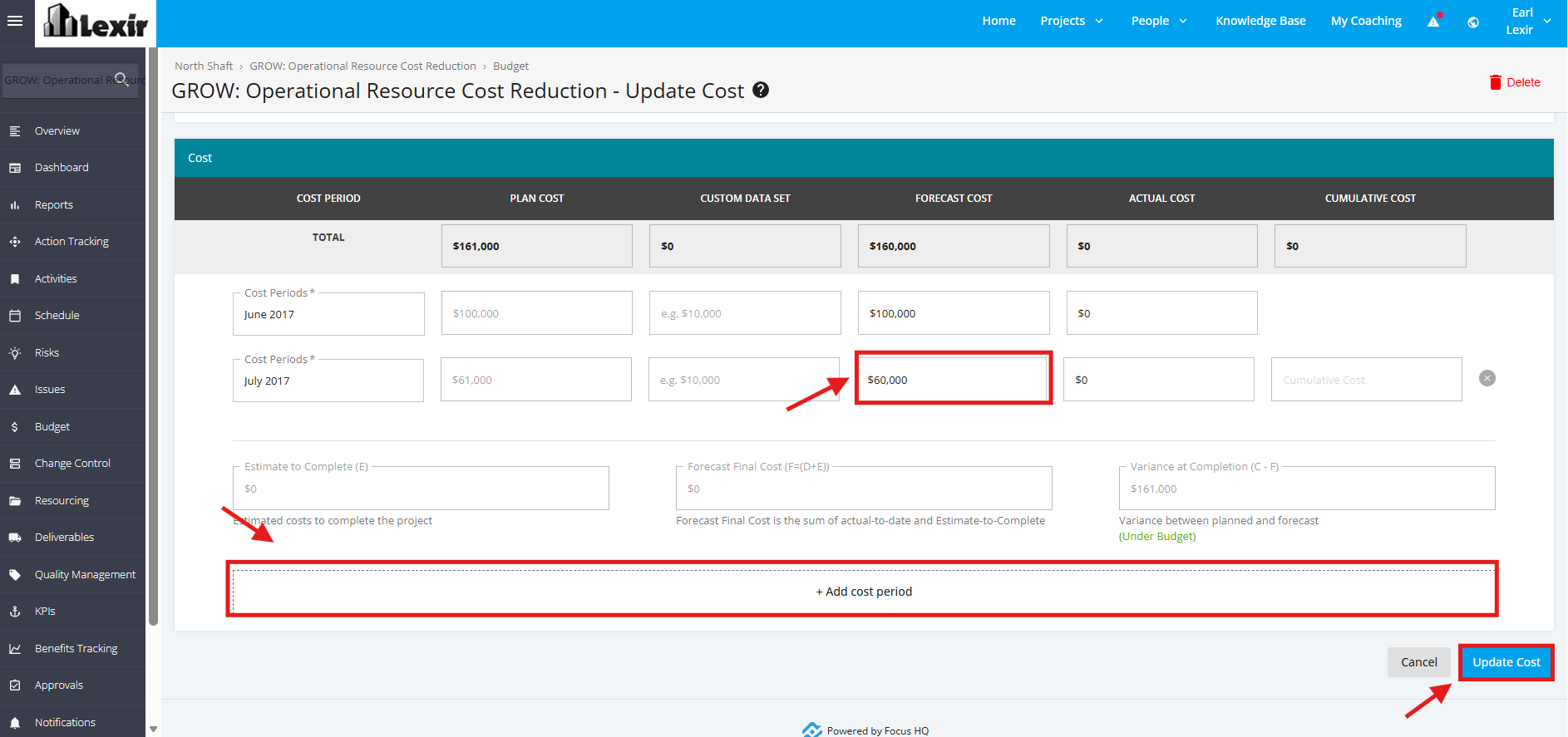
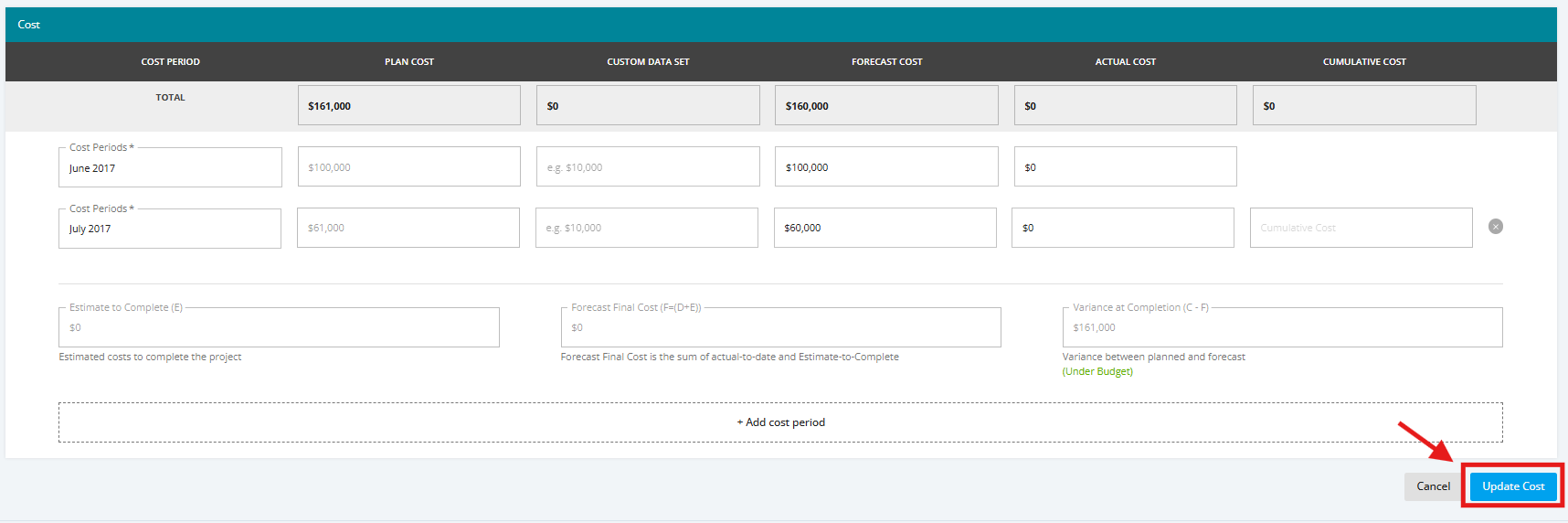
4. To add a cost period, click ‘+Add Cost Period’ and add the Period and Forecast cost. You can also update current or future ‘Forecast Cost’.
Once done, click the ‘Update Cost’ button to save the changes.
5. To check if Cost Impact is successfully implemented, go back to the ‘Budget’ page and then navigate to the ‘Detailed Cost’ section. Select the budget item that you updated.
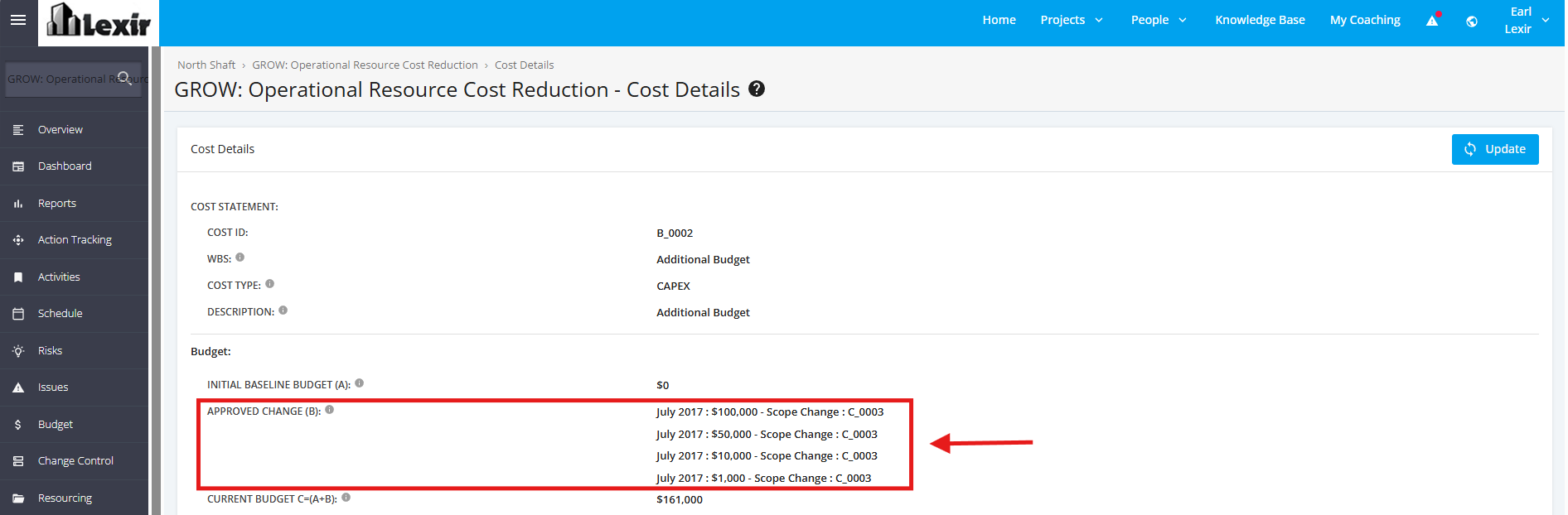
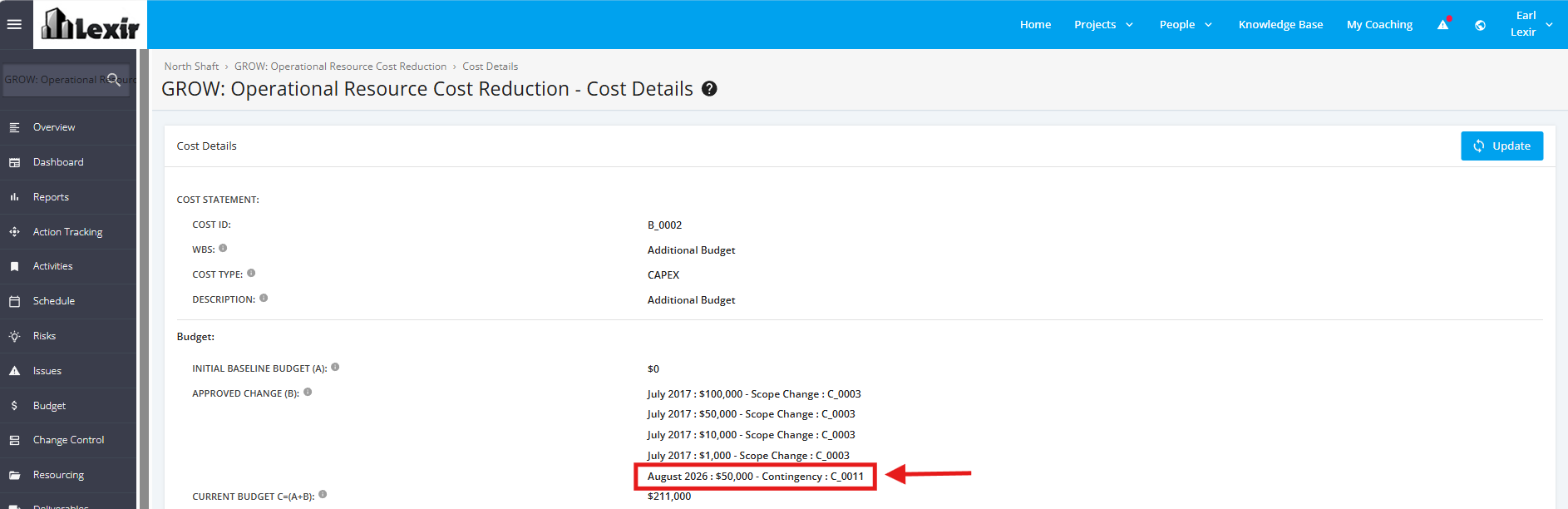
Once you reach the Cost Details page, go to the ‘Budget’ section and then check the ‘Approved Change’ field if the Implemented Cost Impact is displayed.
1.2 Cost Impact (Scope Change)
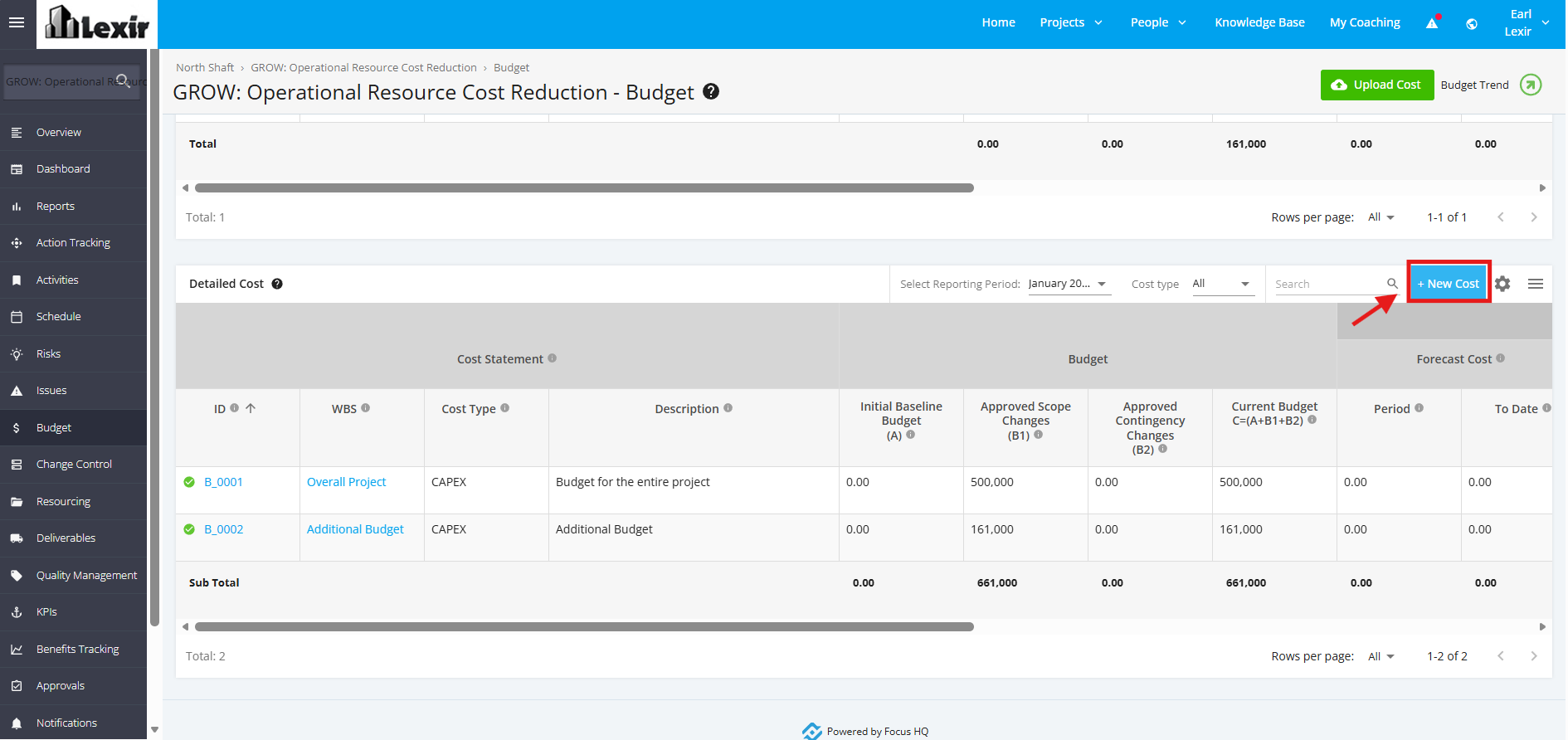
If the type of the approved Change Control Request is ‘Scope Change’, click the ‘Budget’ Module from the left sidebar of the page. Once done, go to ‘Detailed Cost’ section.
Add Budget Item:
1. To add a budget item, click the ‘+ New Cost’ button.
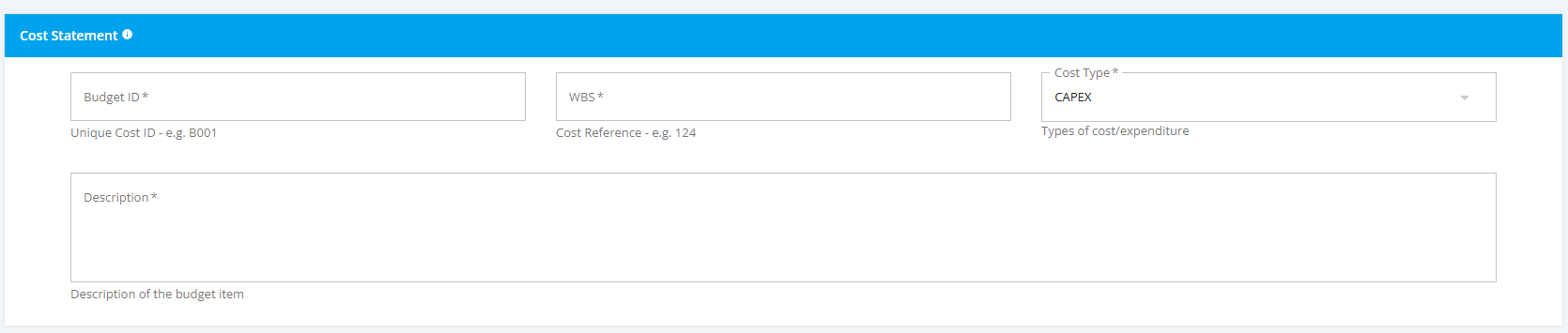
2. In the New Cost page, input the required fields: ‘WBS’, ‘Cost Type’, ‘Description.
Then, navigate to the ‘Change Requests’ section and select a Scope Change Budget Allocation in the 'Allocate' dropdown list and add the amount.

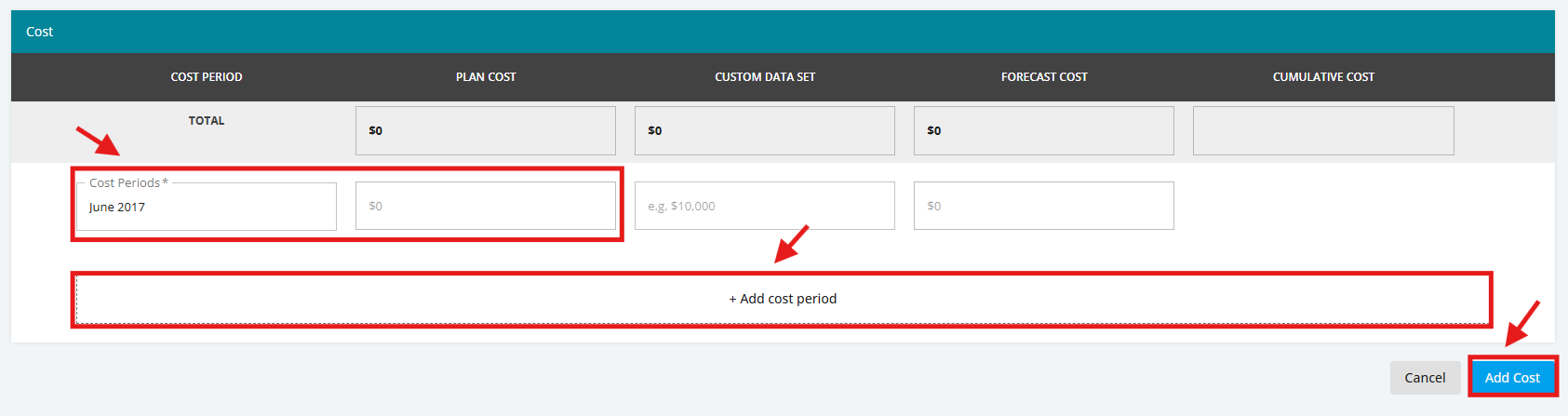
3. In the 'Cost' section, select a Cost Period and add a 'Plan Cost'. To add more cost periods, click ‘+Add Cost Period’.
Once done, click the ‘Add Cost’ button.
Update a Budget Item:
1. To update a budget item, navigate to the ‘Detailed Cost’ section and then select any of the budget items that you want to update.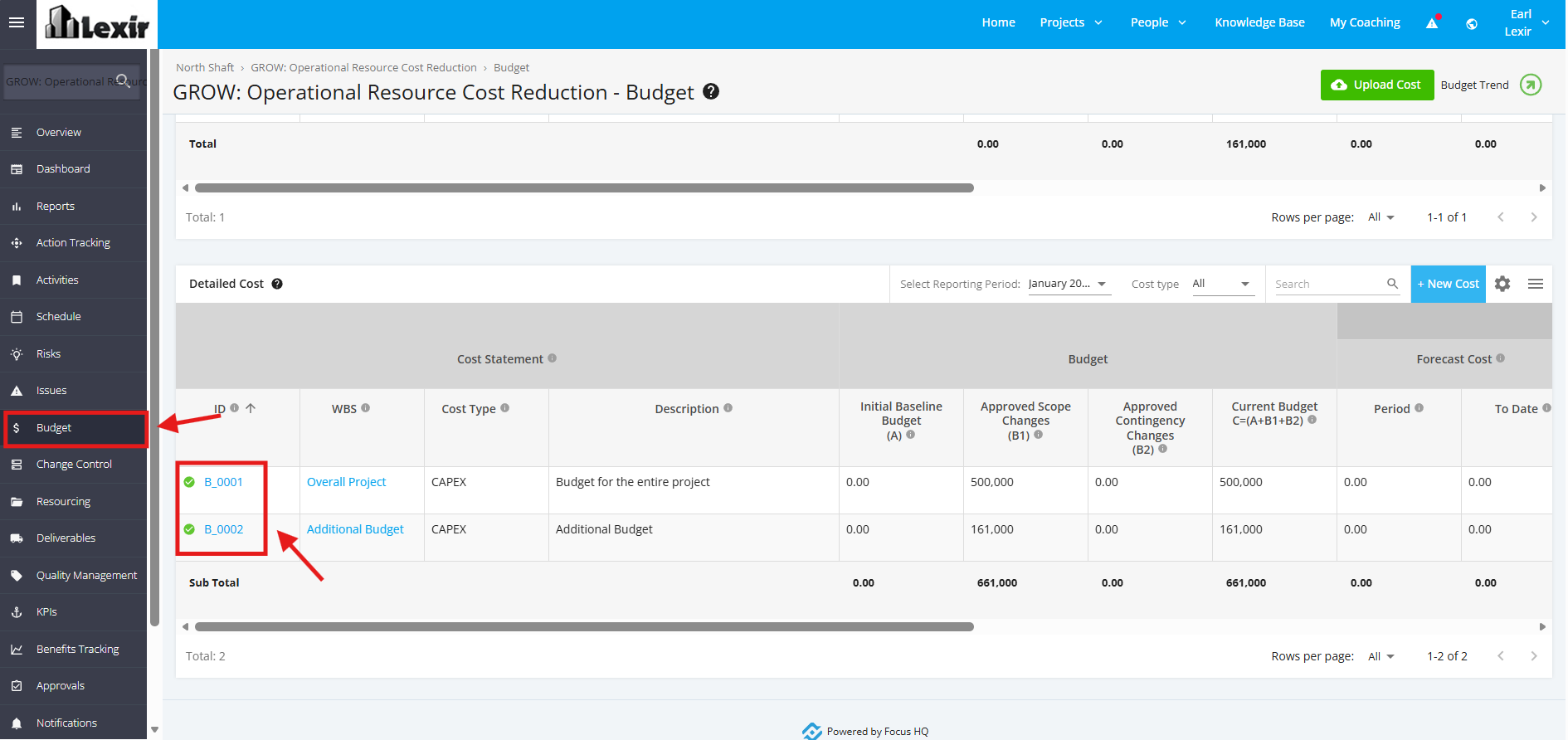
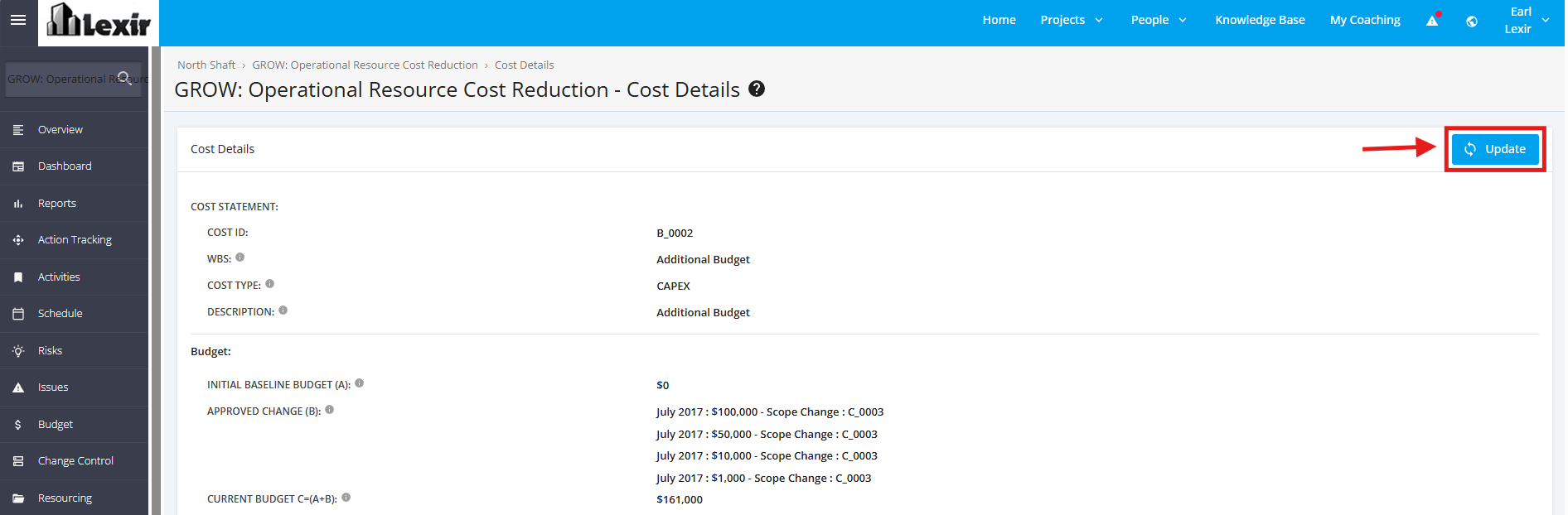
2. Within the ‘Cost Details’ page, click the ‘Update’ button.
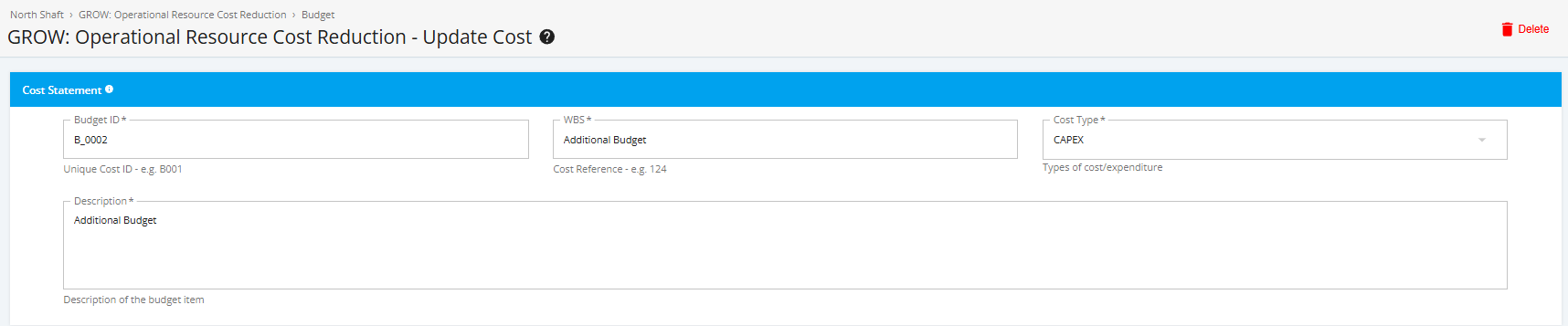
3. Start adding the necessary changes in the ‘Update Cost’ page. Once complete, click the ‘Update Cost’ button to save changes.
4. To check if Cost Impact is successfully implemented, go back to the ‘Budget’ page and then navigate to the ‘Detailed Cost’ section. Select the budget item that you updated.
Once you reach the Cost Details page, go to the ‘Budget’ section and then check the ‘Approved Change’ field if the Implemented Cost Impact is displayed.