
1. Change Control Actions Table
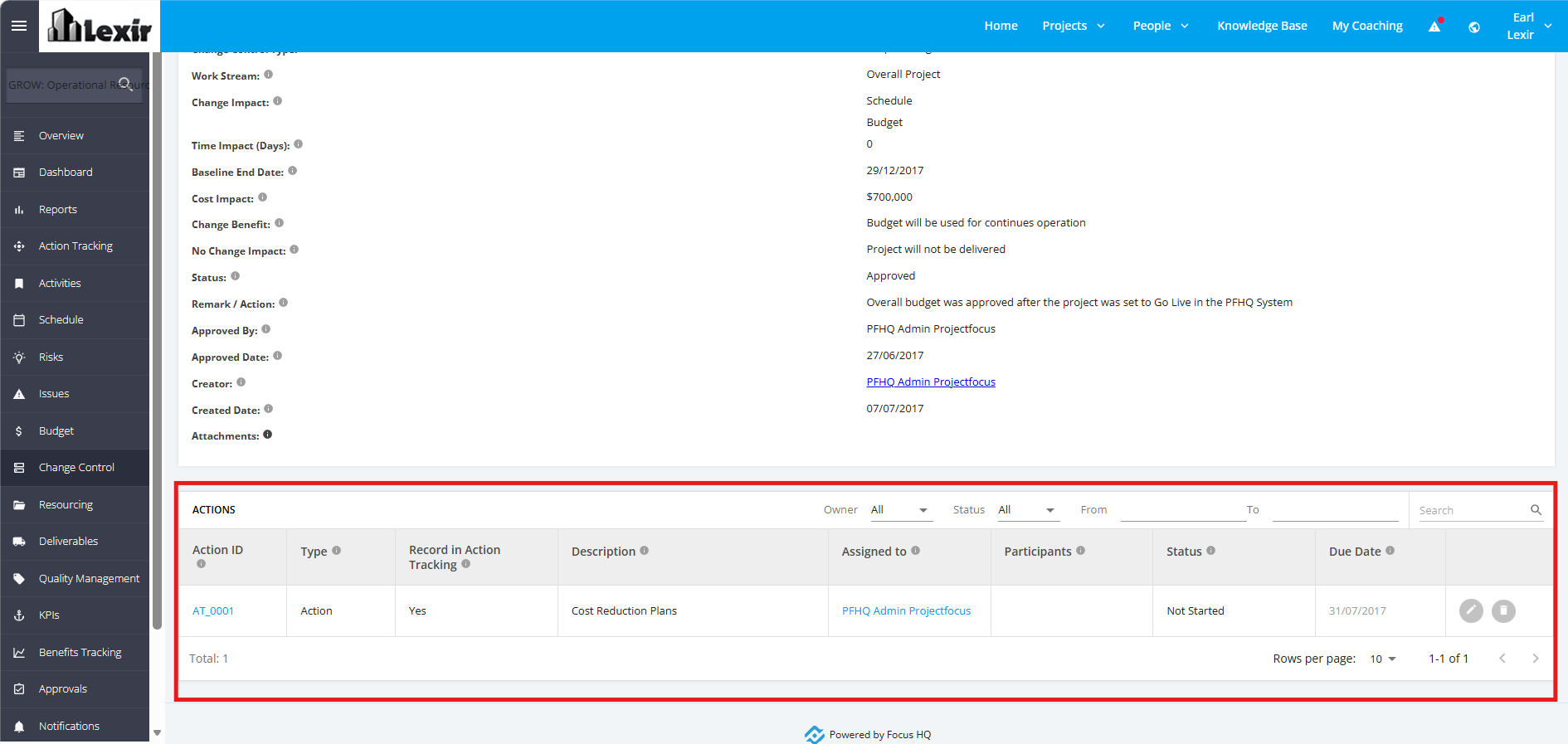
You can filter list of Action Items for a Change Request item to display with the following options: Owner, Status, From, To
You can select one or more filters. Once the desired filters are configured, the Actions List will display only the items that match the selected filter criteria.
You can also search an Action Item within the Change Request item.
To access the table, go to an Execution Project. Click the ‘Change Control’ tab from the left sidebar of the page and then click any Pending/ Approved Change Request item.
Once redirected to the Change Control Details page, scroll down to the 'Actions' table.
1.1 Filter Actions by Owner
Click the ‘Owner’ dropdown menu. Once done, tick a checkbox containing the Owner you want to display.
To display Action items with all Owners, tick ‘All’.

1.2 Filter Actions by Status
Click the ‘Status’ dropdown menu. Once done, tick a Status you want to display.
To display Action items with all statuses, tick ‘All’.

1.3 Filter Actions by From and To Dates
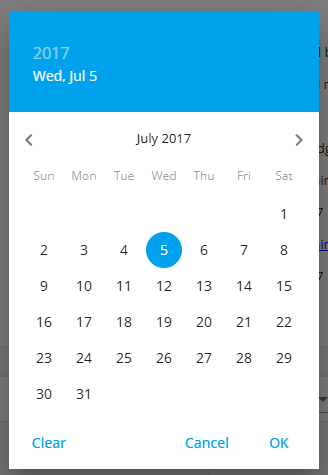
Click the ‘From’ calendar picker and select a start date. Then, click the ‘To’ calendar picker and select an end date to view Action Items whose due dates fall within the selected date range.

1.4 Search Action Item
To search an Action Item within the Actions Table, enter the Action Name in the ‘Search’ field’.
Once done, click the ‘Magnifying Glass’ icon or press ENTER.
