1. Add Automated Kick-Off (Full Kitting) Checklist
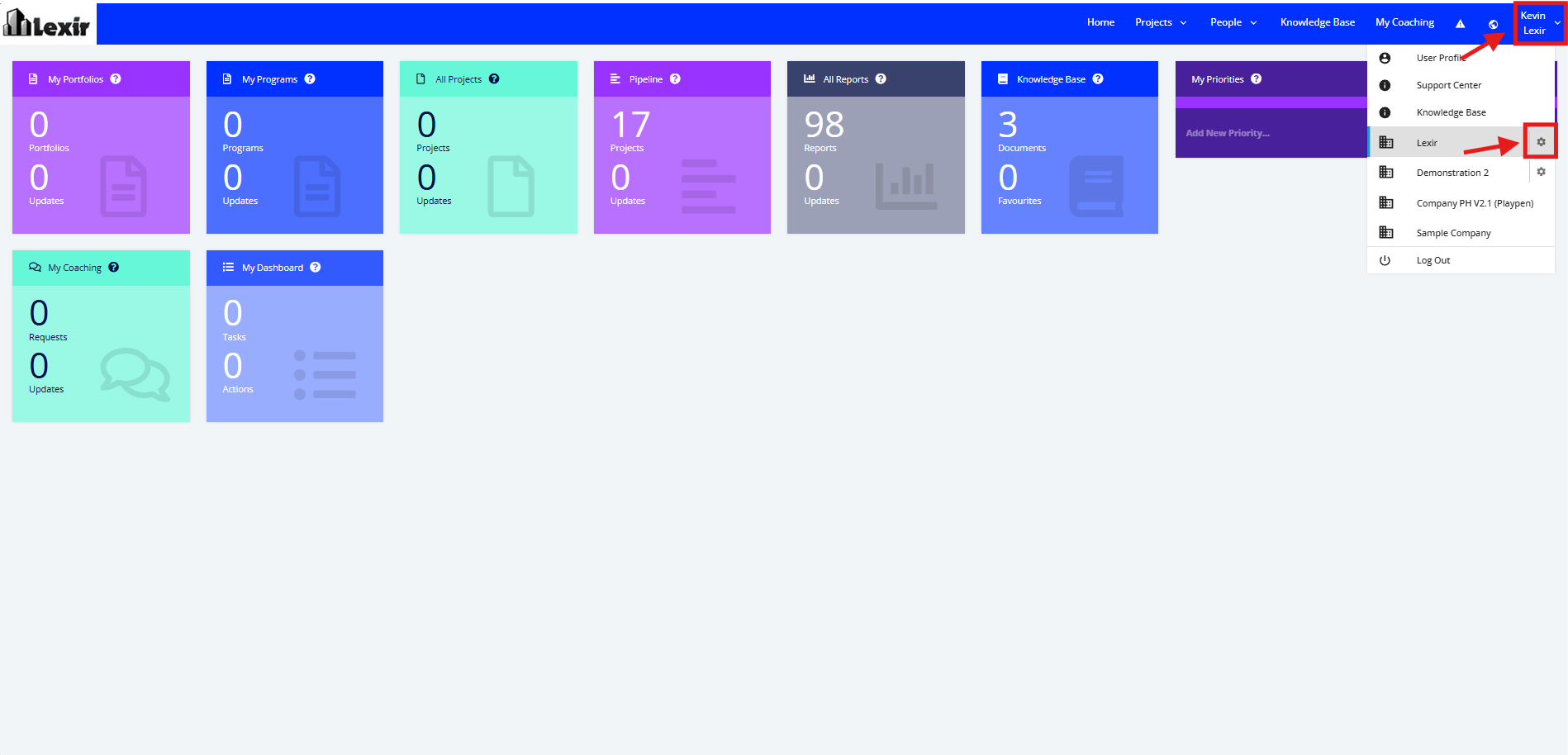
1. Go to the Top Navigation, hover over your ‘Company Name’ then click on the ‘Edit’ icon as shown below.
Once done, you will reach the Company Profile.
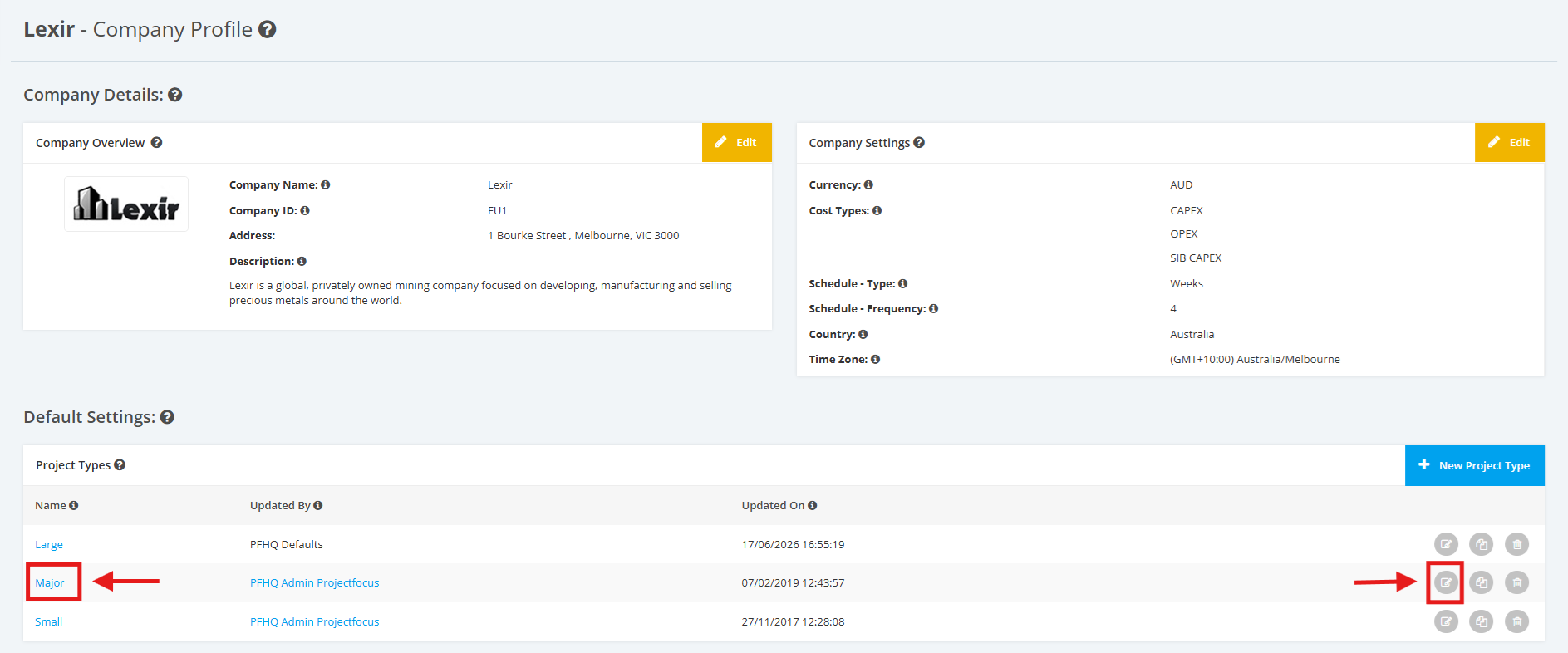
2. Within the Company Profile, navigate to the ‘Default Settings’ section then ‘Project Types’. Click the ‘Edit’ icon or the name of the Project Type.
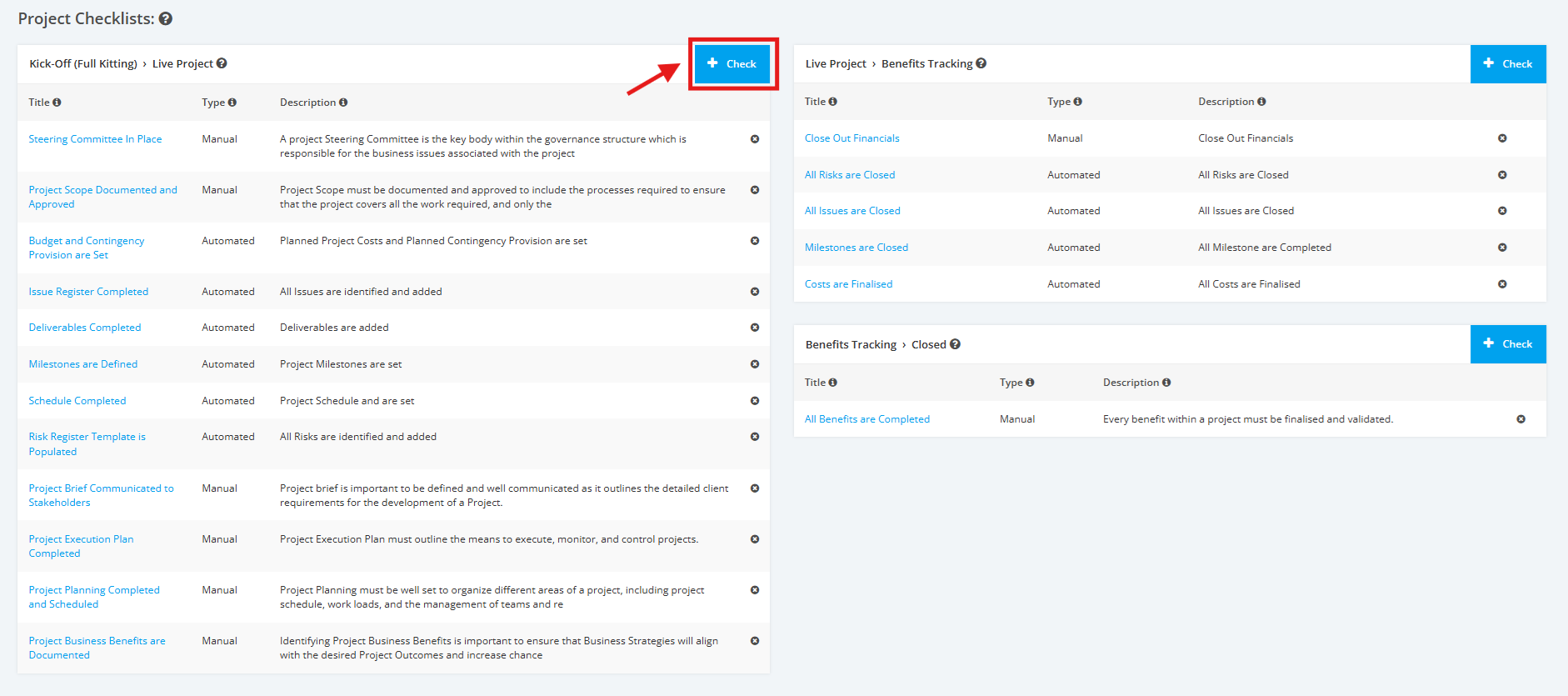
3. On the Project Type Settings page, scroll to the ‘Project Checklists’ section then the ‘Kick-Off (Full Kitting) > Live Project’ list. Click the ‘+ Check’ button to add a Kick-Off (Full Kitting) checklist.
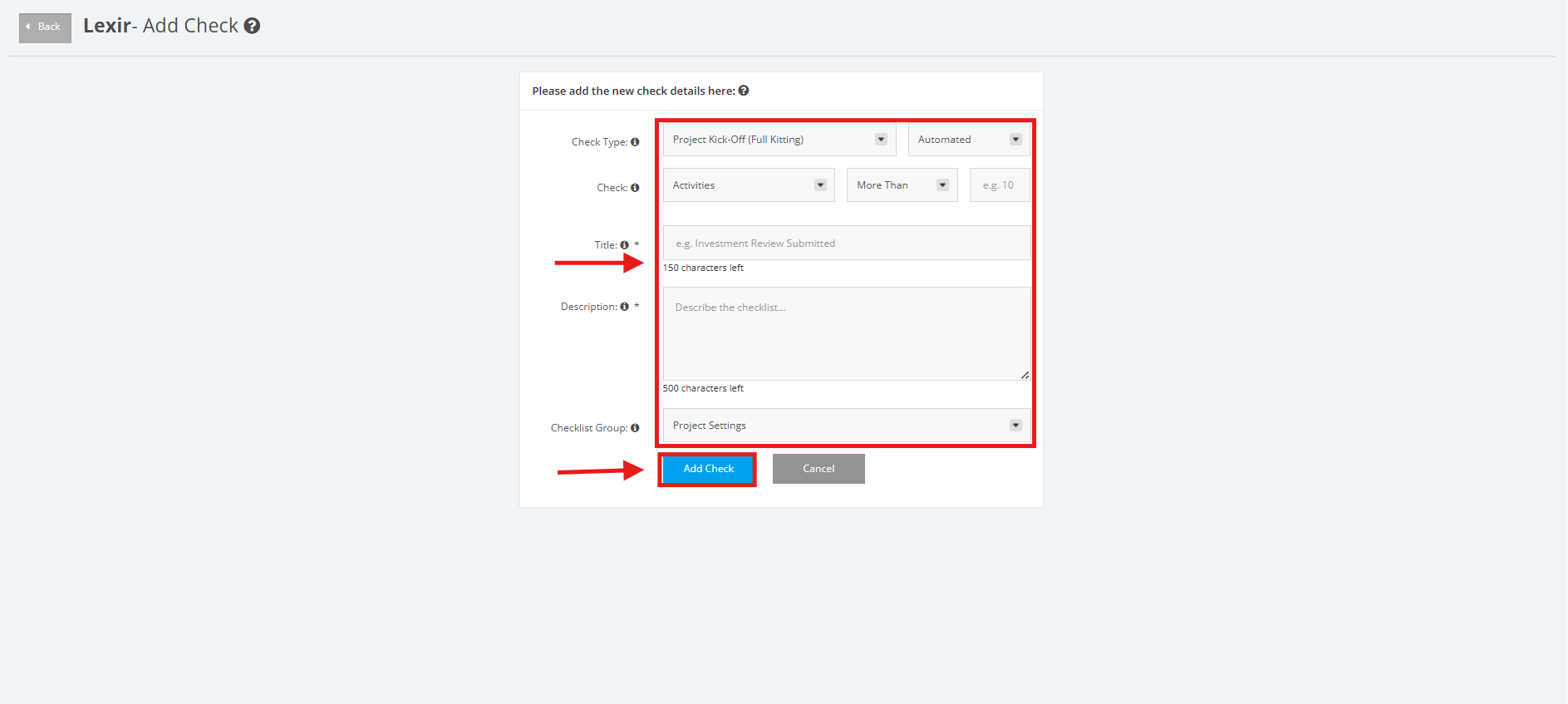
3. Fill in the necessary information in the following fields:
‘Check Type’
For the first dropdown field, select the 'Project Kick-Off (Full Kitting)' option.
For the second dropdown field, select 'Automated'
'Check'
- 'Module' - Select from the following dropdown options: 'Activities', 'Schedule', 'Milestones', 'Risks', 'Issues', 'Budget', 'Resourcing Assignments', 'Deliverables', 'Quality Management', 'KPIs'
- 'Frequency' - Select from the following dropdown options: 'More Than', 'Less Than', 'Equal'
- 'Value' - Input number of items for the selected module
‘Title’ - Name of the action or step to be considered as part of the checklist
‘Description’ - A brief description of the step or action taken
‘Checklist Group’ - Select from the following dropdown options: 'Project Settings', 'Project Modules'
Once done, click the ‘Add Check’ button.