1. Set-up Approved Opportunity Role Responsibilities
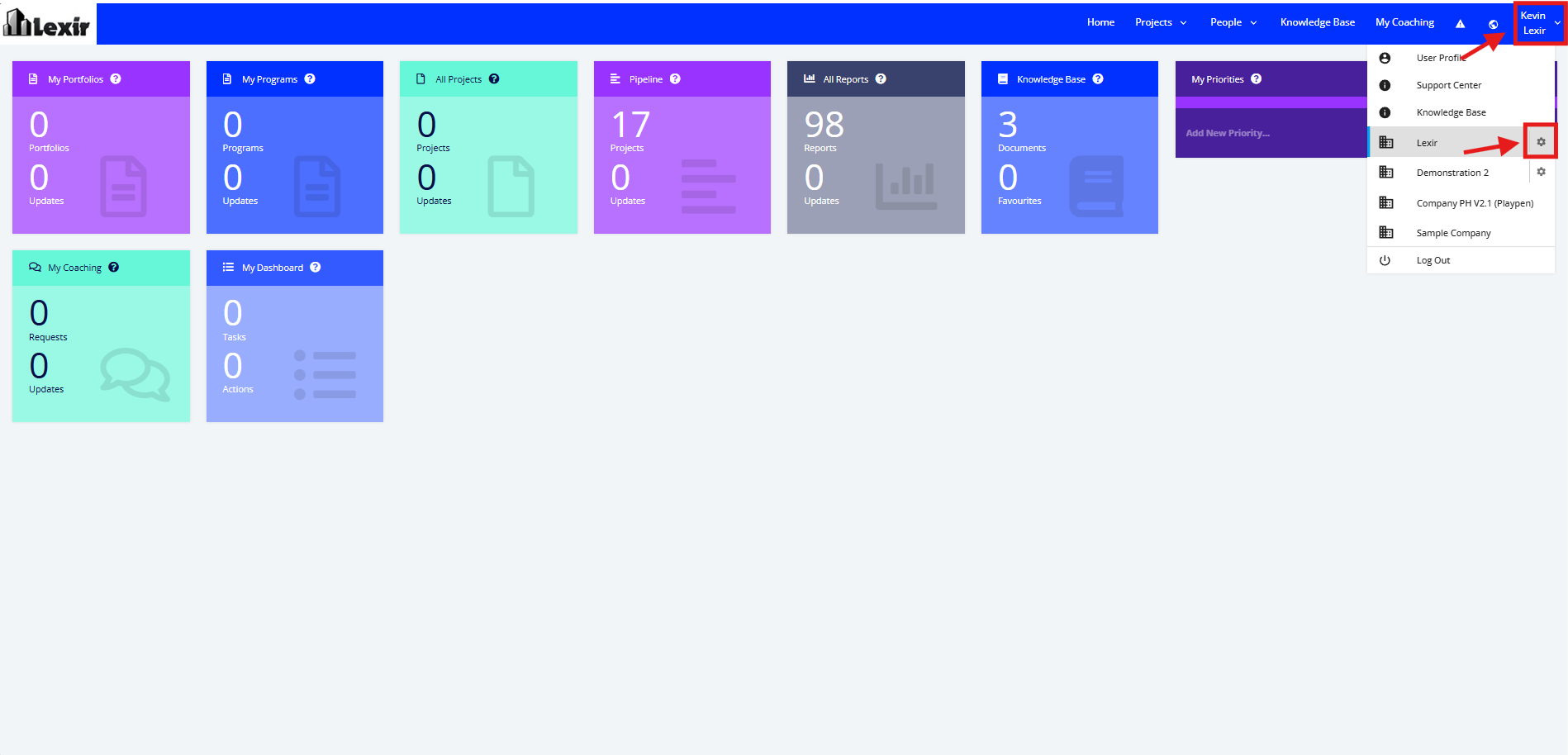
1. Go to the Top Navigation, hover over your ‘Company Name’ then click on the ‘Edit’ icon as shown below.
Once done, you will reach the Company Profile.
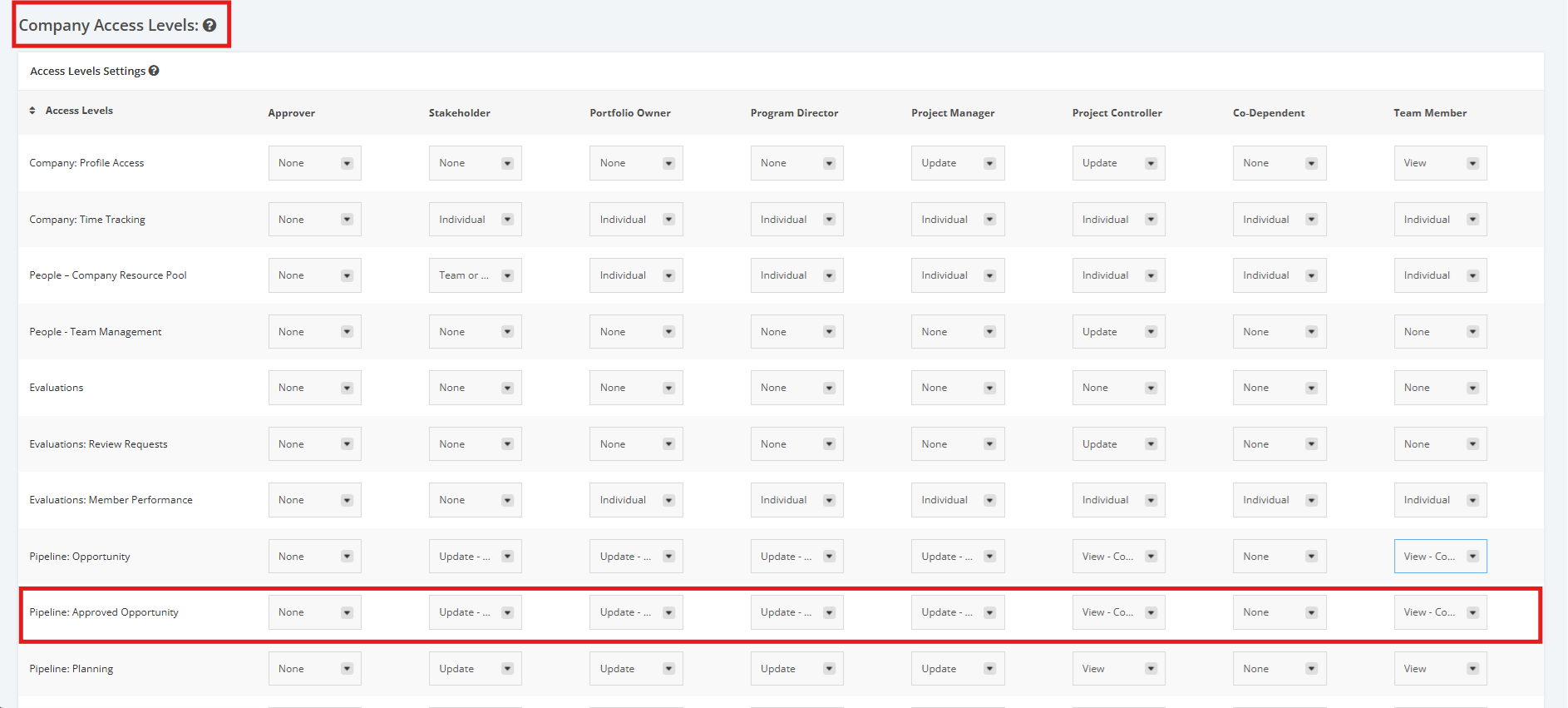
2. Once you reach the Company Profile, navigate to the ‘Company Access Levels’ section then ‘Pipeline: Approved Opportunity’. Click the dropdown menu and assign a User Role to their corresponding access rights to Approved Opportunity projects.
- Update - Company Level- user can ‘Add, Edit, or Remove’ Approved Opportunity Projects
- View - Company Level- user can see but cannot ‘Add, Edit, or Remove’ Approved Opportunity Projects
- Update - Portfolio Specific- User can ‘Add, Edit, or Remove’ Approved Opportunity Projects for a specific Portfolio (Only available for Portfolio Manager role).
- View - Portfolio Specific- User can see but cannot ‘Add, Edit, or Remove’ Approved Opportunity Projects for a specific Portfolio (Only available for Portfolio Manager role).
- None- cannot update or even view Approved Opportunity Projects