1. Assign an Action to a Resource Demand
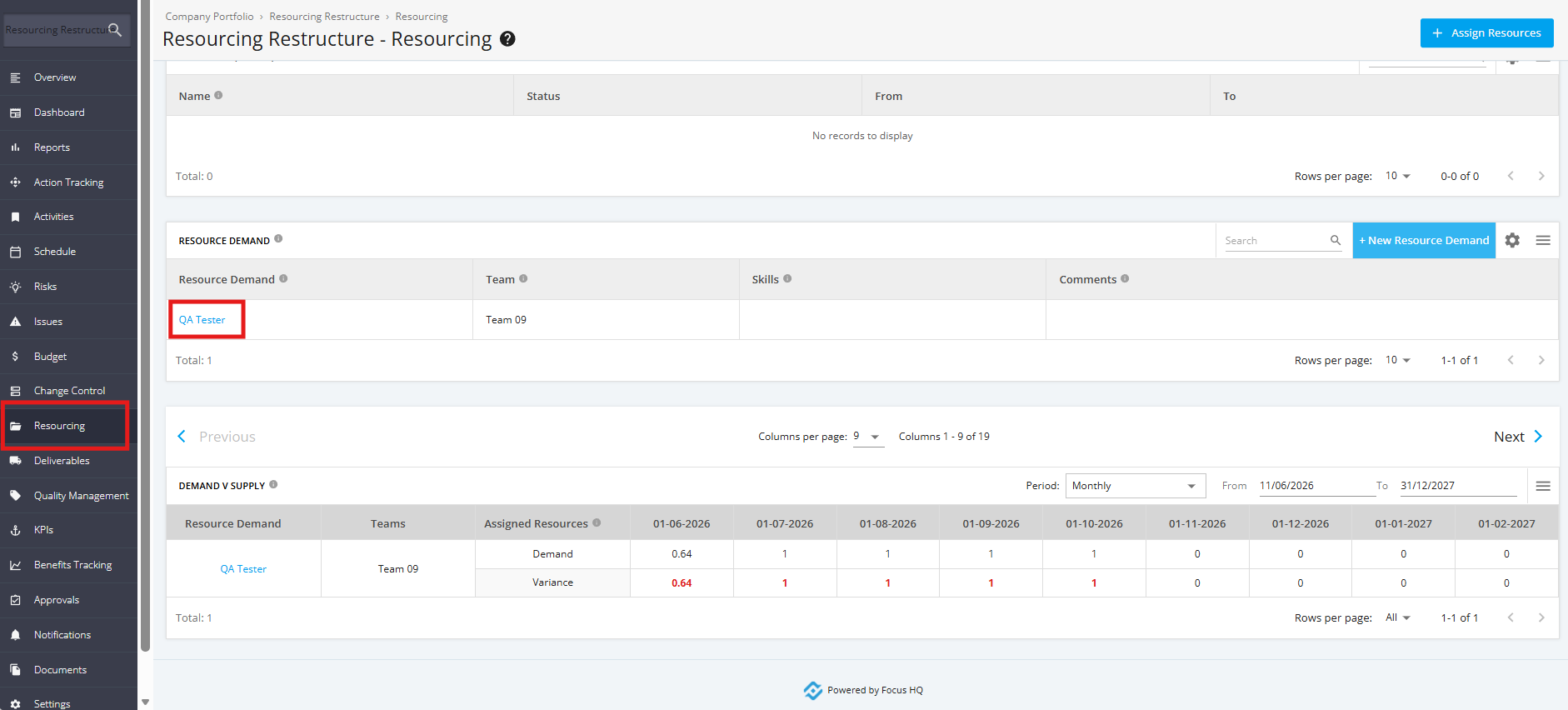
1. To add an Action to a Resource Demand, click the ‘Resourcing’ tab from the left sidebar of the page. Navigate to the ‘Resource Demand’ section, then click the Resource Demand that you want to update.
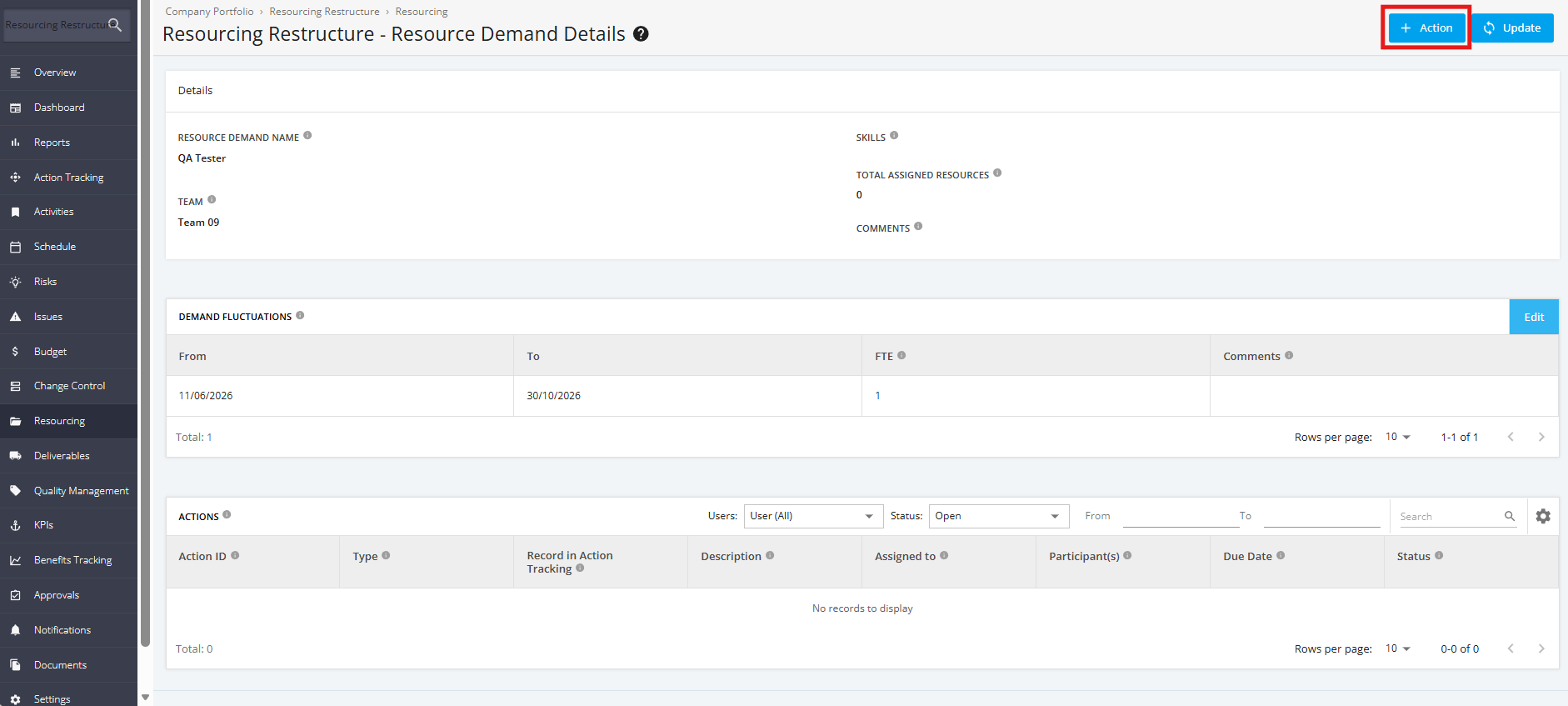
2. Click the ‘Action’ button within the ‘Resource Demand Details’ page.
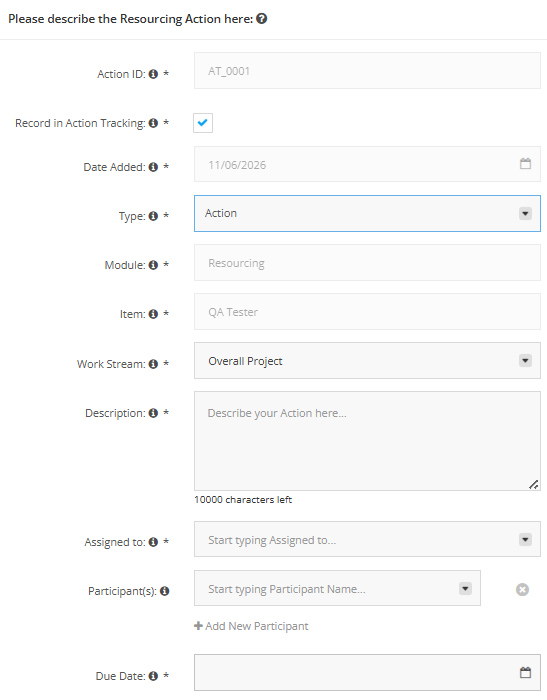
3. Fill in the required fields:
- ‘Action ID’ – Unique Identifier for the Action item (This is auto-generated.)
- ‘Record in Action Tracking’ – if ‘Tick box’ is selected, the added Action will display in the ‘Action Tracking’ module.
- ‘Date Added’ – Date the action is added (This is set to Current Date.)
- ‘Type’ – Category of the tracked action item for teams to know how to manage and respond to it
- ‘Module’ – The module where the action item is coming from (This is automatically filled to Resourcing Module)
- ‘Item’ – The Resource Demand items where action is to be taken (This is automatically filled to Current Date.)
- ‘Work Stream’ – a structured set of related tasks managed together to achieve a specific part of a project’s overall goal
- ‘Description’ – A brief description of the action item
- ‘Assigned to’ – Person responsible for the action item
- 'Participants' – Other individuals involved in the action item
- ‘Due Date’ – Date expected to complete the action item
4. Once done, click the 'Add Action' button.