1. How to Add Project Key Users
1. To Assign a Key User to a Project, click the ‘Settings’ tab from the left side bar of the Project Page. Once done, navigate to the ‘Assigned Key Users’ section and then click the ‘+ Assign User’ button.
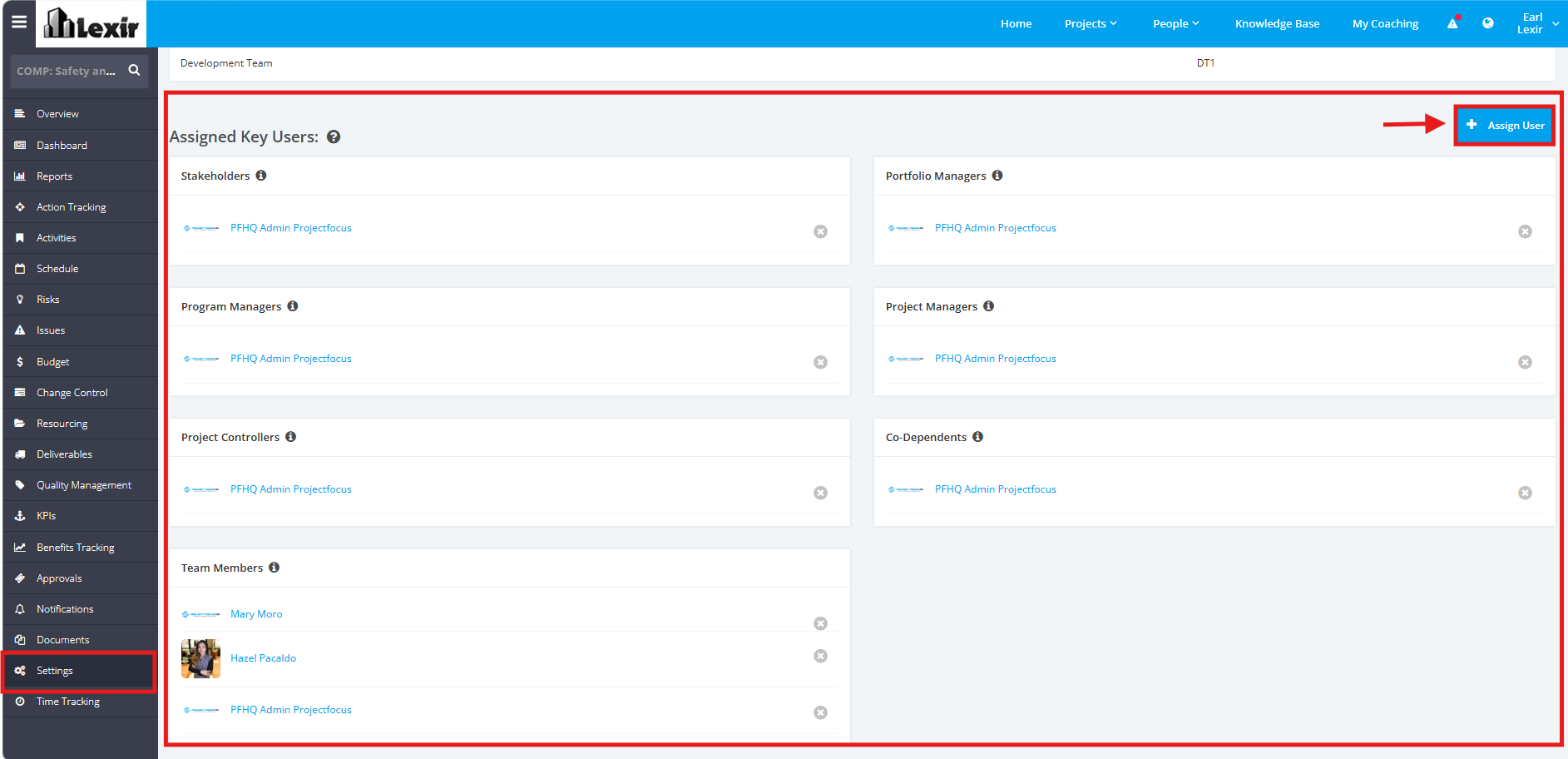
These are the Roles that can be filled in the project:
| Stakeholder | Stakeholders are individuals at the management/leadership level. They have a direct influence on the projects and are accountable for the project's success. |
| Portfolio Manager | All Portfolio Manager Users within this project. A portfolio manager manages all projects that role into the programs that go into the portfolio. For most businesses, the portfolio encompasses all projects for the entire company. |
| Program Manager | Program managers oversee all projects that roll into their program. For most companies, programs are grouped by similar or related projects. However, they can also be grouped according to sub-departments and / or service type. For example, all projects pertaining to IT Efficiency can be rolled into one IT Efficiency program. |
| Project Manager | Project managers are leaders of a specific project. They report directly to the Program Managers, Portfolio and / or Stakeholders through weekly and monthly reporting. Project Managers are accountable for the delivery, report status', control scope and effective communication amongst team members. |
| Project Control | The Project Control (or PMO) individuals assist with standardisation of project delivery, project lifecycle & stage gate approvals, centralised governance and other project functions. Companies can assign Project Controls by Portfolio's/Program's or assign to a company-wide PMO (if applicable). |
| Co-Dependent | Co-Dependents are individuals who are impacted by the project's delivery, resources, milestone dates and / or the outcomes of the project. For example, a Project Manager is assigned as a Co-Dependent to gain visibility of a project which cannot be started until a deliverable is completed. |
| Team Member | Team members are individuals who play any part in delivering a project. Typically this encompasses subject matter experts (SME's), support teams and any other individuals who may not be suited to other available user roles. |
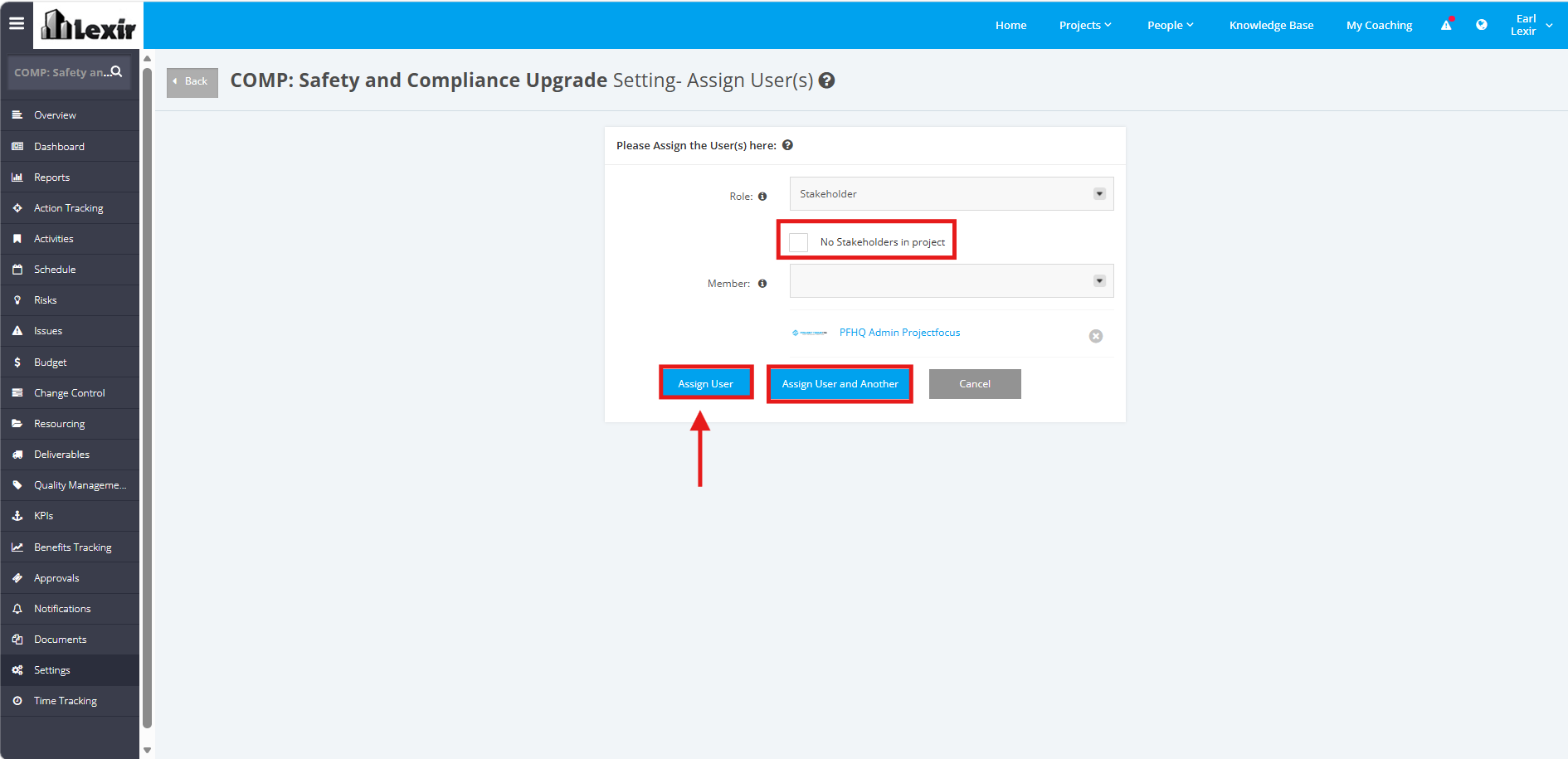
2. Select a ‘Role’ and a ‘Member’ in the dropdown menu. Once done, select any of the following steps below:
- Click the ‘Assign User’ button if you are NOT going to add another user
- Click the ‘Assign User and Another’ button if you are going to add another user
Note:
- You can add a user to 1 or more different roles.
- You can't add a user more than once to the same role.
If there are NO Key Users for a Role in a Project, you can tick the "No role in project" checkbox. And then, click either 'Assign User' or 'Assign User and Another'.