
1. Project Type – Customise Report Header and Footer
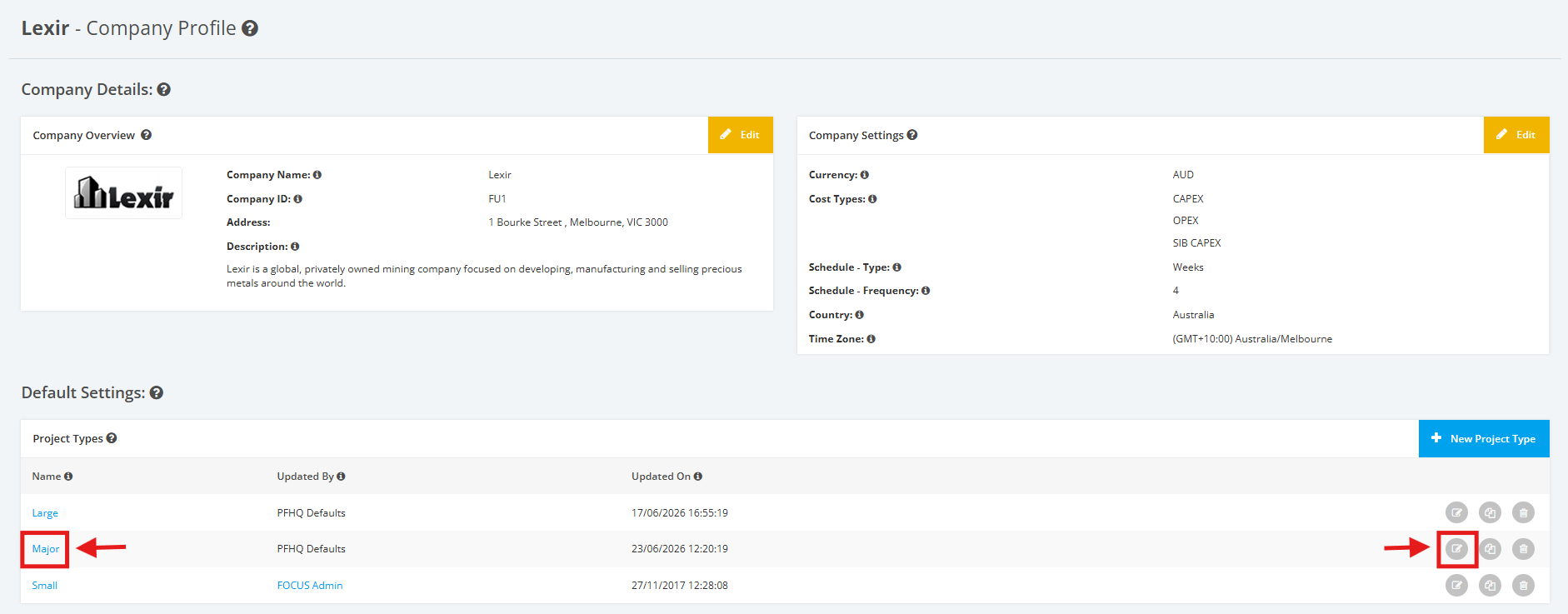
1. Within the Company Profile, navigate to the ‘Default Settings’ section then ‘Project Types’. Click the ‘Edit’ icon or the name of the Project Type.
2. On the Project Type Settings page, scroll to the ‘Report Templates’ section, and tick the 'Custom Report Header and Footer' checkbox.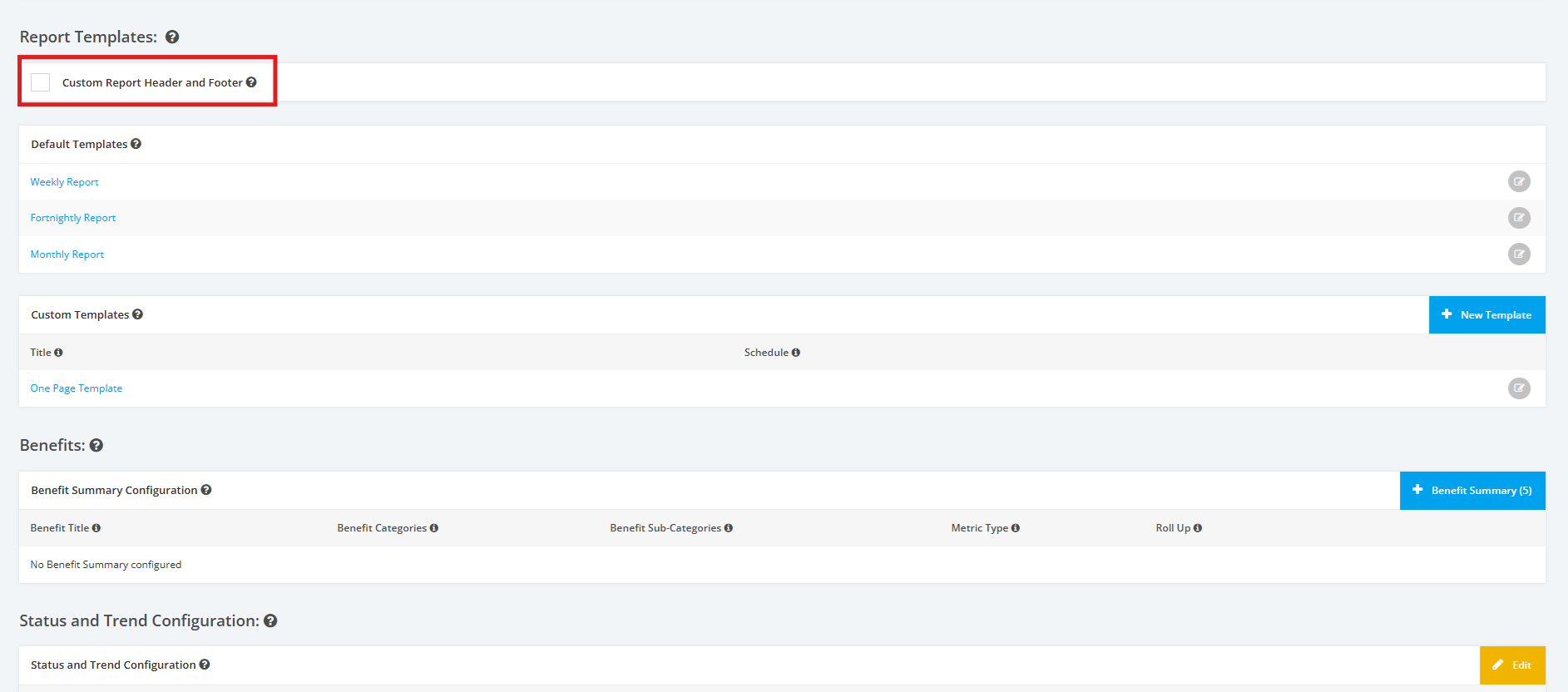
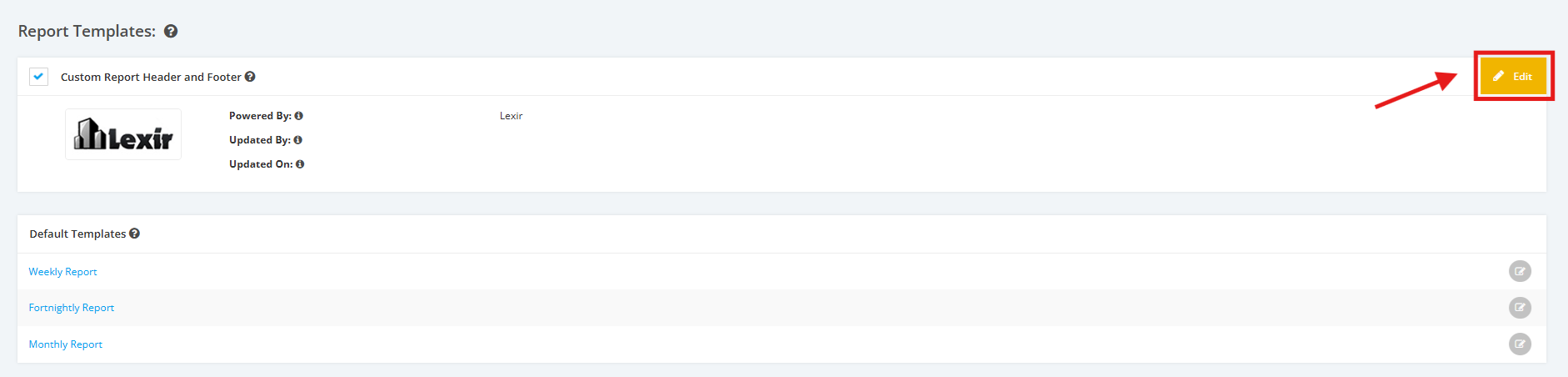
3. After ticking the checkbox, click the 'Edit' button.
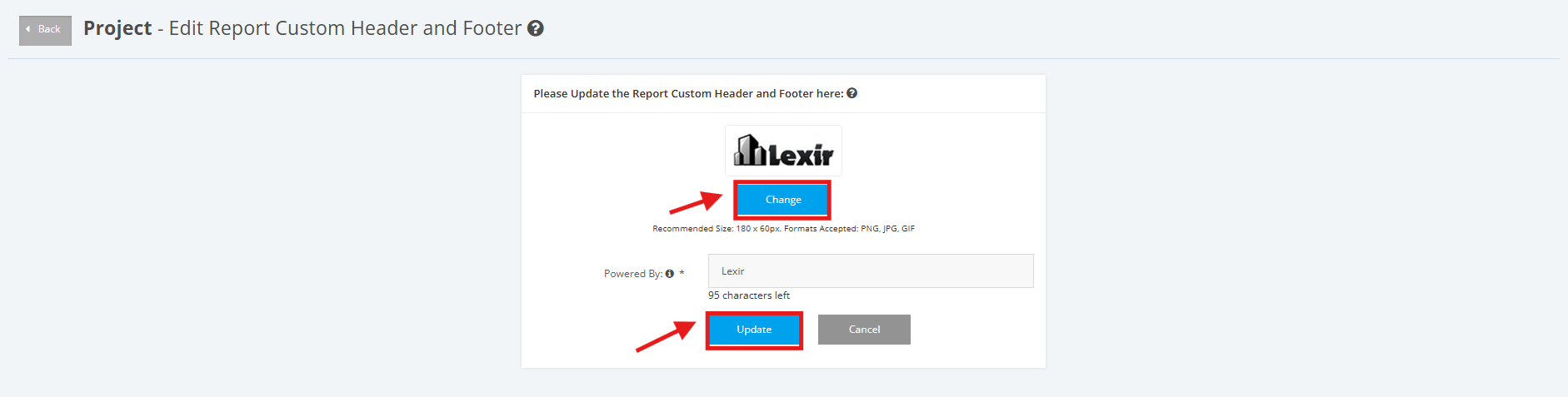
4. To upload an image for Report logo, click the 'Change' button and select an image file.
NOTE: The recommended size of the image should be 180 x 60px. Accepted formats are PNG, JPG/ JPEG, and GIF.
Once selected, click the 'Update' button.
4. To upload an image for Report logo, click the 'Change' button and select an image file.
NOTE: The recommended size of the image should be 180 x 60px. Accepted formats are PNG, JPG/ JPEG, and GIF.
Once selected, click the 'Update' button.