1. Edit Adhoc Report within a Project
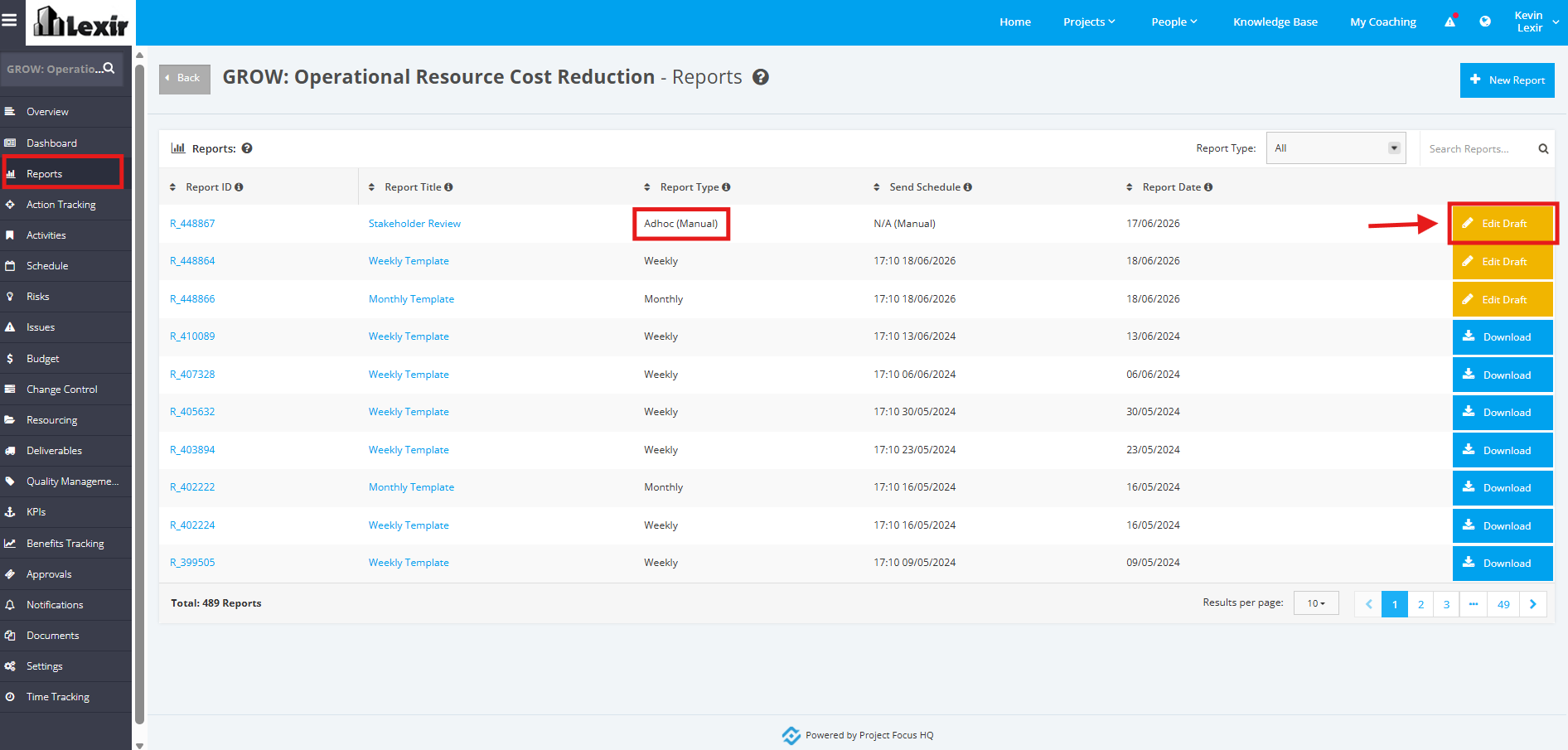
1. To edit an ‘Adhoc Report’, choose the report within the Project ‘Reports’ page, then click the ‘Edit Draft’ button.
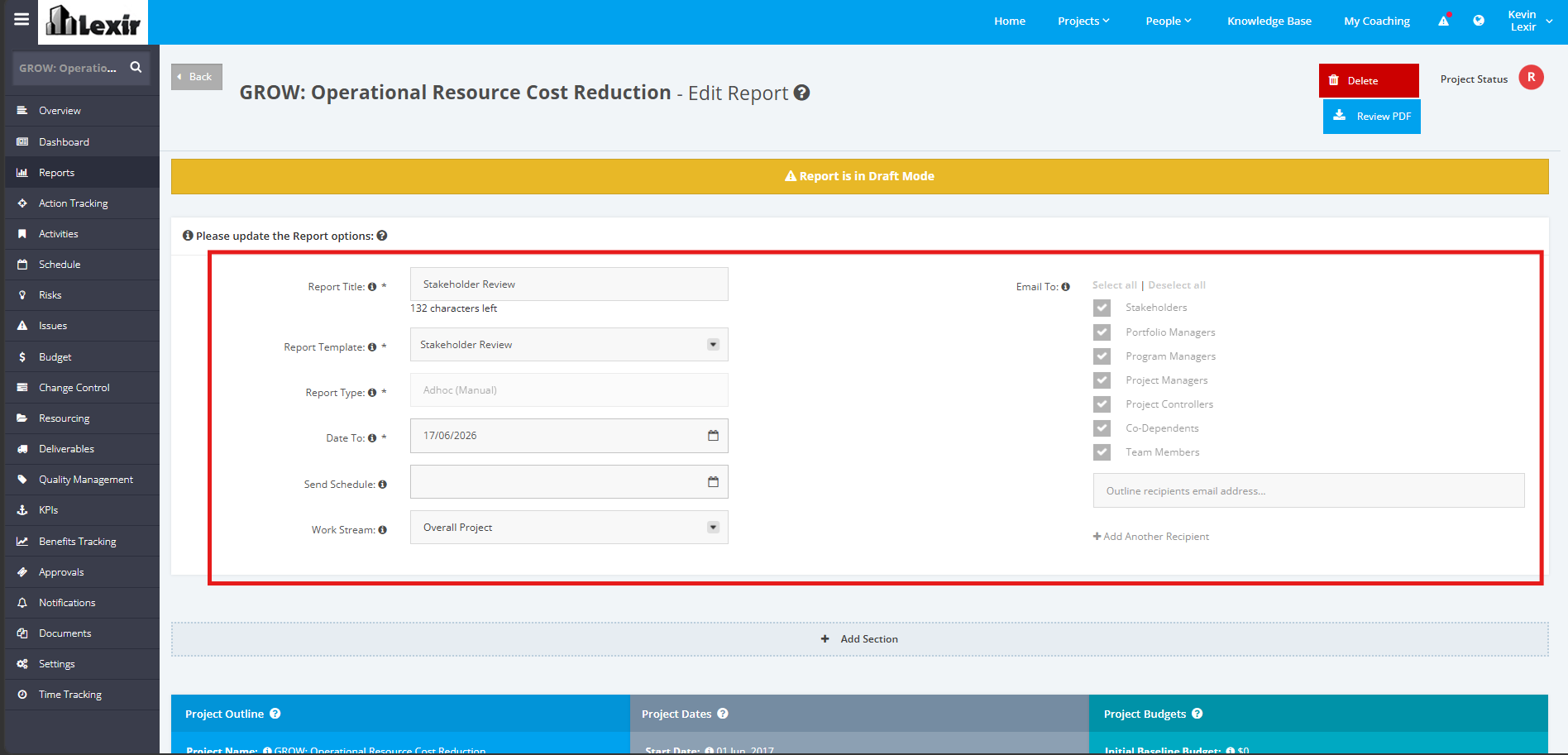
2. In the ‘Edit Report’ section, start adding the changes in the Report Options section as shown below.
The report type can be updated based on the information to be displayed, the metrics to be included, and the data timeframe.
If you want to add another recipient of the report that is external or internal to the project, click on the ‘+ Add Another Recipient’ link and then add the ‘Email Address’ of the recipient.
TIP: If you want to select all Project Roles to be Recipients of the Report, click "Select all", and all of the Roles will be automatically ticked. If you don't want to select any, click "Deselect all".
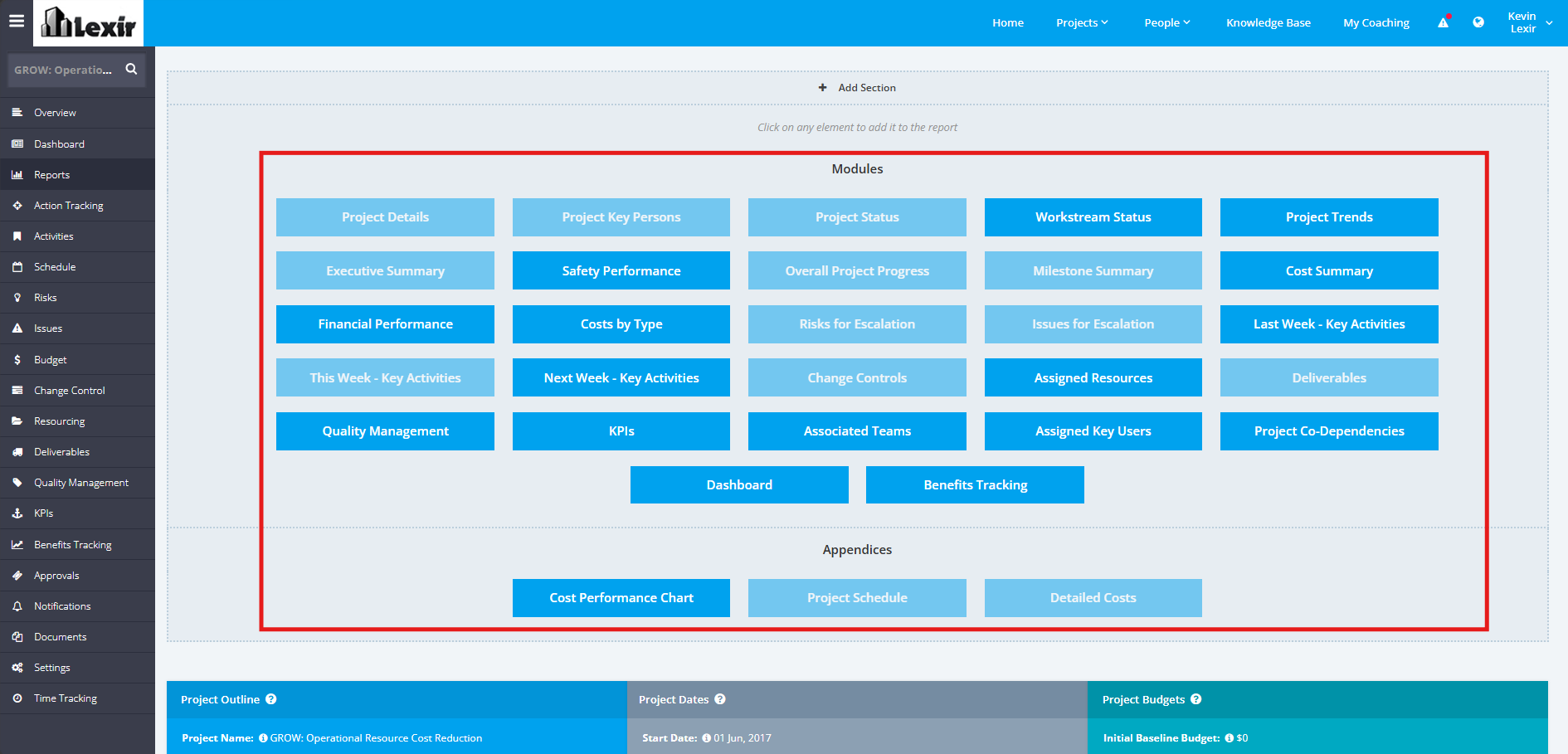
3. To add more elements to the Report, click the ‘+ Add Section’ link. Once done, click the needed elements from Modules or Appendices.
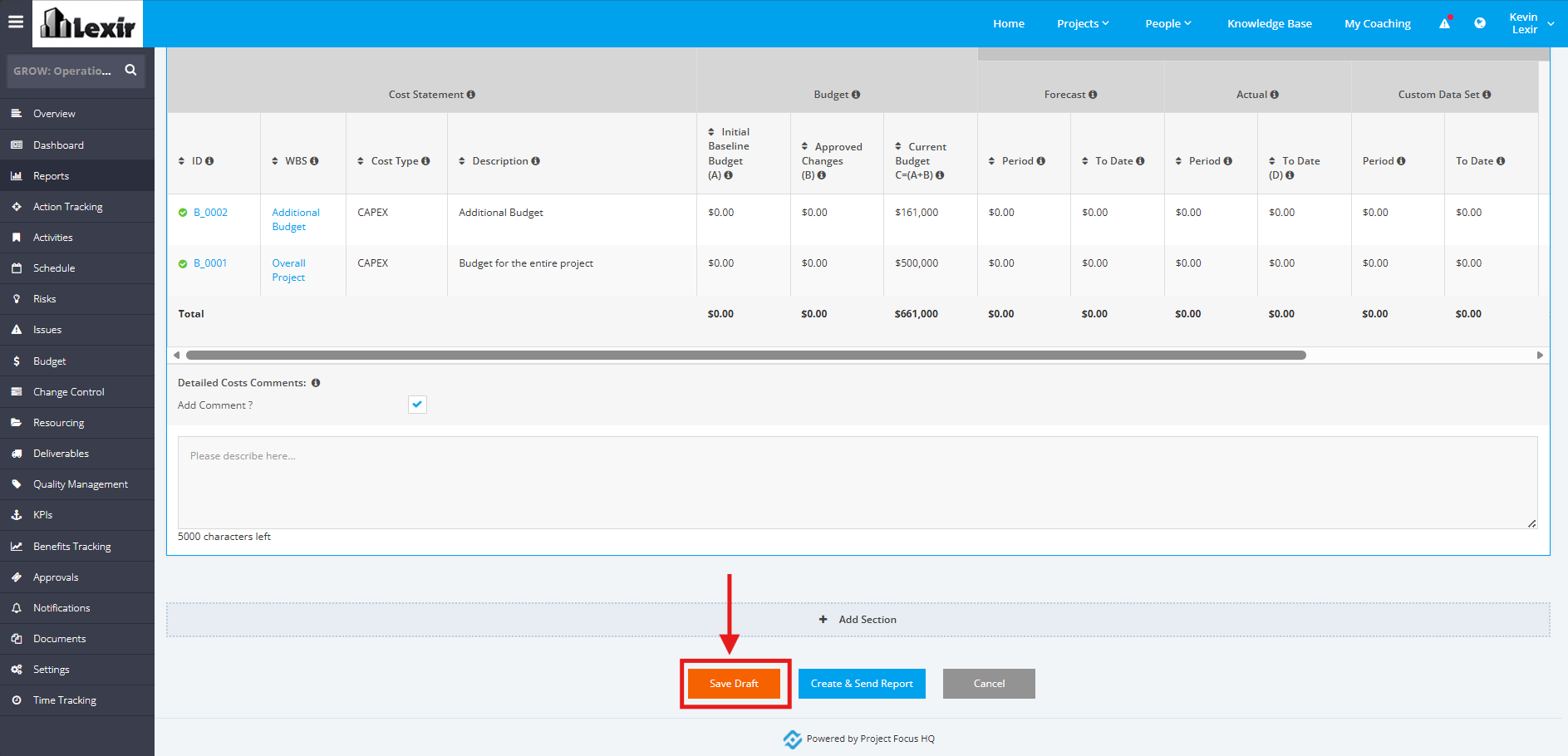
4. After adding the changes, click the ‘Save Draft’ button.