1. Manage Dependencies within a Project Schedule
A dependency is a relationship between two tasks where one task relies on another to start or finish.
It determines sequence and timing, shows how tasks are connected, and affects the overall project schedule.
Managing dependencies supports relationships between tasks (predecessors and successors) and assigning lead and lag periods of time (days, weeks, months).
Predecessor - a task that comes before another task and directly influences when the next task can start or finish. It is considered the "prior task", and it controls the timing of dependent tasks.
Successor - a task that comes after another task and depends on it. It is considered the "following task", and it cannot proceed until its predecessor condition is met.
Focus HQ is using the standard dependency types as per Microsoft Project:
- Finish-To-Start - FS (default type)
- Start-To-Finish - SF
- Finish-To-Finish - FS
- Start-To-Start - SS
Important Note: For predecessors to update automatically when there is a change of dates, duration etc., the Task must be Automatic/unticked in Checkbox and if not Manual/ticked in Checkbox.
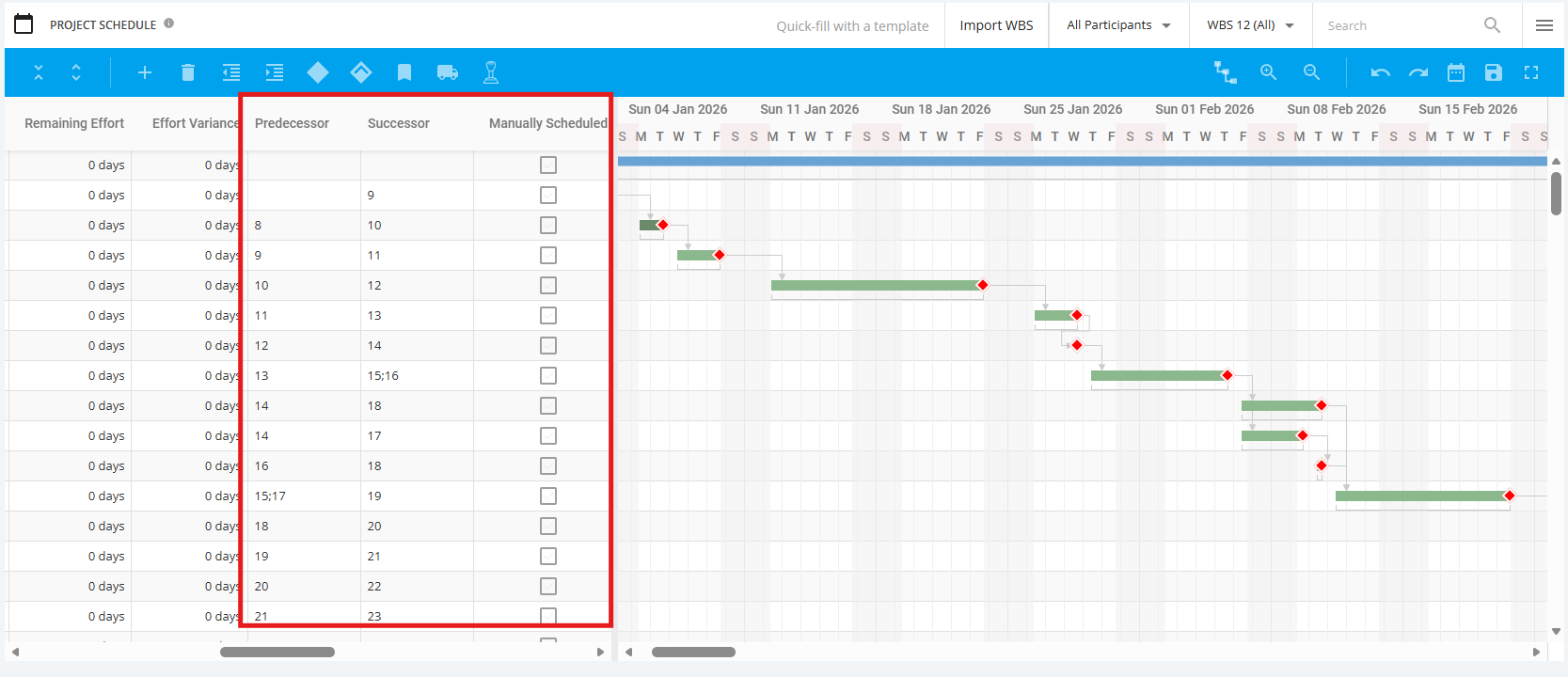
To assign a dependency, the user has three options:
- Click Enter within the Grid, in the column Predecessor/ Successor and manually enter:
- No lead or lag - Type Predecessor/Successor ID + Predecessor/Successor Type, if Finish-To-Start (FS), typing ‘FS’ is not required as this is the default dependency (e.g. 10SS or 9).
- Lead or lag - Type Predecessor/Successor ID + Predecessor/Successor Type, +/- number of days (e.g. 9FS-1)
- For multiple predecessors the separator is a “;” (e.g. 7;12)
- Drag and drop the task link via Gantt Chart (excludes lead or lag option).
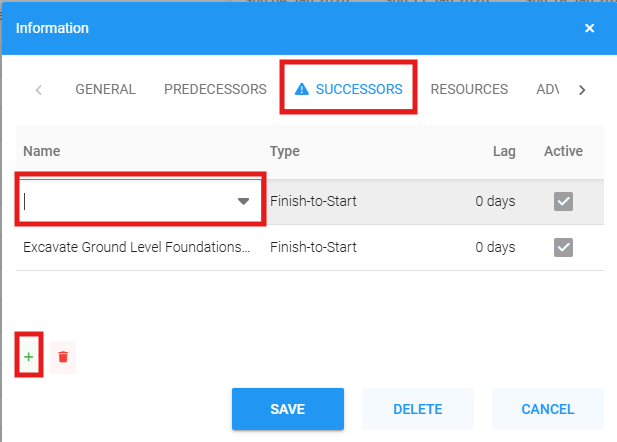
- Task information box - Right click on a task via the Gantt or Grid View, select Edit and select Predecessors/ Successors tab
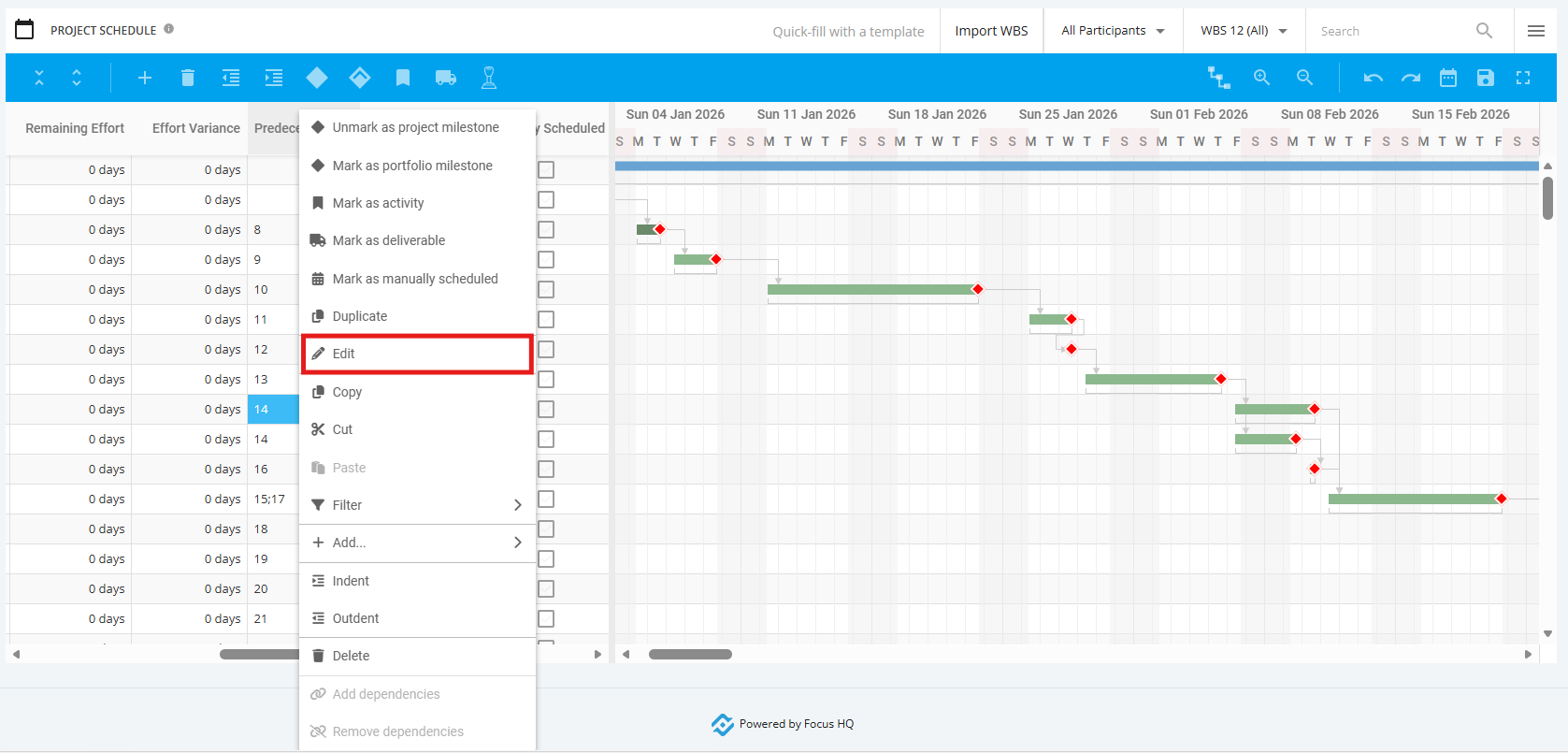
Within the Predecessors/ Successors tab, add a dependency by selecting + icon on the lower left, then navigate to blank line and select task from drop down list. Select Type and Lag/Lead days (default is Finish-To-Start with 0 days). For lead days need to enter – sign.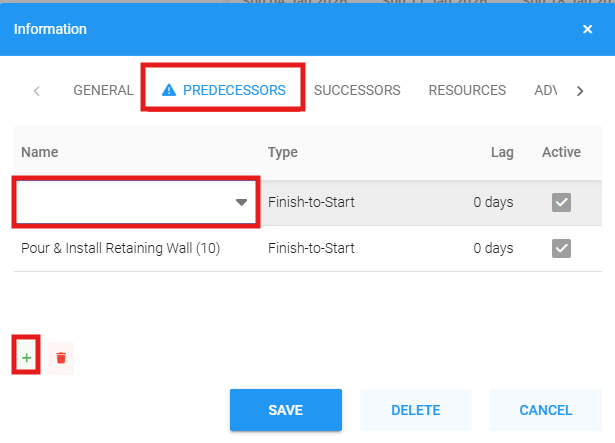
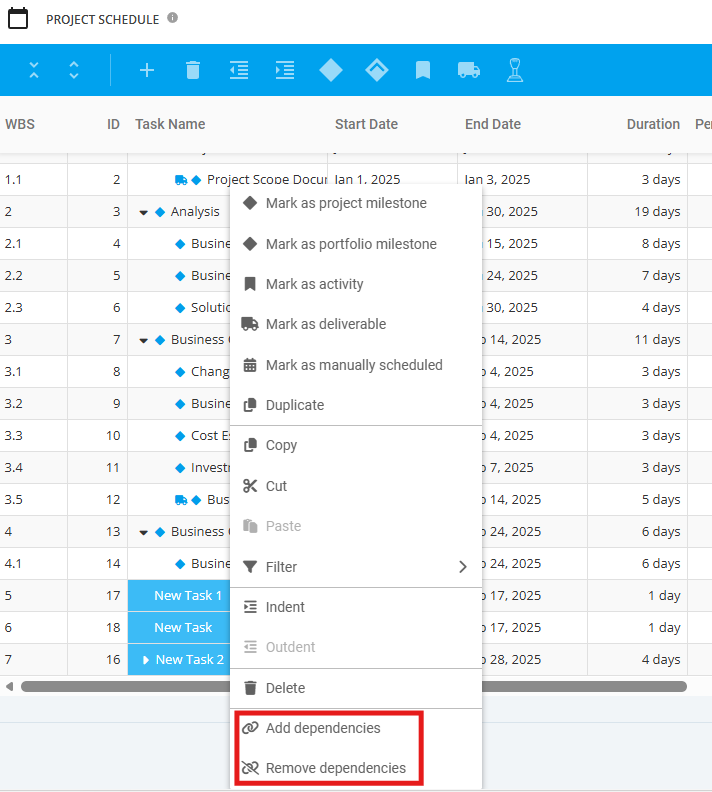
- Select more than one task, then right-click and select "Add Dependencies". The Predecessor and Successor fields will be automatically filled out based on the selected tasks. To remove these dependencies, select the same tasks, right-click and select "Remove Dependencies".